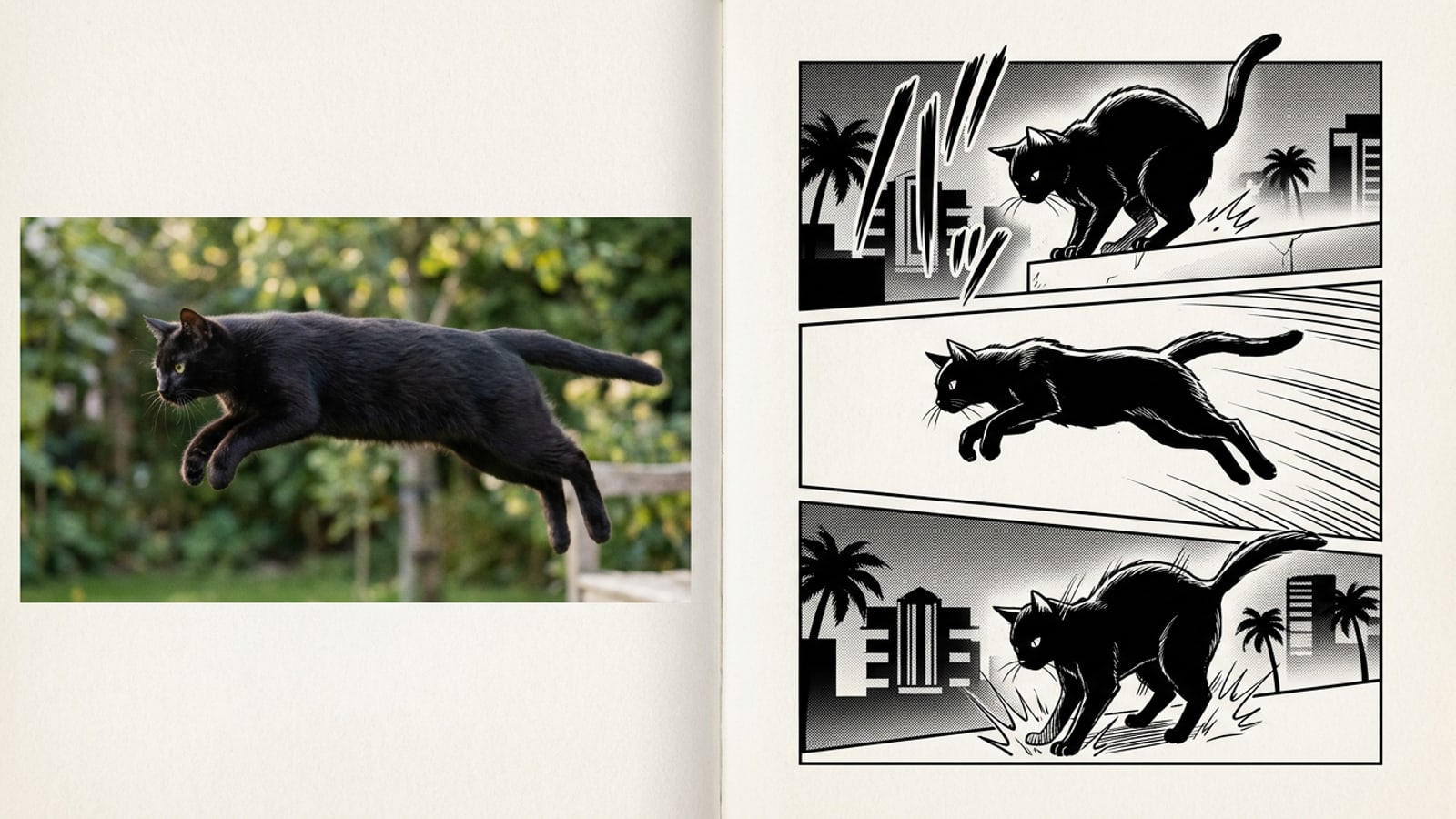
Instant Workflow: How to Convert Video to Manga Pages on iPhone
Learn the immediate pipeline for extracting keyframes from short iPhone videos and generating multi-panel Japanese comic pages.
Converting dynamic video footage into a classic black-and-white manga page is now possible directly on iOS without drawing tools or complex desktop rotoscoping.[1][3]
By leveraging AI keyframe extraction alongside automated screentone rendering, creators can turn 3-to-15-second camera clips into structured multi-panel comic pages in seconds.[1][4]
Using CARA Video to Manga on iPhone, the software automatically analyzes motion beats across your video clip, selects key action frames, and renders them into high-contrast ink line art complete with classic halftone shading.[1][3]
Selecting Source Clips for Crisp Manga Ink Line Art
Discover how clip length, subject lighting, and framing impact the quality of extracted black-and-white comic panels.
The quality of your final manga comic page depends heavily on the source footage you feed into the AI keyframe analyzer.[1]
Video clips ranging between 3 and 15 seconds hit the sweet spot for multi-panel extraction, giving the generator enough distinct movement beats without overwhelming the layout with redundant frames.[1]
Clear subject separation from the background is critical for sharp ink linework. Clips recorded in strong direct lighting or high-contrast backlighting yield punchier rim light and crisp cross-hatching detail.[1][3]
- Optimal clip length: Keep footage between 3 and 15 seconds for balanced 3-to-5-panel layouts.[1]
- Lighting conditions: High contrast and direct sunlight create clean, sharp ink outlines and deep darks.[1]
- Framing stability: Avoid extreme camera shake; smooth subject motion yields clearer keyframe freeze-frames.[1]
Step-by-Step Guide: Using CARA Video to Manga on iOS
Follow simple procedural steps to import videos, extract action keyframes, and generate Japanese comic page layouts.
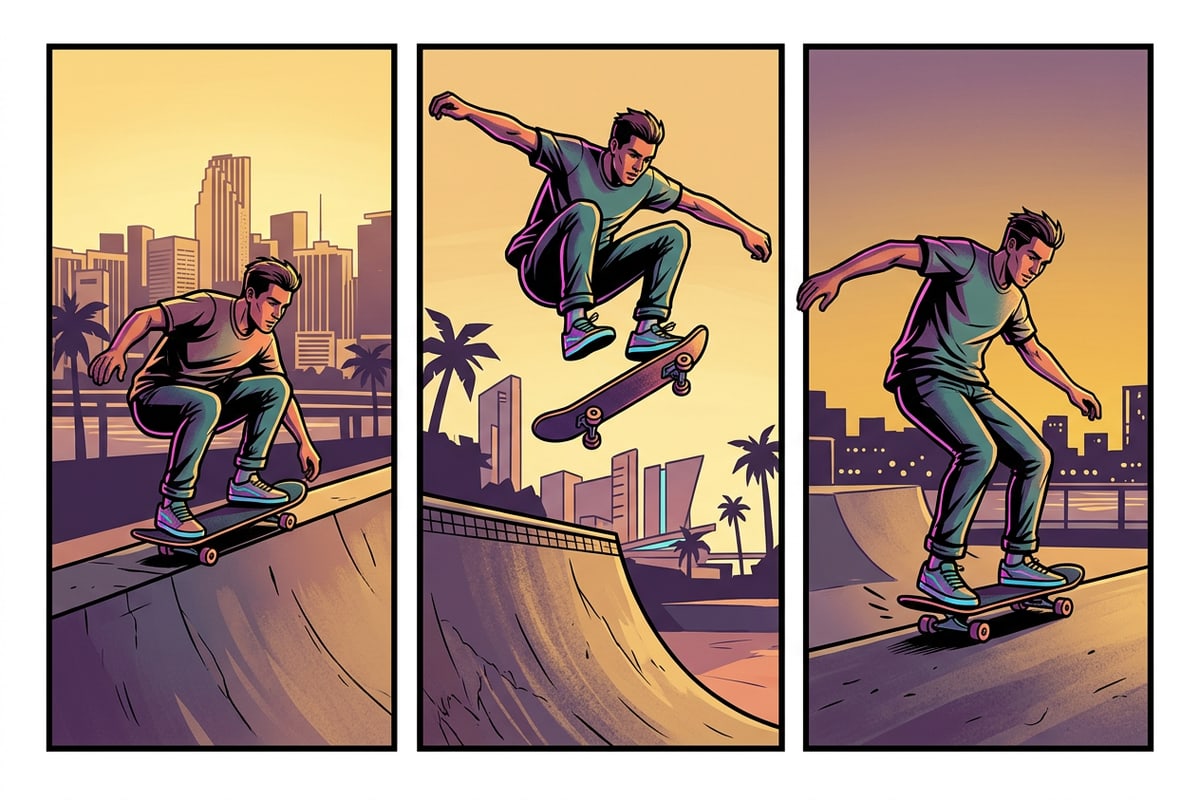
CARA simplifies comic page creation on iOS by replacing manual panel drawing with automated keyframe recognition and layout assembly.[1][3]
Because CARA's Video to Manga is tailored specifically for instant layout generation rather than general timeline editing, prepping your video in advance leads to optimal results.[1][4]
- Open CARA and Choose Video to Manga
Launch the CARA app on your iPhone or iPad and navigate to the Video to Manga tool in the feature menu.[3]
- Select Your Pre-Trimmed Clip
Choose a 3-to-15-second action or reaction video from your camera roll containing clear physical movement.[1]
- Preview and Process Page Art
Review the high-contrast ink line art, cross-hatching, and halftone screentone rendering before finalizing your graphic page.[1]
Polishing Manga Panels with Conversational AI & Precision Tools
Refine individual keyframe panels using CARA's Agent conversational prompts, Remove Background, and AI Eraser.
Once your manga comic page is generated, individual panels can be further polished using CARA's focused AI photo editing suite.
If a keyframe panel contains distracting clutter like power lines, background bystanders, or photo noise, you can clean up the frame using AI Eraser or isolate the main subject with Remove Background.
For conversational adjustments to line depth or lighting, open Cara Agent and submit natural language commands to fine-tune ink density and contrast non-destructively.[1][4]
- AI Eraser: Highlight and remove unwanted peripheral elements or photobombers from panel frames.
- Remove Background: Isolate action subjects cleanly to create transparent cutouts or fresh backdrops.
- Cara Agent Prompts: Use conversational requests like 'Increase ink line contrast and deepen cross-hatch shadows' to adjust panel atmosphere.[1][4]
Troubleshooting Common Manga Page Rendering Issues
Fix blurry line art, low contrast screentones, and aspect ratio challenges for vertical social feeds.
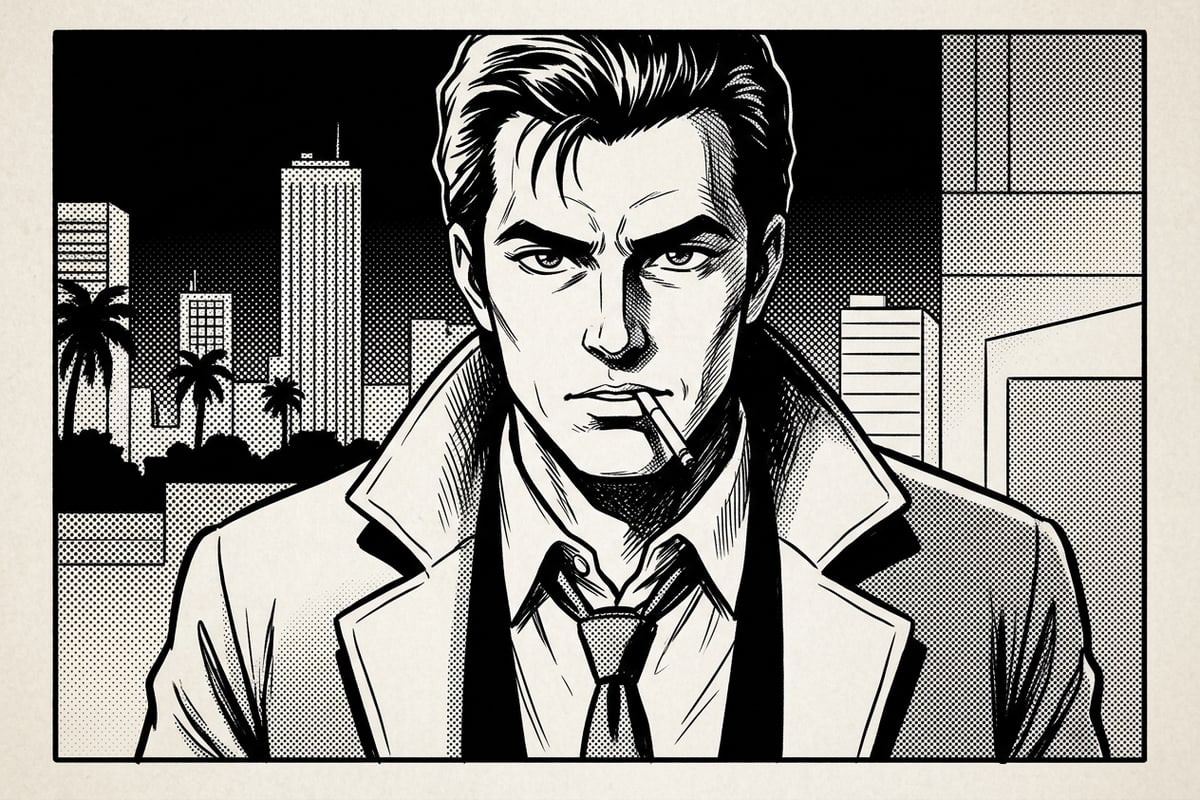
While automated video extraction is fast, technical limitations in source footage can occasionally result in muddy line art or awkward panel composition.[1][2]
Motion blur in fast action clips is the primary cause of smudged comic lines. Choosing videos shot at higher frame rates (e.g., 60fps) or in bright outdoor sunlight minimizes motion blur during keyframe capture.[1]
If you need to fit a square or 4:5 comic composition into vertical 9:16 Instagram Story or TikTok formats, you can use CARA's Image Extender (Outpainting) to expand outer borders naturally.
- Fixing Muddy Lines: Select source videos captured in high lighting with minimal camera movement.[1]
- Correcting Low Contrast: Ensure your clip features strong light-and-dark separation prior to conversion.[1]
- Canvas Extension: Use Image Extender to expand borders for full 9:16 vertical story displays without clipping artwork.