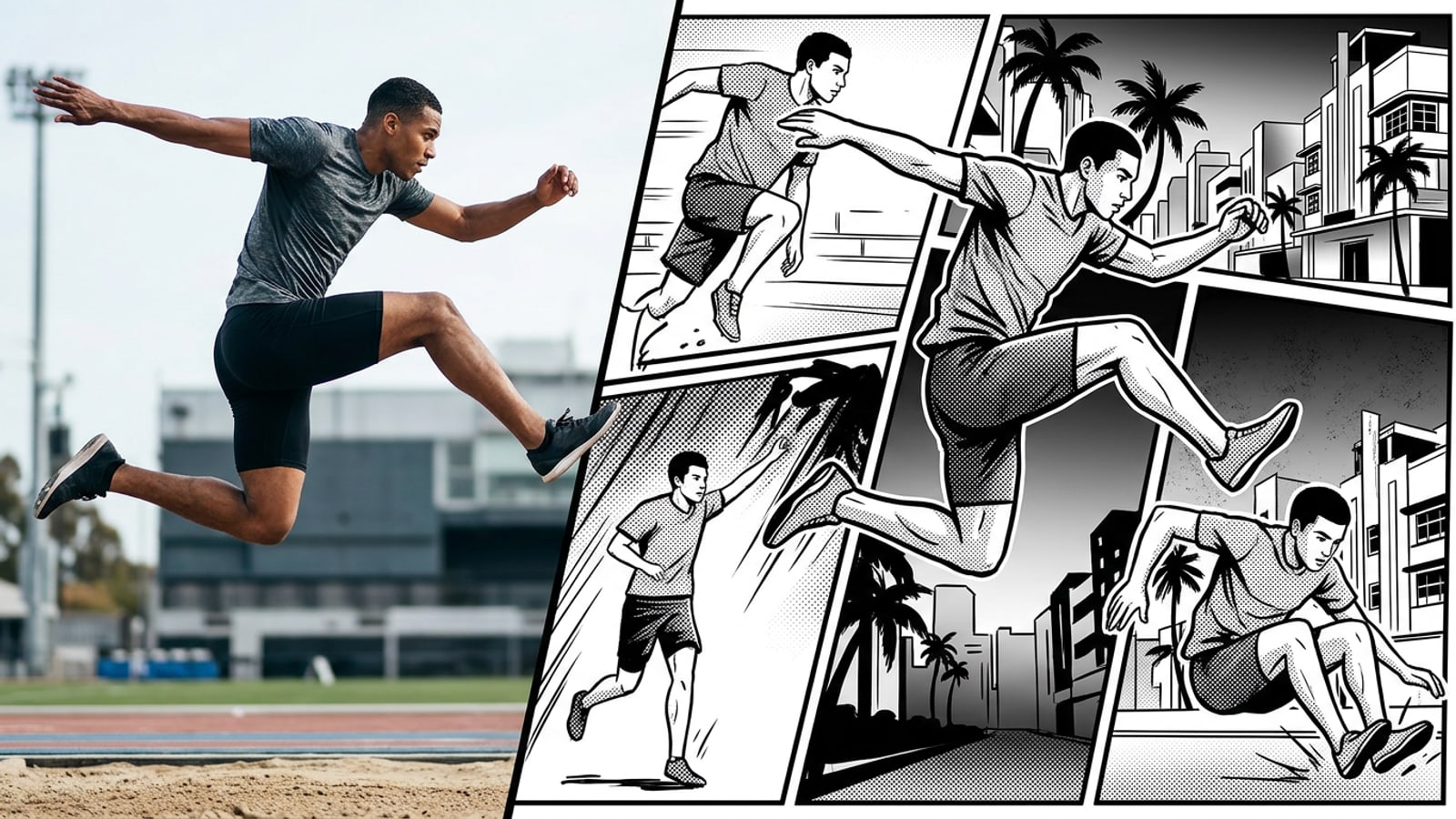
Why Video-to-Manga Panels Are Redefining Short-Form Visual Storytelling
Discover how automated multi-panel manga pages capture high-energy video moments far more effectively than traditional single-frame filters.
Converting short video clips into stylized comic layouts gives social content creators a fresh, narrative-driven aesthetic that immediately stands out on vertical feeds. Rather than relying on simple stylized video filters, turning motion into a structured multi-panel manga page creates a sense of pacing and dramatic impact.[1][2]
Traditional rotoscoping or frame-by-frame comic extraction required exporting video clips into desktop video editors, manually trimming keyframes, and arranging panels in drawing software. Automated AI tools eliminate this tedious multi-software workflow by analyzing motion peaks, extracting clean action frames, and composing a balanced black-and-white manga page in seconds on mobile devices.[1][3]
What Makes a Great Source Video for Manga Panel Layouts?
Learn the core video characteristics—clip length, lighting contrast, and framing—that produce crisp ink lines and halftone screentones.
Not every raw video clip turns into an impressive comic panel page. Selecting video clips with clear subject separation and explicit motion climaxes ensures that the automated panel extraction captures vivid, readable action.[2][3]
- Optimal Clip Length: Clips between 3 and 15 seconds provide enough narrative progression for 3 to 5 distinct keyframe panels without introducing visual redundancy.[3]
- High Contrast Lighting: Direct lighting and distinct shadows translate into crisp, high-contrast ink line art and clean halftone screentones.[2][3]
- Dynamic Framing: Vertical 9:16 footage with clear focal subjects creates natural panel compositions for mobile-first comic pages.[2]
Step-by-Step: Converting Your Video Clip into a Manga Page in CARA
Follow this 4-step workflow in CARA on iOS to transform any short video clip into a multi-panel manga comic page.
CARA simplifies complex visual transformation by combining keyframe detection and panel composition into an automated mobile workflow on iOS and iPadOS.[1]
- Step 1: Select Video to Manga in CARA
Open the CARA app on iOS or iPadOS and select the Video to Manga feature directly from the creative tools menu.[1]
- Step 3: Run AI Keyframe & Layout Processing
Allow the AI engine to analyze key motion frames, convert scene lighting into high-contrast ink lines, and compose a balanced multi-panel manga layout.[1]
- Step 4: Save or Enhance Your Comic Page
Review your generated manga page. If unwanted background elements appear, you can refine individual static images using CARA's AI Eraser or Remove Background tools.[1]
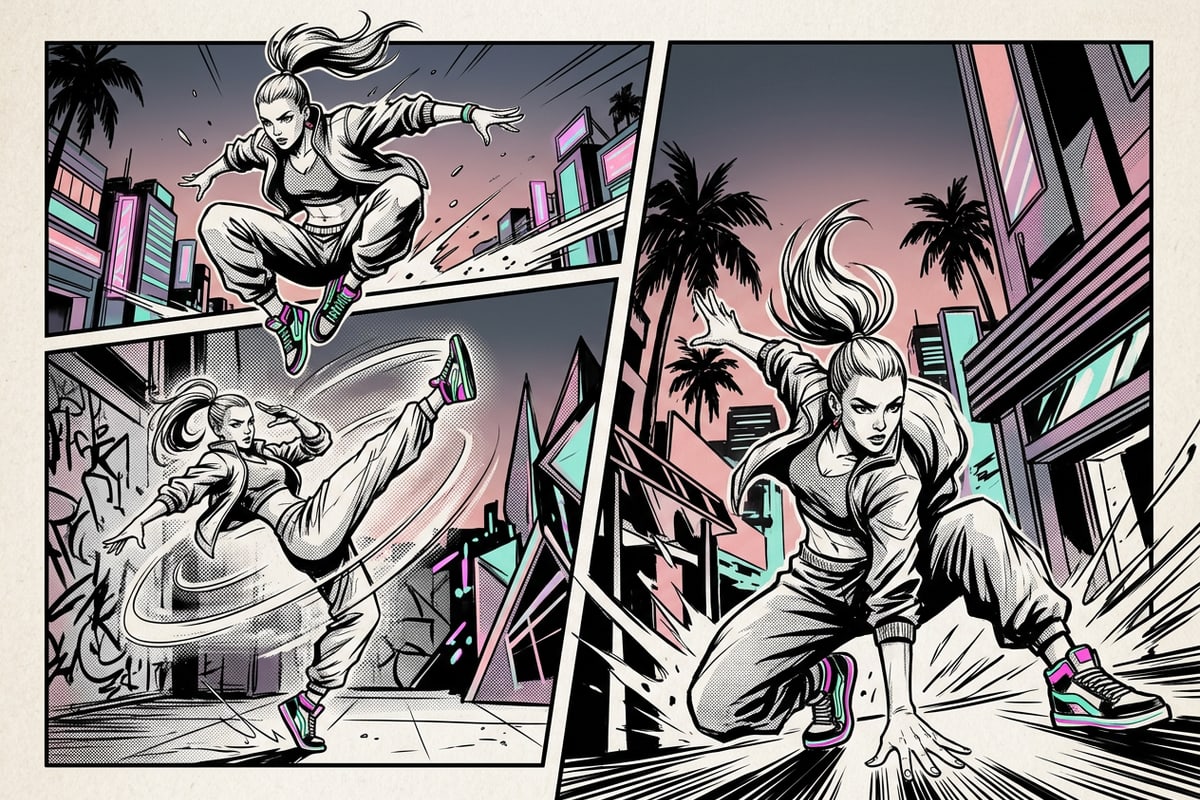
Creative Styles and Social Content Ideas for Manga Comic Pages
Explore high-performing content formats for manga pages across action sports, pet moments, cosplay, and daily vlogs.
Manga comic layouts excel at transforming everyday footage into cinematic comic strips. Action sports clips—such as skate jumps, martial arts kicks, or trick shots—naturally split into dramatic frame sequences with intense ink line work.[2]
Lifestyle and creator content also benefits from comic styling. Pet transformation clips, cosplay reveals, and rapid daily vlog highlights gain an engaging graphic quality when arranged into vertical comic panels.[2]
- Action & Trick Clips: Capture peak jump heights and landings in sequential vertical panels.[2]
- Cosplay & Fashion Reveals: Highlight dynamic outfit transformations in dramatic black-and-white ink styles.[2]
- Pet Reactions: Turn unexpected pet expressions into classic multi-frame comedic manga panels.[2]
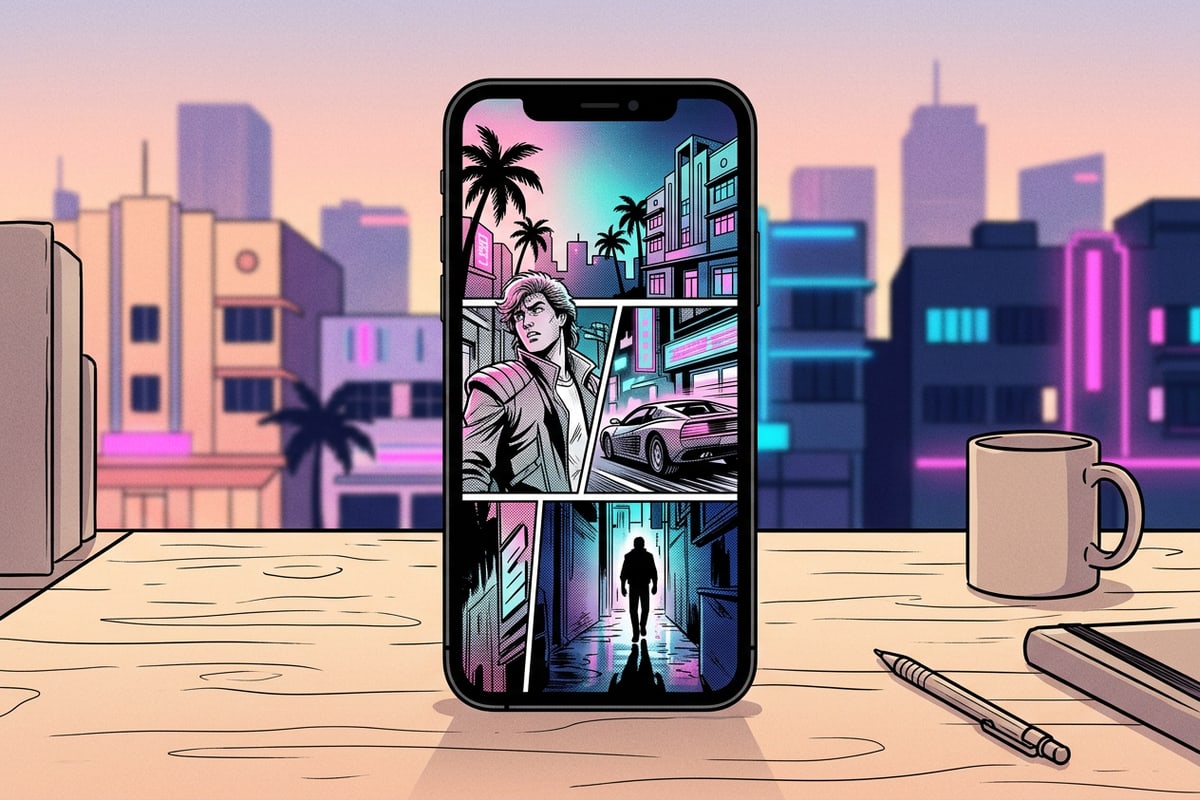
Troubleshooting Common Visual and Panel Layout Issues
Solve low-contrast line art, redundant panels, and busy backgrounds with smart editing adjustments.
If your generated manga page appears muddy or lacks sharpness, the issue usually stems from low subject-to-background contrast or erratic video camera movement. Adjusting video clip selection and leveraging complementary editing tools can restore clean line definition.[1][3]
- Blurry or Low-Contrast Lines: Increase lighting on your raw video clip or pick footage shot in direct natural sunlight to sharpen edge extraction.[3]
- Cluttered Backgrounds: Use CARA's AI Eraser or Remove Background on source frames before panel assembly to keep focus on primary subjects.[1]
- Redundant Action Panels: Trim clip length down to 3–5 seconds so the AI selects distinctly different action moments rather than similar frames.[3]
Automated Mobile AI vs. Traditional Video Editing Workflows
Understand the clear practical differences between instant automated video-to-manga conversion and manual desktop timeline editing.
Traditional comic page creation from video footage requires manual frame extraction, timeline slicing, desktop comic layout software, and specialized digital ink brushes. While manual workflows offer frame-by-frame control, they demand substantial time and technical illustration skill.[2][3]
CARA's Video to Manga feature is an automated AI layout generator designed specifically for quick mobile creation on iOS and iPadOS. It automates key moment extraction and halftone line art conversion in seconds without acting as a complex manual video timeline editor.[1]