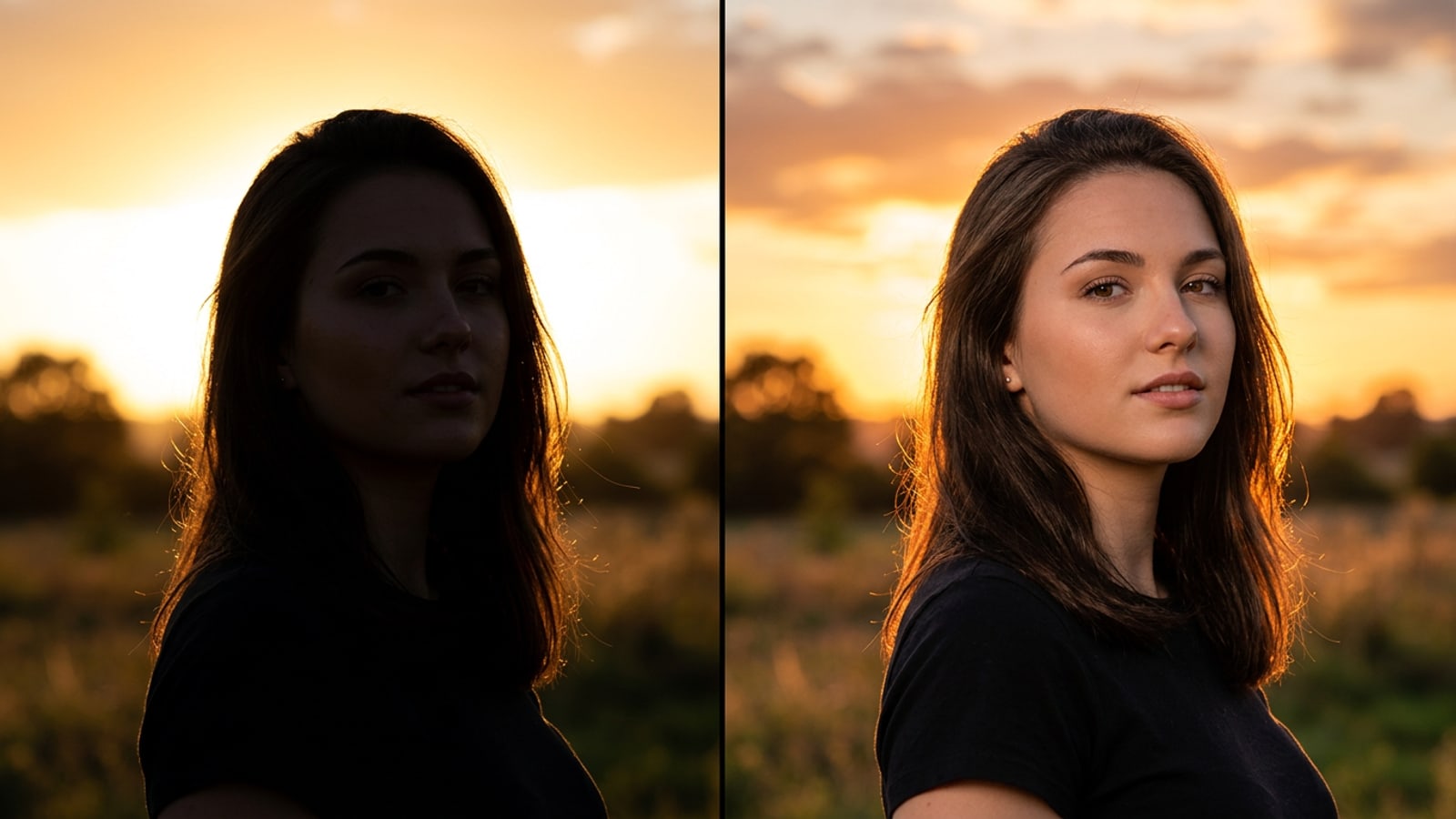
The Backlight Dilemma: Why High-Contrast Sunset Photos Leave Faces Dark
Understand how high scene contrast exceeds mobile camera dynamic range, forcing hardware metering to choose between blowing out the sky or darkening your face.
Capturing outdoor portraits during golden hour often results in a frustrating visual compromise. When standing directly in front of a brilliant sunset or strong sun backlighting, the ambient illumination ratio between the sunlit sky and your shadowed face can easily reach 12 to 14+ EV stops.[3]
When metering a high-contrast backlit scene, the iPhone camera sensor and SmartHDR algorithms face an immediate dynamic range bottleneck. To prevent the vibrant orange and crimson sunset clouds from clipping into pure featureless white, hardware exposure metering lowers overall sensor gain. As a consequence of preserving background highlight detail, facial features end up cast in deep silhouette or heavy shadow.[1][3]
This fundamental dynamic range conflict affects both outdoor travel photography and indoor portraits. Whether shooting against a radiant horizon or standing in front of a bright room window, the camera hardware is forced to choose between a properly exposed background or a visible foreground subject.[1][5]
- Extreme Dynamic Contrast: Sunset and window backlighting create a multi-stop light differential between bright backgrounds and foreground subjects.[3][5]
- SmartHDR Highlight Protection: Mobile camera metering automatically lowers exposure to preserve background colors, casting skin features into shadow.[1][6]
Why Standard iPhone Exposure Sliders Ruin Backlit Portraits
Discover why manual adjustments like global Exposure and Shadows cause washed-out skies, flat micro-contrast, and noisy gray skin tones.
When attempting to fix a dark backlit face in native mobile editors, the standard response is to boost global Exposure or lift the Shadows slider. However, traditional global slider adjustments treat every single pixel in the photograph identically, lacking spatial awareness of scene geometry.[2][3]
Raising overall exposure brightens the shadowed face, but it simultaneously blows out the rich colors of the sunset background into a harsh, blinding glare. On the other hand, pushing the shadow slider to its upper limit flattens micro-contrast across the entire frame. This introduces muddy gray skin tones, desaturates natural complexions, and amplifies sensor noise into noticeable digital grain.[3][6]
Selective linear or radial gradient masks in traditional software attempt to fix this issue, but drawing precise masks around fine hair strands, shoulders, and moving subjects on a small mobile touchscreen is tedious and frequently produces artificial halo artifacts around edge boundaries.[4][6]
- Highlight Blowout: Global exposure increases turn rich golden hour skies into featureless white patches.[3]
- Muddy Noise & Color Distortion: Aggressive shadow slider lifts amplify digital sensor noise and degrade skin tone warmth.[2][3]
- Tedious Touchscreen Masking: Manual brush selections struggle to cleanly isolate fine edges around hair and clothing.[4]
The Conversational AI Solution: Localized Relighting with CARA Agent
Explore how natural-language AI chat commands isolate lighting intent to fill facial shadows while preserving sky saturation.
Conversational AI photo editing changes how creators resolve high-contrast lighting challenges. Instead of manually tracing complex edge selections around hair and shoulders on a mobile screen, conversational AI models evaluate semantic regions across the entire image composition.[3][4]
Through CARA Agent on iOS and iPadOS, creators can issue targeted chat instructions that function like a virtual studio lighting assistant. The AI interprets spatial lighting intent, virtually placing ambient bounce light onto shadowed faces while respecting explicitly defined rules to keep background cloud detail and sky saturation untouched.[2][4]
By leveraging natural language, you can specify exact light quality, warmth, and direction. This localized approach lifts facial shadows cleanly without introducing digital noise or altering background exposure. If you want to refine other portrait scenarios, check out our guide on how to fix flat portrait lighting using conversational AI commands to turn dull selfies into sculpted editorial portraits.
- Semantic Spatial Awareness: The AI identifies foreground facial features and background sky elements without manual selection brushes.[4]
- Targeted Ambient Fill Light: Conversational instructions cast soft, warm bounce light exclusively onto shadowed skin.[3][4]
- Highlight Protection Layering: Explicit negative constraints prevent background sunset colors from losing saturation or overexposing.[2][4]
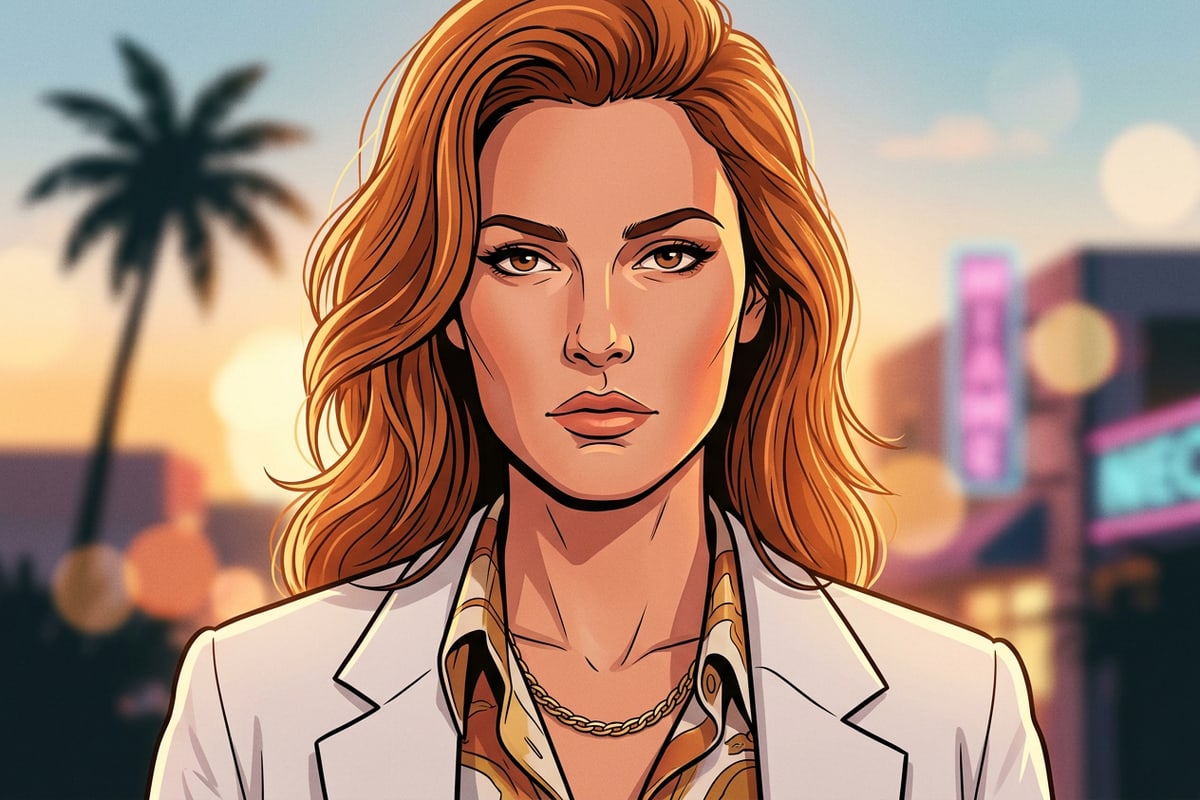
Step-by-Step Guide: How to Brighten Shadowed Faces in CARA
Follow a clear step-by-step operational walkthrough for uploading photos and issuing high-impact chat prompts in CARA Agent on iOS.
Restoring dark backlit portraits on your iPhone requires a direct, step-by-step workflow combined with specialized prompt recipes inside CARA Agent. By matching your prompt to the specific lighting context of your shot, you can achieve clean ambient fill light instantly.[2][4]
Below are tailored prompt templates for common backlit scenarios that you can copy and customize during editing:[4]
1. Outdoor Golden Hour Sunset Recipe: 'Gently brighten the subject's dark shadowed face with warm golden hour bounce fill light, revealing natural eye details and peachy skin tone warmth, while keeping the background sunset sky and vibrant orange clouds completely untouched and saturated.'[4]
2. Indoor Bright Window Backlight Recipe: 'Add soft diffused ambient daylight to the subject's shadowed face and hair, bringing out natural facial features and true skin color, while maintaining the exposure and clarity of the bright window view in the background.'[4]
3. Harsh Midday Overhead Sun Recipe: 'Fill the deep shadows under the eyes and chin with soft, neutral ambient bounce light, smoothing out harsh facial contrast while preserving natural background highlights and outdoor background contrast.'[4]
- Open CARA Agent on iOS or iPadOS
Launch the CARA app on your Apple device and tap Home > Agent to enter the conversational chat workspace.[2]
- Upload Your Backlit Photo
Tap the photo attachment icon to import your high-contrast backlit portrait from your photo library into the chat.[2]
- Enter a Context-Specific Chat Prompt
Type one of the tailored prompt recipes above into the chat box, adapting the text to match your specific scene (e.g., golden hour, indoor window, or midday backlighting).[4]
- Review and Refine Output
CARA Agent processes the request (consuming 30 points per image edit generation and 5 points per text input). If the face requires additional warm fill light, type a brief follow-up prompt like 'Add slightly more golden fill light to the cheekbones'.[2]
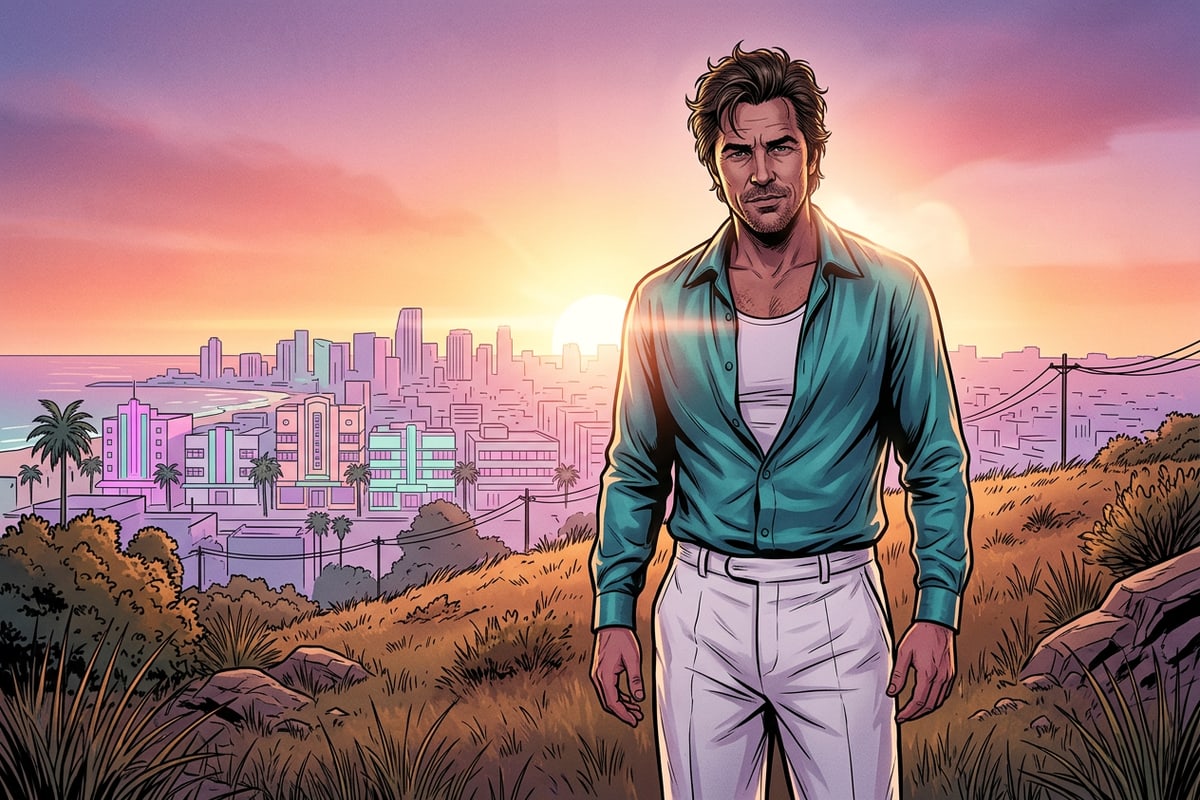
Technical FAQ & Troubleshooting for AI Portrait Relighting
Address common technical questions regarding identity preservation, background highlight protection, and app credit usage.
When using conversational AI prompts to relight high-contrast portraits, keeping facial features authentic and managing app resources efficiently ensures consistent, professional visual outputs.[2][4]
By combining precise prompt constraints with thoughtful framing, you can overcome sensor limitations while maintaining complete creative control over your mobile photography workflow.[1][4]
- Identity Preservation: Include 'preserve natural facial structure and subject identity' in your prompt so lighting adjustments only modify illumination, not facial geometry.[4]
- Resource Management: CARA Agent processing consumes 30 points per image edit output and 5 points per text input on iOS and iPadOS.[2]