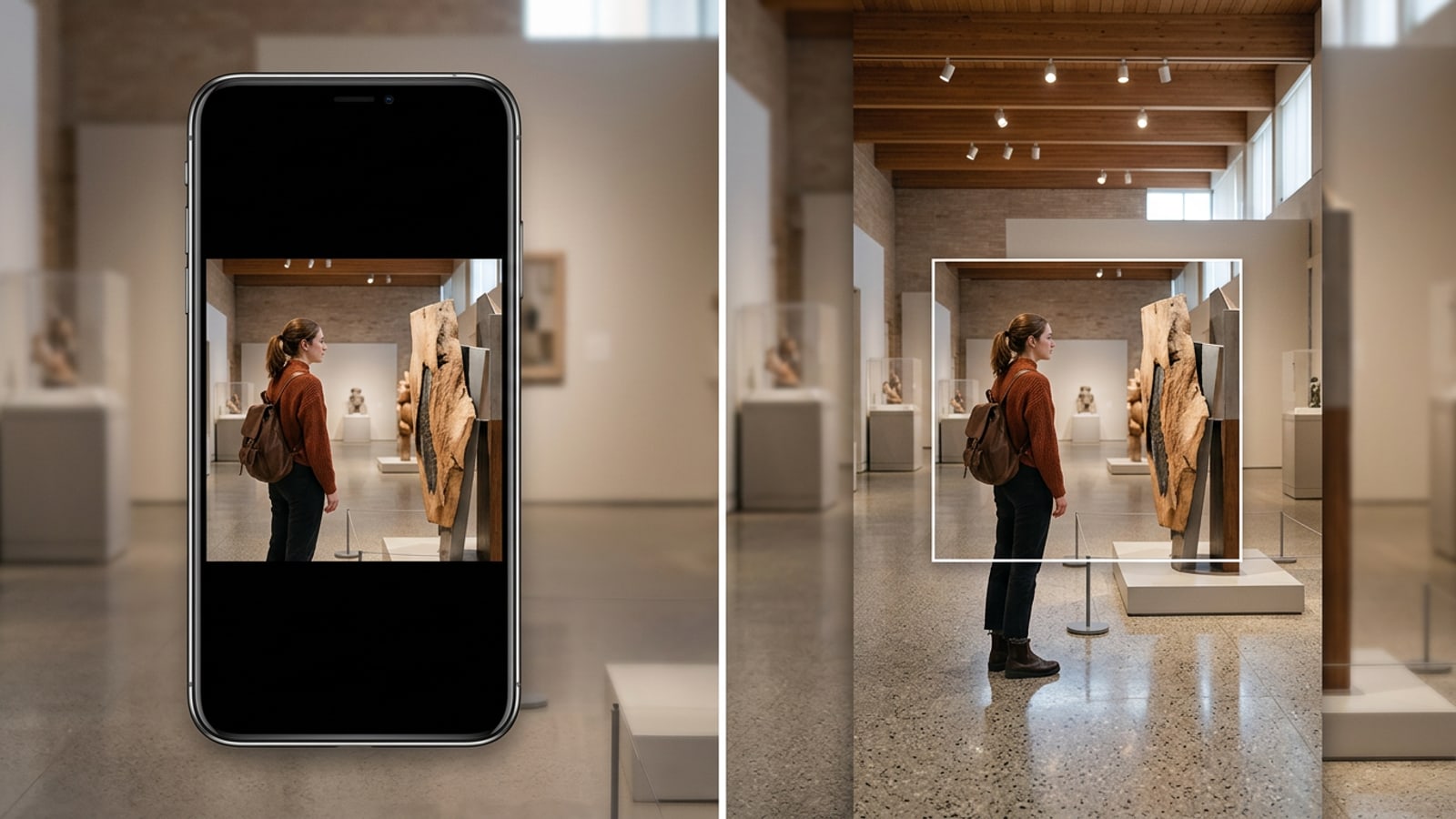
Understanding Instagram Story Canvas Ratios vs. Feed Photos
Posting feed photos to Instagram Stories creates dimensional mismatches that force unwanted cropping or pillarbox padding.
When sharing photos on social media, understanding canvas aspect ratios is critical for maintaining visual quality. Instagram Stories utilize a native vertical aspect ratio of 9:16, corresponding to a standard display resolution of 1080x1920 pixels. This tall vertical orientation is designed to fill modern smartphone displays completely without leaving empty space around the subject.[1][2]
In contrast, traditional Instagram feed posts typically rely on square (1:1 ratio, 1080x1080 pixels) or vertical portrait formats (4:5 ratio, 1080x1350 pixels). When you upload these non-vertical aspect ratios directly into an Instagram Story, the app automatically scales the image to fit the display width. This leaves blank regions above and below the photo.[2]
- 1:1 Square (1080x1080 pixels): Leaves top and bottom pillarbox gaps equal to nearly half the total screen height.[2]
- 4:5 Portrait (1080x1350 pixels): Fills more vertical space but still leaves 570 pixels of empty vertical padding.[2]
- 9:16 Vertical (1080x1920 pixels): Completely covers the mobile viewport without clipping central subjects.[1]
Why Generative Outpainting Beats Blurred Sidebars and Cropping
Generative uncropping expands external canvas borders instead of sacrificing internal photo pixels.
Traditionally, creators faced a compromise when adapting feed photos to story formats. Pinching and zooming a 1:1 photo to fill a 9:16 vertical screen clips essential head space, feet, or side composition details. Alternatively, using native background blurs places fuzzy sidebars above and below the image, creating a cluttered visual frame that reduces total image prominence.[1][3]
Generative AI outpainting introduces an alternative by extrapolating missing environmental details beyond the photo's original boundaries. Rather than re-sampling or zooming existing pixels, an outpainting algorithm analyzes surrounding lighting, textures, and geometry to synthesize new contextual content outside the original frame.[3]
- Zero Subject Distortion: Outpainting preserves 100% of the internal source photo, applying new pixels strictly to the extended margins.[3]
- Native Full-Bleed Aesthetics: Synthetic extensions mimic original background lighting and depth of field, making the image look natively captured in 9:16 format.[3]
Step-by-Step Guide: Uncrop iPhone Photos to 9:16 with CARA Image Extender
Follow this straightforward process to expand your iPhone photos to full 9:16 story dimensions using CARA.
To convert non-vertical photos into full 9:16 story assets on iOS and iPadOS, CARA offers a dedicated Image Extender tool. Found directly at Home > AI Editing > Image Extender, this feature processes outpainting generations for 30 points per run, extending image borders while maintaining subject fidelity.
- Step 1: Launch CARA and Navigate to Image Extender
Open the CARA app on your iPhone. From the primary navigation screen, tap 'Home', select 'AI Editing', and choose 'Image Extender'.
- Step 2: Import Your Target Photo
Select the 1:1 square or 4:5 portrait photo from your iPhone Photos library that you want to expand for your Instagram Story.
- Step 3: Select 9:16 Aspect Ratio and Run Extender
Set the target canvas ratio to 9:16. Confirm the generation request, which charges 30 points, and allow the cloud engine to extrapolate top and bottom environmental pixels.[3]
- Step 4: Save Your Full-Bleed 9:16 Result
Review the expanded background around your original subject. Once satisfied with the seamless background extrapolation, save the final 9:16 vertical photo to your device.
Technical FAQ & Troubleshooting Outpainting Edge Cases
Understanding which image types deliver optimal outpainting results helps prevent artifacts and wasted runs.
Generative outpainting models analyze edge gradients, lighting vectors, and repeating structural patterns to synthesize expanded canvas areas. Because the algorithm relies on contextual extrapolation, certain photographic elements yield significantly cleaner visual extensions than others.[3]
Organic textures with continuous color gradients—such as open skies, studio walls, indoor floors, beaches, and foliage—generate with remarkable coherence. Conversely, high-entropy structures like partial text, fragmented branding logos, or complex geometric architecture cut off right at the photo edge may require multiple generation runs to achieve flawless continuous patterns.[1][3]
Optimizing Social Media Visual Workflows on iOS
Combine outpainting with other iOS creative workflows to streamline daily Instagram content production.
Creating an engaging Instagram Story strategy involves more than just fitting images to screen dimensions. Mobile creators frequently combine background expansion with isolated object cutouts, background replacements, and creative multi-photo layouts to build distinct visual stories.[2]
For creators managing e-commerce or visual portfolios, combining CARA's Remove Background feature with Image Extender allows you to isolate subjects and expand studio scenes seamlessly on mobile. Additionally, if you need to showcase multiple outfit shots or product angles within a single vertical story frame, the Photo Collage Maker provides flexible grid layouts tailored for mobile viewports.
- Product Photography: Isolate products using background removal before generating ambient studio environments or expanding story canvases.
- Multi-Asset Story Layouts: Use collage templates to arrange multiple uncropped square photos onto a single 9:16 vertical backdrop.