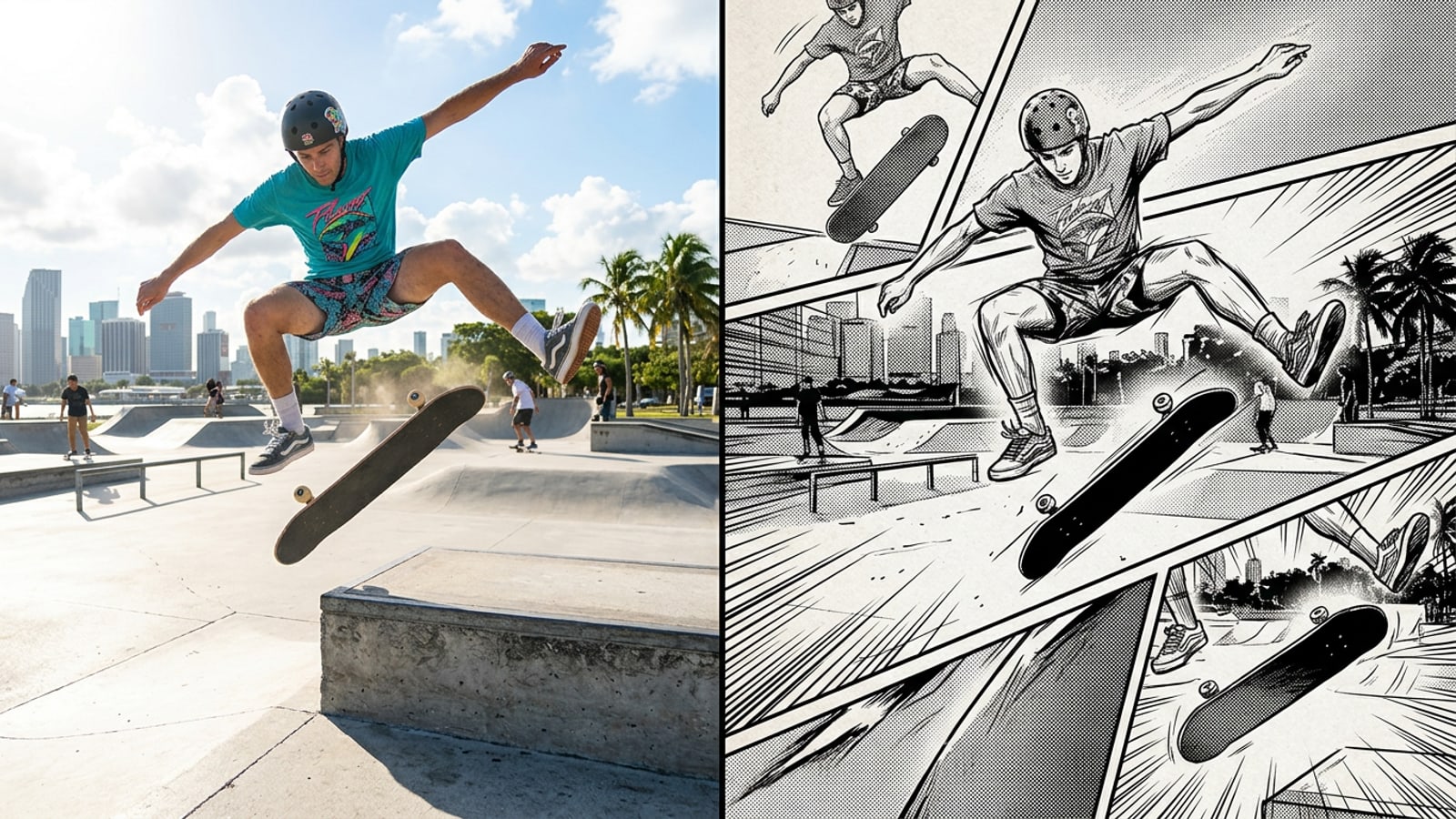
Instant Manga Pages from iPhone Action Video
Transform dynamic physical movement into stylized comic panels automatically on your iPhone.
Dynamic physical movement in sports, martial arts, parkour, and skateboarding inherently possesses high narrative tension and kinetic energy. In traditional print manga, artists capture this momentum through expressive line weights, dramatic foreshortening, and multi-frame progression. Translating real-world action footage into comic layouts previously required painstaking rotoscoping, frame-by-frame tracing, and laborious manual page layout design.[2][3]
Automated mobile artificial intelligence eliminates these tedious manual steps on iOS devices. By leveraging the advanced camera capabilities of the iPhone alongside intelligent keyframe extraction, short action clips convert into fully rendered multi-panel comic pages in seconds. Tools like Video to Manga in Cara handle image stylization and dynamic panel positioning without requiring manual video timeline editing or illustration experience.[1][2]
Capturing High-Motion Action Video on iPhone
Configure your iOS camera settings to capture sharp keyframes that render crisp manga line art.
The visual clarity of an AI-extracted manga page depends directly on frame sharpness and shutter timing in the source video. When recording fast movement at standard cinematic frame rates like 24 FPS, the camera sensor shutter remains open longer per frame, producing significant motion blur across limbs and background elements. While motion blur creates natural smoothing in standard playback, AI outline extractors interpret blurred edges as fuzzy or distorted ink lines, degrading line art clarity.[1][2]
To overcome shutter blur, creators should configure their iPhone camera settings before recording action clips. Switching video recording to 4K at 60 FPS doubles the frame sampling rate and forces a faster shutter speed per frame, capturing crisp motion beats with sharp focus. On supported iPhone models, enabling Action Mode adds advanced sensor-shift stabilization and electronic horizon correction. This stabilizes tracking shots during aggressive camera motion, keeping the subject in sharp focus so the keyframe generator extracts clean, well-defined line art.[1]
Lighting also plays a critical role in shutter speed behavior on iOS devices. In bright ambient sunlight, the camera exposure system automatically speeds up the shutter to limit light intake, further sharpening freeze-frames. Conversely, filming in low-light environments causes the sensor to lengthen exposure time, introducing blur even at 60 FPS. For optimal manga line art rendering, record action clips outdoors during daylight hours or under strong artificial floodlights. Keep source clips concise—ideally between 3 and 15 seconds—to allow the keyframe extraction engine to isolate the most dramatic single-action arc.[1][2]
- Configure video capture to 4K at 60 fps in iOS Camera settings to ensure sharp freeze-frame extraction.[1]
- Activate Action Mode on supported iPhone hardware for aggressive gimbal-like video stabilization.[1]
- Record in bright ambient light to enforce fast camera shutter speeds and eliminate limb blur.[1]
- Keep source video clips between 3 and 15 seconds so the layout analyzer focuses on peak action beats.[2]
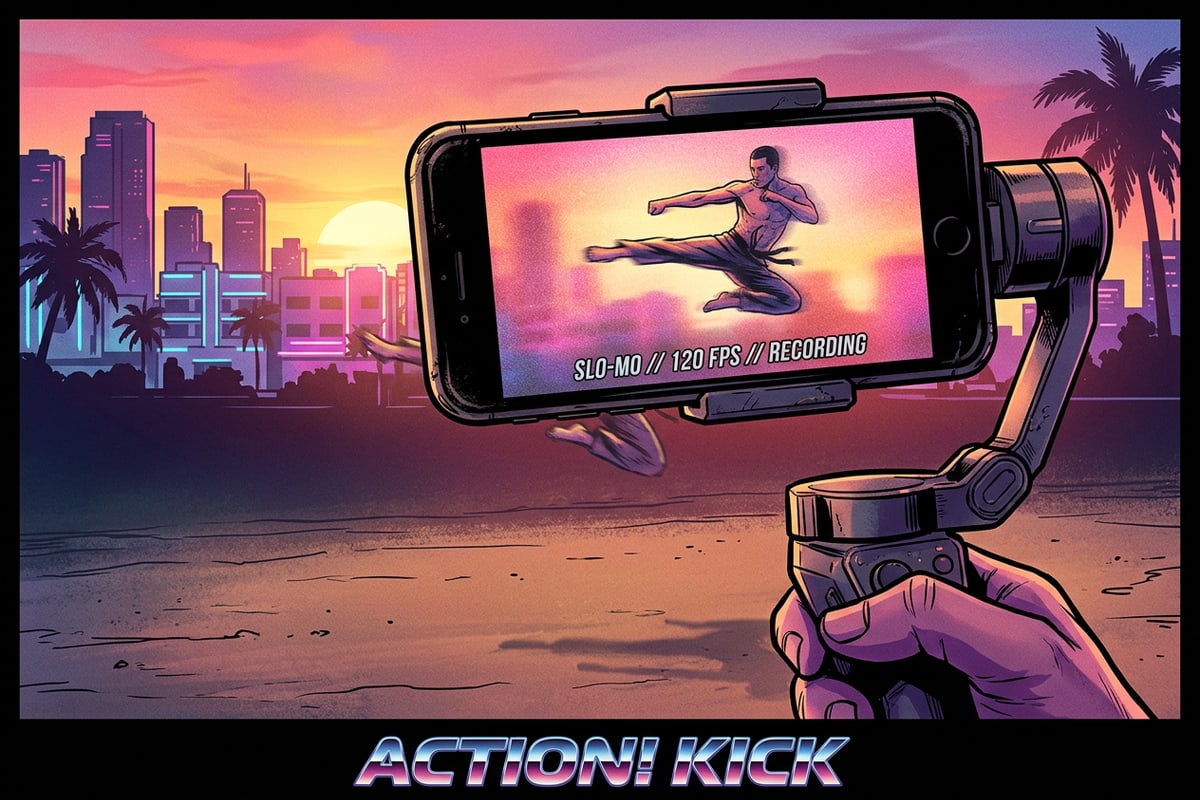
Step-by-Step Workflow: Converting Video to Manga in Cara
Follow this step-by-step procedure to convert short iPhone action clips into comic layouts.
Transforming raw mobile video into a polished multi-panel manga page requires no prior timeline editing experience or digital illustration tools. Cara operates natively on iOS and iPadOS, processing video clips directly on device or via cloud AI systems.[2]
Manga Panel Architecture: How AI Translates Motion into Story
Understand visual hierarchy, panel pacing, and background pre-processing principles.
Sequential comic art relies on structural panel architecture and visual hierarchy to translate continuous motion into static storytelling. In classical Japanese manga design, panel sizing is directly correlated with narrative weight and emotional impact. A large focal panel—often taking up half the page—anchors the primary action beat, such as the peak apex of a jump or an explosive landing. Smaller secondary frames surrounding the focal panel establish motion preparation and follow-through.[3]
Page gutters—the blank white channels separating individual panels—function as temporal bridges that guide the reader's eye across time and space. The automated Video to Manga engine analyzes spatial trajectory across incoming video frames to dynamically generate balanced panel arrangements. By grouping 3 to 6 keyframes into structured multi-panel grids, the app creates continuous narrative flow that mimics hand-drawn graphic novels.[2][3]
Pre-processing busy source footage can significantly elevate the visual clarity of generated manga panels. Complex background details like crowded city streets, fence patterns, or tree foliage can overwhelm edge-detection algorithms, filling ink panels with unwanted black-and-white visual noise. Utilizing secondary AI photo tools like Remove Background or AI Eraser on key stills before comic styling simplifies the environment, drawing full viewer attention to subject posture, facial expression, and speed dynamics.[2]
- Asymmetric panel sizing establishes narrative hierarchy by highlighting key action climaxes.[3]
- Inter-panel gutters act as visual bridges that connect sequential freeze-frames into a unified timeline.[3]
- Isolating subject elements using background removal prevents cluttered ink cross-hatching in final layouts.[2]
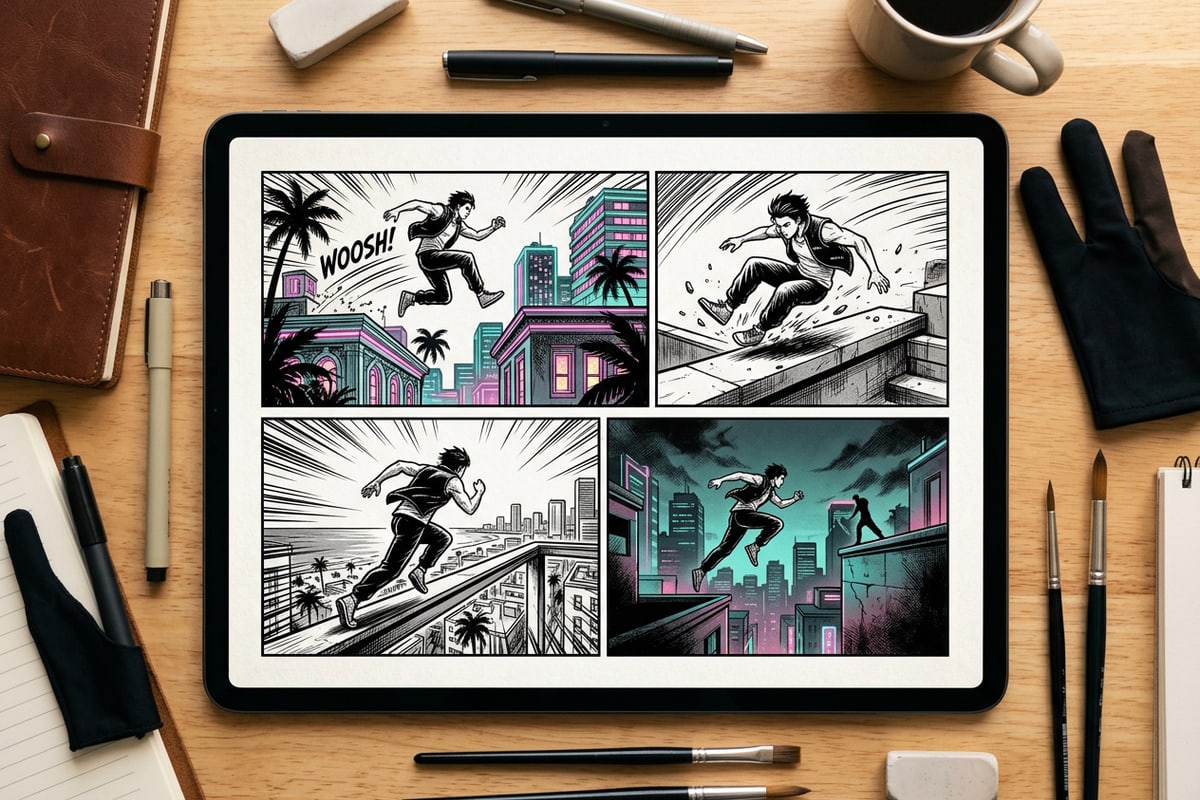
Automated Mobile AI vs. Traditional Digital Rotoscoping
Compare automated mobile processing with labor-intensive desktop comic creation.
Historically, converting real-world motion footage into stylized graphic illustration required desktop workstations, graphic tablets, and extensive digital rotoscoping. Artists had to manually scrub through video timelines, export individual frame stills, and trace outlines using digital brushes before manually designing page templates and screentone textures. This traditional workflow often took tens of hours for a single finished page.[2][3]
Automated mobile AI completely transforms this workflow into an accessible, real-time process on iOS and iPadOS. By combining automated keyframe extraction, algorithmic panel positioning, and instantaneous black-and-white ink stylization, creators produce publish-ready comic pages in under a minute without manual drawing tools or complex timeline editors.[2]
Mobile creators can easily expand their creative toolkit across other iOS editing workflows. For example, explore our guide on how to create aesthetic Y2K scrapbook collages on iPhone in seconds, learn how to edit photos using natural AI chat prompts on iOS, or discover how to swap objects in photos with AI using generative tools.[2]
- Cuts page creation time from hours of hand-tracing to instant automated generation on mobile devices.[2]
- Eliminates the steep learning curve associated with specialized digital drawing software and hardware tablets.[2]
- Runs fully on iOS and iPadOS for seamless on-the-go creative output directly from your camera roll.[2]