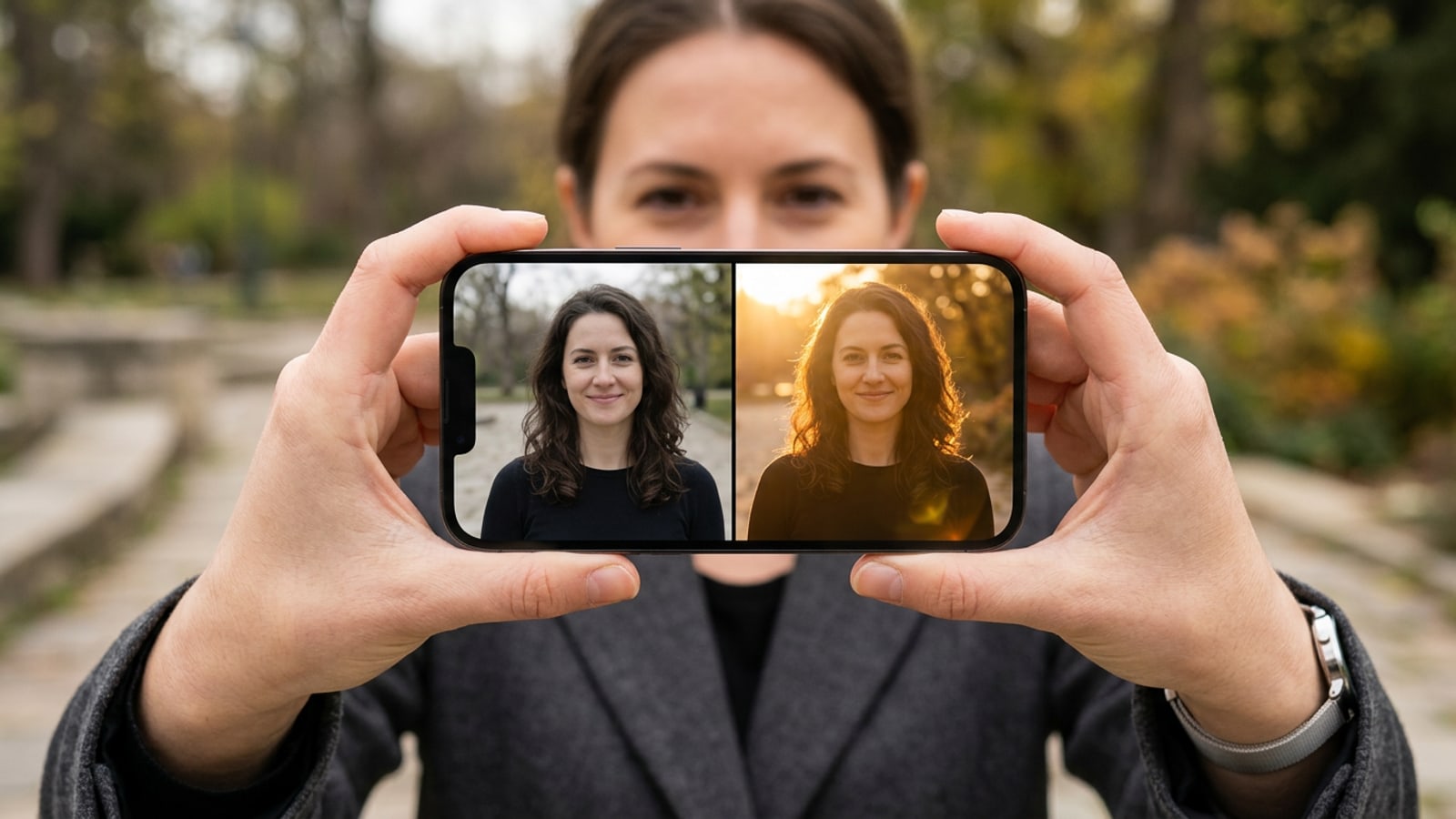
Direct Answer: How Conversational AI Photo Editing Works on iOS
Conversational AI photo editing replaces complex manual adjustments with natural language chat prompts, allowing creators to describe visual changes to an AI agent directly on iOS.
Conversational AI photo editing changes how images are edited on iOS devices by using multimodal language understanding to interpret plain English descriptions instead of requiring users to adjust traditional parametric sliders or manual pixel masks. When you describe a desired look in a chat window, the AI agent parses spatial context, subject boundaries, and atmospheric conditions, then applies generative repainting to update lighting, color temperature, background elements, and overall visual mood.[1][2][5]
Unlike traditional preset filters that apply blanket color changes across an entire photo, conversational photo editing creates context-aware modifications. In apps like Cara, users can open the Agent feature in Home > Agent to communicate directly with an AI assistant that modifies ambient lighting, repaints outdoor weather, or shifts background surroundings while protecting core subject features.[2][3]
- Text-Driven Relighting: Adjust light direction, shadows, and color temperature by asking the agent to shift harsh daylight into soft golden hour or moody twilight.[2]
- Scenery & Background Alteration: Replace backgrounds, modify sky textures, or alter weather conditions through natural language prompts.[2]
- Multi-Turn Conversational Refinement: Refine edits incrementally across chat turns rather than starting over from scratch.[3][5]
The Step-by-Step Action Pipeline for Conversational Photo Editing
A structured four-part prompt engineering framework enables high-precision photo editing through conversational AI chat interfaces.
Crafting effective natural language edits requires clear prompt structure. Without explicit constraints, multimodal diffusion models may over-edit unconstrained regions of an image, altering facial features or clothing unintentionally.[3][4]
To achieve consistent results on iOS, follow a single-lever iteration workflow: request one specific visual change per prompt turn rather than layering multiple complex alterations at once. In Cara, conversational chat editing operates through cloud processing and consumes points under a daily quota model (30 image points / 5 text points per request), making precise single-step prompts both time-efficient and cost-effective.[3][5]
- Upload Your Source Photo
Open your chat-based photo editor on iOS (such as Cara's Home > Agent interface) and upload a high-resolution base image.
- Construct a 4-Part Prompt Formula
Structure your instruction using four core parameters: Action Verb + Target Element + Visual Direction + Preservation Lock Line. For example: 'Relight the scene background with warm directional golden hour glow, keeping the subject's face and clothes unchanged.'[3]
- Combine with Targeted Precision Tools
For localized tasks like removing unwanted background pedestrians or replacing specific props, pair conversational chat requests with dedicated features like AI Eraser or AI Replace for surgical accuracy.
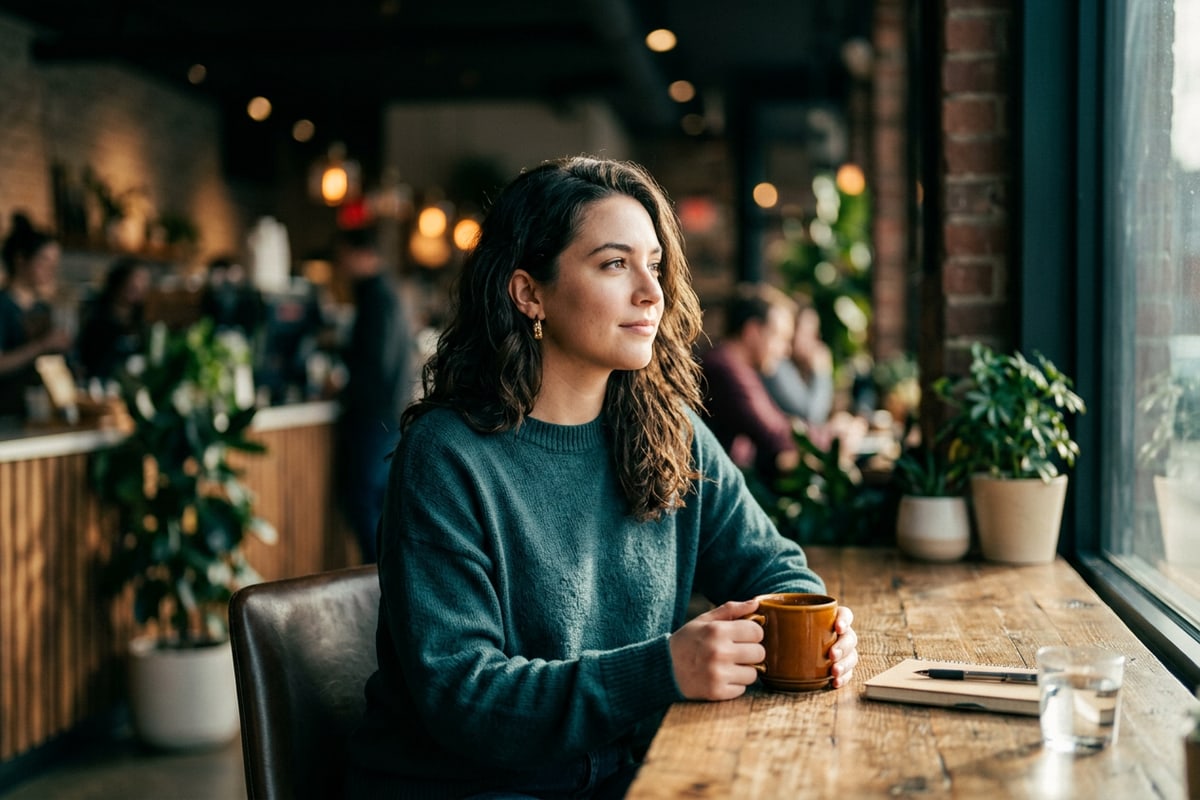
Mastering Lighting, Atmospheric Mood, and Scenery Prompts
Using descriptive photography terms and directional keywords allows mobile creators to control light source angles, color temperature, and scenery.
To transform flat daylight or cold ambient room light into cinematic imagery, use descriptive photography terminology in your text instructions. Prompting the AI with specific lighting conditions—such as soft rim lighting, directional window light, or volumetric light rays—helps the agent calculate natural highlight drop-offs and shadow placement across your subject.[2][3]
Mood adjustments rely heavily on color temperature and atmospheric terms. Describing atmospheric cues like 'blue hour dusk,' 'foggy morning mist,' or 'warm sunset amber' guides the generative engine to repaint background geometry and specular reflections accordingly.[2][3]
- Golden Hour Relighting: Prompt 'Add warm 3500K golden hour sunlight coming from camera-right, casting soft long shadows across the ground.'[3]
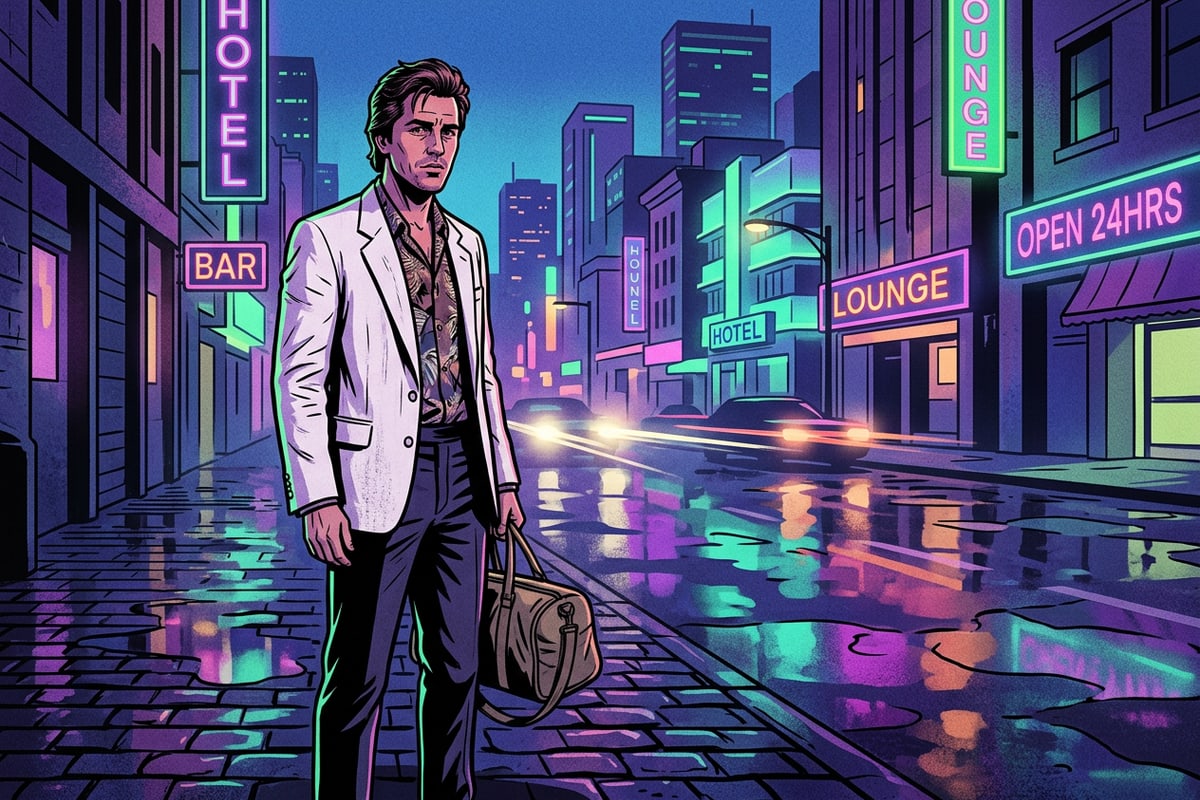
- Moody Cinematic Atmosphere: Prompt 'Shift the mood to a cool blue-hour evening with soft neon reflections on wet pavement, maintaining subject lighting balance.'[2][3]
- Background Scenery Swap: Prompt 'Replace the urban street background with a serene coastal cliff during sunset, preserving the subject and outfit exactly.'[2][4]
Troubleshooting Common AI Prompt Mistakes and Preservation Rules
Address facial distortion, inaccurate lighting direction, and cloud processing variability by enforcing explicit preservation rules and disciplined prompt structure.
The most common failure mode in conversational photo editing is subject drift—where the AI accidentally modifies a person's facial features, hair, or costume while trying to change background scenery. Because multimodal models generate content based on probabilistic diffusion, unconstrained prompts give the agent freedom to re-imagine the whole frame.[3][4]
To prevent subject distortion, always append a preservation lock phrase to every request turn. Statements like 'Do not modify the subject's face, hair, skin tone, or clothing' establish explicit boundaries for the generative model. Additionally, remember that conversational editing requires active cloud connectivity, which means individual generations may show minor variations between attempts.[3][4][5]
- Subject Distortion Fix: Add explicit preservation lines to isolate facial geometry and clothing details before running background edits.[3]
- Inconsistent Shadow Direction: Specify both light source direction and shadow falloff angle in your prompt to avoid conflicting light sources.[3]
- Multi-Variable Hallucination: Break complex prompts requesting simultaneous lighting, outfit, and background changes into sequential, single-variable chat instructions.[3][5]
- Background Boundary Bleed: When background elements merge into subject edges, use Remove Background for clean subject isolation or AI Replace for precise zone editing.
Integrating Conversational Editing into Creator Workflows
Combining chat-based prompt editing with specialized AI photo tools streamlines content creation for mobile photographers and social media creators.
Mobile creators can build efficient content pipelines on iOS by combining conversational AI prompt editing with focused generative tools. Chat-based agents handle broad atmospheric shifts, lighting transformations, and scene re-styling quickly without requiring manual masking skills.[2][4]
When paired with targeted tools like AI Eraser for removing unwanted artifacts or Remove Background for clean cutouts, conversational prompt editing provides a flexible workflow for social media visuals. Explore our guides on AI photo editing for social media, mastering AI Replace for element swaps, and creating cinematic motion blur portraits to expand your mobile creative toolset.
- Efficient Atmospheric Relighting: Quickly test multiple lighting concepts—from midday sun to golden hour—using plain English chat prompts.[2]
- Targeted Tool Integration: Use conversational editing for broad mood changes, then switch to AI Eraser or AI Replace for precision object edits.
- Scalable Social Content: Transform single portrait captures into multiple distinct visual assets for different social media campaigns.