
The 1:1 to 9:16 Aspect Ratio Challenge on iPhone
Understand why posting square photos to vertical story formats leads to unwanted cropping or letterboxing, and how generative outpainting provides a non-destructive solution.
Standard 1:1 square photos (1080x1080 pixels) often present severe framing challenges when shared to full-screen 9:16 vertical story formats on platforms like Instagram and TikTok (1080x1920 pixels). Native social app interfaces typically respond in one of two destructive ways: forcefully zooming in to fill the screen height—which cuts off subject heads, shoulders, or crucial side context—or adding thick black or blurred letterbox borders that break vertical feed immersion and lower audience engagement.[1][2]
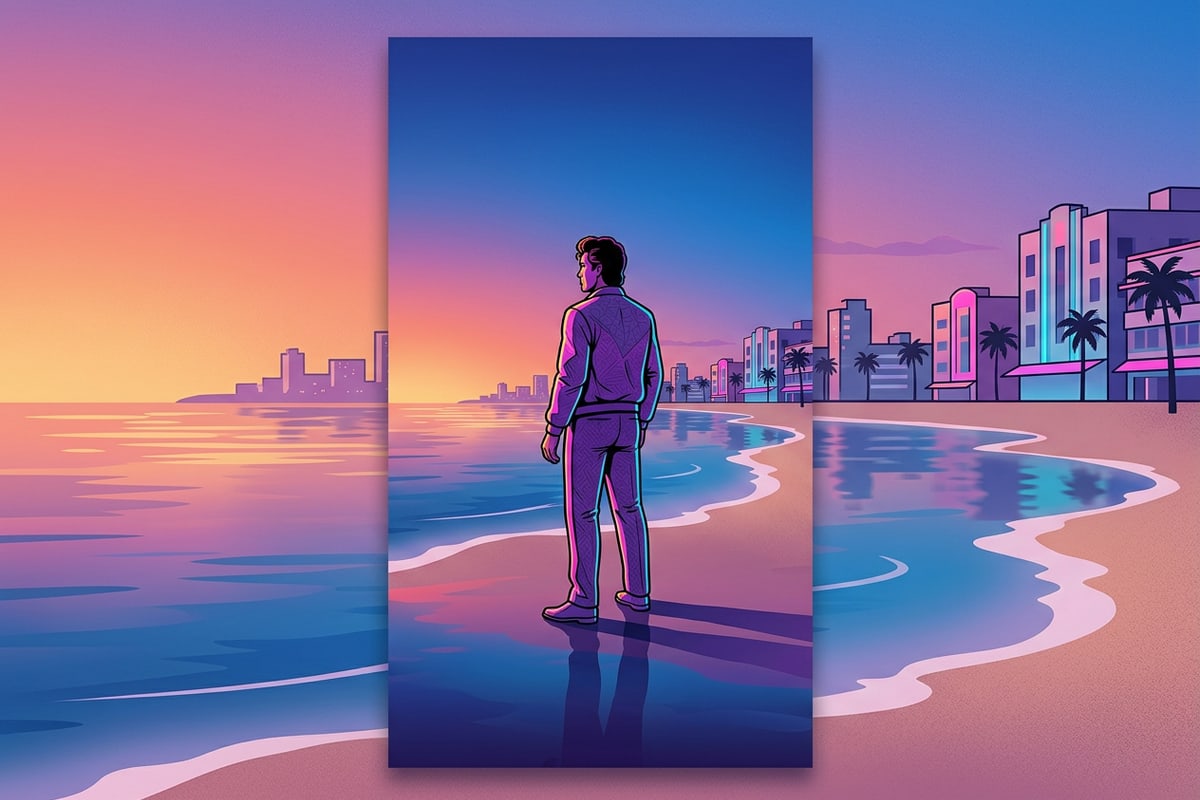
Converting a 1080x1080 square photo into a 1080x1920 vertical story canvas requires synthesizing 840 total vertical pixels, representing a +77.7% expansion in overall canvas height. Generative AI outpainting solves this geometry puzzle by calculating light, perspective, and visual texture to generate realistic surrounding context above (420 pixels) and below (420 pixels) the original frame. Because extension occurs entirely outward from the existing image borders, 100% of your central photo scale, resolution, framing, and sharpness remain intact.[1][3]
Rather than compromising your original photo's artistic intent through destructive cropping or sacrificing visual impact with ugly sidebars, generative outpainting creates a seamless edge-to-edge experience. This content-aware expansion preserves the exact focal distance and facial proportion of your subject while organically building out sky, ground, architecture, or studio background environments.[1][2]
Preparing Edge Boundaries Before Canvas Expansion
Provide pre-processing guidance to prevent edge clutter or partial objects from replicating during outpainting.
Generative outpainting models analyze the pixel patterns, line directions, and lighting gradients along image borders to extrapolate continuous surroundings. If a photo features cut-off objects at its outer margins—such as sliced limbs, partial street signs, photobombers, or stray foreground items—the AI algorithm may interpret those incomplete patterns as intentional structural features and replicate those edge artifacts into the newly generated upper and lower canvas space.[1][3]
Cleaning outer boundaries prior to canvas extension guarantees far higher generative fidelity and prevents repeating edge errors. In CARA on iOS, you can open Home > AI Editing > AI Eraser to clean away unwanted edge elements, clutter, or partial subjects before launching the uncropping process. Removing edge noise gives the generative engine clean, uninterrupted environmental cues to expand. For comprehensive guidance on cleaning busy backgrounds, explore our dedicated tutorial on how to remove crowds from iPhone photos without ruining backgrounds.[1]
In addition to removing unwanted physical objects, pay close attention to lighting continuity across the horizontal boundary lines. Ensuring that light direction, shadow density, and color tone remain uniform across the top and bottom borders enables the neural network to synthesize matching atmospheric depth across the expanded vertical canvas without harsh visual seams.[1][3]
- Inspect photo borders for sliced items, stray limbs, or harsh line cuts before outpainting.[1][3]
- Use AI Eraser to wipe away peripheral clutter so pattern extrapolation remains clean.[1]
- Verify that top sky and bottom ground lighting gradients are consistent before expanding.[1]
Step-by-Step Workflow: Uncropping Square Photos on iPhone with CARA
Deliver a concise, actionable tutorial using CARA's Image Extender tool on iOS, including critical edge continuity verification.
CARA offers a direct, mobile-native outpainting workflow through its dedicated Image Extender tool, allowing iPhone creators to expand square images into vertical formats without complex manual masking or desktop photo editing software. The application handles cloud synthesis automatically, maintaining high visual fidelity while preserving your original image center.
A critical phase in this workflow is inspecting generative edge continuity immediately after rendering completes but before final export. When expanding complex environments—such as brick walls, horizon lines, tree branches, or repetitive tile patterns—examine the transition seams where the original 1:1 boundary meets the newly generated 9:16 vertical canvas. Zoom in on the upper and lower boundary zones to verify that lighting direction, depth of field, and line perspective flow uninterrupted across the synthesized regions.[1][3]
If minor texture misalignments or unnatural pattern repetitions occur along the generated margins, re-running the generation or performing minor edge cleanup yields significantly cleaner continuity. Because CARA utilizes cloud backend processing, generations complete in seconds, providing a frictionless iteration cycle directly on iOS and iPadOS.
- Mobile access directly via Home > AI Editing > Image Extender on iOS and iPadOS.
- Fixed generation cost of 30 points per attempt, backed by an automatic point refund if cloud processing fails.
- Automated cloud processing that synthesizes photorealistic top and bottom background continuations.[1]
- Launch CARA and Select Image Extender
Open CARA on your iPhone or iPad, tap the Home tab, navigate to AI Editing, and tap Image Extender to open the tool.
- Import Your Square Photo
Select your 1:1 square photo from your iOS Photo Library to load it into the canvas editor.
- Generate Canvas Expansion
Tap generate (costing 30 points) to allow CARA's cloud AI models to synthesize matching top and bottom background scenery.[3]
Quick-Reference FAQ & Workflow Integration
Address immediate user queries regarding subject distortion, credit costs, and platform support while detailing multi-asset social workflows.
Creators frequently have practical questions regarding generative background expansion, credit usage, and device performance on iOS. Outpainting with CARA is non-destructive, meaning the generative model only creates new pixels outside your original frame boundaries, leaving central subject details, faces, and lighting completely unchanged.[1][3]
For creators managing multi-photo campaigns or structured social stories, uncropped vertical photos integrate seamlessly with other mobile editing workflows. You can combine your expanded vertical photos into multi-frame grids using CARA's Photo Collage Maker. Learn more in our guide on transforming first-day school photos into collages with Cara on iPhone, or refine your professional online branding with our walkthrough on professional AI headshots for business personal branding.
Social Media Safe Zones: Framing for Instagram & TikTok Stories
Guide creators on positioning subjects away from top profile bars and bottom reply overlays.
When posting full-bleed 9:16 vertical images to Instagram Stories or TikTok, platform user interface (UI) overlays cover significant portions of the upper and lower canvas regions. User profile handles, time stamps, and top navigation bars obscure upper margins, while comment fields, direct message boxes, and reaction buttons overlay the bottom region.[1][2]
Because uncropping a 1:1 photo extends the canvas equally outward (+420 pixels to the top and +420 pixels to the bottom), your original central subject remains perfectly centered in the middle 1080x1080 safe zone. The newly synthesized background fills the top and bottom UI danger zones, ensuring key visual elements, human faces, and main subjects remain fully visible and unobscured by app controls.[1][3]
Understanding these overlay mechanics allows you to design story posts with intent. By delegating the top and bottom canvas regions to AI-generated background scenery, you create natural padding for platform UI elements while keeping the viewer's attention locked on your original high-resolution subject framing.[1][2]