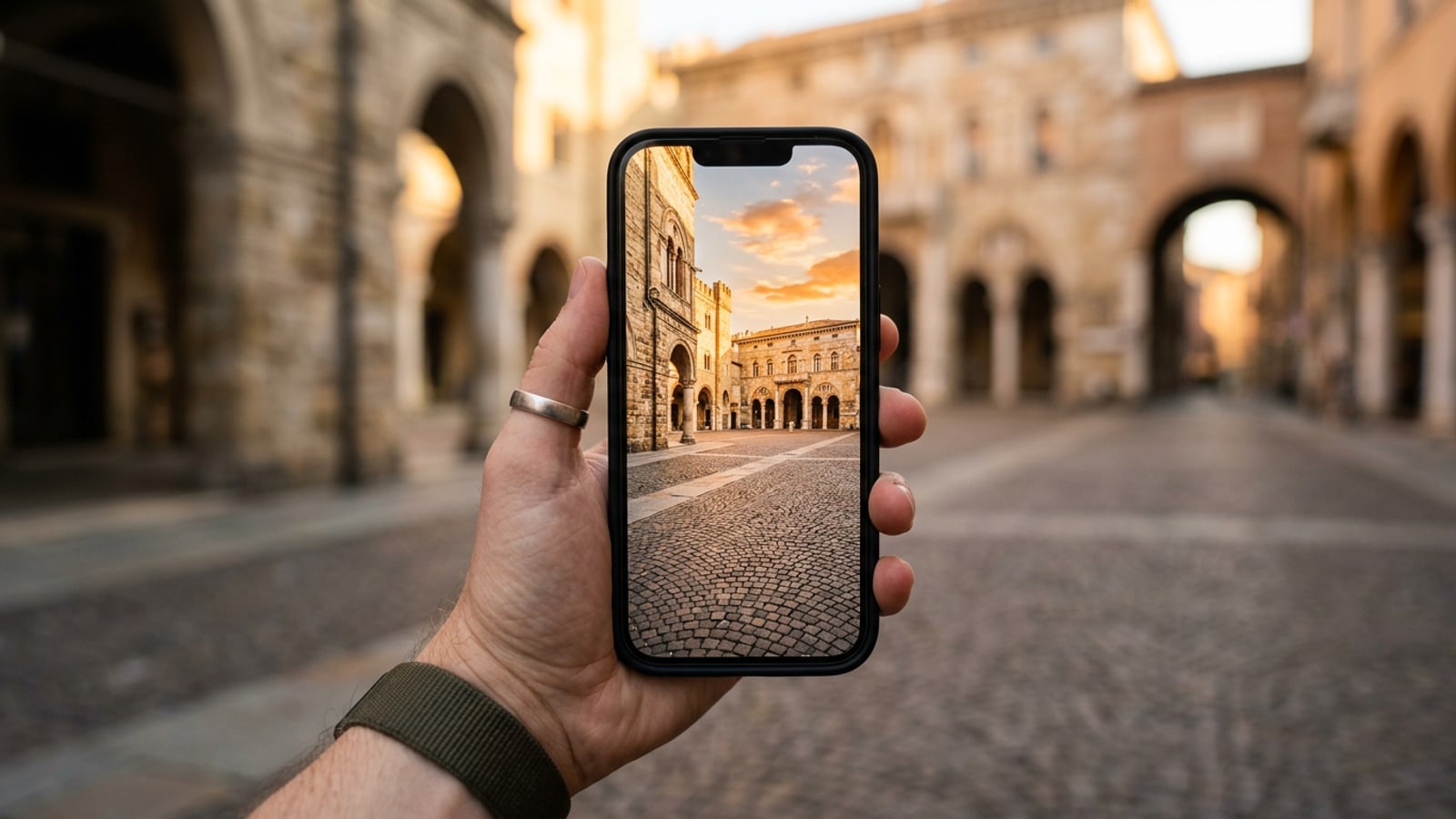
Initial Diagnostic: Why Standard Object Erasers Blur Background Textures
Understanding why conventional patch-based removal leaves soft spots, smudges, or repetitive repeating patterns on stone and sand surfaces.
When taking photos at popular travel landmarks like historic European plazas or crowded beaches, unwanted background pedestrians often spoil the shot. Attempting to erase these tourists using standard pixel-smearing tools frequently leaves visible blurry patches or odd repeating patterns across textured surfaces. Standard object removal tools typically blend adjacent pixels inward, which works well on uniform skies or flat walls but destroys high-definition ground textures like cobblestones, paving slabs, or wet sand.[1][3]
A second major obstacle in photo cleanup is the failure to include cast shadows and ground reflections. Removing a person while leaving their shadow intact creates floating visual dissonance, making the photo look instantly doctored. Successful crowd removal requires evaluating whether the ground surface has strong geometric patterns and ensuring the selection boundary extends around both the target and its lighting footprint.[1][3]
Solution 1: Removing Moving Crowds with Live Photo Long Exposure
Utilize Apple's built-in frame-blending feature to dissolve moving pedestrians across open plazas without downloading extra apps.
For scenes where background pedestrians are actively walking across an open space while your primary subject remains completely still, iOS provides a zero-app native solution. By capturing your shot as a Live Photo, your iPhone records a short temporal window around the shutter release. Converting this capture into a Long Exposure effect averages out moving objects while keeping static elements sharp.[2]
- Requires a steady camera hold and a stationary main subject during capture.[2]
- Preserves 100% of native image resolution and ground texture without AI synthesis.[2]
- Capture with Live Photo Enabled
Ensure the yellow Live Photo icon is active at the top of your iPhone Camera app before taking the photo. Keep your hands steady for three full seconds.[2]
- Open the Photo in Apple Photos
Navigate to your target photo in the native Photos app and tap the Live drop-down menu in the top-left corner.[2]
- Select Long Exposure
Tap Long Exposure from the menu options. The iPhone will blend the motion frames, rendering moving pedestrians invisible while preserving static pavement textures.[2]
Solution 2: Direct On-Device Removal with iOS Clean Up
How to use the built-in iOS Clean Up tool for localized photobombers on compatible Apple devices.
For devices running iOS 18.1 or later, Apple's native Photos app offers the Clean Up tool to remove unwanted objects and background distractions directly on your phone. Clean Up automatically highlights potential distractions with a subtle glow, allowing you to tap them for immediate removal or brush over targeted areas manually.[1]
Clean Up is fast and responsive for isolated subjects on relatively smooth or uniform backgrounds, such as a distant pedestrian against a clean wall or grassy field. However, when working on intricate repeating patterns like patterned tile floors, manual brush precision is essential to avoid soft haloing.[1]
- Automatic object detection quickly highlights distracting background figures.[1]
- Manual tapping or brushing allows localized control over precise edges.[1]
- Open Clean Up in Photos
Open the target image in Apple Photos, tap Edit, and select the Clean Up tool icon.[1]
- Select or Brush the Target
Tap an automatically highlighted background tourist, or manually brush over the photobomber and their shadow.[1]
- Refine Edge Boundary
If a soft smudge remains along structural lines, tap undo and brush a slightly tighter selection boundary around the subject.[1]
Solution 3: Advanced AI Restoration with CARA to Preserve Complex Textures
Reconstruct detailed cobblestones, sand, and architectural details using generative inpainting in CARA.
When photobombers sit directly on textured ground—like historic European cobblestones, brick pathways, or wet sand—simple localized fill tools often create flat, untextured smudges. For these complex travel scenarios, CARA offers dedicated generative capabilities through its AI Eraser and cloud-based Conversational Photo Editing agent on iOS.[3]
Rather than just smudging pixels, CARA AI Eraser contextually analyzes surrounding ground patterns to synthesize matching stone surfaces. For even greater control, CARA Conversational Photo Editing allows you to enter natural language prompt instructions to specify exactly how the background surface should be reconstructed.[3]
- AI Eraser replaces selected unwanted objects with contextually relevant background details.[3]
- Conversational Photo Editing processes written natural language requests via cloud editing to restore missing textures.[3]
- Select AI Eraser in CARA
Open CARA on your iPhone, select AI Eraser from the home tool menu, and import your travel photo.[3]
- Highlight Photobombers and Shadows
Use the selection tool to mark the background crowd, extending the selection boundary slightly into the surrounding ground.[3]
- Use Conversational Prompt Instructions
If the background requires specific architectural detailing, switch to Conversational Photo Editing and type explicit prompts like: 'Remove the people sitting on the steps and reconstruct the historic cobblestone pavement with natural lighting.'[3]
Troubleshooting Matrix: Fixing Edge Artifacts, Shadows, and Blurry Patches
A diagnostic decision matrix matching artifact types to practical technical corrections.
Even advanced AI tools can occasionally produce visual anomalies if selection boundaries or prompt parameters are off. Identifying the root cause of an editing failure—whether it is edge ghosting, repeating pattern tiles, or lighting mismatches—allows for immediate targeted repair. If your edit leaves window reflections or unwanted glass glares intact, check out our guide on how to clear window glare and glass reflections from iPhone photos.
When editing social media travel content or preparing portraits for public sharing, keeping ground textures authentic ensures your photos retain high aesthetic standards. If you are also interested in refining your personal image on professional platforms, explore our workflow for creating professional AI headshots on iPhone. Furthermore, after cleaning up individual travel photos, you can combine them using the Photo Collage Maker in CARA, as detailed in our guide to transforming back-to-school photos into aesthetic collages.
- Ghost Edges or Halos: Caused by tight selections missing subject contours; re-select with a 5 to 10 pixel padding around the target.[3]
- Blurry Flat Patches: Caused by simple pixel interpolation; switch to generative AI inpainting with material-specific text prompts.[3]
- Orphan Cast Shadows: Caused by brushing only the body; re-edit to include full ground shadow area.[1][3]