Solving First-Day Photo Overload: The 4-Panel Collage Solution
Consolidate morning outfit checks, classroom drop-offs, and playground moments into a unified 4-photo story grid.
The annual return to school triggers a flurry of quick camera captures: early morning outfit-of-the-day (OOTD) checks on the front porch, close-up shots of fresh notebooks and backpack pins, nervous drop-off smiles by the school sign, and afternoon post-dismissal celebrations. Sharing dozens of individual photos across family group chats or social media channels can feel overwhelming for viewers and dilutes the visual impact of key milestones.[1]
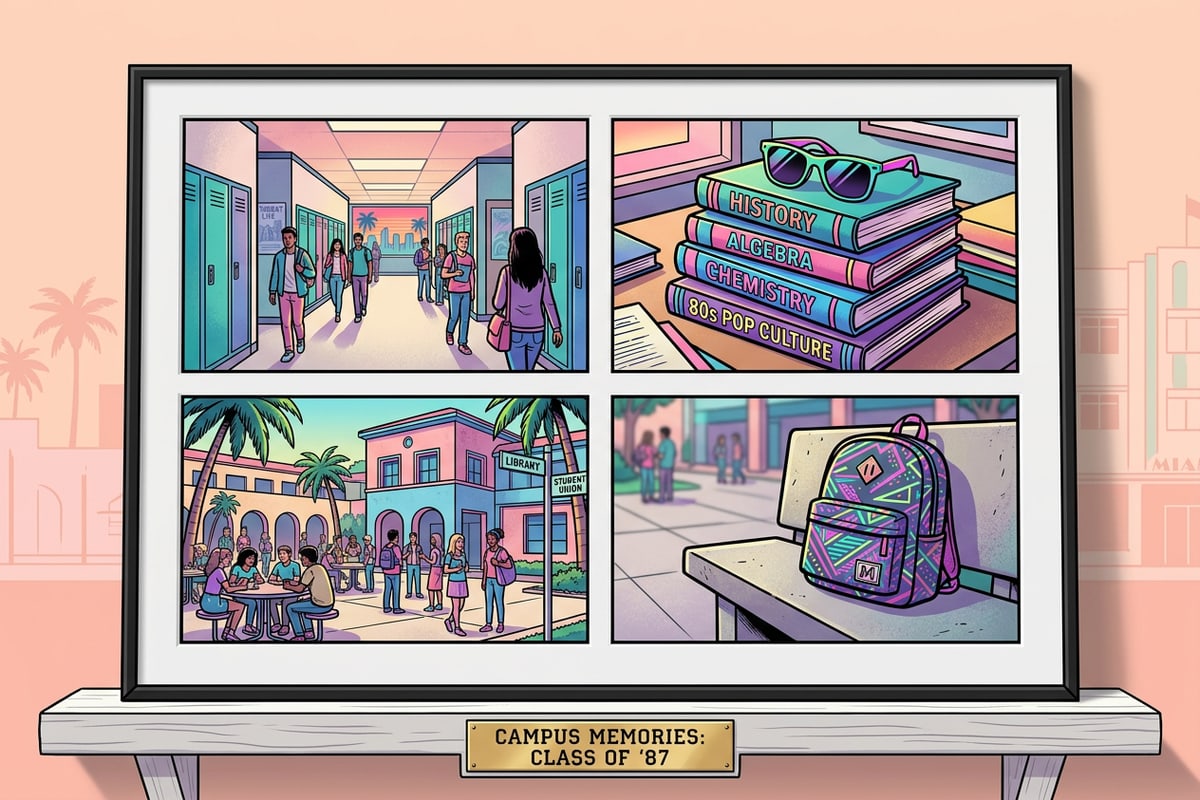
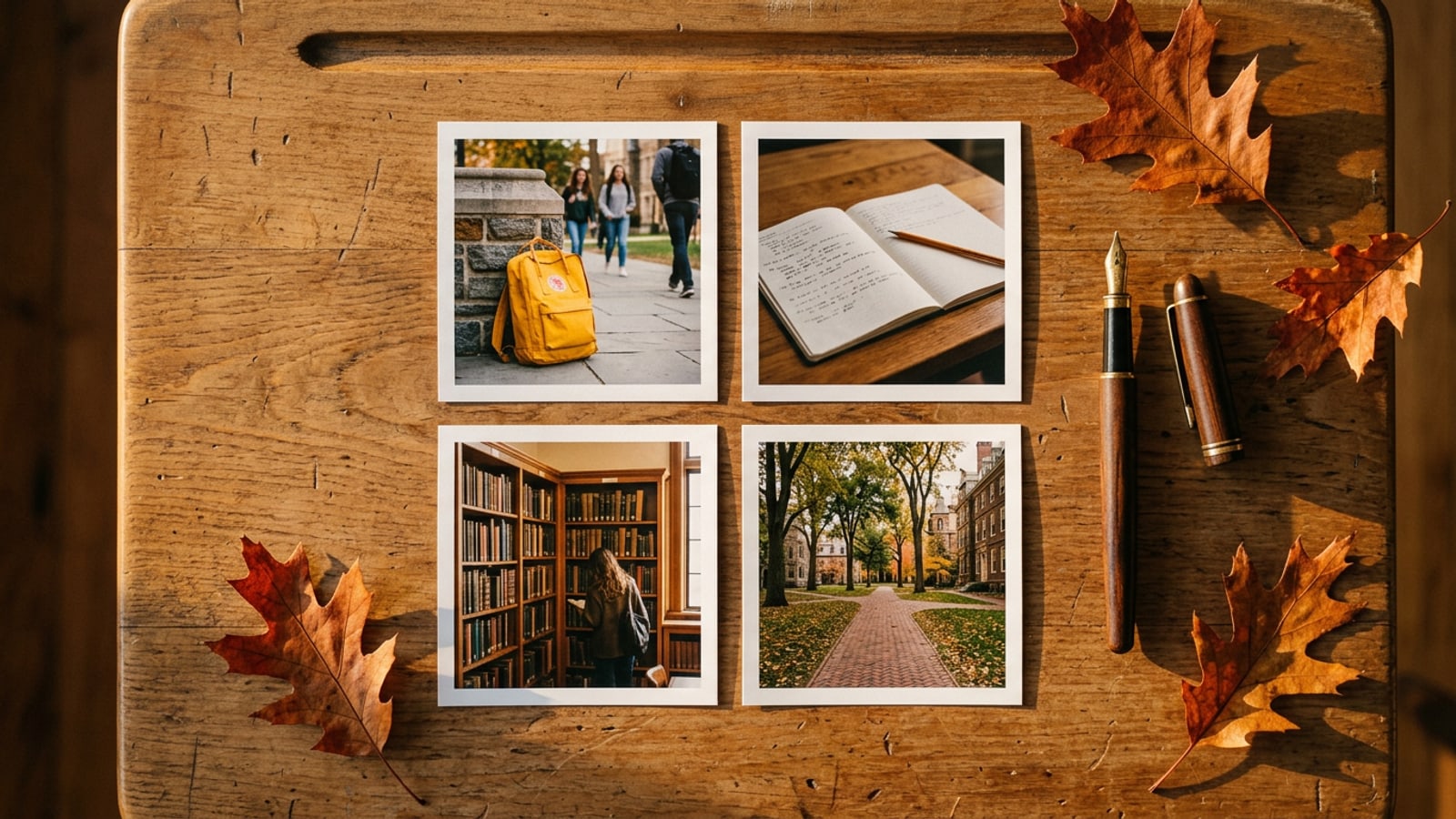
Structuring these scattered memory captures into a balanced 4-panel layout solves digital photo clutter while creating a clear sequential story. By curating four complementary images from the morning routine, parents and students can showcase the complete arc of the first day in a single polished layout.[2]
Rather than relying on generic square grids that cut off tall outfit details or wide environmental backgrounds, choosing a dedicated scrapbook frame maintains full subject context while establishing clean visual harmony.[2]
- Panel 1 (Full-Length Portrait): Morning porch photo highlighting the full outfit, new shoes, and backpack.[2]
- Panel 2 (Close-Up Detail): High-resolution shot of fresh school supplies, labeled pencil cases, or a handmade grade sign.[2]
- Panel 3 (Environmental Context): Arrival moment showing the school entrance walkway or classroom desk setup.[2]
- Panel 4 (Emotional Highlight): Afternoon dismissal smile, bus stop wave, or celebratory post-school treat.[2]
Verifying the Event Catalog & Accessing the Template
Check template catalog availability and confirm free access parameters before assembling your back-to-school grid.
Apple In-App Event guidelines emphasize the importance of verifying that promised seasonal features are fully accessible in live app builds before promoting them. In Cara version 1.4.6, users can access the dedicated Back To School Memories & Collages layout listed under the catalog identifier school_days_scrapbook.[1][2]
This specialized layout is completely unlocked for all users without requiring point subtractions or premium subscription locks. Confirming your app build is updated to version 1.4.6 ensures that catalog indexes load seamlessly when launching the Photo Collage Maker.[2]
Taking a quick moment to verify template availability prevents friction during late-afternoon creation sessions when you want to publish first-day updates quickly.[1][2]
- Update to Version 1.4.6
Open the iOS App Store, search for Cara, and verify that your app build is updated to version 1.4.6 to ensure fresh catalog assets are properly indexed.[2]
- Open Photo Collage Maker
Tap into the Photo Collage Maker tool from the main application hub screen.[2]
- Select school_days_scrapbook
Locate the 4-photo Back To School Memories & Collages template under the artistic layout catalog.[2]
Step-by-Step Workflow: Cleaning and Assembling Your Collage
Clean background distractions and balance colors using AI features before locking photos into your grid.
Attempting to edit individual photos after placing them into a multi-panel frame frequently leads to awkward cropping, loss of high-frequency detail, and uneven background distractions. Preparing each image through a systematic pre-grid cleanup workflow yields significantly higher visual quality in your final scrapbook output.[2]
If an otherwise great first-day portrait includes distracting background elements—such as stray cars parked in the driveway, trash cans near the front door, or power lines overhead—clean the source file with AI Eraser before placing it into the template. For mirror selfies or indoor hallway photos cluttered with household items, review our step-by-step guide on how to change cluttered mirror selfie backgrounds on iPhone with AI.[2]
Handling aspect ratio mismatches during pre-processing is equally essential. When fitting a tall 9:16 portrait into a 4:3 scrapbook panel, avoid harsh manual crops that cut off footwear or headbands. Instead, expand the canvas border using Image Extender so the subject fits naturally without losing important details.[2]
- Pre-Clean Objects with AI Eraser
Select individual photos and brush over unwanted background clutter like street signs or stray shoes to generate a clean canvas.[2]
- Isolate Key Subjects with Remove Background
For cut-out scrapbook panels, separate full-body student poses cleanly from busy school hallway backgrounds.[2]
- Expand Tight Framing with Image Extender
If a close-up photo clips subject edges when fit into a panel, use outpainting to build out matching background padding.[2]
- Assemble into school_days_scrapbook Grid
Import your four pre-cleaned, properly formatted photos directly into the 4-panel template slot allocations.[2]
- Harmonize Atmosphere with Cara Agent
Use Conversational Photo Editing to request subtle natural-language color matching across panels, such as 'soft golden afternoon warmth'.[2]

Troubleshooting Aspect Ratios and Multi-Subject Lighting
Address aspect ratio mismatches, subject positioning, and lighting variations across individual panels.
Combining photos taken at different hours of the day—such as harsh morning sun on the porch alongside dim fluorescent lighting inside a classroom—often creates jarring contrast jumps between adjacent collage panels. Fixing these visual disparities before final export elevates a basic photo grid into a cohesive design.[2]
Because hard-disabled features like automated smart crop or face retouching are intentionally unavailable in the underlying app architecture, framing adjustments rely on precise user positioning and generative canvas extension. Utilizing Image Extender allows you to pad narrow vertical shots with contextual background elements, preventing awkward head chops or squeezed subjects.[2]
To fix severe exposure or lighting mismatches across panels, leverage Cara Agent's natural-language requests. Instructing the AI agent to adjust shadow depth or warm up cool tones across individual pre-assembled elements ensures all four panels look as though they were captured under identical ambient conditions.[2]
- Fixing Aspect Ratios: Use Image Extender to add subtle background area to tight vertical shots before grid import.[2]
- Harmonizing Shadow Depth: Request Conversational Photo Editing prompts like 'lift harsh shadow contrast on face' for mid-day outdoor shots.[2]
- Unifying Color Palette: Prompt Cara Agent with requests like 'gentle warm autumn tones' to equalize cool indoor lighting with warm outdoor light.[2]
Creative Layout Ideas and Unshipped Feature Boundaries
Explore aesthetic storytelling themes while managing capability boundaries with native iOS tools.
Creating a memorable back-to-school collage relies on purposeful thematic choices across the four panels. Mixing focal lengths—combining one wide environmental landscape, two medium subject portraits, and one macro detail photo—creates a visually dynamic rhythm that holds attention.[2]
While arranging your collage in Cara version 1.4.6, note that built-in text typography, overlay captions, and manual drawing brush tools are not active in the current app build. To add student names, grade years, or dates to your finished scrapbook image, export your rendered collage from Cara and use native iOS Photos Markup or dedicated external design applications.[2][3]
Understanding these capability boundaries prevents frustration while allowing you to harness Cara's strongest asset: AI pre-cleaning and natural-language atmospheric polish.[2][3]
- Theme 1: The First-Day OOTD — Pair a full outfit pose, shoe detail shot, backpack flat-lay, and front door wave.[2]
- Theme 2: Sibling Duo Scrapbook — Dedicate two panels to individual student portraits and two panels to shared arrival moments.[2]
- Theme 3: Morning to Afternoon Journey — Sequence morning breakfast, school sign arrival, desk setup, and afternoon playground reunion.[2]
- Native Caption Workaround: Save the rendered collage to your iOS Photos library, tap Edit, select the Markup pen icon in the top corner, and add custom text boxes for grade labels.[3]