The Zero-Reshoot Wardrobe: Changing Photo Outfits on iPhone
Overview of AI outfit swapping on iOS and why targeted inpainting beats re-generating an entire photo.
Packing multiple outfits for every travel photo shoot or daily Outfit of the Day (OOTD) post can quickly turn a vacation into a stressful wardrobe management hassle. Carrying heavy luggage across historic cobblestone streets or rushing through rapid clothing changes in crowded tourist destinations frequently leads to compromised outfits, missed golden hour lighting, or unwanted clothing wrinkles in your favorite shots. Rather than settling for a mismatched jacket or attempting a high-effort manual photo edit on a laptop, iOS creators can perform targeted garment replacements directly on their iPhone in seconds.[1][2]
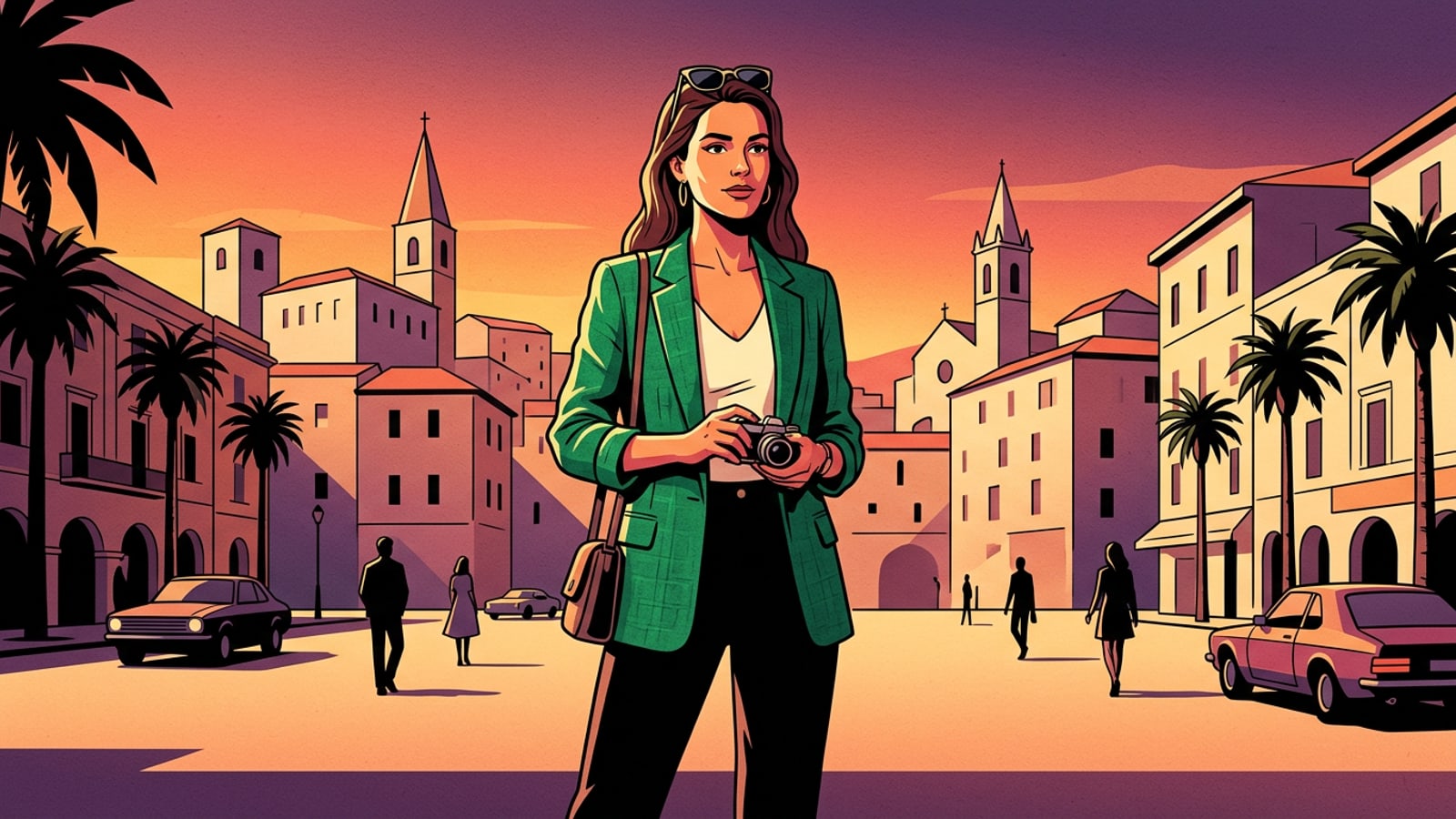
By focusing generative artificial intelligence strictly on garment pixels through natural language prompts, you can convert a casual oversized cotton t-shirt into a tailored emerald linen blazer, a heavy winter sweater, or a flowing summer maxi dress without leaving your iPhone camera roll. This mobile workflow eliminates the tedious task of cutting out subject selections while keeping your authentic portrait facial expression, skin tone, body posture, and original location background completely intact.[1][2]
- Saves luggage space and eliminates the need for stressful outfit reshoots during travel content creation.[1]
- Keeps authentic background depth, ambient shadows, and natural environmental lighting context untouched.[1]
- Allows creators to test different style aesthetics and color palettes on existing portrait poses in real time.[1][2]
How Generative Inpainting Works for Garment Swapping
The technical distinction between full image regeneration and localized mask-based AI replace on mobile.
To achieve photo-realistic clothing swaps, it is vital to understand the crucial technical distinction between full text-to-image generation and localized generative inpainting. Full text-to-image models re-synthesize an entire image canvas from scratch based on a text prompt. While full regeneration can synthesize matching lighting across a synthetic scene, it regularly alters subtle facial identity markers, skin mole patterns, fine hair strands, and exact physical background structures that make travel photos authentic.[1][3]
In contrast, localized generative inpainting—accessible via AI Replace on iOS—isolates pixel modifications exclusively to a user-painted mask region. The underlying diffusion model analyzes surrounding unmasked pixels to determine shadow vectors, highlight angles, color temperatures, and ambient bounce light. Because image processing relies on secure cloud-based AI infrastructure, your iPhone handles precision masking smoothly while remote computing clusters render complex fabric physics, weave patterns, and natural clothing drapes.[1][2][3]
- Preserves facial identity, skin mole patterns, hair strands, and background geometry outside the painted mask area.[1][3]
- Blends generated fabric highlights, collar structures, and sleeve folds into existing golden hour or indoor lighting.[1]
- Calculates realistic cloth weight and draping dynamics based on explicit text descriptors in your prompt.[1]
Step-by-Step Tutorial: Swapping Clothes in CARA AI Replace
Practical workflow for isolate-brushing clothes on iOS and issuing natural text commands.
Executing a clean outfit transformation on your iPhone requires isolating target clothing items with precision before issuing descriptive text instructions in the CARA app. Preparing your source photo by removing background photobombers with AI Eraser prior to outfit editing ensures clean fabric borders and prevents awkward edge blending.[2]
The following step-by-step mobile workflow guides you from initial photo import to final canvas expansion for social media publishing.[2][3]
- Import Photo and Clean Up Background Clutter
Launch CARA on your iPhone and select your target portrait photo. If your travel shot contains distracting tourists or background clutter near your outfit, tap AI Eraser first to clean up the background environment prior to outfit masking.[2]
The 3-Part OOTD Prompt Formula & Ready-to-Copy Examples
A structured prompt framework for garment physics, material texture, and subject preservation.
Achieving believable fabric folds, realistic material weight, and seamless lighting integration requires a balanced text prompt structure. Vague prompts such as 'change shirt to blazer' often result in flat textures, artificial plastic sheens, or distorted necklines. The most effective prompting framework divides your instruction into three core components: Garment Structure, Material Physics, and Preservation Anchors.[1]
Part 1 (Garment Structure) specifies the exact clothing piece, silhouette, color, and collar design. Part 2 (Material Physics) details the weave texture, fabric weight, natural creasing, and drape behavior over arms or waistlines. Part 3 (Preservation Anchors) explicitly instructs the generative model to hold surrounding skin tone, hair, posture, and environmental lighting steady, reducing identity drift across edit attempts.[1][3]
Below are copyable prompt formulas engineered for popular travel and fashion aesthetics, tailored specifically for mobile generative replacement:[1][3]
- Emerald Linen Summer Blazer: 'A tailored emerald green linen blazer worn over an ivory silk camisole, visible linen weave texture, natural soft shoulder structure and light fabric creases, keep original skin tone, neck posture, and background lighting unchanged.'[1][3]
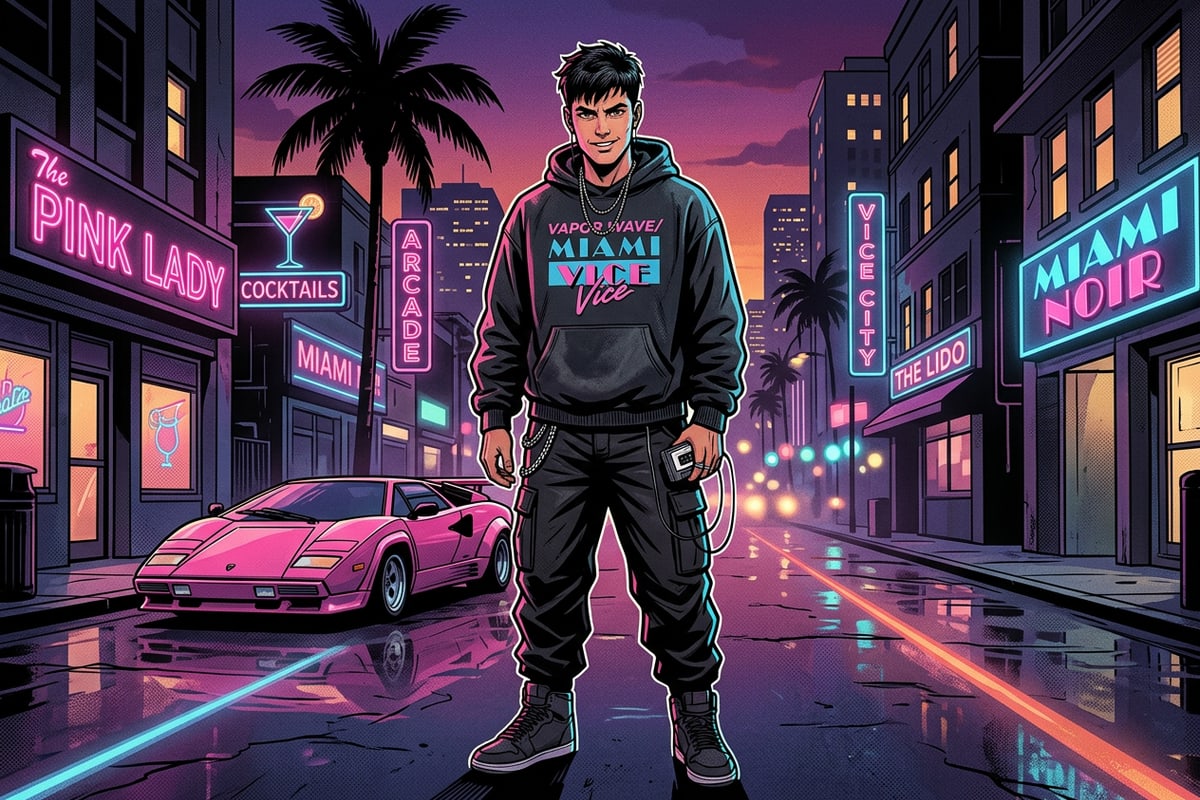
- Vintage Washed Streetwear Hoodie: 'An oversized vintage washed-black heavy cotton hoodie, thick fleece fabric texture, natural heavy fabric folds around elbows and chest, relaxed hood drape over shoulders, keep original facial expression and ambient lighting intact.'[1][3]
- Bohemian Floral Travel Maxi Dress: 'A flowing boho yellow floral silk maxi dress, delicate thin spaghetti shoulder straps, realistic lightweight fabric drape with subtle wind movement, keep original shoulder pose, skin tone, and sunset background highlights unchanged.'[1][3]
- Classic Tailored Denim Jacket: 'A classic mid-wash indigo denim trucker jacket with brass metal buttons, visible double-stitched seam details, realistic rigid cotton denim texture with light distressing along collar, keep original body posture, face, and background unchanged.'[1][3]
- Structured Leather Trench Coat: 'A double-breasted dark chocolate brown leather trench coat, soft matte leather grain texture, subtle natural reflections on shoulders matching ambient sunlight, structured lapels, keep original facial identity and skin tone completely intact.'[1][3]
Pro Editing Tips & Troubleshooting AI Garment Artifacts
Techniques for precision brushing, seam blur correction, and handling backlit conditions.
The most frequent artifact encountered during mobile outfit replacement is fabric color bleeding onto necklines, wrists, or hair strands. This occurs when selection masks overlap onto bare skin, causing the diffusion model to re-interpret skin texture as cloth borders. Following the 1-2 Pixel Internal Mask Rule—brushing slightly inside clothing borders along skin contact points—prevents body shape expansion and maintains natural jawlines.[3]
When editing backlit or golden hour portraits, lighting mismatch can disrupt realism if the new garment lacks corresponding rim light. Describe the directional light source explicitly in your prompt (e.g., 'warm golden hour backlighting along shoulder seams'). If your original source photo features severe face shadows due to strong backlighting, creators can use conversational AI prompts in CARA Agent to brighten dark backlit faces prior to replacing clothing.[1][2]
- For fitted shirts and blazers, keep brush marks strictly inside garment edges to maintain natural body contours.[3]
- For bulky coats or oversized dresses, extend the selection mask 2 to 3 pixels outside original borders so the AI can render extra fabric volume.[1][3]
- Use AI Eraser to remove background photobombers before performing garment replacement to prevent unwanted seam blending.[2]
- Utilize Image Extender after completing outfit swaps to expand tight 1:1 square crops into 9:16 Instagram Story frames.[2]