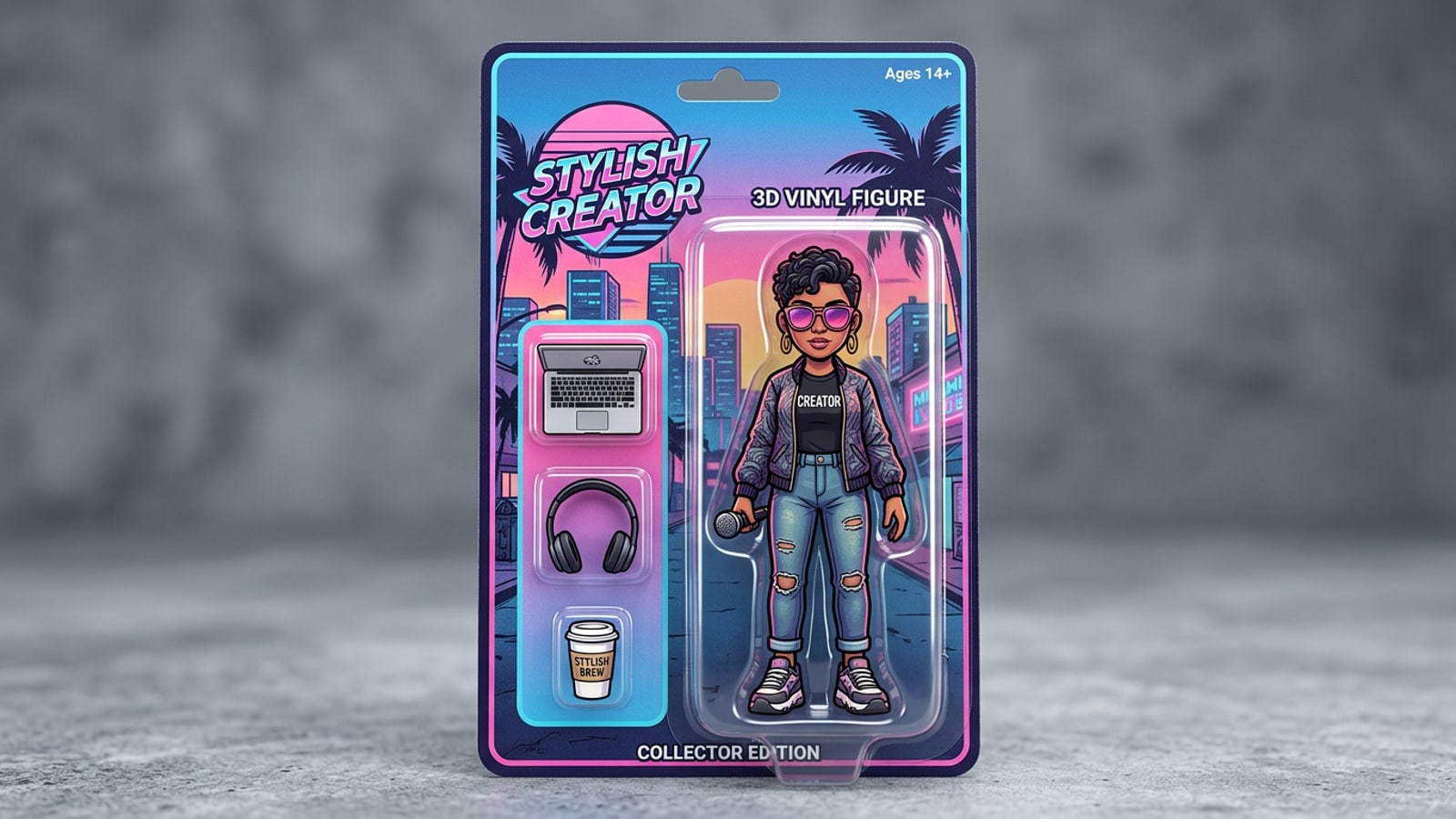
Quick Formula: The Instant 3D Blister Pack Prompt Recipe
Copy the foundational prompt structure to instantly convert reference portraits into custom boxed 3D vinyl collectibles.
To immediately convert a selfie into a viral 3D vinyl action figure collectible on iPhone, copy this universal baseline prompt formula: 'A photorealistic 3D vinyl action figure based on [subject description], sealed inside a glossy transparent plastic blister packaging bubble attached to a printed cardboard backing card. To the side of the figure, three distinct accessories are sealed in separate miniature blister bubbles: [accessory 1], [accessory 2], [accessory 3]. Studio lighting, specular reflections on plastic, 9:16 vertical format.'[1][2]
On iPhone, open CARA and navigate to AI Photo (Text-to-Image Generation). Paste this formula, select an advanced image model such as GPT Image 2 (150 points for 1K resolution) or Nano Banana Pro (100 points), and run your generation pass.
Why Standard Prompts Fail: Material and Scale Anchor Science
Understand how plastic material shaders and packaging containers prevent fuzzy skin textures and merged accessories.
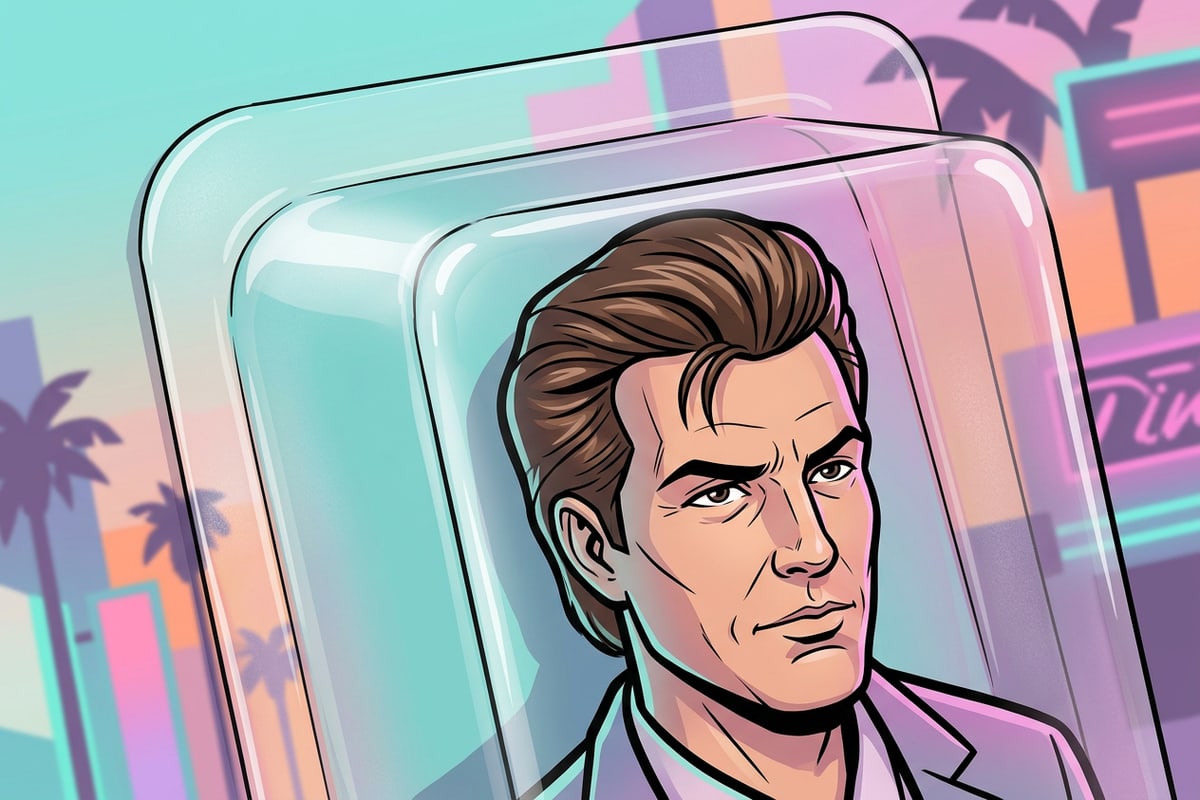
When creators ask standard AI models to 'turn this photo into an action figure,' outputs frequently look like living humans trapped behind glass or feature blurry skin pores. Generative image models default toward organic subsurface scattering and realistic skin textures unless explicitly overridden with hard-surface manufacturing descriptors.[1][3]
To achieve authentic toy realism, your prompt must act as a material shader. Describing the character as 'injection-molded ABS plastic with specular gloss' signals to the renderer that the surface should reflect crisp studio highlights rather than absorb light like human skin.[1][3]
Furthermore, scale distortion occurs when accessories float aimlessly in space. By specifying structural container boundaries—such as 'sealed inside individual blister compartments on a side sprue'—you establish clear spatial compartmentalization that prevents objects from merging into the figure's hands.[1][2]
- ABS Plastic & Vinyl Keywords: Replaces organic skin pores with synthetic toy finishes.[1]
- Blister Bubble Anchors: Restricts accessories to clean separate compartments inside the box.[1][2]
3 Copyable Prompt Recipes for Different Toy Aesthetics
Explore three tailored prompt recipes for classic blister packs, desktop acrylic figurines, and chibi vinyl toys.
Depending on your aesthetic goal, subtle prompt adjustments can yield vastly different collectible styles. Below are three copyable prompt recipes tested for optimal visual fidelity.[1]
- Classic Retail Blister Pack: 'A photorealistic 3D vinyl action figure of [character description] inside a clear plastic blister package attached to a colorful graphic backing card with a top peg hole. Three mini accessories sealed in side bubbles. Specular plastic gloss, studio spotlighting, 9:16 ratio.'[1][2]
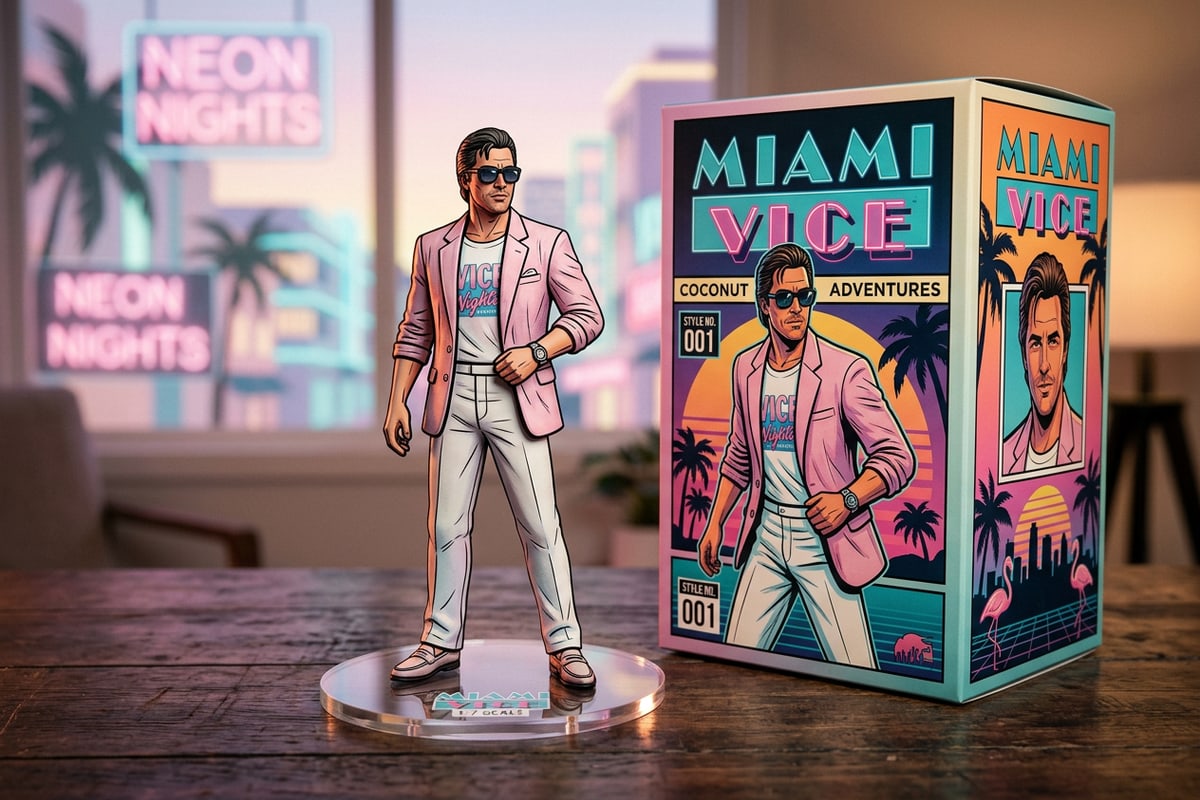
- Desktop Acrylic Figurine: 'A 1/7 scale stylized 3D vinyl figurine standing on a round clear acrylic display base on a dark wooden desk. Crisp synthetic plastic texture, clean figurine joints, soft studio desk lighting, shallow depth of field.'[1]
- Chibi Vinyl Collectible: 'A cute chibi-style 3D vinyl toy figure with oversized head and exaggerated proportions, displayed inside a window box container. Glossy smooth plastic finish, vibrant solid colors, macro product photography.'[1]
Step-by-Step iPhone Pipeline in CARA
Follow this systematic iOS workflow to prep reference portraits and render custom 3D toy art.
Creating high-fidelity action figure art on iPhone requires combining reference photo preparation with conversational AI editing in CARA.[2][3]
- Prepare Reference Portrait
Open CARA on iOS, select Remove Background under AI Editing to isolate your subject portrait from noisy background elements.
- Select High-Detail AI Model
Choose GPT Image 2 (150 points for 1K resolution) or Nano Banana Pro (100 points) from the model menu to ensure sharp plastic reflections.[1]
- Refine Conversationally in Cara Agent
Open Cara Agent (Home > Agent) and ask natural language adjustments like 'Increase plastic reflections on the blister bubble' or 'Change backing card graphics to futuristic blue'.[3]
Troubleshooting & Material Realism Optimization Tips
Fix common generation bugs including merged accessories, soft plastic gloss, and distorted box text.
Generative AI can occasionally struggle with complex multi-object packaging layouts. Here is how to troubleshoot the most frequent artifacts.[1][3]
If accessories merge into the character's hands, rephrase the prompt to explicitly position them on a 'separate plastic side sprue' or 'individual thermoformed blister tray.' To fix dull plastic reflections, add terms like 'hard specular rim highlights' and 'high gloss PET plastic bubble' to intensify light glints.[1][3]
If you want to clean up background clutter or unwanted artifacts around your generated box, CARA's AI Eraser allows you to touch up the render instantly. If you need inspiration for complementary streetwear or travel outfits on your source photo before converting it to a toy, check out our guide on how to change clothes in iPhone photos with AI prompts.