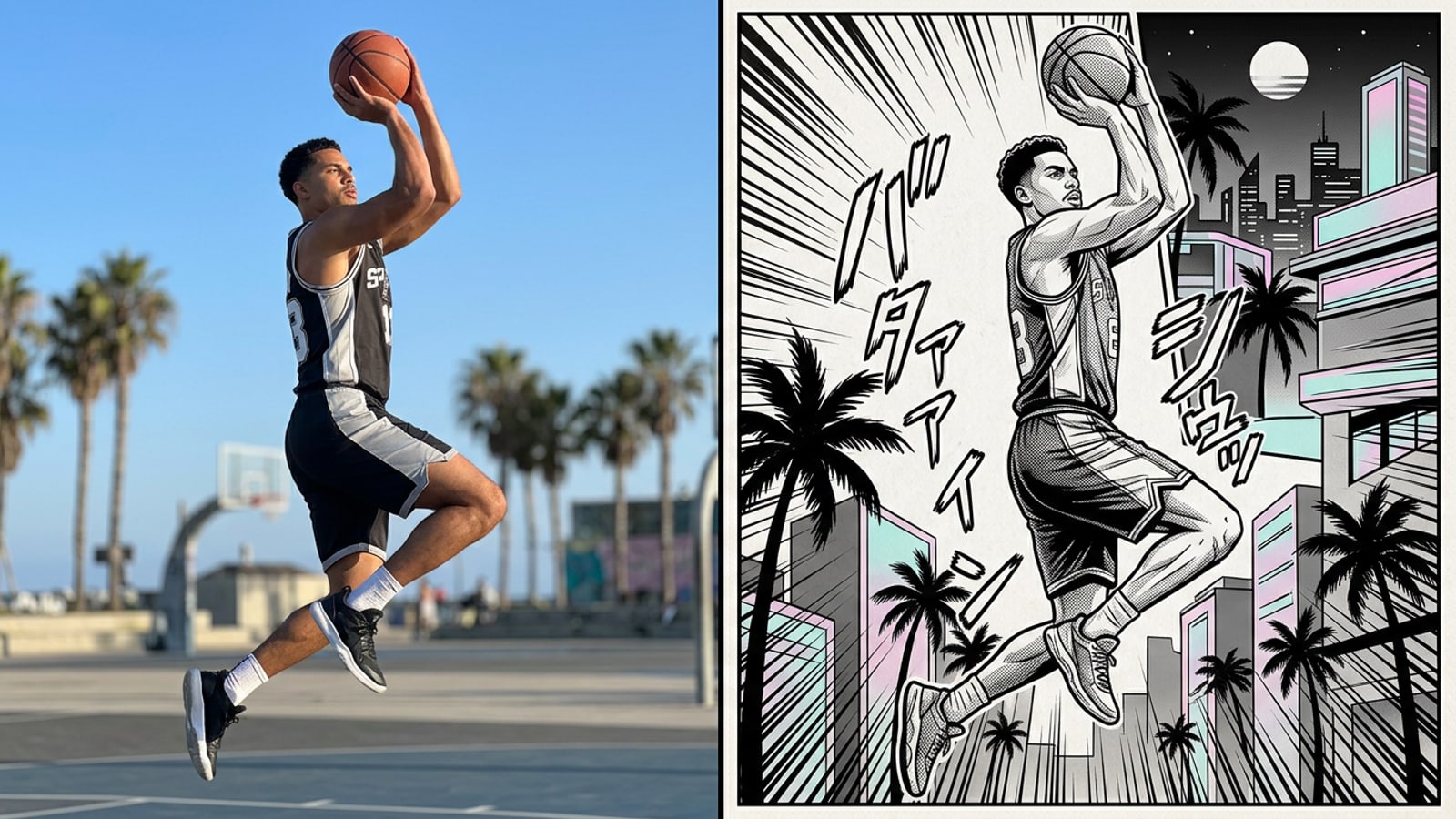
Instant Manga Pages from iPhone Video: The Automated Workflow
Transform raw mobile video clips into structured manga pages instantly without scrubbing timelines or sketching panels.
Converting real-world video into multi-panel comic spreads traditionally required complex desktop NLE editors, manual frame tracing, and tedious rotoscoping. Mobile creators overwhelmingly prefer automated style transfers and smart keyframe processing over manual frame-by-frame editing.[3]
By leveraging depth-aware AI models and temporal motion analysis, short video clips can now be automatically scanned to isolate high-impact action frames and render them into structured manga page layouts in seconds.[1][2]
Depth mapping preserves character poses, spatial depth, and perspective geometry while translating continuous motion into discrete panel frames. This depth-aware transformation enables creators to convert live iPhone recordings of athletic moves, dance steps, or pet reactions into professional comic layouts without specialized drawing or editing skills.[1][3]
- Bypasses the steep learning curve of traditional digital illustration and complex timeline editing software.[3]
- Preserves underlying scene geometry, subject proportions, and character posture across panel transitions.[1]
- Automatically converts continuous real-world movement into static sequential visual storytelling spreads.[2]
Camera Setup: Capturing High-Motion Video for Crisp Line Art
Optimize your iPhone camera capture settings to give AI extraction algorithms the clearest motion boundaries.
The aesthetic quality of an AI-generated manga page depends directly on the temporal frame clarity of the input footage. High-density frame capture provides clear edge boundaries, allowing neural ink line extraction algorithms to render crisp stroke boundaries without motion blur ghosting.[1][2]
Clips between 3 and 15 seconds deliver the optimal duration for automated keyframe analysis. This window provides sufficient temporal variation for peak action selection without cluttering the final multi-panel layout with redundant frames.[2]
Lighting play a crucial role during neural edge isolation. Recording in well-lit environments under direct key light prevents dark background noise from interfering with ink conversion, resulting in cleaner line art and crisper halftone screentone patterns in the generated output.[1]
- Set your iPhone video capture settings to 4K at 60fps to maximize frame edge definition during rapid movement.[2]
- Keep source clip duration between 3 and 15 seconds to ensure balanced keyframe selection and clean page layouts.[2]
- Ensure subject lighting is clear and direct to prevent visual background noise from impairing AI line rendering.[1]
Step-by-Step Tutorial: Generating Manga Panels in CARA
A practical procedural guide to converting iPhone clips into styled comic spreads using CARA's Video to Manga feature.
Generating multi-panel comic pages directly on your iPhone requires no manual timeline editing or drawing skills when using automated AI keyframe extraction tools.[3]
By pairing CARA's Video to Manga generator with natural-language adjustments in Cara Agent, creators can convert short clips into fully styled webcomic pages in just a few taps.[1][2]
- Import Your Video Clip into Video to Manga
Open CARA on iOS and tap the Video to Manga feature on the home tab. Select a clear 3-to-15 second video clip from your Photos library containing dynamic motion or facial reactions.[2]
- Refine Manga Aesthetics with Cara Agent Prompts
Open your generated panel spread in Conversational Photo Editing (Cara Agent) and enter natural language prompts to adjust ink intensity, add halftone screentones, or apply speed lines.
- Fine-Tune Shadowing and Contrast Balance
Use follow-up prompt requests in Cara Agent to refine panel lighting—such as requesting deep black ink shading, high-contrast shadows, or dramatic chiaroscuro backlighting across primary keyframes.
Manga Panel Architecture: How AI Translates Motion into Pacing
Understand how motion vector analysis converts continuous frame sequences into visual storytelling panel hierarchies.
Automated keyframe extraction algorithms scan temporal motion vectors across continuous video frames to identify directional shifts, rapid velocity changes, and scene inflection points.[2]
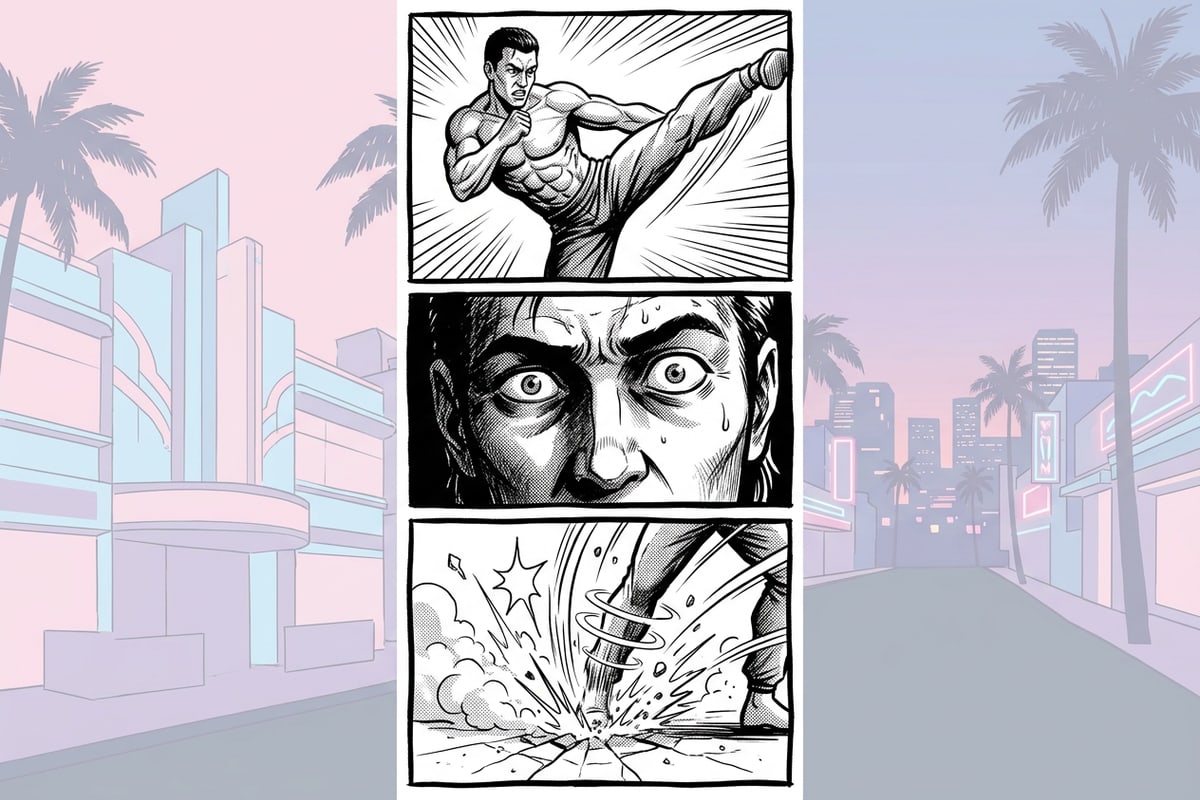
Rather than capturing mechanical frame intervals every few seconds, depth-aware processing isolates frames with the highest temporal variance—such as the peak moment of a jump shot, the instant of physical impact, or a dramatic facial reaction.[1][2]
Once keyframes are selected, the page generation system uses visual hierarchy rules to arrange them. Peak action frames are automatically assigned prominent, large splash panel positions at the top or center of the page, while transitional movements and reaction shots occupy smaller supporting panels to guide reader eye movement naturally.[2]
- Motion vector scanning identifies peak velocity changes, spatial shifts, and temporal inflection points.[2]
- Climax and peak impact frames automatically receive larger primary panel placements for visual emphasis.[2]
- Transitional movements and secondary reactions occupy smaller supporting panels to establish reading rhythm.[2]
Polishing Your Comic Page: Background Cleaning & Vertical Format Scaling
Refine panel backgrounds and expand canvas framing for mobile feeds using integrated AI editing tools.
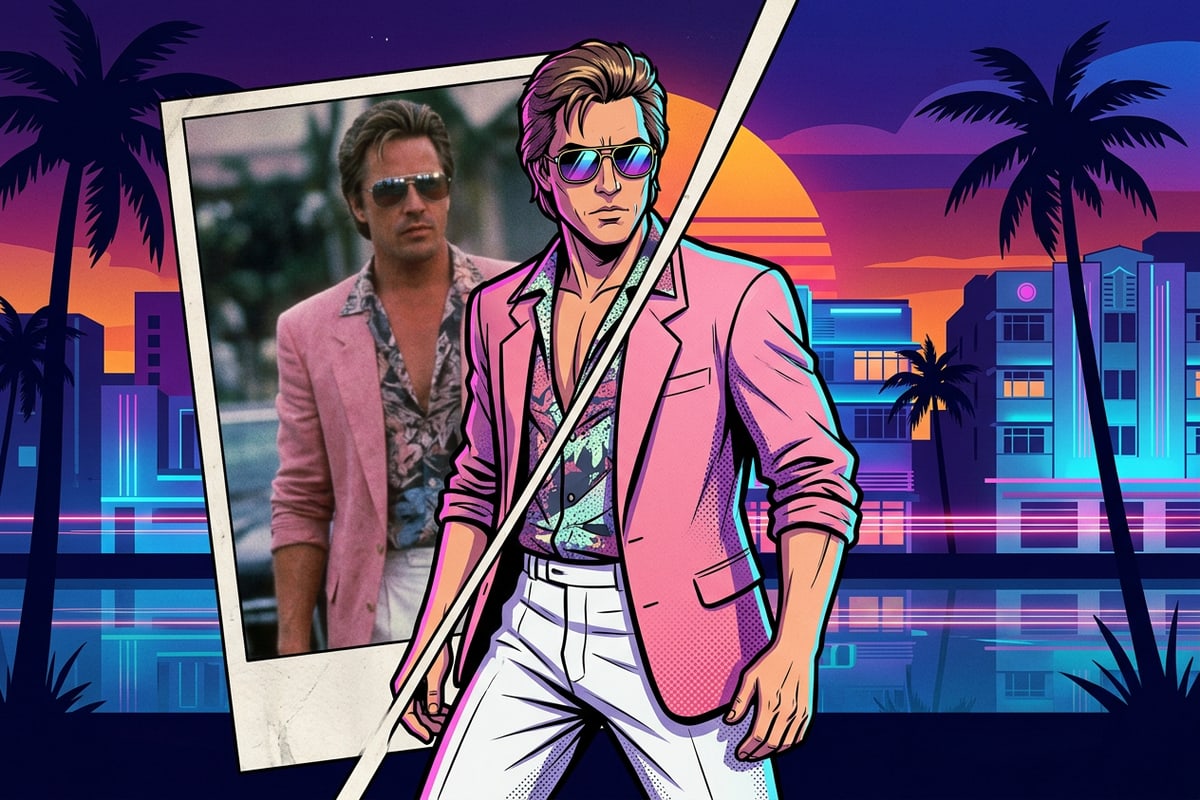
Mobile content creators prefer promptless, automated style transfer because it eliminates manual rotoscoping and tedious background editing.[3]
When source footage includes messy real-world backgrounds or unwanted clutter, utility tools like Remove Background can isolate primary subjects to create clean, focused panel graphics. For outdoor or travel video clips containing unwanted photobombers, refer to our detailed guide on how to remove tourists from iPhone travel photos with AI for subject cleanup workflows.
In addition, because standard landscape video clips leave empty side gaps on vertical smartphone displays, Image Extender can outpaint canvas borders beyond the original camera capture, expanding horizontal shots into full 9:16 vertical storytelling layouts suitable for social feeds and digital webcomic formats. If your original action footage was filmed under low-light conditions, explore our guide on fixing dark iPhone concert photos to rebalance stage lighting prior to panel conversion.
- Isolate subject poses and remove distracting real-world elements using Remove Background.
- Outpaint narrow side margins using Image Extender to convert wide shots into vertical 9:16 webcomic spreads.
- Swap character outfits or alter panel clothing styles using AI Replace prompts as covered in our guide on how to change clothes in iPhone photos with AI prompts.