The Mobile CTR Rule: Why Background Clutter Kills Marketplace Sales
Understand how visual clutter in mobile feeds suppresses buyer click-through rates on Depop and Poshmark.
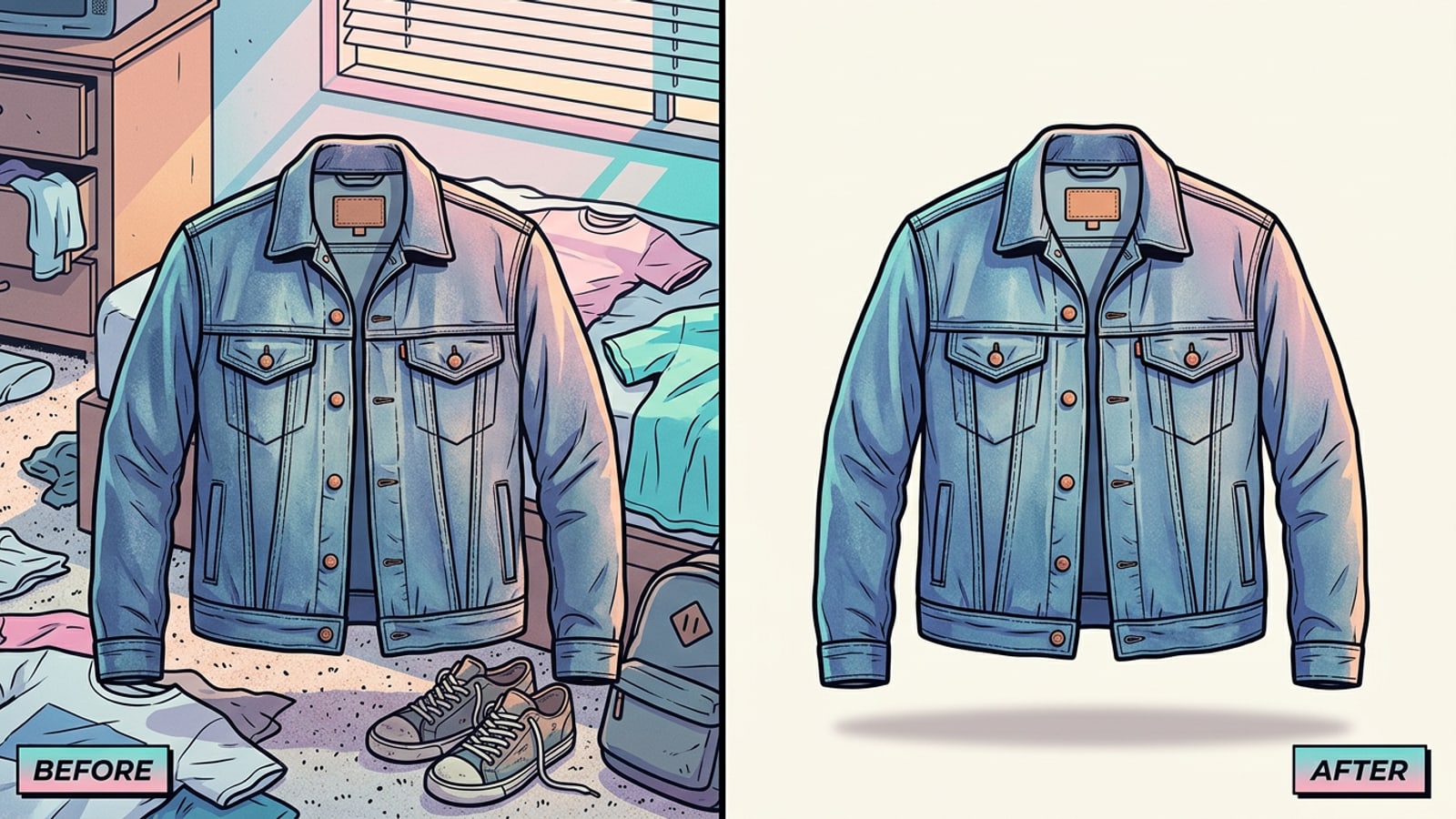
When buyers browse Depop or Poshmark, they view listings as small thumbnails on mobile phone screens. Cluttered bedroom floors, unmade beds, or tangled carpet patterns create visual noise that distracts from the clothing item itself.[2][4][5]
Standard feed grids across mobile resale apps favor 1:1 square thumbnails (1080x1080 pixels) with high-contrast, uncluttered focal points. Replacing a noisy background with a clean studio canvas establishes professional presentation and makes garment colors pop.[1][2][3]
Preparing the Shot: Lighting & Capture Best Practices on iPhone
Capture clean source images on iOS to simplify AI edge detection and maintain realistic lighting.
AI background removal functions best when there is a clear contrast between garment edges and the surrounding environment. Capturing clean source photos saves editing effort down the line.[1][3]
Position your garment near a large window to leverage soft, indirect natural daylight. Direct sunlight produces harsh specular highlights and clipped shadows, whereas low ambient light introduces digital noise that degrades boundary extraction.[1][6]
- Flat Lay vs. Hanger: Use flat lay capture for heavy knits and vintage tees to show drape; use a neutral wooden hanger against a bare wall for structured coats and dresses.[5][7]
- Match Light Angles: Keep window light coming from one consistent direction (e.g., top-left) so generated studio background shadows align naturally.[1][3]
Step-by-Step Background Removal Workflow on iPhone
Isolate garments using native iOS cutouts and dedicated mobile AI removal tools.
iOS includes a built-in subject extraction feature via Visual Look Up, allowing users to tap and hold an image subject to copy a cutout PNG. However, native cutouts do not synthesize ground planes or realistic ambient contact shadows, leaving garments looking flat when pasted onto plain white.[1][3][9]
For full marketplace presentation, dedicated AI tools like CARA isolate the clothing item and allow seamless background synthesis in one mobile workflow.
- Upload Source Image
Open CARA on your iPhone and select the Remove Background tool under AI Editing to upload your garment photo.
- Isolate Garment
The AI automatically detects subject edges and separates the clothing item from bedroom floors or wall clutter.
- Review Edge Detail
Check fine details such as sleeve fringe, knit texture, or collars before exporting your clean subject cutout.
Conversational Editing Prompts for Studio Backdrops
Use natural language prompt templates in CARA Agent to generate realistic studio canvas and light contact shadows.
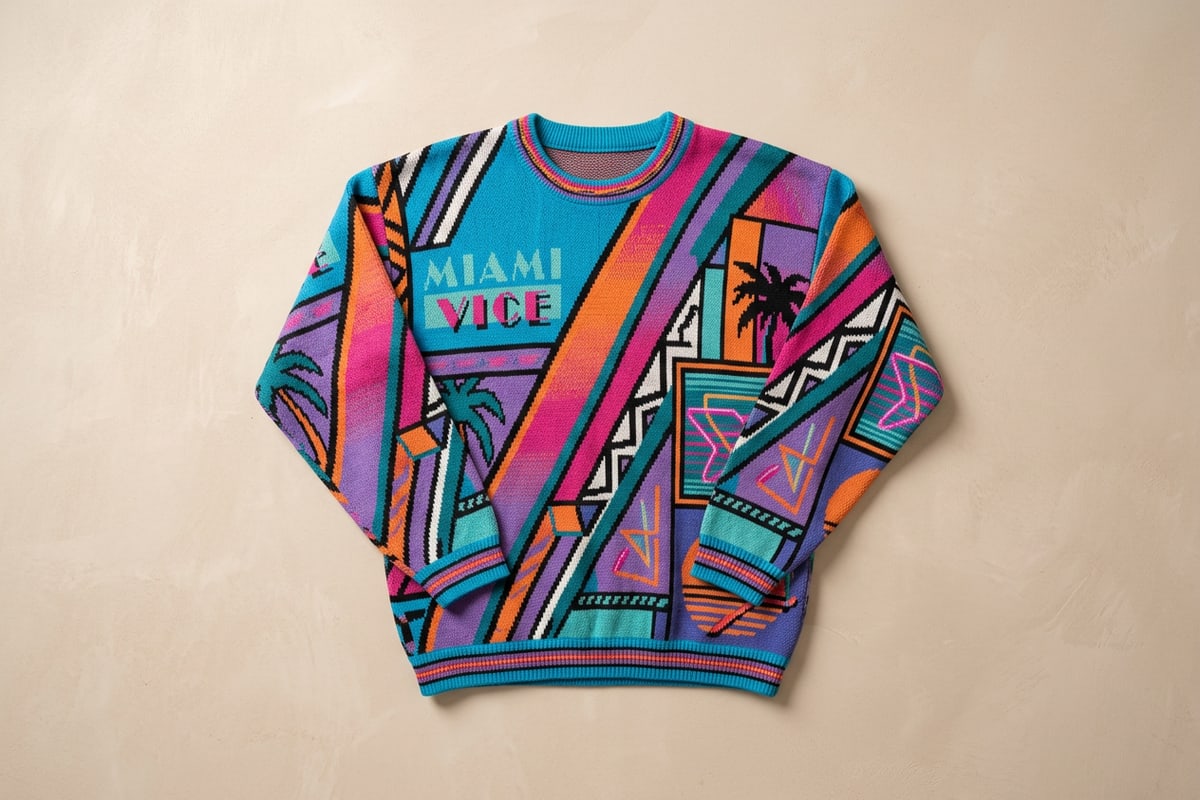
Replacing a plain white cutout with a slightly textured studio canvas gives product listings depth while maintaining absolute cleanliness. Using CARA Agent, you can type natural language editing instructions to generate soft surfaces and directional contact shadows.[1][3]
- Off-White Plaster Prompt: 'Place this clothing item on a smooth off-white plaster studio backdrop, soft natural window side lighting from the left, subtle contact shadow beneath the garment.'
- Light Beige Concrete Prompt: 'Set this garment against a minimalist light beige concrete surface, clean e-commerce presentation, soft ambient fill light.'
- Warm Linen Texture Prompt: 'Position this garment on a neutral light grey linen surface, soft directional daylight, subtle drop shadow.'
Fixing Stray Clutter & Outpainting Tight Framing
Clear stray hangers with AI Eraser and expand tight portrait crops into 1:1 marketplace squares.
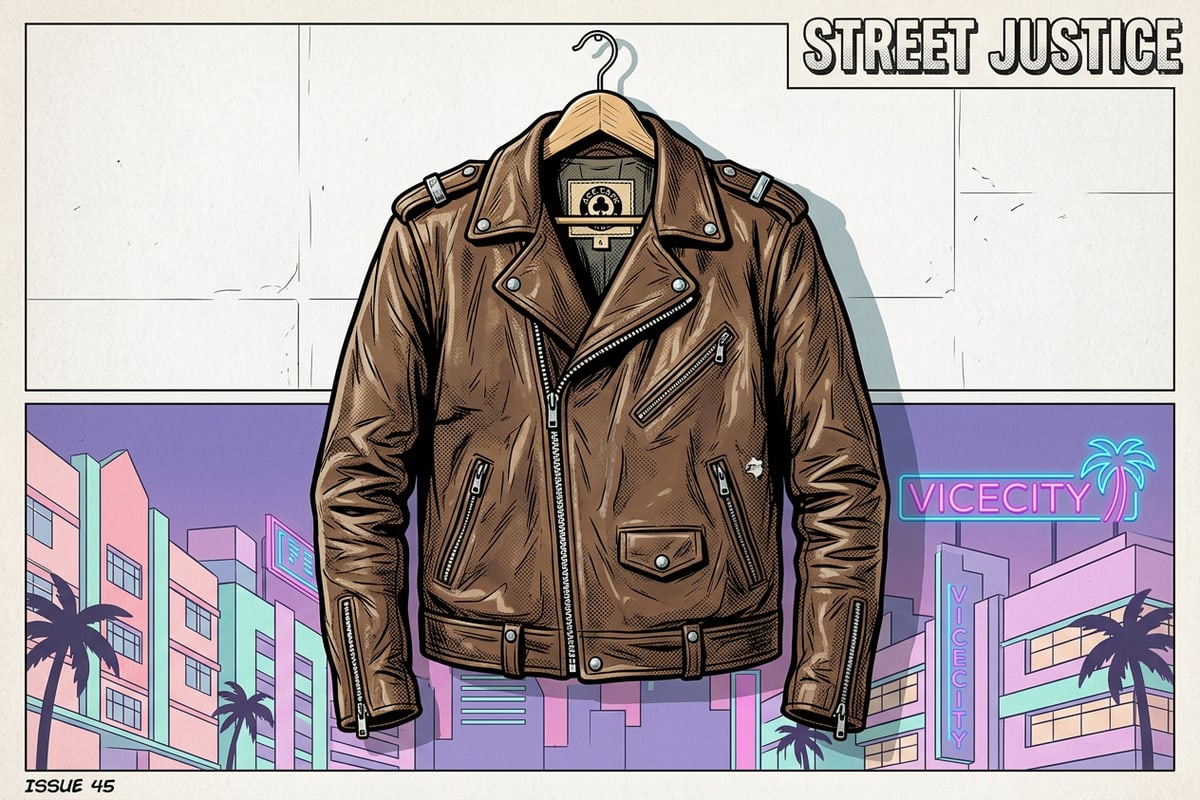
Sellers often capture garment photos in tight vertical portrait orientations, leaving insufficient side margin for Depop and Poshmark's 1:1 square cover crop. Forcing a tight portrait into a square thumbnail can clip off sleeves or shoe toes.[1][2][4]
CARA provides an AI Eraser to clear unwanted hangers or stray tags, along with an Image Extender tool to generate extended canvas boundaries on the left and right without resizing the physical garment.
Depop & Poshmark Cover Shot Checklist
Run through this essential pre-publishing checklist to maximize listing click-through rates.
Before pushing your edited product photo live to Depop or Poshmark, verify that the cover image adheres to mobile optimization standards across all device displays.[2][4][5]
- Square Ratio (1:1): Confirm the image is cropped to 1080x1080 pixels without truncating garment edges.[1][2]
- Zero Background Noise: Check that room furniture, carpets, or background clutter are entirely absent.[2][4]
- Realistic Contact Shadows: Verify that the garment does not look like it is floating in mid-air above the canvas.[1][3]
- Accurate Color Balance: Ensure background lighting adjustments have not distorted true fabric hues.[5][6]