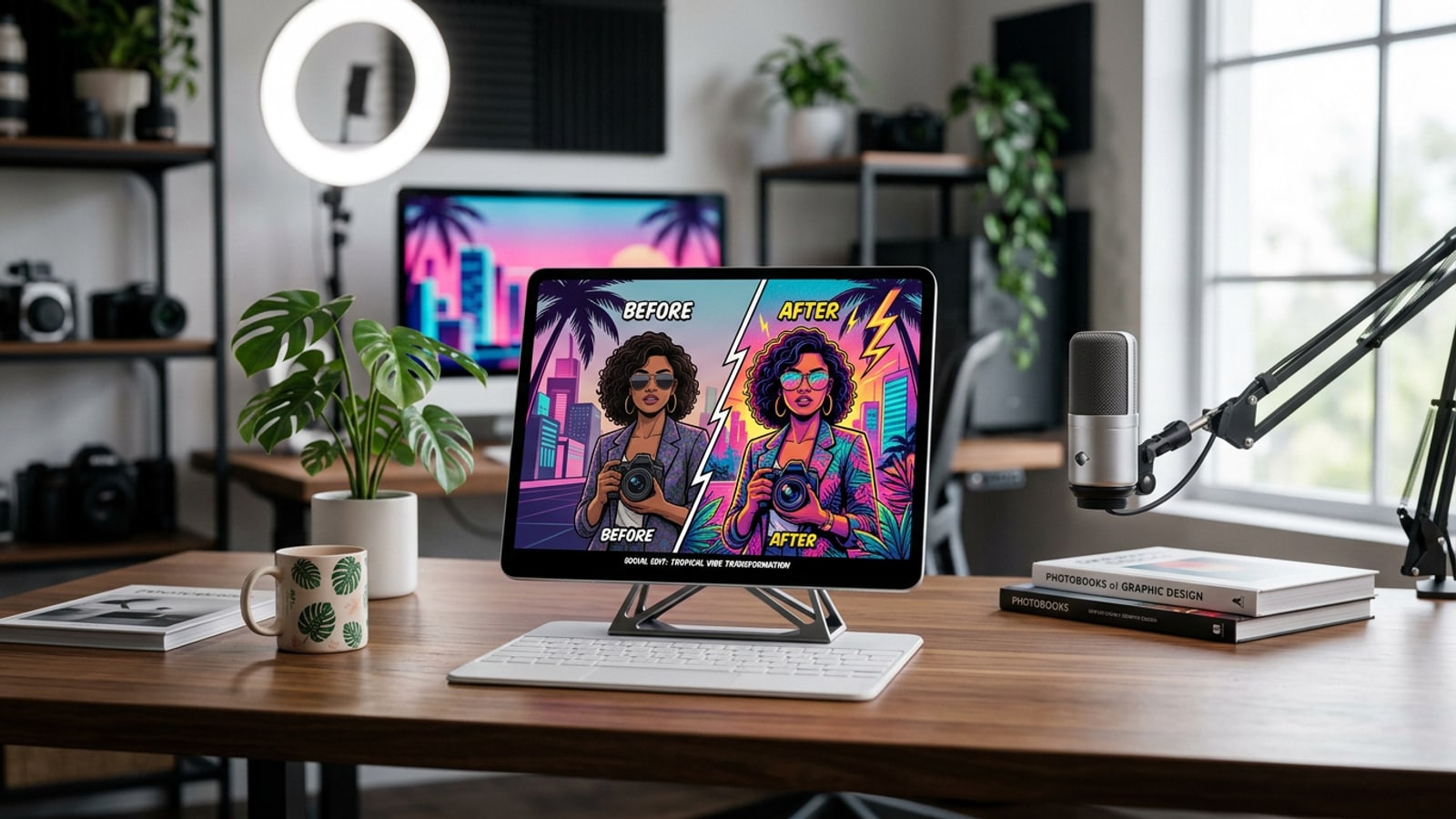
The New Social Media Visual Standard: Autonomy Meets Conversational AI
Discover why traditional layer-based editors create creation bottlenecks and how conversational AI shifts your workflow from tedious manual tweaking to strategic creative direction.
For years, social media content creation demanded hours spent inside complex multi-layered desktop suites or rigid graphic design software. Social managers and independent creators often faced a frustrating dilemma: rely on overused graphic templates that blend into crowded feeds, or spend hours manually adjusting lighting, masks, and canvas dimensions for every single photo post.[2][3]
The evolution of mobile AI photo editing for social media has fundamentally altered this dynamic. Rather than forcing creators to manipulate vector layers or learn intricate masking mechanics, conversational AI models accept direct visual instructions in plain language. By pairing explicit creative prompts with specialized precision engines, creators maintain full artistic direction while removing technical friction.[1][3]
While platform suites like Canva and Picsart excel at multi-layer graphic overlays and template assembly, targeted mobile AI tools focus heavily on deep photo transformation and subject-level editing. On iOS devices, mobile applications like Cara enable creators to execute generative edits, canvas expansions, and atmosphere styling in seconds using simple conversational directions.[2][3]
- Template Fatigue: Pre-made graphic layouts often reduce visual distinctiveness across brand social feeds.[2]
- Intent-Based Directing: Prompting an AI agent with visual atmosphere details turns raw captures into studio-grade photography faster than manual color grading.[1][3]
- Precision Tooling: Combining conversational prompts with single-purpose utilities yields cleaner visual isolation and background control.[1][3]
Workflow 1: Adapting Aspect Ratios and Frame Outpainting with Image Extender
Convert tight landscape or square captures into immersive 9:16 vertical frames for Instagram Stories and TikTok covers without losing essential scene detail.
Social platforms operate across wildly inconsistent frame geometries. A landscape product photo taken for a website hero section or Twitter banner fails to engage when letterboxed inside vertical formats like Instagram Stories, Reels covers, or TikTok posts. Traditional cropping solves dimension mismatch only by cutting away vital context or zooming tightly onto subjects.[2][4]
Generative outpainting solves this structural problem. Powered by generative AI, toolsets like Cara's Image Extender analyze the lighting, texture, and perspective of your original photo edge and synthesizes surrounding environment content outward to fill wider canvas boundaries. This allows a single photo asset to adapt seamlessly across 1:1, 4:5, and 9:16 aspect ratios without subject degradation.[2][4]
- Select standard target canvas dimensions
Import your raw landscape or square photo asset into Image Extender on iOS, specifying your desired social format ratio (such as 9:16 vertical).[2]
- Position original subject boundaries
Align your primary photo subject within the target frame, leaving uniform blank margins on extended sides where outpainting will generate background context.[4]
- Verify lighting and horizon continuity
Inspect the generated border zones to verify that lighting directions, horizon lines, and shadow drop-offs match original source conditions.[4]

Workflow 2: Decluttering and Prop Swapping with AI Eraser and AI Replace
Clean up cluttered background environments and substitute scene props to turn candid snapshots into polished commercial assets.
Real-world photography often happens in imperfect conditions. Background photobombers, tangled electrical cables, or unsightly trash bins frequently ruin otherwise compelling lifestyle shots. Social media managers need rapid tools to eliminate visual noise without leaving blurry smudges or unnatural cloned patterns behind.[1][3]
Dedicated generative tools handle background cleaning with high fidelity. Cara's AI Eraser allows creators to highlight unwanted background elements and intelligently fill the underlying canvas based on neighboring textures like wood grain, stone, or leafy foliage. For deeper compositional changes, AI Replace lets users select an area and prompt specific replacements—such as swapping a plastic coffee cup for a handcrafted ceramic mug.[1][3]
- AI Eraser: Best for removing isolated distractions like power lines, photobombers, or surface smudges on textured backgrounds.[1]
- AI Replace: Best for changing specific objects or prop elements using natural-language instructions to better match campaign branding.[3]
- Remove Background: Isolates subjects cleanly to construct custom layered collages or promotional social assets.[2]

Workflow 3: Conversational Atmosphere and Scene Styling via Cara AI Agent
Master natural-language prompting to modify photo lighting, depth of field, and environmental mood without complex manual slider setups.
Achieving cohesive visual branding across a social media feed usually requires consistent lighting and color treatment. Rather than spending time fine-tuning individual contrast, warmth, and saturation sliders across dozen of images, creators can direct holistic visual shifts using natural conversational requests.[1][2]
Through the Cara Agent experience, creators communicate with an AI assistant to apply natural-language modifications. By following a structured prompt framework—[Subject Preservation] + [Environmental Action] + [Lighting/Style Directive]—you can request specific artistic adjustments such as 'Keep the central product intact, set the outdoor atmosphere to golden hour sunlight, and soften background focus.'[1][3]
- Subject Preservation Directives: Explicitly tell the agent which core element or human subject to keep unchanged to protect product authenticity.[1]
- Atmospheric Lighting Cues: Specify concrete light behaviors like 'warm morning sunlight', 'cinematic moody shadows', or 'soft studio diffusion'.[2]
- Iterative Prompting: Refine results conversationally by asking the agent to tweak specific tone parameters in follow-up messages.[1]
Workflow 4: Repurposing Short Video Clips into Multi-Panel Comic Assets
Transform short video clips into stylized comic pages to generate engaging carousel content that boosts dwell time on social feeds.
Carousels consistently drive higher dwell time and engagement rates across platforms like Instagram and LinkedIn. However, creating multi-frame carousel posts from scratch can be labor-intensive. Content creators often sit on valuable short video footage from behind-the-scenes recordings or product demos that remain underutilized.[1][2]
Feature capabilities like Video to Manga offer a creative bridge between short video and static carousel graphics. By processing brief video clips, the tool extracts expressive keyframes and arranges them into stylized, multi-panel comic pages complete with artistic line art. This allows creators to repurpose dynamic motion into high-impact visual storytelling formats.[1][2]
- Select high-action video segments
Choose a clear 3-to-10 second video clip featuring distinct motion, expressive gestures, or clear sequential actions.[1]
- Process clip with Video to Manga
Convert the video segment using automatic keyframe extraction to build an illustrative panel layout.[2]
- Assemble post carousel
Export the generated manga page or combine multiple panels using Photo Collage Maker grid layouts for structured multi-slide posts.[2]
A Strategic Creative Checklist for Continuous Social Media Growth
Establish repeatable visual habits, export practices, and asset management rules to maintain high quality across all social channels.
Building a recognizable visual identity on social media requires balancing efficiency with consistency. Relying solely on automated single-click presets can result in generic content, while complex manual editing limits your publishing frequency. Combining structured AI prompts with precise editing habits establishes a reliable creation routine.[2][3]
To prevent aggressive platform compression algorithms from degrading your final photos, always perform initial outpainting and object cleanup on high-resolution source captures before publishing. Keep a dedicated mobile folder with your top-performing AI prompt variations to streamline future campaign workflows.[2][3]
- Master Source Preservation: Edit original raw or high-res mobile photos rather than screenshots to prevent image artifacts during generative AI passes.[3]
- Consistent Brand Lighting: Reuse validated environmental prompt terms across photo series to maintain uniform color warmth across your feed grid.[1][2]
- Multi-Format Staging: Use Image Extender outpainting to export vertical (9:16) and square (1:1) variations during a single editing session.[2]