The 2026 Aesthetic: Why Authenticity Beats Perfection
Explore the shift from rigid grids to tactile, imperfect designs like modular grids and digital scrapbooking.
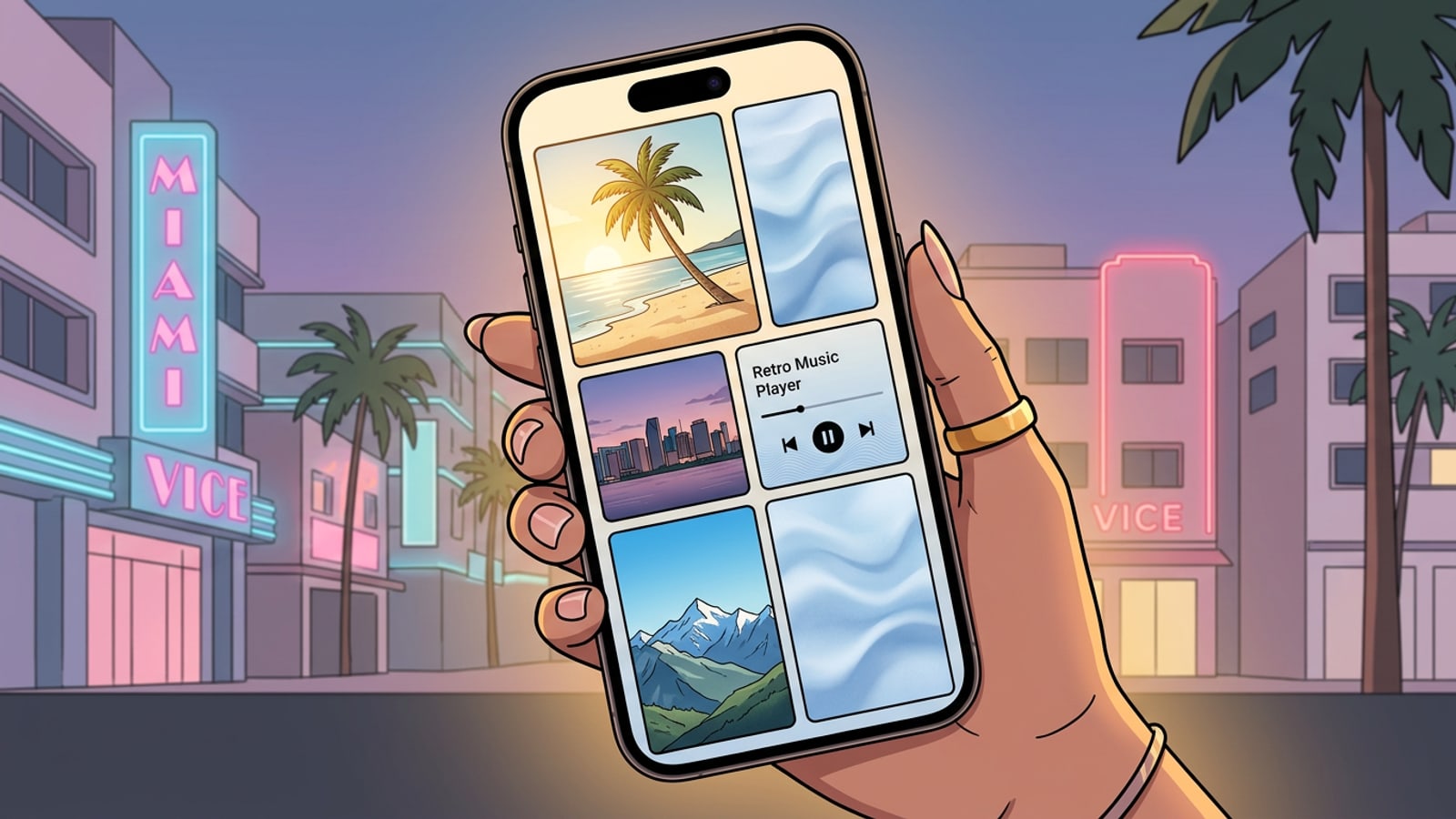
The era of overly polished, rigid photo grids has officially evolved. Today, digital aesthetics lean heavily into tactile, scrapbook-inspired layouts and modular 'Bento grid' styles that feel authentic and lived-in. According to recent design trend analyses, a vast majority of creators—upwards of 80 percent—now prefer raw or imperfect aesthetics over glossy perfection. This shift toward 'Imperfect by Design' and 'Tactile AI' means that audiences engage more with collages that look like they were pieced together by hand, even if they were generated by algorithms.[2]
Cara facilitates this exact shift by bridging the gap between complex editing techniques and zero-skill artistic templates. Instead of manually wrestling with layers, masks, and alignment sliders, you can use conversational AI to prepare your assets, allowing the app to handle the heavy lifting of trend-aligned design. This empowers casual photo editors and aspiring social media creators to produce high-impact visuals that resonate with modern audiences.
Featured 2026 Templates: Finding Your Perfect Layout
A detailed breakdown of popular Cara templates and their specific photo requirements.
To truly master the Cara collage experience, it helps to understand the specific requirements of its most popular artistic templates. The current catalog features several standout options tailored for different moods and photo counts, ensuring that you always have the right frame for your assets.
The 'Blue Abstract Waves' template is a striking, single-photo layout that surrounds your image with soft, fluid textures, making it ideal for highlighting a powerful portrait or a serene landscape. For more comprehensive storytelling, the 'Bring Me Home' template requires six photos, arranging them in a dynamic, multi-color artistic render that feels like a curated digital mood board. Meanwhile, the 'Golden Hour' template is another single-photo artistic frame that bathes your chosen image in warm, cinematic tones, perfect for sunset captures or nostalgic memories.
- Blue Abstract Waves: Requires 1 photo, uses an artistic render mode.
- Bring Me Home: Requires 6 photos, uses an artistic render mode.
- Golden Hour: Requires 1 photo, uses an artistic render mode.
The 'Clean-then-Collage' Workflow: Preparing Your Assets
How to use AI tools to optimize photos before placing them into a layout.
The secret to a professional-grade collage is asset preparation. Rather than dropping cluttered photos directly into a grid, the 'Clean-then-Collage' workflow ensures every element serves a purpose. By preparing your images first, you create a cleaner, more impactful final layout.
Cara's AI Eraser allows you to remove unwanted objects or distracting background elements from a photo before it ever touches a collage template. Additionally, you can use the Remove Background feature to completely isolate a subject, which is essential for creating a layered, digital scrapbook effect.[1]
What makes Cara unique is its Conversational Photo Editing capability. You can prepare your assets using natural language requests directly in the Cara Agent experience. This continuous session means you do not need to export and re-import your photos; you simply tell the AI what you want to achieve, and the cleaned asset is immediately ready to be placed into your chosen layout.[1]
- Prompt Example 1: 'Cara, remove the power lines from the background' to clean up a landscape shot.
- Prompt Example 2: 'Cara, erase the distracting trash can on the sidewalk' to improve a street style photo.
- Prompt Example 3: 'Cara, cut out the main subject so I can use it as a sticker' to isolate your focal point for a scrapbook layout.
Advanced Storytelling: Image Extender and Custom Textures
Filling gaps, fixing crops, and generating custom backgrounds using AI.
Sometimes a perfect photo simply does not fit the aspect ratio of your chosen collage frame. Instead of awkwardly zooming in and losing context, you can use generative AI to solve the problem. Cara's Image Extender can expand an image beyond its original borders, generating surrounding content that blends seamlessly with the original scene. This ensures your photo fits perfectly into specialized frames without compromising the subject.[1]
Beyond fixing crops, you can elevate your collages by using Cara's Text-to-Image Generation feature to create custom background textures. If the default template backgrounds do not match your aesthetic, you can generate entirely new ones from scratch. For instance, you can open the Text-to-Image tool and enter a prompt like 'soft pastel watercolor wash with subtle pink and peach gradients' or 'scratched brushed metal surface with industrial lighting.'[1]
Because the generation depends on the selected AI model, you can experiment with different descriptive words to get the exact vibe you need. Once the AI generates this custom texture, you can immediately utilize it within your active creative session. You can seamlessly transition this generated image into your collage as a base layer or place it into an adjacent grid slot to complement your primary photos. This technique transforms a standard template into a highly customized, professional-looking design without requiring any external graphic design software.
- Open Text-to-Image
Navigate to the Text-to-Image generation tool within the Cara app.
- Enter Your Prompt
Type a descriptive prompt for your desired texture, such as 'pastel watercolor' or 'brushed metal'.
- Apply to Layout
Once generated, seamlessly transition the new texture into your active collage session to use as a background or grid filler.
Managing Your Creative Credits
Tips on using the app efficiently without wasting points.
While Cara is free to download and provides limited free generations, heavy AI processing relies on a credits system. To make the most of your creative sessions, it is important to plan your edits strategically. Because complex backgrounds might require more than one attempt with the AI Eraser or Background Removal tools, finalizing your layout concept before executing heavy generative edits can help you avoid using unnecessary points.[1]
This pricing model and global availability remain consistent across regions, whether you are downloading the app from the US App Store or the Australian App Store, ensuring that all users have the same transparent access to these powerful creative tools.[1][3]