Deconstructing TikTok's 3D Chibi Avatar Trends
Viral mini-me photo trends on social feeds highlight glossy 3D vinyl characters, but automated filters often erase key personal features.
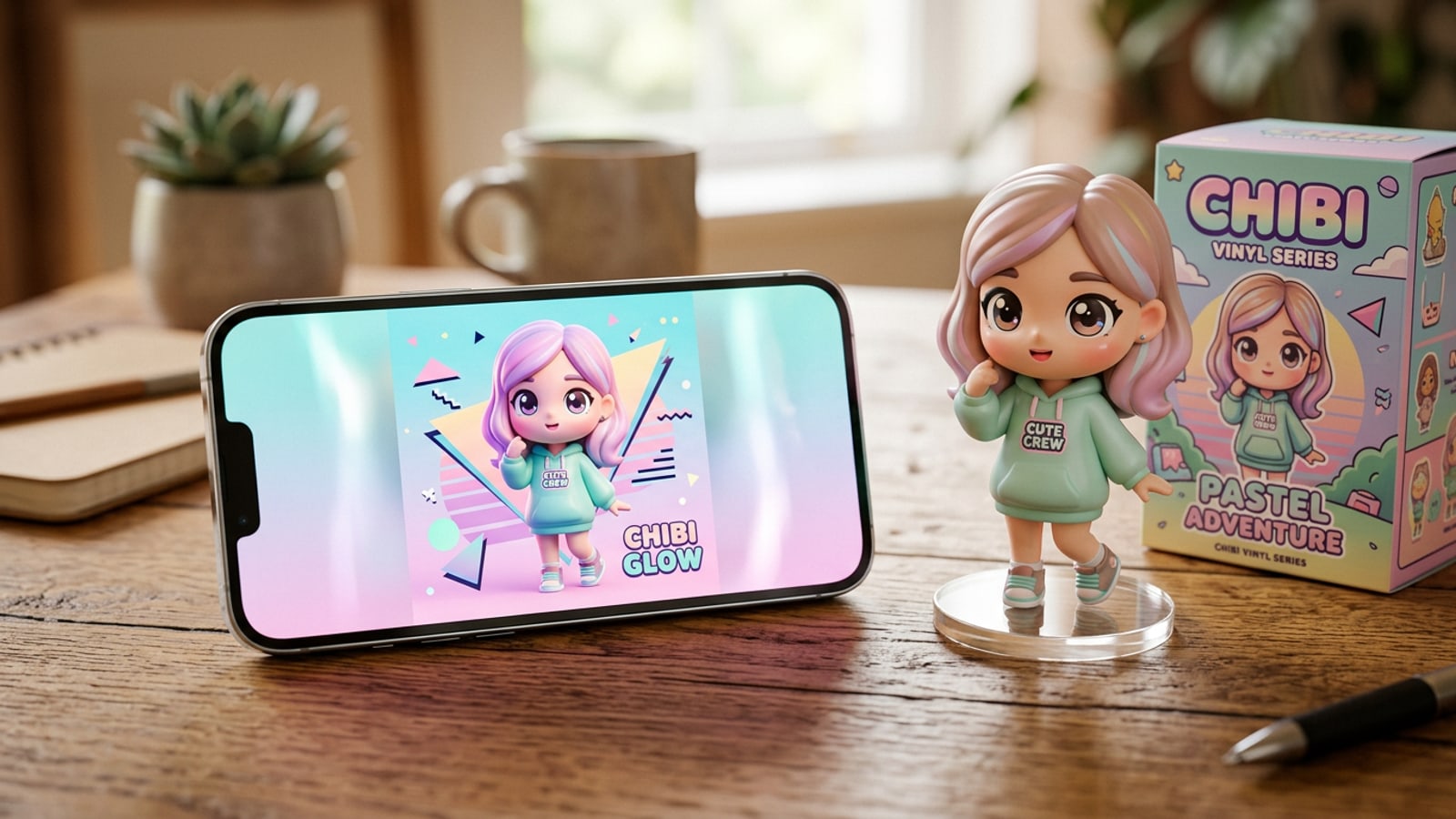
The viral 3D Chibi mini-me trend on TikTok has captivated feeds with miniature, glossy vinyl avatars featuring oversized heads, expressive eyes, and stylized street outfits. Creators are converting everyday selfies into adorable collectible toy figures that look as if they belong on a designer display shelf.[1]
However, standard automated AI style filters regularly fail on personal identity preservation. Generic style conversions tend to overwrite unique facial structures with standardized anime face templates, changing distinct eye shapes, hair textures, or recognizable expressions into uniform character renders.[1][3]
Achieving an identity-preserving 3D Chibi edit requires moving away from static preset filters toward precise natural language prompting. By using conversational AI on iPhone, creators gain granular control over facial anchors while applying 3D rendering styles.[2][3]
- Vinyl Toy Aesthetic: Glossy synthetic resin finish, soft ambient shadow casting, and acrylic display bases.[1]
- Proportion Shift: Oversized head with a compact torso, typically adhering to a 1:2 or 1:3 head-to-body scale ratio.[3]
- Identity Retention Conflict: High-stylization prompts often suppress key source photo traits unless specifically anchored.[3]
The 4-Part Identity-Preserving Chibi Prompt Architecture
A structured 4-part prompt framework prevents facial identity loss by systematically balancing character anchors with 3D aesthetic descriptors.
To stop conversational models from erasing personal features, prompts must follow a clear hierarchy. Placing personal identification anchors before style parameters instructs the text-to-image engine to prioritize source portrait alignment over style defaults.[3]
This modular prompt framework breaks down into four essential blocks: Reference Identity, Chibi Proportions, Material Finish, and Scene Details. Structuring natural language prompts this way ensures predictable and high-fidelity output every time.[3]
- Part 1 - Reference Identity Anchor: Explicitly describe key facial features from the selfie (e.g., 'A 3D Chibi avatar based on the uploaded photo, retaining the exact dark brown wavy bob, almond hazel eyes, glasses, and subtle left-cheek dimple').[3]
- Part 2 - Chibi Proportions: Define the iconic body scale (e.g., 'Cute mini-me character with a 1:2 head-to-body ratio, large expressive eyes, small hands, and rounded proportions').[3]
- Part 3 - Material & Lighting: Specify the physical texture (e.g., 'Smooth glossy vinyl resin toy finish, vibrant colors, soft studio softbox lighting with subtle specular highlights').[3]
- Part 4 - Scene Context: Set the backdrop (e.g., 'Standing on a clean pastel pedestal with soft depth-of-field background blur').[3]
Step-by-Step iPhone Workflow with Conversational AI
Execute identity-preserving Chibi transformations directly on iOS using natural language chat in CARA's Agent interface.
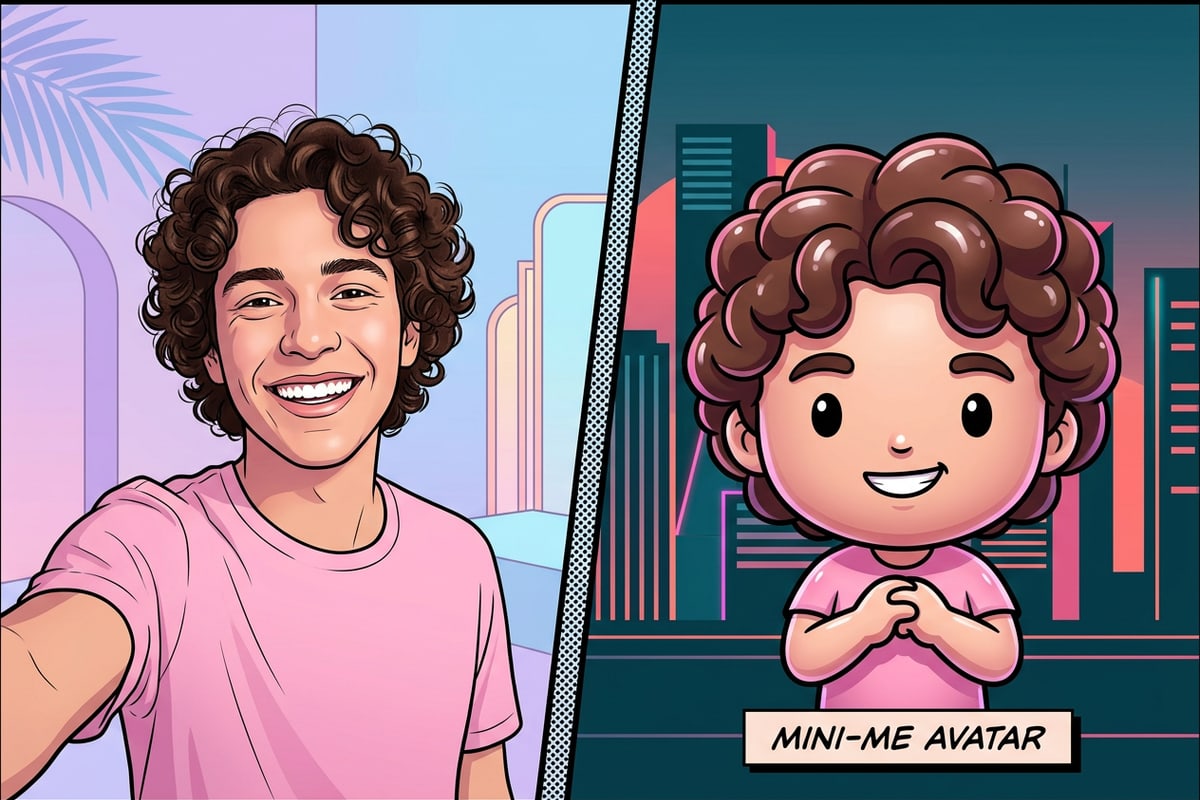
CARA provides an intuitive platform for conversational photo editing on iOS and iPadOS via its Agent interface (accessible at Home > Agent). Rather than wrestling with technical settings, you can attach your photo and describe desired changes using plain English commands.[2]
Because conversational photo editing relies on cloud processing, output speeds and nuances depend on the specific prompt and selected model. If a result needs fine-tuning, you can simply issue follow-up chat messages to refine lighting, outfit colors, or facial features.[2][3]
- Open CARA Agent on iPhone
Launch CARA on your iPhone or iPad, navigate to Home > Agent, and tap the attachment icon to upload your selfie reference image.[2]
- Iterate via Conversational Chat
Review the initial 3D render. Send follow-up requests like 'Make the hoodie light lavender' or 'Make the eyes glossier' to refine details without restarting.[2]
- Refine Details with AI Replace
If specific elements like shoes or glasses need precise adjustment, tap AI Replace, select the targeted area, and enter a quick text prompt to swap the object seamlessly.[2]
Refining & Formatting Your Chibi Edits for TikTok and Stories
Troubleshoot common generation flaws and format 1:1 renders into 9:16 vertical stories for social sharing.
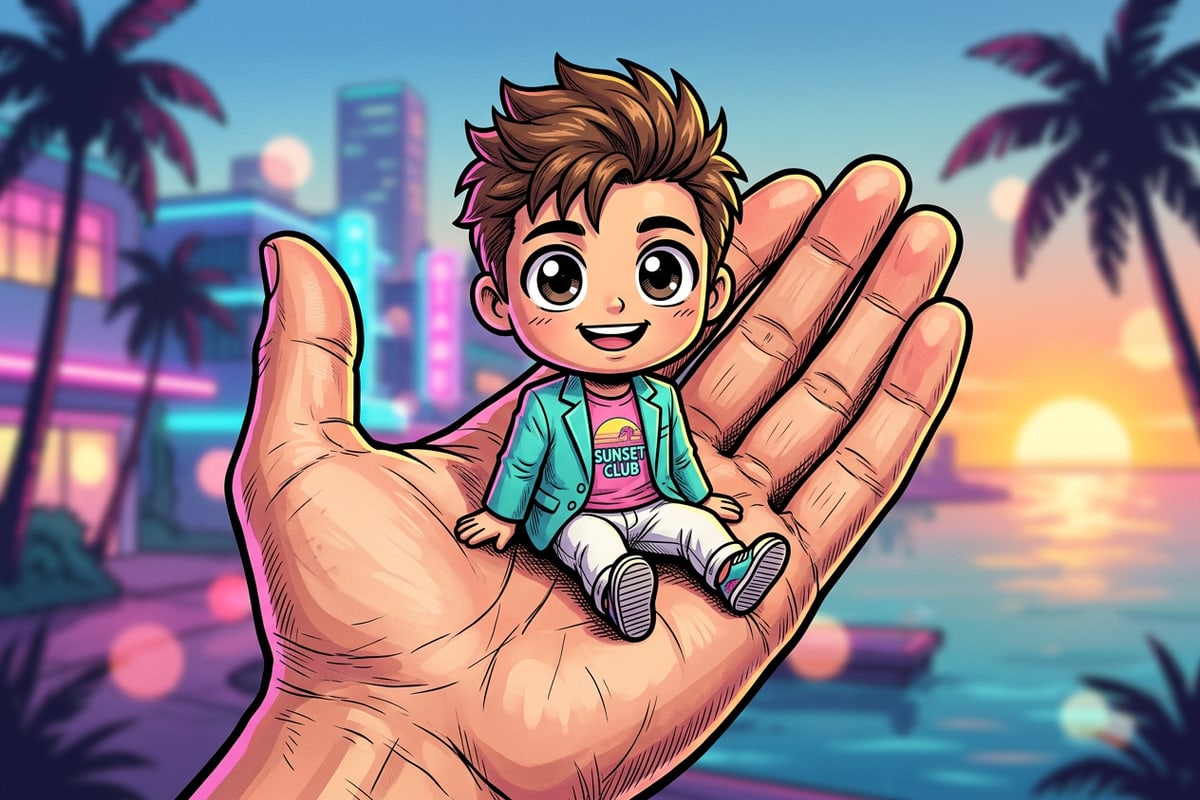
If your generated Chibi avatar looks overly generic or strays from your likeness, return to your reference anchor prompt. Emphasize asymmetric facial markers—such as mole positions, nose structure, or distinct hair parting—to force the engine back onto your identity geometry.[3]
Standard AI generations are often rendered in square or 4:3 ratios. When posting to TikTok, Instagram Stories, or vertical feeds, cropping in manually can squeeze out delicate background details or cut off the avatar's feet.[2]
Instead of cropping, use CARA's Image Extender tool to outpaint the image borders. Image Extender automatically generates surrounding background context, expanding your Chibi composition seamlessly into full 9:16 vertical layouts.[2]
- Fixing Identity Drift: Reinforce specific facial features in chat follow-ups (e.g., 'Keep the exact eye shape and round glasses from the uploaded photo').[3]
- Removing Background Artifacts: Clean up stray shadow artifacts or unwanted pedestal debris instantly using AI Eraser.[2]
- Vertical Aspect Ratios: Use Image Extender to convert square renders into 9:16 portrait formats for vertical social feeds.[2]
Frequently Asked Questions About AI Chibi Photo Editing
Address practical procedural questions regarding facial fidelity, accessory edits, and vertical story formatting on iPhone.
Creating stylized 3D Chibi avatars with conversational AI raises common operational questions about image fidelity, customization techniques, and formatting.[2][3]
Below are practical answers and workflows to help you troubleshoot edits, customize avatar outfits, and export high-impact visuals for mobile feeds.[2][3]