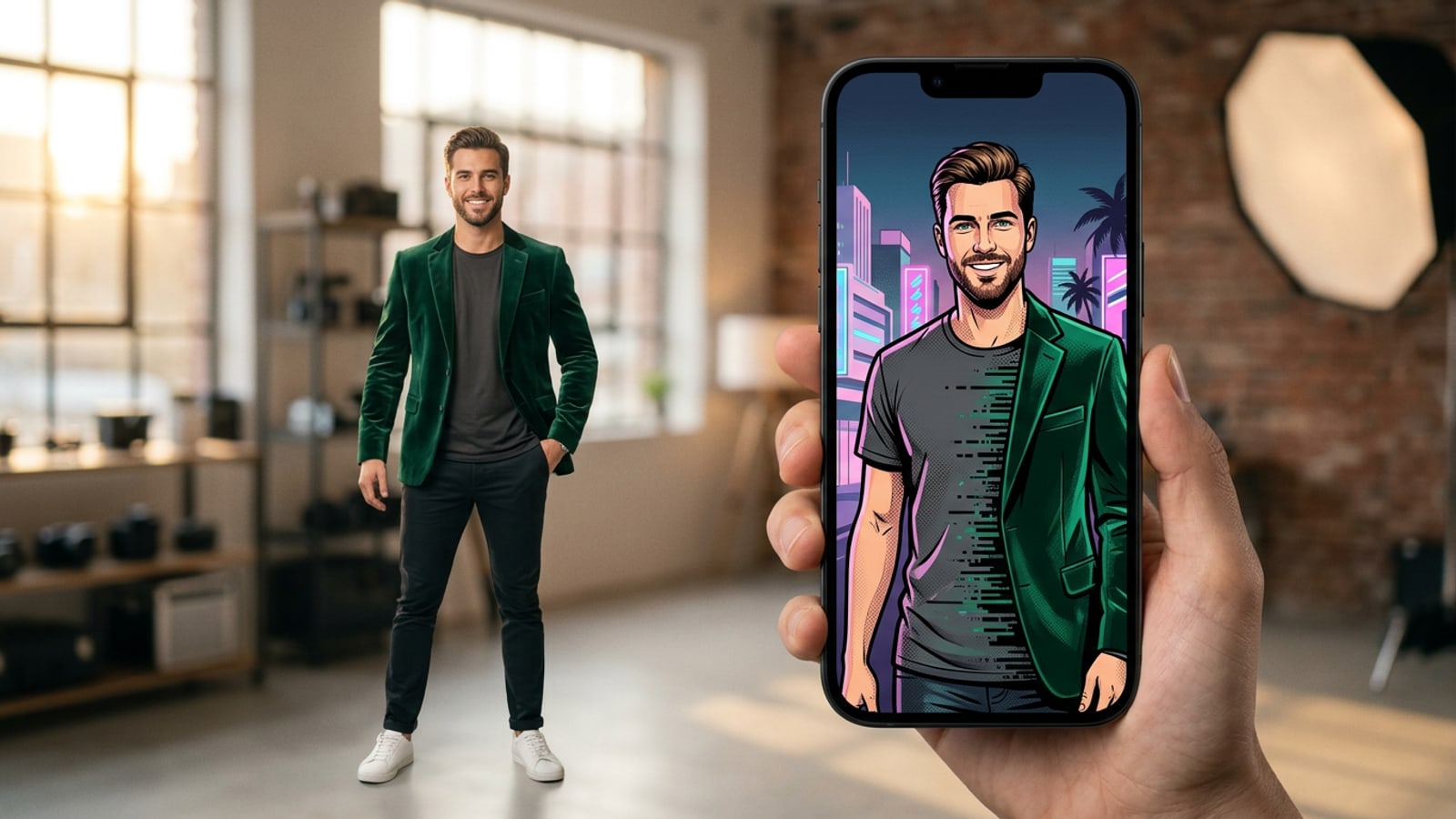
The Instant Mobile Outfit Swap Transformation
Generative outfit swapping allows mobile creators to restyle portraits cleanly on iPhone without full-image redrafting.
Virtual styling on mobile devices has evolved beyond simple overlay filters into precise generative garment replacement. Creators can now swap casual tops for tailored coats or streetwear directly on an iPhone while keeping skin tones, facial expressions, and body posture completely intact.[1]
The key distinction between photorealistic outfit edits and distorted generations lies in localized inpainting versus full-canvas regeneration. Unmasked full-image AI generation frequently alters facial structure, hair layout, and background lighting. By using targeted area brushing, generative editing restricts changes strictly to selected clothing regions.[1][2]
Step-by-Step Direct Solution Pipeline for Precise Clothing Swaps
Follow a precise 4-step workflow from targeted brushing to prompt submission for flawless outfit replacement.
To achieve seamless outfit replacement on iOS, CARA provides localized Drawing and Brush Tools to highlight target garments, combined with AI Replace to generate new attire via written instructions. Because generative AI processing runs via cloud infrastructure, maintaining accurate brush boundaries is essential for fast, reliable outcomes.
- Import Image and Select AI Replace
Open CARA on your iPhone, load your high-resolution portrait, and select the AI Replace feature to activate the interactive brush canvas.
- Brush Garment Boundaries with Edge Contracting
Paint directly over the clothes you want to swap. Contract your brush stroke 2 to 5 pixels inside skin boundaries near the neck, wrists, and jawline to prevent boundary bleeding.[1]
- Refine Details on Local Canvas
Once cloud rendering delivers your styled result, open the image in CARA's local Free Creative Canvas to add graphic text layers or line accents.
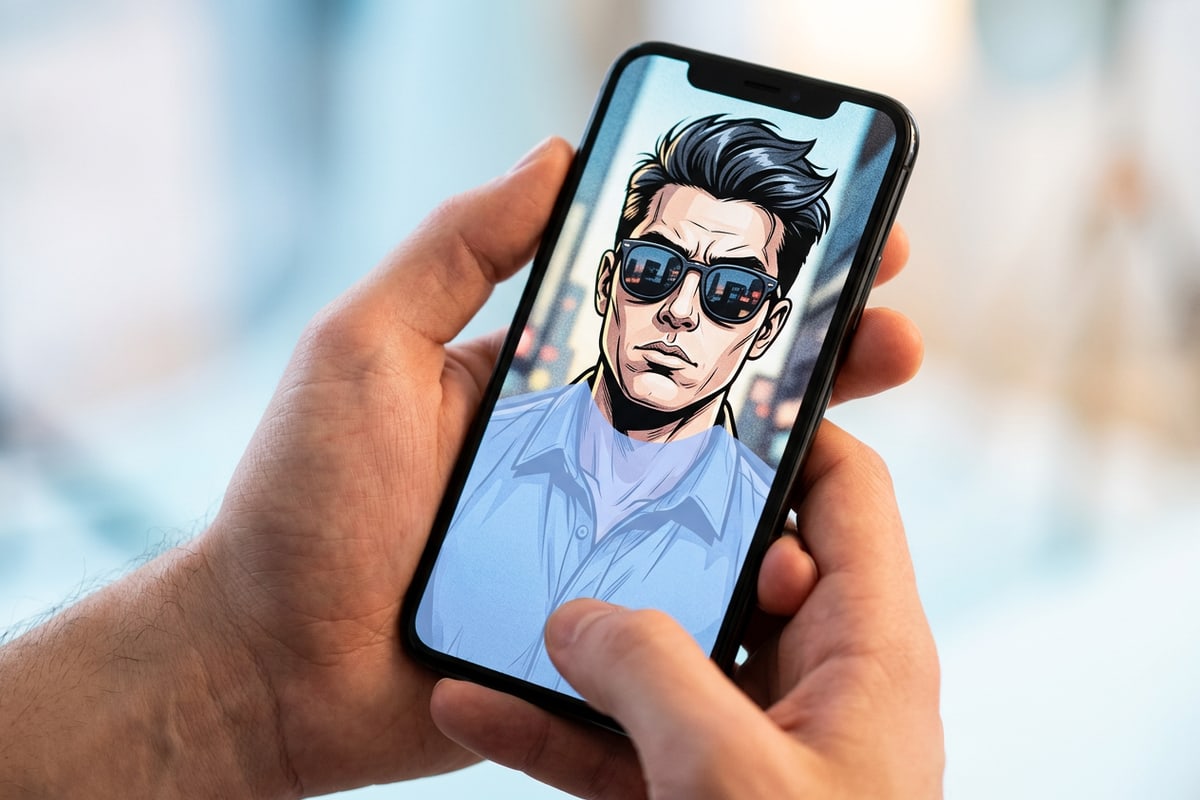
Frequently Asked Questions: Troubleshooting Face Drift and Texture Seams
Resolve common AI outfit editing issues including facial morphing, plastic fabric finishes, and footwear swaps.
When executing mobile outfit swaps, minor masking errors or unspecific prompts can produce unwanted visual artifacts. Addressing these issues requires fine-tuning your selection boundary and prompt modifiers.[1][3]
- Preventing face drift: Ensure your brush mask never touches facial skin or hair tips, and include a strict identity preservation directive in your prompt text.[1][2]
- Fixing synthetic sheen: Replace generic fabric terms with tactile material descriptors like matte cotton, slub linen, or coarse tweed.[3]
The 5-Part Mobile Prompt Blueprint and Copy-Paste Formulas
Master modular prompt construction to guarantee realistic fabric drape, texture micro-shadows, and zero identity shift.
Structuring text prompts into explicit functional blocks eliminates model ambiguity during generative replacement. The 5-part blueprint divides your instruction into Role, Task, Lock, Spec, and Exclude parameters.[1]
Applying tactical descriptors like 'heavyweight tweed', 'matte cotton weave', or 'slub linen' forces cloud generation models to render micro-shadows and authentic fabric grain rather than flat synthetic surfaces.[3]
- Role: Establishes overall aesthetic context (e.g., 'Studio fashion editorial').[1]
- Task: Defines replacement item (e.g., 'Swap brushed shirt to an oversized beige trench coat').[1]
- Lock: Enforces identity retention (e.g., 'Keep face, hair, skin, and body posture 100% unchanged').[1][2]
- Spec: Specifies material texture (e.g., 'Heavy matte wool blend, natural fabric folds, subtle shoulder structure').[3]
- Exclude: Prevents unwanted rendering artifacts (e.g., 'No plastic shine, no altered lighting, no skin distortion').[1]
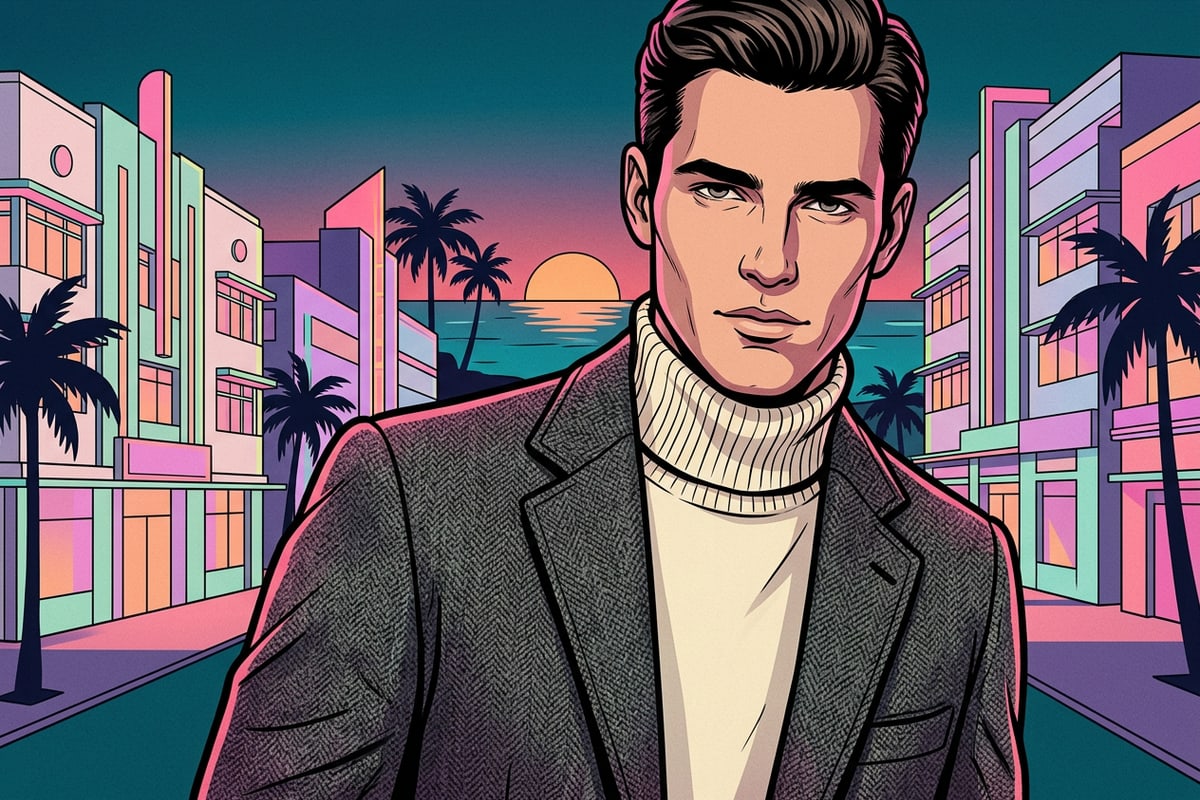
Pro Tips for Edge Precision, Shadow Matching, and Local Canvas Finishing
Enhance realism through precise margin control and on-device canvas graphic layering.
Achieving photorealistic results requires careful handling of lighting and shadow transitions. When brushing near collarbones or armpits, keep the selection boundary right up to the garment seam while excluding pure skin shadows, allowing AI Replace to re-render fabric-specific drop shadows correctly.[1][3]
After completing your generative outfit replacement in CARA, transition your image into the Free Creative Canvas. Running locally on-device, the canvas lets you combine shapes, lines, freehand brush marks, and Text Editing and Overlay to design complete visual posts or lookbooks.
If you are preparing vertical social media formats, consider pairing your edited portrait with other mobile photo workflows, such as learning how to expand square iPhone photos to 9:16 without cropping or layering text behind subject depth effects for maximum engagement.
- Align replacement garment colors with existing scene color temperatures to maintain atmospheric coherence.[3]
- Combine styled portraits with typography using local text overlay tools on CARA's on-device canvas.