The Impact of Backgrounds on Product Sales and How iPhone AI Solves It
Messy tabletop photos erode customer trust, but mobile AI tools allow e-commerce sellers to achieve studio backdrops without physical props.
Selling products on online marketplaces like Etsy, Vinted, Wallapop, or Mercado Libre requires immediate visual credibility. Research shows that up to 74% of online shoppers skip listings featuring cluttered home backgrounds, dark shadows, or distracting domestic furniture.[2]
Setting up a physical photography studio with real marble slabs or polished concrete blocks is expensive, bulky, and space-consuming for independent creators. By taking advantage of mobile background removal and generative replacement, sellers can isolate their items and generate studio-grade textures directly from their iPhone.[2]
Creating a clean visual aesthetic elevates brand perception and transforms simple smartphone shots into polished promotional assets. Buyers process visual quality within seconds, making neutral studio surfaces an essential tool for boosting click-through rates and customer confidence.[2]
- Eliminating household clutter focuses buyer attention strictly on product materials and craftsmanship.[2]
- Studio backdrops provide neutral contrast that makes product colors pop on mobile shopping screens.
Step 1: Isolate Your Product Cleanly with Remove Background
Achieve sharp product cutouts on iOS by optimizing lighting conditions and preparing difficult edges.
The foundation of a convincing studio background replacement is a clean cutout. Using the Remove Background tool in CARA on iOS or iPadOS, you can separate your subject from its original surroundings in seconds. The automated segmentation engine identifies object borders, isolating everything from leather goods to ceramic jars.[1]
While background removal handles most products automatically, complex items such as fine glass stemware or textured footwear edges may occasionally require a second attempt. Ensuring strong color contrast between your item and the temporary tabletop background during capture significantly increases cutout precision.[1]
Taking a moment to wipe your iPhone camera lens clean and avoiding harsh direct overhead light prevents flare along the item edges. Soft lighting during shot acquisition ensures that edge contrast remains natural once the original background is stripped away.[1]
- Capture initial photo under diffuse light
Place your product on a plain table near natural window light to avoid harsh specular highlights and strong background shadows.[1]
- Execute background removal
Select Remove Background in CARA to isolate the item from domestic surroundings, creating a clean cutout layer on your iPhone.[1]
Step 2: Generate Concrete and Marble Surfaces using AI Replace
Use generative prompts and area replacement to render natural studio textures complete with shadow integration.
Once your subject is isolated, use AI Replace (which costs 30 points per generation in CARA) to swap the painted backdrop area with realistic studio materials. Generative replacement allows you to specify exact textures such as smooth light-gray concrete or polished white Carrara marble.[1][3]
A common mistake in AI background generation is creating a product that appears to float mid-air. To ground your item realistically, your written prompt must include explicit instructions for directional lighting and ambient contact shadows beneath the base of the object.[1][3]
Matching the light direction of your original photo with the generated environment keeps shadows natural. For example, if your original item was lit from the left window, specifying left-sided soft window light in your replacement prompt binds the subject perfectly to the newly generated surface.[1][3]
- Always specify key material traits, such as 'delicate grey veins' for marble or 'fine-grained matte finish' for concrete.[2]
- Include lighting direction clauses like 'soft directional window light from the left casting gentle contact shadow under product base'.[1]

Step 3: Studio Prompt Cards Ready to Copy and Paste
Copy these tested prompt structures designed for cosmetics, jewelry, leather goods, and hand-crafted items.
Crafting the right prompt eliminates tedious trial and error. Below are copy-ready prompt templates tailored for specific product categories, designed to generate elegant studio environments with proper shadow integration.[3]
Adapt these prompts in CARA by substituting material descriptions or lighting angles to align with your brand's visual identity across your online store catalog.[3]
When writing custom variations, keep descriptive modifiers focused on material density and lighting behavior. Specifying details like 'honed matte surface' or 'soft diffused daylight' helps the generative model produce realistic textures without introducing unwanted noise or distortion around your product cutout.[3]
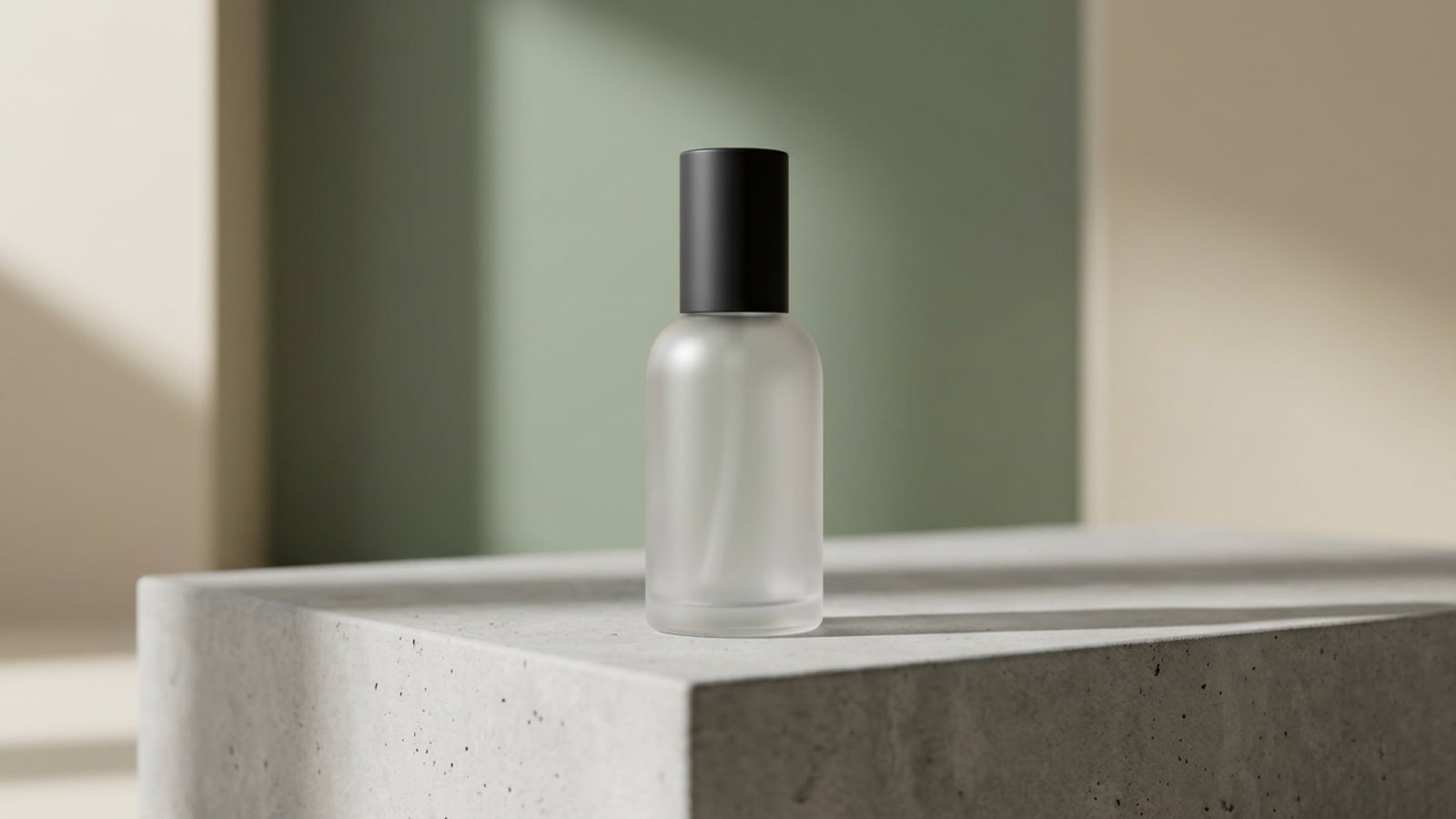
- Cosmetics & Skincare: 'Sleek luxury cosmetic bottle resting on a smooth light gray concrete block, soft directional morning sunlight, realistic ambient contact shadow, minimal architectural studio backdrop, photorealistic 8k.'[3]
- Jewelry & Luxury: 'High-end jewelry piece resting on a polished white Carrara marble surface with subtle grey veining, soft warm studio lighting, subtle surface reflection, photorealistic detail.'[3]
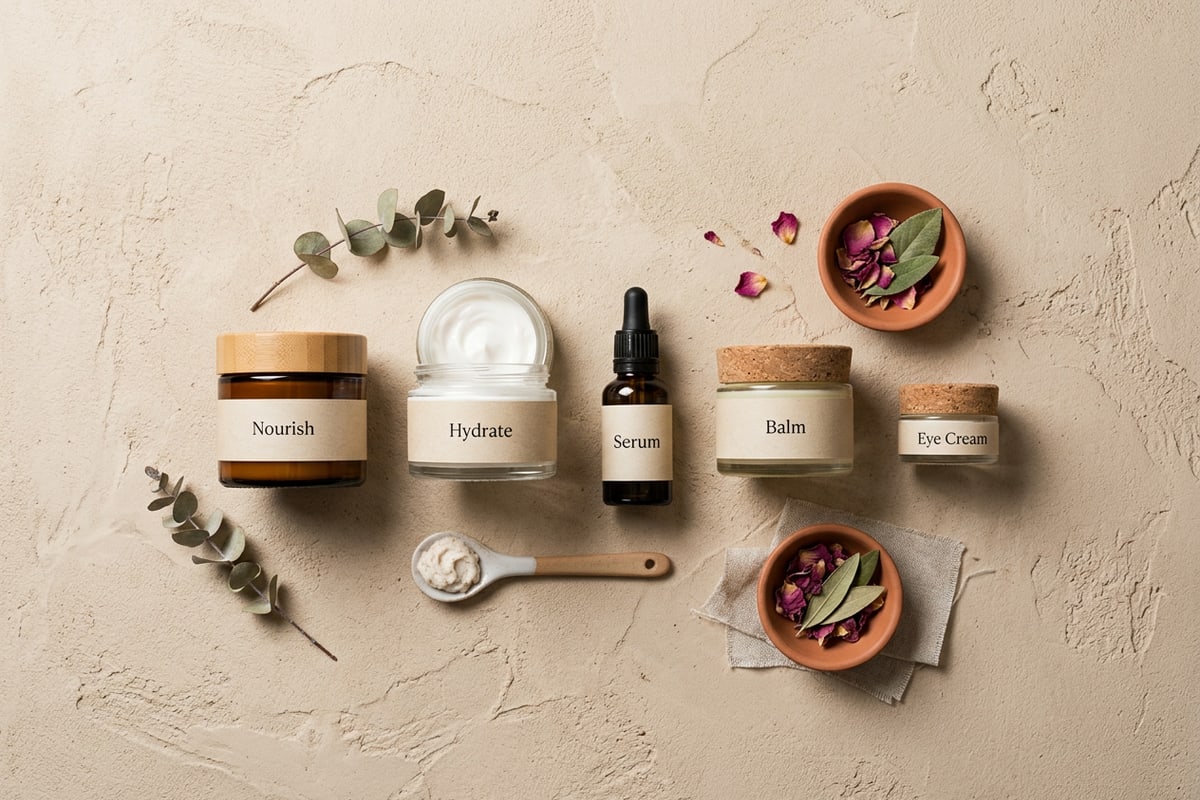
- Artisanal Goods & Leather: 'Handmade leather accessory sitting on a textured beige plaster table, gentle side illumination, soft organic contact shadow, minimal Scandinavian interior aesthetic.'[3]
- Footwear & Apparel: 'Handcrafted leather sneaker resting on a raw industrial concrete slab, clean neutral background, realistic grounding contact shadow, diffuse studio lighting, high resolution.'[3]
Visual Quality Control: Scale, Shadows, and Text Overlays
Verify realistic visual proportions and add graphic branding using on-device overlay tools.
Before uploading your regenerated product photo to e-commerce marketplaces, conduct a thorough visual quality inspection. Check that the scale of the concrete grain or marble pattern matches the realistic physical dimensions of your product. If the background texture appears oversized, refine your prompt scale modifiers and run another replacement pass.[1]
Beyond scale, inspect the contact shadow contact point at the base of your item. A realistic contact shadow should be darkest directly beneath the product base and gradually diffuse outward. If the shadow appears disconnected or too soft, re-enter AI Replace and specify 'dark dense contact shadow directly under object base' to anchor the item firmly to the surface.[1]
To finalize your listing asset, you can open your image in CARA's Free Creative Canvas to organize visual elements or use Text Editing and Overlay to add text layers, prices, or promotional badges. This allows small business owners to publish complete, branded promotional graphics directly from their iPhone without needing external desktop software.[1]
Organizing your workflow entirely on iOS streamlines your batch creation. By storing local creative canvas projects, you can quickly swap product cutout layers while maintaining identical graphic badge placement across your entire seasonal catalog.[1]
- Verify lighting consistency: ensure shadows generated on the background match any specular highlights on the product body.[1]
- Use on-device text layers on the Creative Canvas to add brand names, dimensions, or discount tags cleanly.