The Return of 2016 Unfiltered Energy: Why Warm Throwback Edits Are Trending
Explore the driving forces behind the viral 2016 photo editing resurrection on social platforms.
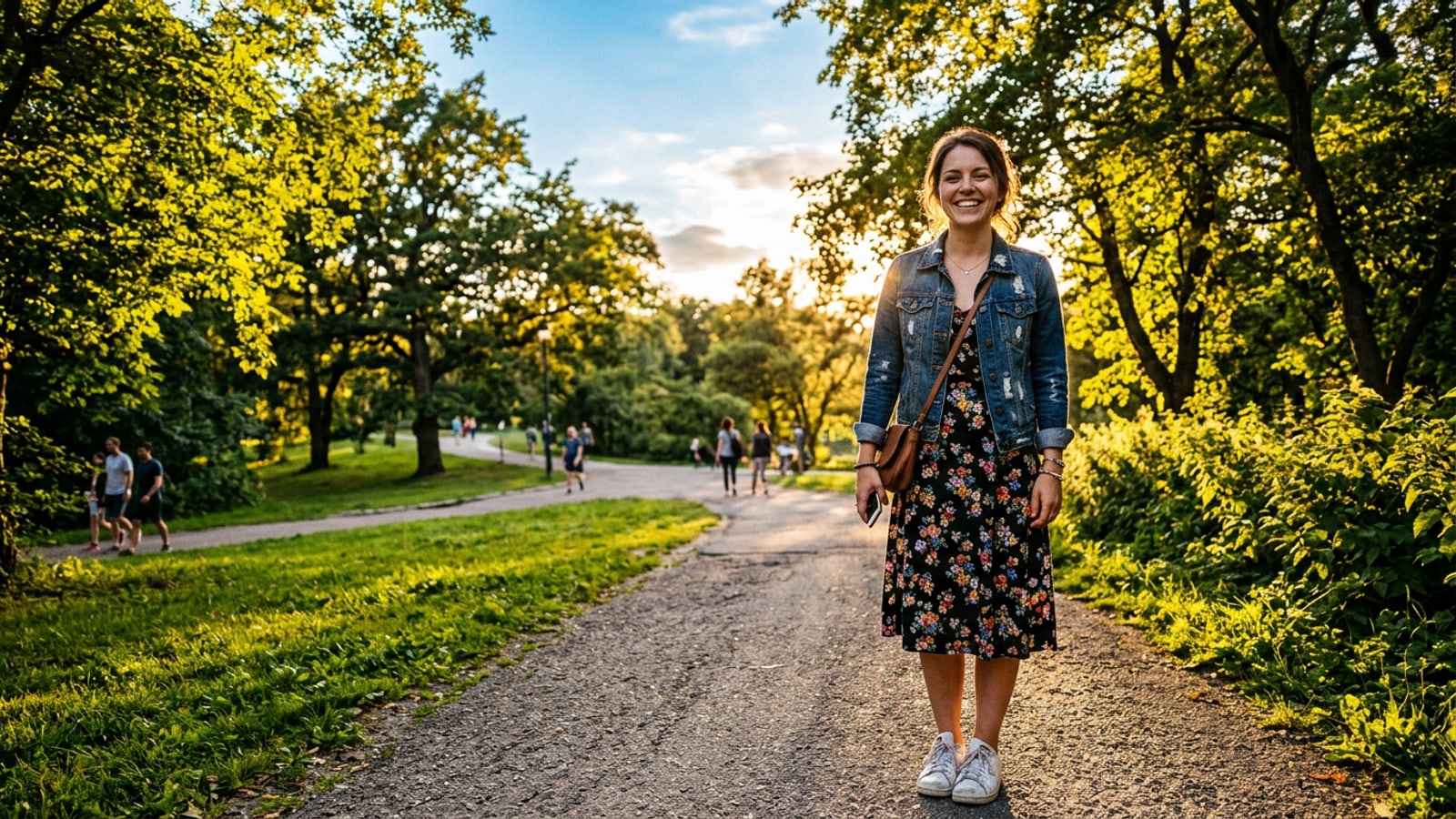
Creators across social media are stepping away from muted, hyper-curated 4K photography in favor of the energetic, sun-drenched visuals that dominated feeds in 2016. This shift reflects a broader desire for visual nostalgia and warmth, reviving an era defined by rich amber sunlight, vibrant blue skies, and punchy contrast.[1][3]
Standard smartphone photo processing on modern iPhones often prioritizes neutral color science and high dynamic range, leaving photos looking flat or overly clinically sharp. In contrast, the 2016 look embraces intense golden-hour saturation and deeper shadows that give everyday mobile photos immediate emotional punch.[1]
However, attempting to recreate this vintage look using legacy global filters often backfires. Traditional warmth filters push yellow and red channels uniformly across the frame, turning natural face tones into a muddy or brassy orange. Achieving an authentic throwback edit requires separating environmental warmth from skin rendering.[1][3]
- Modern mobile camera processing heavily neutralizes ambient lighting, reducing visual pop.[1]
- The 2016 aesthetic highlights vivid golden hour tones, deep contrast, and rich foliage greens.[1]
- Global presets cause orange face distortion because they cannot differentiate between skin tones and background colors.[3]
Anatomy of the 2016 Look: Saturation, Contrast, and Skin Preservation
Deconstruct the visual elements of the 2016 photo edit and learn the subject-isolation technique.
To reproduce the 2016 visual signature accurately, you must break down its technical color characteristics. The style relies on raised contrast in midtones, rich amber ambient highlights, and vivid saturation in secondary background colors like cyan skies and emerald green foliage.[1]
The major technical flaw of classic 2016 editing was facial distortion. When global saturation slider adjustments pushed orange and yellow hue channels, human faces lost natural depth and looked heavily sunburned or artificially smooth.[3]
By using conversational AI commands instead of rigid global filters, you can apply negative-constraint instructions. Asking the AI model to re-grade the background atmosphere while holding the portrait subject's facial tones neutral creates a striking high-contrast result with zero skin discoloration.
- Background Warmth: Elevated golden hour sunlight streaming across background foliage and architecture.[1]
- Punchy Contrast: Deepened shadow regions that bring dynamic dimension back to flat smartphone captures.[1]
- Subject Isolation Protocol: Explicit prompt constraints instructing the engine to preserve natural facial skin texture and authentic tone.
Step-by-Step Workflow: Recreating 2016 Nostalgia on iPhone with CARA Agent
Follow a practical, conversational prompt editing guide using CARA Agent on iOS.
CARA Agent on iOS provides conversational photo editing driven by natural-language commands. Because CARA relies on cloud processing to analyze and modify uploaded images, prompt structuring is crucial to achieving consistent, high-quality visual outputs.
Rather than relying on vague requests like 'make this retro,' structure your prompt using a target aesthetic description followed by explicit subject-preservation instructions. This ensures the AI modifies ambient lighting while protecting your facial features.
- Launch CARA Agent on iOS
Open the CARA app on your iPhone or iPad and navigate to the Agent chat editing interface. Tap the upload button to select a high-resolution photo from your iOS library.
- Define Background Color Parameters
Describe the 2016 color characteristics you want to add, emphasizing rich golden sunlight, punchy background contrast, and vibrant outdoor hues.[1]
- Apply Skin Realism Safeguards
Add explicit boundary commands to your prompt statement: 'Keep the subject person face skin tone completely natural, photorealistic, and unaffected by orange tinting.'
- Send Command and Review Generation
Submit your request. Because cloud generation results can vary based on prompt phrasing and input image quality, review the output closely and refine your prompt if extra color warmth is needed.
Copy-Paste Prompt Library: 3 Distinct 2016 Retro Vibes
Ready-to-use natural language prompts tailored for summer golden hour, flash night, and travel photography.
Different 2016 shooting scenarios require distinct visual adjustments. Use these copy-paste prompt recipes inside CARA Agent to achieve three iconic variations of the throwback style.[1][2][3]
- 2016 Golden Hour Summer Vibe: 'Edit this image into a vibrant 2016 summer photo style. Infuse the environment with rich warm golden hour sunlight, punchy contrast shadows, and deep green foliage saturation. Keep the subject person's skin tone completely photorealistic and natural with authentic facial details, avoiding any orange tinting or smoothing.'[1][3]
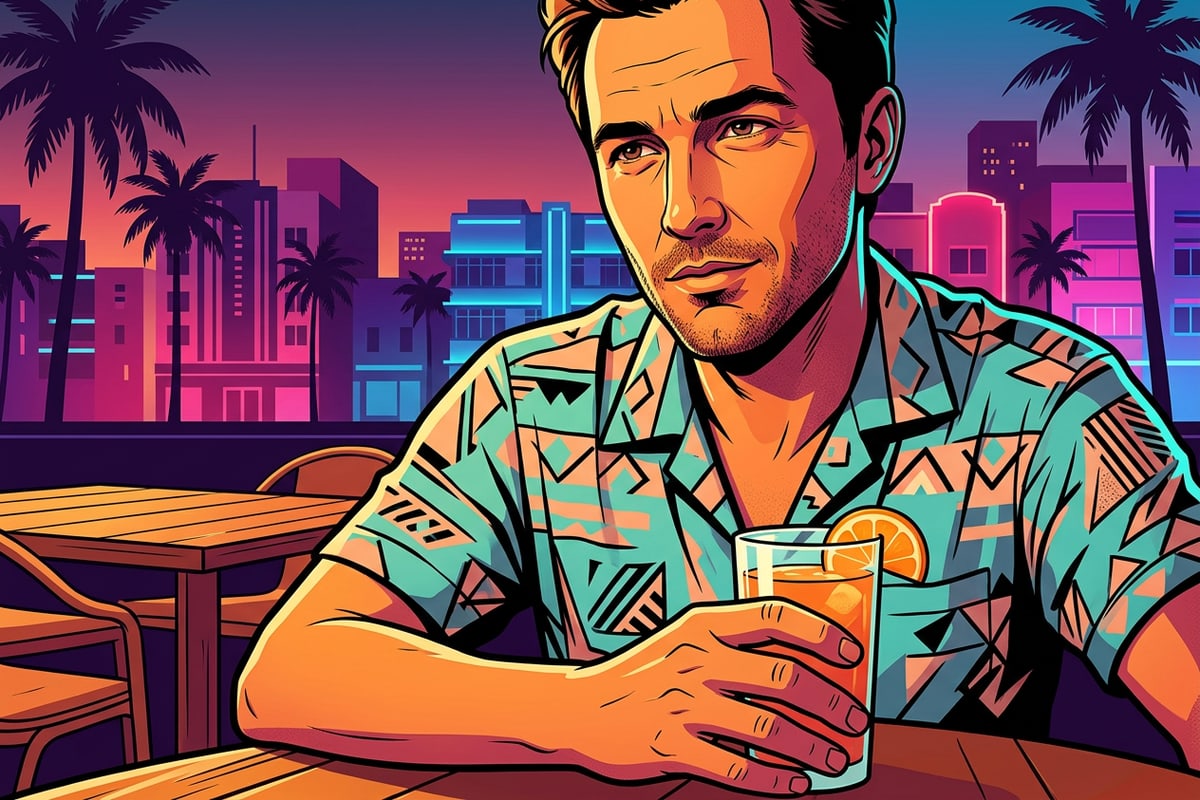
- 2016 Retro Direct-Flash Night Vibe: 'Transform this nighttime photo with a nostalgic 2016 direct-flash aesthetic. Increase foreground light punchiness, deepen background shadows with cool undertones, and boost vibrant color pop in background lights. Maintain realistic skin texture and preserve accurate facial details on the main subject.'[2][3]
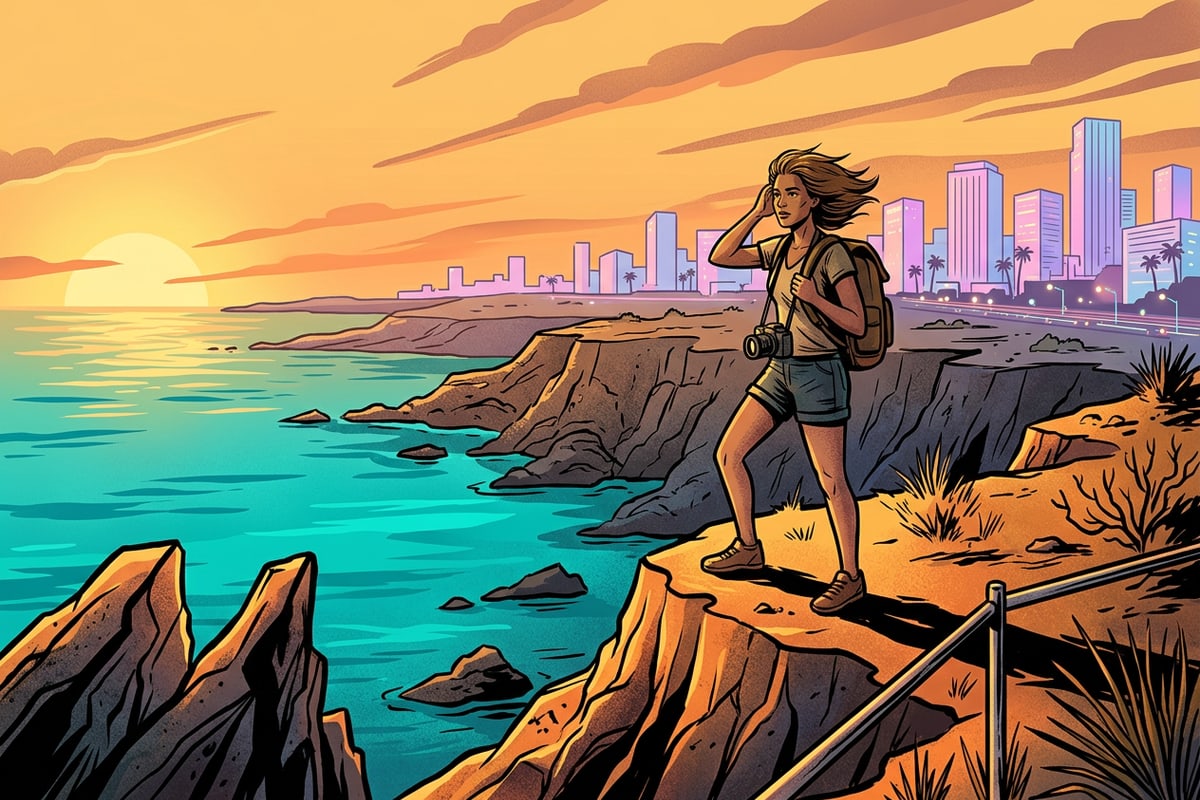
- 2016 Vibrant Outdoor Travel Vibe: 'Recreate a high-contrast 2016 outdoor travel photo edit. Sky should be a rich saturated cobalt blue, sunset highlights should glow warm amber, and surrounding scenery should feature vibrant warm tones. Preserve the subject person's natural skin tone and face realism completely.'[1][3]
Refining Your Output: Cleanup, Uncropping, and Troubleshooting
Prepare your vintage photo edit for social media publishing using AI background tools.
Once your photo color grading is complete, finishing touches ensure your post looks polished on platforms like Instagram Stories or TikTok. Background clutter like power lines, stray trash, or unwanted pedestrians can pull attention away from your subject.
Before or after applying color edits, use the AI Eraser tool within CARA to tap and remove distracting background objects. For complex backgrounds, executing object removal in small increments yields the cleanest visual results.
If your original iPhone image was shot in a standard 4:3 or square 1:1 aspect ratio, uploading it to Instagram Stories often forces unwanted cropping or awkward black sidebars. Use Image Extender outpainting to expand the canvas boundaries smoothly into a native 9:16 vertical format while keeping the warm 2016 background style seamless.
- AI Eraser Object Removal: Clean up background distractions before applying final ambient color prompts.
- Image Extender Outpainting: Expand 4:3 or square photos to 9:16 vertical frames for Instagram Stories without cropping your subject.
- Skin Distortion Troubleshooting: If the generated output still shifts facial skin slightly orange, re-run the prompt adding 'strictly exclude warm color shifts from human face channels'.