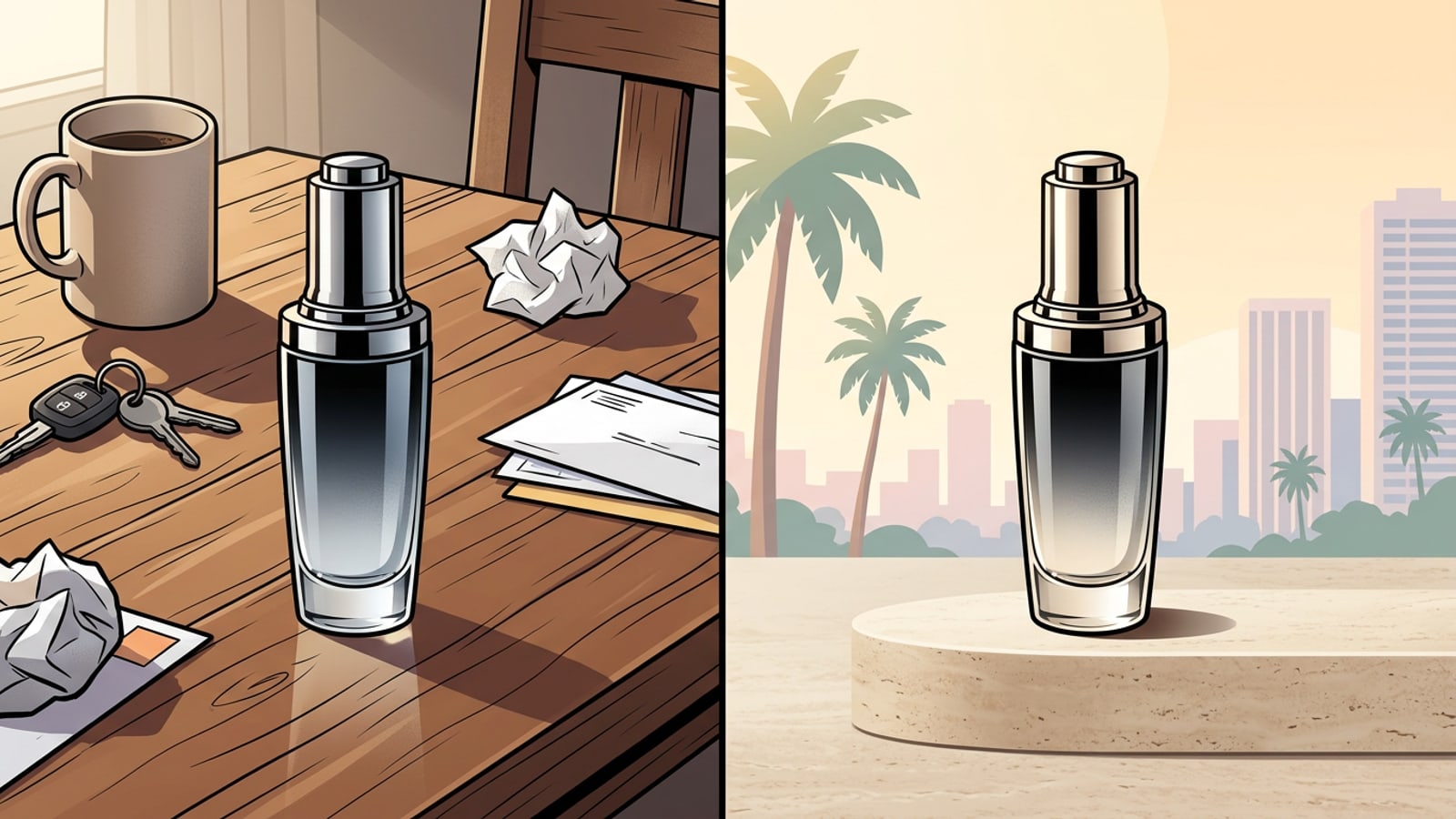
Quick Resolution: The 3-Step iPhone AI Studio Workflow
Master the direct mobile pipeline to transform raw product captures into professional marketplace-ready assets within minutes.
Creating commercial-grade product photos no longer requires an expensive lighting kit or dedicated studio space. By combining clean mobile photography with targeted conversational AI backdrop editing on your iPhone, small business sellers and creators can produce grounded studio visuals for Etsy, Shopify, or social storefronts.[1][2]
The entire process relies on three distinct stages: preparing a sharp subject capture, isolating the object while removing unwanted physical blemishes, and generating realistic surface environments using natural-language backdrop prompts.[1][6]
- Step 1: Capture your item under soft, indirect window light to create clean contrast without harsh glare.[1]
- Step 2: Isolate the item and clean surface dust using dedicated mobile cutout and object removal tools.[2]
- Step 3: Generate custom studio surfaces by prompting environmental textures, key light angles, and contact drop shadows.[1][4]
- Capture the Subject photo
Place your product on a contrasting surface, steady your iPhone, and use the camera timer to capture sharp edge detail.[1]
- Isolate Object in CARA
Open CARA on iOS, navigate to Home > AI Editing > Remove Background to separate your subject cleanly from its background.
Why Professional Product Backdrops Drive E-Commerce Sales
Understand how ambient environments elevate visual trust and why naive AI replacements often result in ungrounded compositions.
Visual credibility directly influences listing conversion rates across online marketplaces. A product photographed against a cluttered kitchen counter or an uneven domestic tabletop signals amateur production, which can degrade customer trust regardless of item quality.[2]
However, basic background replacement tools often create photos that look synthetic or unconvincing. The primary reason AI-generated backgrounds look fake is not the texture of the generated wall or pedestal, but a lack of spatial grounding—specifically missing contact shadows beneath the subject and conflicting light angles between the product and its new backdrop.[1][4]
- High-converting product shots establish depth through surface occlusion and realistic light scattering.[4][5]
- Mismatched directional light between your subject photo and AI background creates an artificial cutout appearance.[1][5]
- Explicitly describing drop shadows in AI prompts bridges the gap between raw mobile cutouts and realistic studio setups.[1][2]
iPhone Pre-Shooting Essentials for Precise AI Cutouts
Optimize your camera setup, lighting conditions, and surface cleanliness prior to performing background swaps.
Generative AI tools rely on edge detection to differentiate your product from its background. Giving the AI a high-contrast, razor-sharp initial photo dramatically improves cutout quality around complex edges like handle curves, clear glass, or fine metallic details.[1][2]
Before uploading your photo for background editing, take a moment to touch up any physical blemishes on the surface of your product. In CARA, you can tap Home > AI Editing > Object Removal to clear away lint, stray fibers, or surface dust with the AI Eraser tool so they do not contaminate the final composition.
- Shoot against a neutral, high-contrast matte surface like poster board to make subject edges easy for AI models to detect.[2][6]
- Use the native iPhone 3-second camera timer to eliminate hand shake and prevent micro-blur along object outlines.[1]
- Avoid using harsh flash photography; diffuse natural morning or afternoon daylight delivers soft, paintable shadows.[1][6]
Step-by-Step Guide: Isolate Subjects and Prompt Backdrops in CARA
Follow this practical walkthrough to strip home clutter and build luxury studio environments with conversational prompts.
Once your base photo is clean, open CARA on your iPhone to begin the transformation process. The app offers targeted tools designed specifically for background isolation and conversational image modifications.
First, select Home > AI Editing > Remove Background. The underlying segmentation isolates your item from your domestic surroundings, leaving your product ready for backdrop synthesis.[2][5]
Next, bring your isolated image into Home > Agent for conversational photo editing. Here, you interact directly with Cara Agent using natural language, requesting tailored surfaces, depth of field, and environmental moods without adjusting complex digital parameters.[3]
- Use Home > AI Editing > Remove Background to create a clean, isolated subject layer.
- Use Home > AI Editing > Object Removal to clean minor physical spots or dust specks.
- Describe your background vision in Home > Agent using specific textures, light direction, and surface materials.[3]
- Isolate Your Product
Open CARA, tap Home > AI Editing > Remove Background, and upload your raw iPhone photo to isolate the item.
- Blemish Touch-up
If needed, use Home > AI Editing > Object Removal to brush over dust particles or scratches on your physical item.
- Enter Conversational Agent
Navigate to Home > Agent and describe the studio backdrop, surface material, and soft light source in plain English.[3]
Copy-Pasteable AI Prompt Recipes for E-Commerce Categories
Deploy modular, proven prompt recipes tailored for cosmetics, organic handmade items, and sleek consumer tech.
To get consistent results from AI backdrop generators, structure your prompts around four visual pillars: surface material, background environment, lighting direction, and explicit shadow grounding.[1][3]
Including explicit preservation phrases in your prompts ensures the AI generates a surrounding scene without altering your product's original shape, colors, or printed text.[1][4]
- Cosmetics & Skincare: Place product on a smooth beige travertine stone pedestal, soft warm morning window light, subtle botanical leaf shadows across a cream plaster wall, soft drop shadow beneath the base, preserve original product geometry and logo.[1][3]
- Organic Goods & Ceramics: Rest product on a rustic dark oak timber block, minimalist warm linen background, soft diffused sunlight, realistic contact shadow grounding the product bottom rim, high detail product shot.[1][3]
- Tech & Accessories: Set product on a dark matte slate slab, cool ambient blue studio lighting, sleek monochromatic background, crisp cast shadow under base, maintain exact label text and shape.[1][4]

Troubleshooting Edge Halos, Mismatched Light, and Distorted Labels
Solve typical AI backdrop glitches with non-destructive refinement strategies and positive prompt constraints.
When generating AI product backgrounds, you may occasionally run into visual issues such as faint white halos around cutout edges, products looking as if they are levitating, or AI models distorting your product's brand label.[1][2]
Floating items occur when the prompt omits shadow instructions. Adding terms like 'soft contact shadow resting on surface' forces the rendering engine to calculate ambient occlusion where your product meets the pedestal.[1][4]
If you notice label text distorting, avoid describing the product itself in the prompt. Focus your text purely on the background elements while appending negative constraints such as 'do not alter product face, preserve all text and logos'.[1][3]
- Fix floating objects: Add 'realistic contact drop shadow grounding the object base' to your prompt.[1]
- Fix edge halos: Re-run background isolation using a higher-contrast original camera capture.[2]
- Fix label distortion: Restrict your prompt descriptions strictly to backdrop elements and environment textures.[1][4]