Quick Summary: How to Achieve the 2016 Instagram Look with CARA
Get an immediate overview of the key prompt adjustments and workflow required to turn clean iPhone photos into mid-2010s mirror selfies.
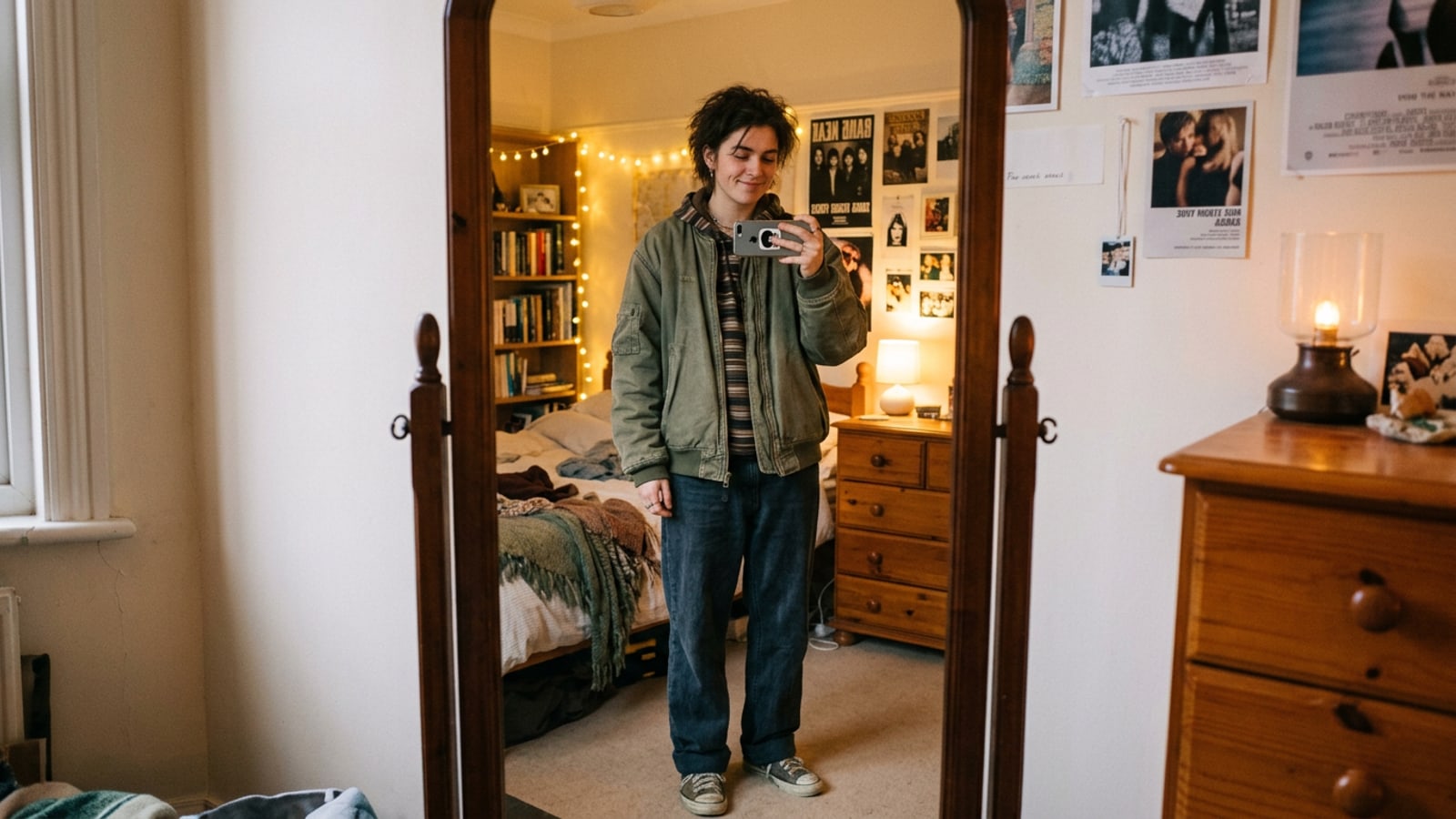
The return of the 2016 Instagram photo style centers on warm bedroom mirror lighting, soft yellow ambient glows, and matte shadows, contrasting sharply with the hyper-processed HDR processing of modern smartphones.[1][2]
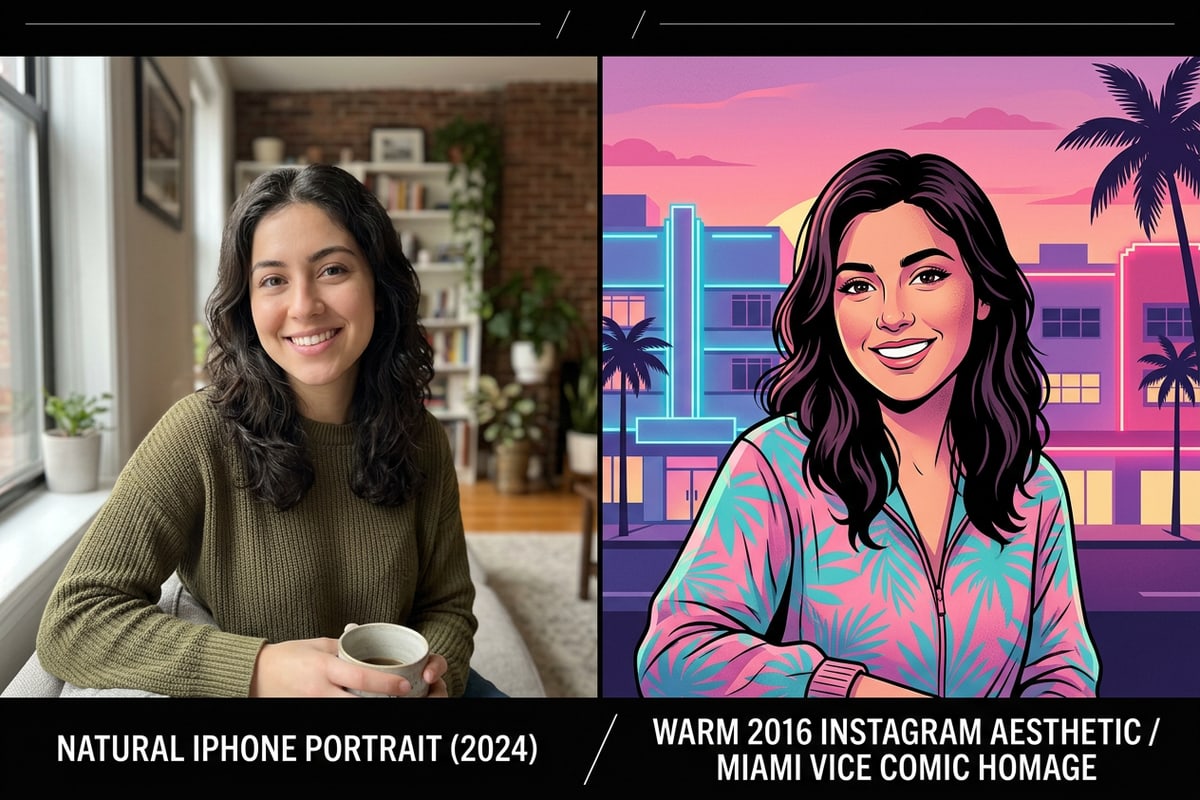
Instead of applying rigid static color overlays or destructive face-smoothing presets, you can guide CARA's conversational editor using simple conversational commands to adjust tone curves and sensor texture while preserving your actual identity.[2]
- Open Home > Agent in CARA on your iPhone and upload your indoor portrait or mirror photo.
- Prompt the agent to lift the shadows slightly, add a warm golden ambient light temperature, and introduce subtle film grain.[2]
- Use Home > AI Editing > AI Replace if you want to alter modern accessories like phone cases or outfits into mid-2010s styles.
- Apply Home > AI Editing > Image Extender to pad tightly cropped mirror frames into spacious vertical shots.
Why Mid-2010s Photos are Trending Again
Understand the cultural nostalgia driving the 2016 image trend and the visual characteristics that defined early Instagram feeds.
Social creators are increasingly fatigue-ridden by the clinical sharpness, aggressive local contrast, and deep shadows produced by modern smartphone computational cameras. Interest in mid-2010s photography aesthetics has surged sharply as creators seek a softer, lower-contrast aesthetic.[1][2]
The signature 2016 look is characterized by cozy indoor mirror reflections, slightly washed-out black tones (lifted black levels), warm tungsten room illumination, and casual, unposed framing. Unlike earlier harsh direct flash trends, 2016 photos were defined by soft pastel tones and warm ambient glows.[1][3]
If you are interested in comparing this warm indoor look with intense contrast styles, check out our guide on creating the Y2K direct flash photo look on iPhone with AI prompts for a higher-contrast aesthetic.
Step-by-Step: Recreating the 2016 Mirror Selfie with Cara Agent
Follow a precise conversational workflow in Cara Agent to edit color temperature and light atmosphere while keeping your face recognizable.
Achieving an authentic 2016 aesthetic through conversational AI requires instructing the model on lighting and tone parameters while explicitly keeping facial structure unchanged.[2][4]
Because CARA processes natural language requests in Home > Agent, you can describe color palette modifications directly without adjusting technical sliders manually.
- Open Cara Agent on iOS
Launch CARA on your iPhone, navigate to Home > Agent, and upload a clear indoor photo or mirror selfie.
- Refine Color Balance Conversationally
If the result is too yellow or dark, respond to the agent with a follow-up request like: 'Reduce yellow tint by 15% and slightly brighten room highlights while keeping the lifted shadows.'[2]
- Confirm and Save the Output
Review the full composition to ensure the lighting feels cohesive across both your figure and the surrounding room background.
Retro Details: Clothing, Objects, and Framing with AI Replace and Image Extender
Use targeted AI replacement and canvas extension tools to customize wardrobe items and uncrop tight mirror frames.
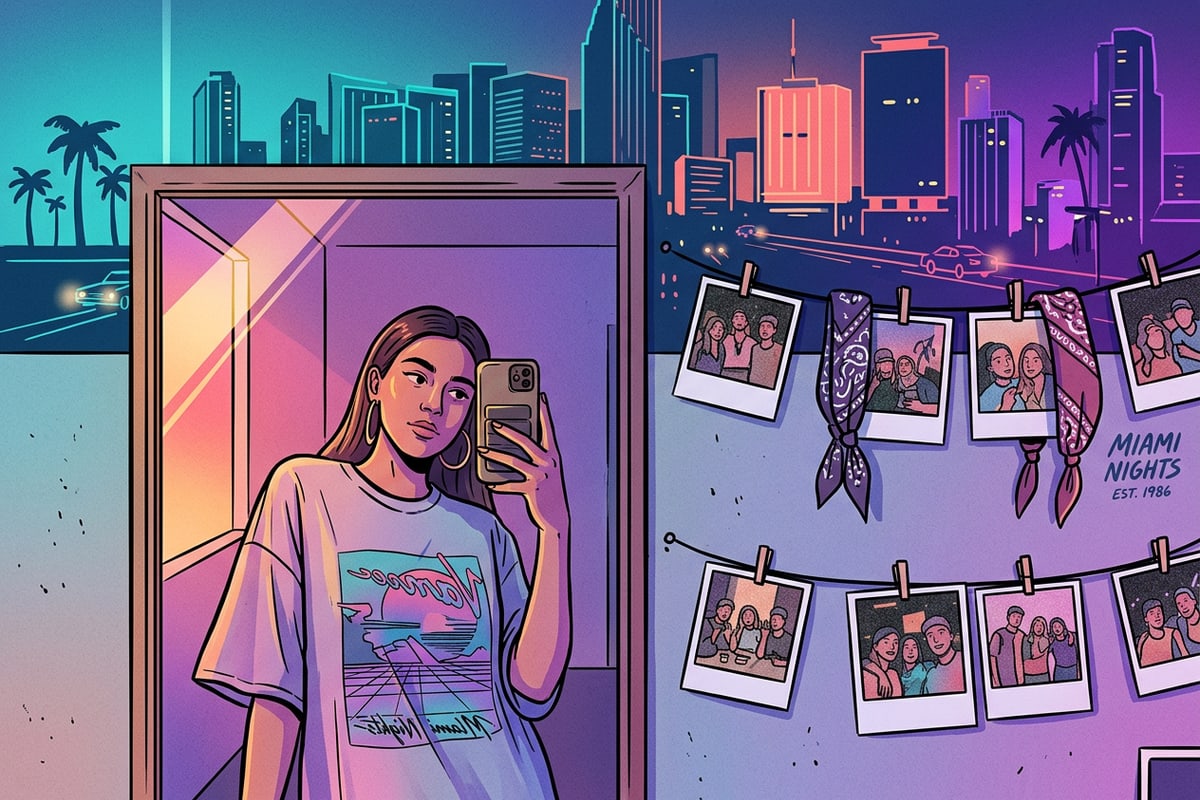
Color adjustment is only half of the nostalgic equation. Small contextual details like modern triple-lens camera bumps or contemporary clothing can instantly break the mid-2010s illusion.[2][5]
To swap out modern phone cases, oversized hoodies, or background decor, navigate to Home > AI Editing > AI Replace. Select the specific item with your finger and prompt the tool to generate a mid-2010s equivalent.
If your original photo cuts off your outfit or the mirror edges, use Home > AI Editing > Image Extender to generate surrounding room content. If you want to expand narrow vertical portraits into widescreen formats, see our step-by-step guide on turning tightly framed iPhone photos into 16:9 cinematic stills with AI.
- Swapping Accessories: Select a modern phone case in AI Replace and prompt: 'a plain white 2016 smartphone case'.[2]
- Extending Canvas: Use Image Extender to pad the top or sides of a tight mirror reflection to achieve a full vertical composition.
- Removing Background Distractions: If photobombers or clutter clutter your room background, use AI Eraser to clean up unwanted objects seamlessly.
Tips to Avoid Common AI Editing Errors and Keep Photos Organic
Practical techniques to prevent skin over-smoothing, harsh lighting mismatches, and unnatural digital artifacts.
A common mistake when trying to emulate 2016 Instagram trends is applying heavy beauty smoothing filters. Mid-2010s photos were unrefined and texture-rich compared to today's AI beauty edits.[2][3]
When using AI Replace for garments or accessories, ensure the prompt specifies room lighting directions so generated objects match the warm ambient light of your original photo.[2]
- Avoid Generic Smoothing Words: Never include terms like 'flawless skin' or 'airbrushed' in your prompts.[2]
- Match Replacement Lighting: Prompt AI Replace with lighting context, e.g., 'a denim jacket illuminated by warm side lamp light'.[2]
- Maintain Original Grain: Introduce noise or grain at the end of your prompt chain so it applies uniformly over both subject and background.[2]