The Vertical-to-Widescreen Dilemma on iPhone
Converting vertical mobile photos to fit wide desktop or monitor screens usually causes severe framing loss or visual stretching.
Mobile photo capture on modern smartphones natively encourages vertical framing. Standard iPhone sensors capture uncropped photos in a 4:3 aspect ratio, while handheld habits and mobile media platforms emphasize a tall 9:16 vertical ratio. When mobile photographers, digital creators, or desktop customizers attempt to set these vertical photos as desktop wallpapers or external monitor backdrops, they encounter a severe aspect ratio conflict.[1][3]
A standard widescreen monitor uses a 16:9 horizontal aspect ratio (a 1.7778 width-to-height ratio), whereas a 9:16 portrait image presents a 0.5625 horizontal-to-vertical ratio. Adapting a vertical portrait photo into a widescreen layout using conventional image editing forces creators into an unappealing visual compromise.[1][3]
Executing a traditional center-crop cuts off the top and bottom of the picture box, sacrificing up to 60 percent of the original vertical framing. Headroom, feet, hand gestures, background architecture, and ground details are clipped away. Conversely, forcing the image box to fit widescreen dimensions via horizontal stretching distorts human facial features and bends linear background geometry. Adding blurred side bands preserves the original frame, but creates visual noise and feels like a low-effort video re-upload rather than custom desktop artwork.[1]
- 9:16 Portrait Ratio: 0.5625 horizontal-to-vertical ratio, ideal for phone screens but unsuited for wide desktop displays.[1][3]
- 16:9 Widescreen Ratio: 1.7778 ratio standard across 4K UHD, 1440p QHD, and 1080p FHD widescreen monitors.[1][3]
- Center-Crop Deficit: Eliminates up to 60% of vertical composition depth to force a horizontal slice.[1]
How Generative Outpainting Expands Image Canvas Outward
AI outpainting analyzes scene geometry, illumination gradients, and lens blur to extend canvas borders seamlessly around a locked source subject.
Generative outpainting—also known as AI uncropping—solves the aspect ratio mismatch by expanding canvas boundaries outward rather than trimming pixels inside the frame. When expanding a 9:16 portrait asset into a 16:9 widescreen canvas, the overall horizontal resolution must widen by approximately 3.16 times relative to the original image width at constant vertical height. This means the AI engine must synthesize between 65 percent and 75 percent brand-new horizontal pixel area from scratch.[2][3][4]
To produce natural widescreen scenery, advanced outpainting models evaluate structural signals from the original photo. The engine inspects horizon line trajectories, sky color gradients, ground vegetation, and architectural vanishing points, extending these elements laterally into newly added canvas space.[2][4]
Maintaining visual realism across extended margins requires two critical optical controls: lighting directionality and depth-of-field continuity. If a portrait photo was captured with an open lens aperture (such as f/1.4 or f/2.8), the background exhibits soft optical bokeh. If the generated side content were rendered with pin-sharp clarity, an artificial edge seam would immediately reveal the edit. Generative outpainting evaluates the original depth map, synthesizing matching blur gradients and ambient light shadows along the left and right borders.[2][4]
Crucially, specialized outpainting workflows lock the source bounding box. The center subject's facial proportions, eye highlights, skin texture, and sharp focus remain completely unedited, ensuring zero generative hallucination or warping across your main subject.[2][3]
- Locked Bounding Box: Preserves 100% of original central subject pixels without generative resampling.[2][3]
- Depth-of-Field Matching: Mirrors lens aperture blur (bokeh) across outer horizontal margins for optical harmony.[2][4]
- Illumination Consistency: Synthesizes matching side light, color temperature, and atmospheric shadows.[2]
Step-by-Step Workflow: Uncropping Portrait Shots in CARA
Follow this practical guide to uncrop portrait photos on iOS and iPadOS using Image Extender and conversational agent prompts.
The CARA creative app on iOS and iPadOS provides cloud-accelerated generative outpainting alongside local canvas tools. Because extending canvas margins requires substantial deep learning inference, Image Extender operates as a cloud workflow costing 30 points per generation run in CARA.[2][4]
Creators can guide the generative expansion process using either direct canvas ratio locks or natural language prompts via CARA Agent. On iPadOS, CARA includes an adaptive, width-aware interface that supports both portrait and landscape orientation, providing an expansive view for fine-tuning widescreen wallpapers.[2]
- Launch Image Extender
Open CARA on your iPhone or iPad. Navigate to the AI Editing section from the main workspace and select Image Extender.[2]
- Optionally Prompt CARA Agent for Contextual Details
If your photo features distinct ambient elements—such as a misty pine forest, golden hour lighting, or ocean waves—enter natural language text instructions in CARA Agent to steer generated side scenery.[2]
Quality Controls and Refinement with On-Device Tools
Inspect generated edge seams and use local AI Eraser and Free Creative Canvas to clean up artifacts or customize wallpaper layers.
Once outpainting generates your 16:9 widescreen canvas, inspect the result before setting it as your desktop backdrop. Zoom in to 100 percent along the transition boundaries where the original vertical photo edge meets the newly synthesized background content.[2][4]
Occasional generative runs may introduce minor visual anomalies along extended margins—such as repeated tree branches, floating artifacts, or unnatural light specks. You can immediately clean up these areas using CARA AI Eraser. Brush over the unwanted artifact, and the AI model will recalculate the underlying background patch.[2]
If you want to add personalized design elements to your wallpaper—such as motivational typography, geometric accent frames, or hand-drawn sketches—transfer the extended photo into CARA Free Creative Canvas. The canvas editor runs locally on your device without consuming additional cloud credits, allowing you to build multi-layer visual projects freely.[2]
- Boundary Seam Inspection: Zoom in on side border zones to verify smooth tone and texture blending.[4]
- Artifact Cleanup with AI Eraser: Remove duplicate background objects or random edge specks.[2]
- Free Local Customization: Use Free Creative Canvas for text overlays, drawing lines, and reusable local wallpaper frames.[2]
Widescreen Display Resolution Alignment and Wallpaper Fitting
Match exported canvas dimensions to 4K UHD or 1440p QHD monitor specifications to maintain razor-sharp wallpaper clarity.
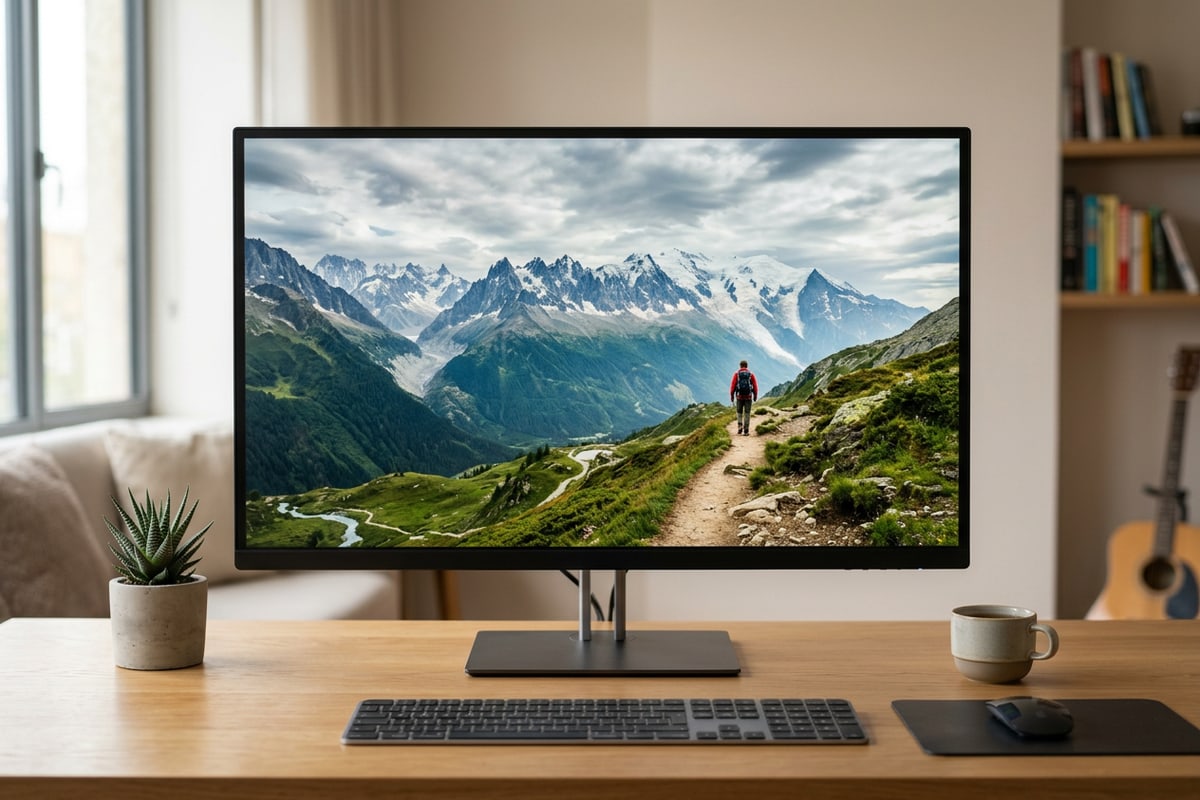
Generating a 16:9 image aspect ratio is only the first half of creating a high-grade desktop wallpaper; aligning resolution output with target display hardware is equally critical. Modern desktop setups typically use one of three resolution standards: 4K UHD (3840x2160 pixels), 1440p QHD (2560x1440 pixels), or 1080p Full HD (1920x1080 pixels).[1][3]
When exporting your uncropped wallpaper asset from CARA, aim to match or exceed your monitor's physical pixel count. Importing a low-resolution horizontal image onto a 32-inch 4K monitor forces the operating system to perform spatial upscaling, introducing subtle bicubic blur across your sharp focal subject.[1][3]
Once exported to your Mac, PC, or iPad desktop, configure your display settings to 'Fit to Screen' or 'Fill Screen'. Because your canvas was extended directly to a native 16:9 ratio, your operating system can render the wallpaper pixel-for-pixel without unexpected cropping, letterboxing, or aspect ratio distortion.[1][3]
- 4K UHD Benchmark: 3840x2160 pixels (16:9), ideal for high-DPI desktop displays and modern 4K monitors.[1][3]
- 1440p QHD Benchmark: 2560x1440 pixels (16:9), standard resolution for gaming monitors and medium-sized displays.[1][3]
- 1080p Full HD Benchmark: 1920x1080 pixels (16:9), standard ratio for laptop screens and budget external displays.[1][3]