The Public Photography Privacy Problem: Why Manual Blurring Fails
Examine the operational bottlenecks of traditional mobile photo redaction and the privacy risks of transmitting unedited media to third-party cloud servers.
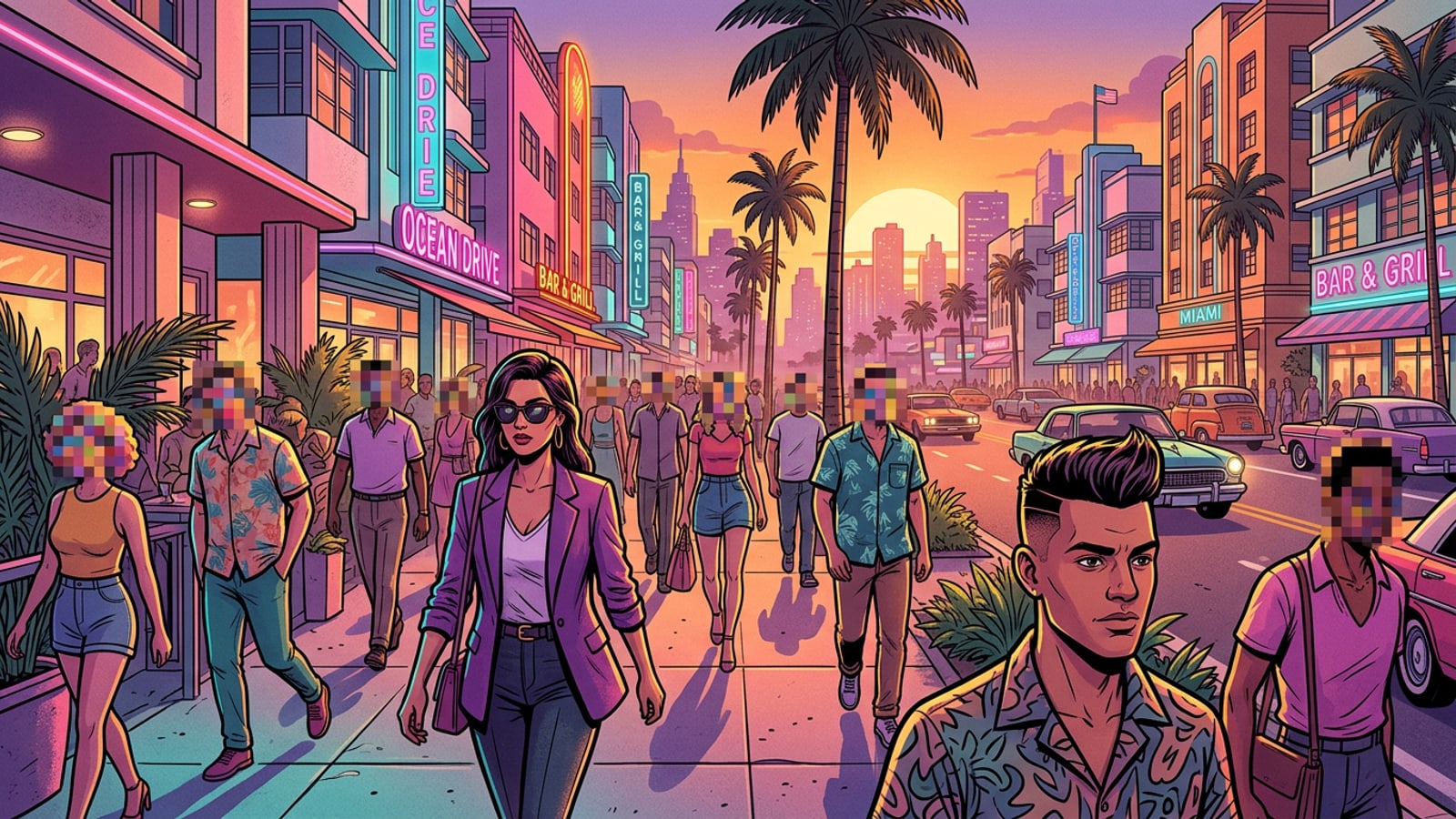
Photographing vibrant urban streetscapes or hosting large community gatherings on an iPhone captures candid human energy, but it frequently leaves dozens of recognizable bystanders in the background frame. Ethical creators, street photographers, journalists, and event hosts face an escalating legal and social imperative to obscure non-consenting faces before publishing visuals online. However, traditional manual censoring workflows create overwhelming operational friction for mobile creators who need to edit and post content quickly while maintaining strict privacy standards.[1][2]
In default iOS editing environments like Apple Photos Markup, censoring individual faces demands manual intervention. Photographers must draw opaque shapes, colored blocks, or rough scribbles over every single subject in the frame. In a dense crowd photo containing fifteen or twenty subjects, this manual face-by-face scrubbing consumes considerable time per photograph, turning post-production into a tedious chore. Furthermore, freehand drawing on touch screens is inherently imprecise, often leaving cheekbones, jawlines, or distinctive hair structures visible, or accidentally missing subjects scattered in the background.[1][3]
To bypass tedious manual editing, creators often turn to quick web-based photo tools or cloud privacy apps. However, uploading unredacted high-resolution street captures to third-party cloud servers introduces significant data privacy vulnerabilities. Transmitting raw photos containing identifiable faces across external networks exposes original media to potential server-side logging, network interception, or remote data retention before redaction ever takes place. For privacy-minded photographers and photojournalists, sending unmasked subject photos to remote cloud pipelines defeats the core objective of digital identity protection.[1][4]
- Manual markup tools require repetitive face-by-face drawing across every individual subject in crowded public scenes.[1]
- Using semi-transparent highlighter tools by mistake risks leaving underlying facial features recoverable in exported photos.[1][3]
- Cloud-based editing tools force raw, unmasked subject photos onto remote networks, bypassing local privacy protections.[1][4]
How Built-in iOS Tools Compare: Markup vs. Apple Intelligence Clean Up
Evaluate default Apple Photos capabilities, hardware restrictions for Apple Intelligence Clean Up, and why older iPhone models require local automated utilities.
Native photo editing capabilities on iOS have evolved, yet a significant gap remains between basic manual tools and localized automated face blurring. Stock Apple Photos Markup provides basic drawing pens, highlighters, and geometric shapes, but lacks any automated computer vision system to detect facial structures across multiple subjects. Manual markup tools also carry technical risks: selecting semi-transparent highlighters instead of fully opaque pens can accidentally leave underlying face details recoverable in published photos.[1][3]
With the launch of iOS 18.1, Apple introduced Apple Intelligence Clean Up, enabling users to eliminate unwanted background distractions and photobombers. While Clean Up intelligently identifies visual elements, its primary design focus is object removal rather than automated multi-face pixelation or identity mosaic blurring. More importantly, Apple Intelligence capabilities are strictly hardware-gated, functioning exclusively on flagship devices equipped with A17 Pro or A18 series processors, such as the iPhone 15 Pro and iPhone 16 lineups.[1][2]
Consequently, millions of mobile creators operating standard iPhone models or older hardware generations are left without native automated face blurring tools. Relying purely on built-in iOS software forces these creators back into time-consuming manual Markup drawing. To establish a scalable public photography workflow across all supported iOS hardware, creators require an on-device utility that automatically locates and censors crowd faces without uploading unredacted photos to the cloud.[1][2]
- Default iOS Photos Markup provides freehand pen tools but lacks automated multi-subject face detection.[1]
- Apple Intelligence Clean Up offers automated editing but remains restricted to top-tier flagship processors.[1][2]
- On-device third-party utilities bridge the hardware divide by delivering local, automated face mosaic features to supported iOS devices.[2]
Step-by-Step: Automatic On-Device Multi-Face Mosaic on iPhone
Master a free, procedural on-device workflow to automatically detect and censor crowd faces on iPhone with zero cloud point cost.
To solve the conflict between processing speed, hardware compatibility, and strict data privacy, CARA offers an on-device Face Mosaic feature built specifically for multi-subject image protection. Unlike cloud-dependent AI processing services, Face Mosaic executes its facial detection algorithms directly on your iPhone or iPad hardware. This localized architectural design guarantees that raw image data and identifiable faces never leave your physical device during processing.[2]
The Face Mosaic tool is completely free on supported iOS and iPadOS devices, operating with zero point costs and requiring no paid subscriptions or cloud credits. Upon importing a public street photograph or group event snapshot, the localized computer vision engine scans the image frame, detects every visible human face simultaneously, and applies clean, uniform pixelated privacy blocks across all subjects in a single automated pass.[2]
- Open the Face Mosaic Tool
Launch CARA on your supported iPhone or iPad device, then tap 'Home shortcut > Portrait > Face Mosaic' or select 'Edit > Face Mosaic' from the editor menu.
- Select Your Public Street or Group Snapshot
Choose your target photo from your local device Photo Library. The localized on-device engine instantly scans the image frame for facial structures.
- Review Automated Pixelation Overlays
Inspect the preview canvas where the on-device engine automatically applies uniform mosaic pixelation across all detected background faces.
- Export the Anonymized Photo
Save the privacy-cleared result directly back to your camera roll, knowing your original raw photo never uploaded to external cloud servers.
Handling Complex Street Environments: Low Light, Motion, & Partial Coverings
Understand how challenging real-world shooting conditions impact computer vision algorithms and how to maintain total privacy coverage.
Real-world street and event photography takes place in unpredictable environments where lighting, subject movement, and clothing create edge cases for automated vision models. In high-contrast evening street scenes or low-light indoor venue photography, deep shadows and digital noise can obscure subtle facial features, making it harder for automated algorithms to pinpoint every facial boundary instantly.[1][4]
Subject motion blur poses another common challenge during live public events or high-speed urban street shooting. When pedestrians walk quickly past the camera lens, blurred facial outlines can confuse standard bounding-box detectors, leaving partial facial features or hair motion trails unmasked. Similarly, modern urban accessories like dark sunglasses, brimmed hats, face masks, or reflective eyeglasses partially cover facial structures, requiring extra visual validation during privacy processing.[1][4]
On-device tools like CARA Face Mosaic provide a high base detection rate for front-facing and standard profile subjects across public scenes. However, handling complex environmental edge cases effectively requires a hybrid approach: letting local automation execute 90% of the heavy lifting across dense crowds, followed by a quick manual visual inspection of deep shadows, peripheral frame edges, and obscured faces before finalizing exports.[2][4]
- Low-light conditions and heavy digital noise can reduce computer vision contrast around dark facial contours.[1][4]
- Rapid subject motion blur can stretch facial silhouettes beyond standard algorithmic bounding boxes.[4]
- Partial facial coverings like sunglasses, winter scarves, and medical masks require a quick secondary visual audit.[4]
Street & Event Photography Privacy Checklist & Pre-Export Workflow
Establish a disciplined pre-publishing verification routine to manage unredacted master files and privacy-cleared exports safely.
Establishing a disciplined pre-export inspection routine ensures complete identity protection across all published street captures and event galleries. Before sharing photos on social media or editorial platforms, run through a systematic visual audit of the image frame. Zoom in to inspect extreme peripheral edges, where bystanders walking into the shot may have only a fraction of their face visible.[2][4]
Pay close attention to ambient environmental reflections that could accidentally reveal unmasked subject identities. Storefront windows, vehicle glass, polished metal surfaces, and background mirrors often capture secondary reflections of crowd subjects that automated face detectors might bypass. Manually verifying these reflective zones ensures total visual anonymity across the entire photo canvas.[4]
Finally, maintain a strict file management separation between unredacted camera originals and privacy-censored exports. Create a designated 'Privacy Cleared' album in your Photos app to store finalized mosaic images, keeping them strictly separated from your raw camera roll. When pairing your privacy-cleared street images with creative post-production workflows, you can explore how to recreate the 2016 retro photo edit trend on iphone with ai prompts for warm vintage aesthetic edits, or learn how to add headroom to tight portrait cuts on iphone with ai outpainting when re-framing cropped street portraits.[2]
- Zoom into outer frame corners to inspect partial faces of individuals walking past the camera boundary.[1][4]
- Scan background glass windows, mirrors, and puddle reflections for visible secondary face reflections.[4]
- Isolate anonymized exports in a separate local photo folder to prevent accidental publishing of unredacted original media.[2]