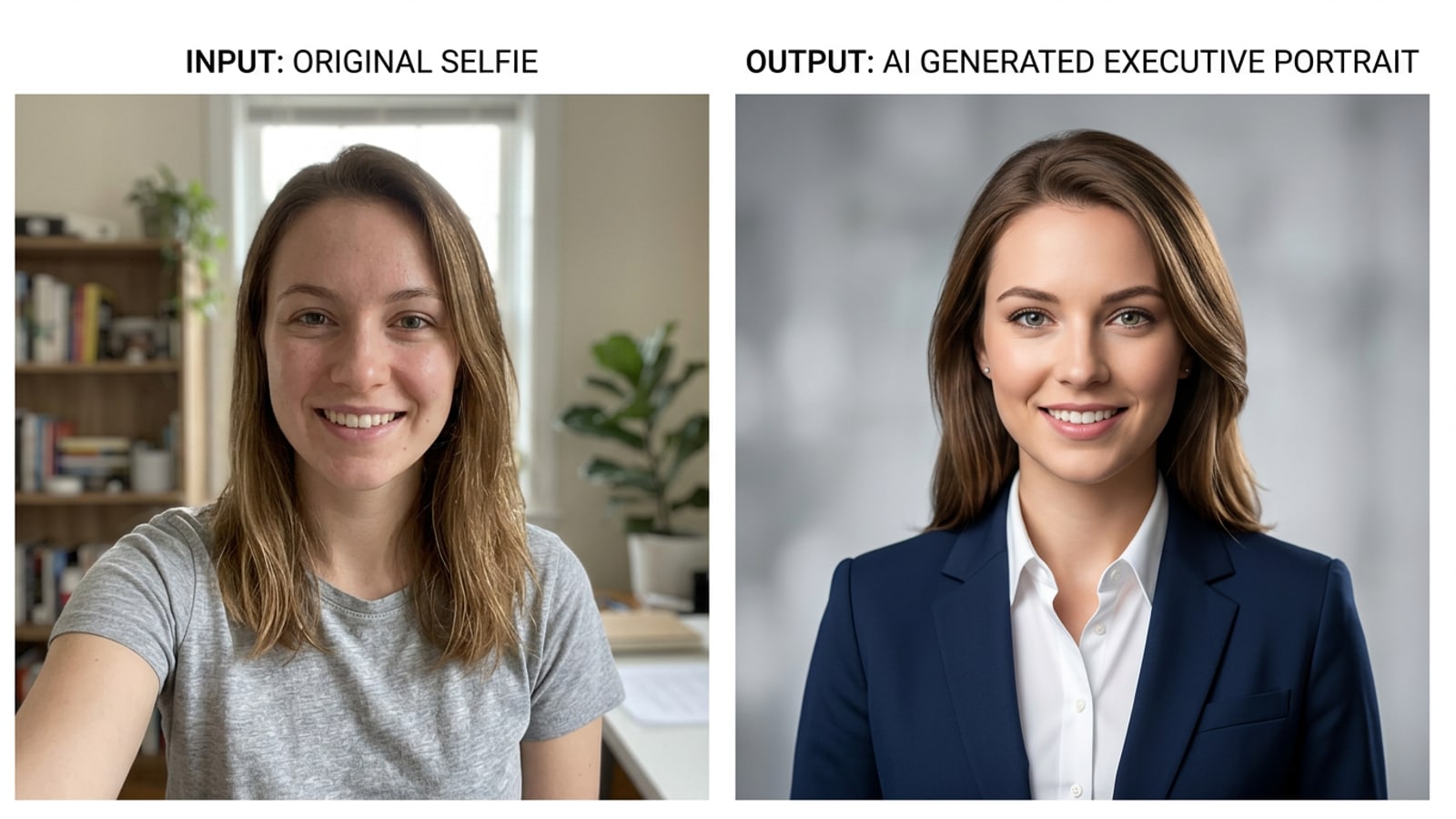
⚡ Quick Takeaway: The 4-Line Identity-Lock Framework
Discover how a dual-anchored prompt structure preserves your exact facial geometry across any AI studio backdrop.
When generating aesthetic profile pictures with AI chat agents, text-to-image diffusion models often distort your nose shape, eye spacing, or skin tone. This phenomenon occurs because the vision encoder's attention mechanism decays across middle text tokens.[1][2]
By using a 4-line 'sandwich' prompt structure that places strict identity anchor parameters at both the opening and closing lines, you force the AI transformer to prioritize your real-world likeness throughout the edit.[1][3]
- Line 1 (Start Anchor): 'Keep exact facial likeness, bone structure, skin tone, and eye color from the reference photo unchanged.'[1][3]
- Line 2 (Subject & Style): 'Professional portrait shot on an 85mm optical lens at f/2.0 depth of field with realistic skin pores and iris catchlights.'[1][2]
- Line 3 (Environment & Lighting): 'Soft warm studio key light with a minimalist slate grey backdrop.'[1]
- Line 4 (End Anchor): 'Do not alter facial features, maintain exact identity and natural skin texture.'[1][3]
The Identity Drift Problem: Why AI Profile Pictures Alter Your Face
Understanding transformer positional attention decay explains why single-line avatar prompts reshape your facial features.
Most creators encounter 'face drift' when editing selfies with AI: the generated avatar looks stylish, but the facial proportions, jawline, or ethnicity no longer resemble the actual person. Diffusion transformer architectures evaluate text tokens sequentially, giving maximum attention weights to sequence boundaries while dampening tokens placed in the middle.[1][2]
When you submit a simple prompt like 'make me look like a professional CEO in a modern office,' the model prioritizes aesthetic style instructions over subtle facial proportions from your input photo. This results in heavy digital smoothing, altered eye spacing, and artificial plastic skin.[1][4]
The solution is to sandwich your aesthetic style and lighting instructions between two identical identity boundary restraints. Research demonstrates that dual-anchoring facial parameters increases identity preservation and feature similarity vectors significantly.[1][2]
- Positional Token Bias: The first and last lines of a chat prompt exert the strongest control over visual attributes.[1]
- Style Overwrite: Unanchored style tokens overwrite delicate skin micro-textures and eye proportions.[1][4]
- Optical Correction: Explicitly requesting camera optical parameters (like 85mm f/2.0) prevents wide-angle distortion.[1][2]
Preparing Your Baseline Reference Photo on iPhone
Selecting and framing the right starting selfie on iOS ensures maximum feature clarity before initiating AI chat edits.
A high-quality reference photo forms the foundational feature matrix for AI chat generation. Choose a selfie taken in natural daylight with neutral expression and direct eye contact, avoiding heavy filters, harsh direct flash, or aggressive angles.[3][4]
Tight portrait crops often restrict background changes because the subject's head touches the image boundary. Before feeding your selfie into CARA Agent, ensure your framing has adequate space around the head and shoulders.[2][4]
If your starting selfie is cropped too closely around your face, you can use Image Extender (Outpainting) in CARA to expand the canvas borders on top and sides before starting your identity-locked chat edits. For detailed steps on expanding portrait framing, check our guide on how to add headroom to tight portrait cuts on iPhone with AI outpainting.[2]
- Lighting: Opt for soft, indirect daylight near a window to reveal natural skin tones without deep shadows.[3]
- Pose: Keep your head level and look directly into the iPhone camera lens to provide symmetric feature vectors.[3][4]
- Framing: Leave clean space above the head and beside shoulders so the AI has room to composite modern studio backgrounds.[2][4]
- Select a Clear Selfie
Pick an unedited iPhone selfie in good ambient light without glasses or facial obstructions.[3]
- Extend Border Space If Needed
If the portrait is cut tightly at the scalp, open CARA and run Image Extender to add clean headroom around your head.[2]
- Upload to CARA Agent
Open CARA Agent chat on your iPhone or iPad and upload your baseline photo as the primary image reference.[2]
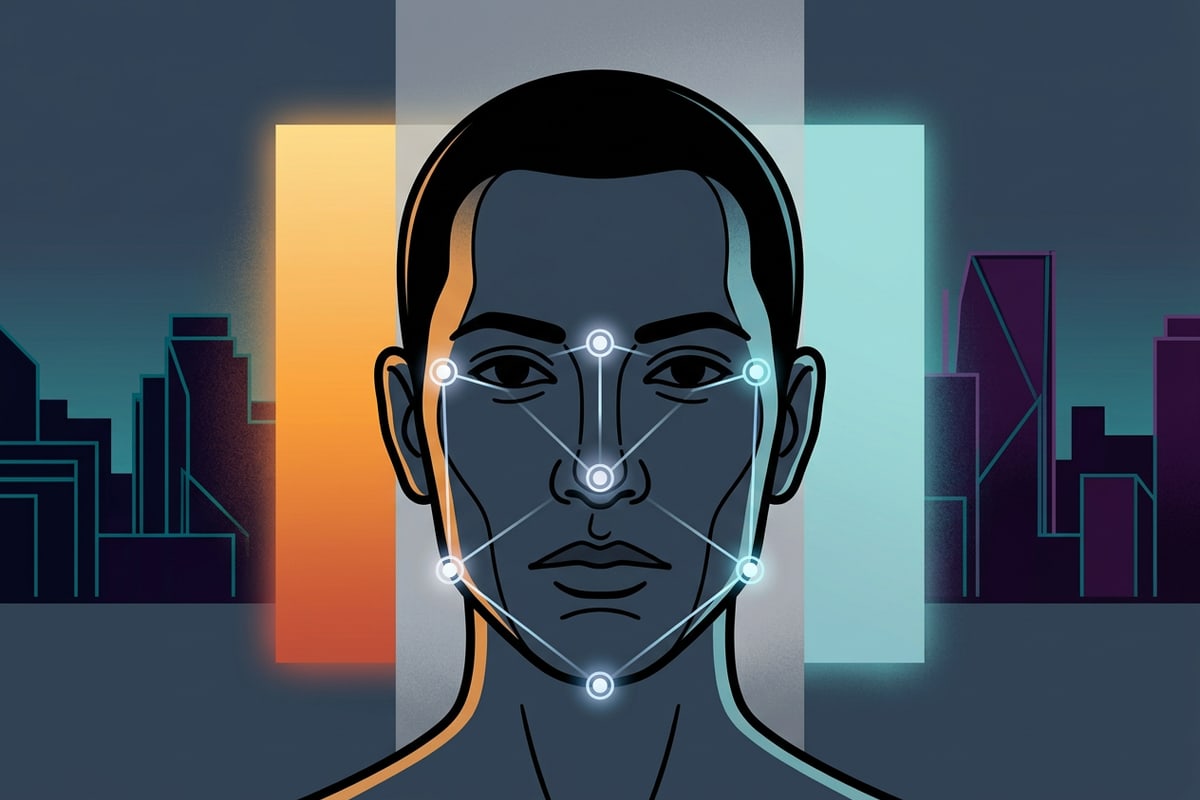
The Step-by-Step Sandwich Prompt Framework
Deconstruct the 4-line prompt structure line by line to master identity locking, optical depth, and studio lighting.
The 4-line sandwich framework is designed specifically for conversational AI engines in apps like CARA. Each line performs a dedicated function, balancing identity retention with aesthetic styling.[1][2]
Line 1 acts as the primary identity anchor, directing the neural network to freeze facial geometry. Line 2 introduces camera hardware and rendering parameters, ensuring realistic focal lengths and natural skin textures rather than cartoonish smoothing.[1][3]
Line 3 defines the mood, environment, wardrobe, and ambient studio light. Finally, Line 4 acts as the terminal anchor, re-enforcing identity retention at the exact point where transformer attention is highest.[1][4]
- Line 1 (Identity Lock): Focuses exclusively on non-negotiable face metrics—eyes, nose, jawline, skin tone, and expression.[1][3]
- Line 2 (Optical Fidelity): Uses camera terms like '85mm portrait lens, f/2.0 aperture, natural skin texture, iris catchlights'.[1][2]
- Line 3 (Aesthetic Direction): Defines the backdrop color, studio softbox setup, and wardrobe styling.[1]
- Line 4 (Terminal Lock): Repeats strict face preservation rules to prevent style tokens from overriding facial likeness.[1][3]
4 Ready-to-Use Profile Picture Prompt Recipes for CARA Agent
Copy and paste these tested prompt recipes to create professional LinkedIn, golden hour, dual-tone, and minimal avatars.
Here are four copy-and-paste prompt templates tailored for CARA Agent on iPhone. Simply paste the text into your chat request alongside your reference photo to generate high-end social media avatars.[1][3]
Each recipe uses the 4-line sandwich structure to lock your face while providing distinct aesthetic styles suitable for LinkedIn, Instagram, X, or messaging avatars.[1][3]
- Recipe 1 (Executive Corporate Headshot): Line 1: Lock exact facial identity, bone structure, and skin tone from reference photo. Line 2: Professional 85mm portrait, crisp focus, soft natural skin texture, realistic catchlights. Line 3: Wearing a dark tailored jacket in front of a soft neutral grey studio background with subtle hair light. Line 4: Preserve exact facial likeness and natural proportions with zero distortion.[1][3]
- Recipe 2 (Warm Golden Hour Terrace): Line 1: Lock exact facial identity, eyes, jawline, and skin tone from reference image. Line 2: 85mm lens, f/2.0 shallow depth of field, subtle film grain, detailed skin pores. Line 3: Warm golden hour sunset light, soft backlit halo glow on hair, blurred outdoor terrace background. Line 4: Maintain true face identity and facial geometry without modification.[1][3]
- Recipe 3 (Aesthetic Dual-Tone Studio): Line 1: Lock exact face shape, features, and skin tone from input photo. Line 2: Editorial studio photography, sharp eye focus, natural skin texture. Line 3: Subtle dual-tone cyan and warm amber side ambient lighting, dark matte slate backdrop. Line 4: Do not alter facial structure or identity.[1][3]
- Recipe 4 (Minimalist Soft Daylight Avatar): Line 1: Retain exact face features, skin tone, and identity from reference photo. Line 2: 50mm portrait lens, soft window light, natural realistic photo style. Line 3: Casual cream crewneck sweater, clean off-white backdrop with gentle shadow. Line 4: Preserve exact real-world face likeness.[1][3]
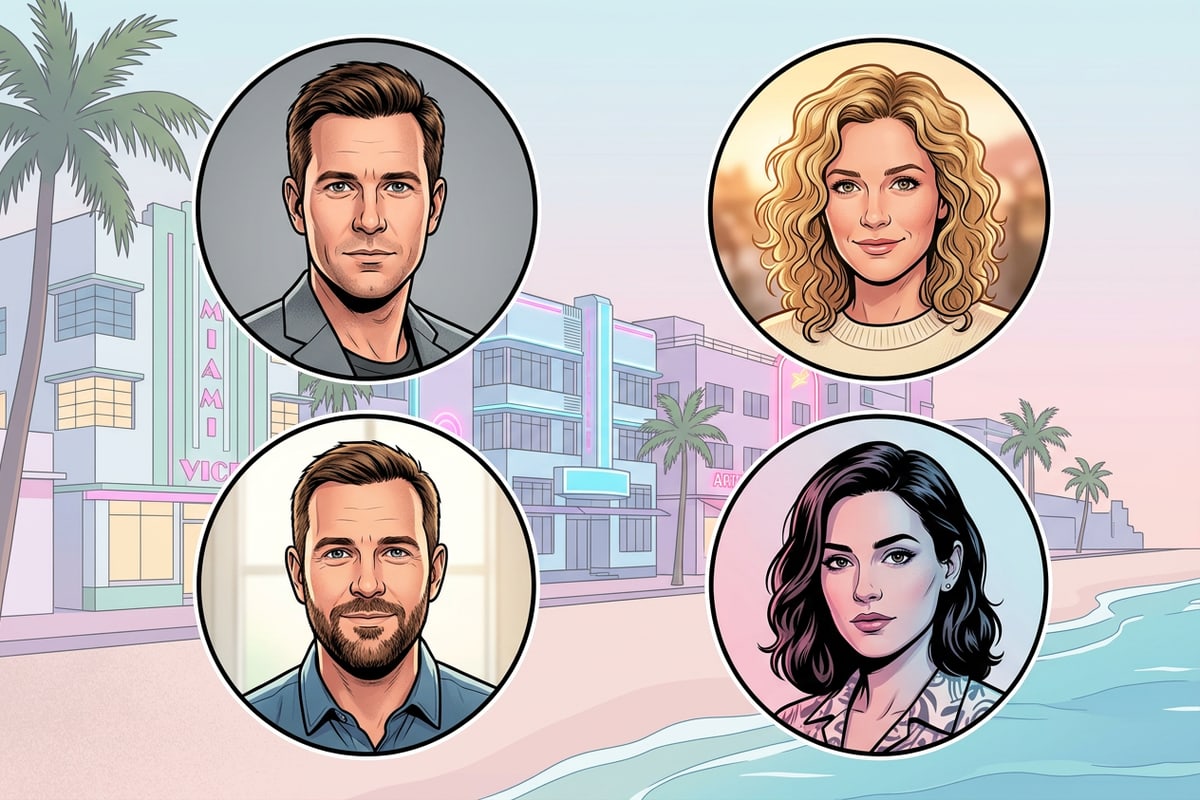
Multi-Turn Chat Refinement and On-Device Finishing Touches
Learn how to iteratively tweak your AI avatar in CARA Agent and finalize your design using free on-device iOS tools.
CARA Agent allows conversational multi-turn chat editing. If your initial generation pass (which uses 30 image points in CARA) gets the background right but needs a slightly warmer light, you can reply directly in chat without re-uploading your starting photo.[2]
When requesting conversational edits, always re-specify your identity lock in follow-up messages (costing 5 text points per text turn). For example, prompt: 'Keep the exact face from the previous result, but warm up the studio key light by 10 percent.'[2]
Once you have your ideal AI profile picture, you can combine it into multi-photo layouts using CARA's Photo Collage Maker or build graphics on the Free Creative Canvas with zero point cost. If you are creating social media layouts, read our guide on how to make viral Kinda Chic photo carousels on iPhone.[2]
Additionally, if you share group photos online and want to blur other faces while keeping your avatar clear, CARA includes a free on-device Face Mosaic tool that automatically blurs detected faces locally on your iPhone or iPad.[2]
- Conversational Adjustments: Refine lighting or wardrobe in multi-turn chat while reminding CARA Agent to hold face identity static.[2]
- Free Creative Canvas: Add text layers, borders, or signatures locally on-device without consuming image points.[2]
- Face Mosaic Privacy: Protect non-consenting background faces in group shots with automatic on-device face blurring.[2]