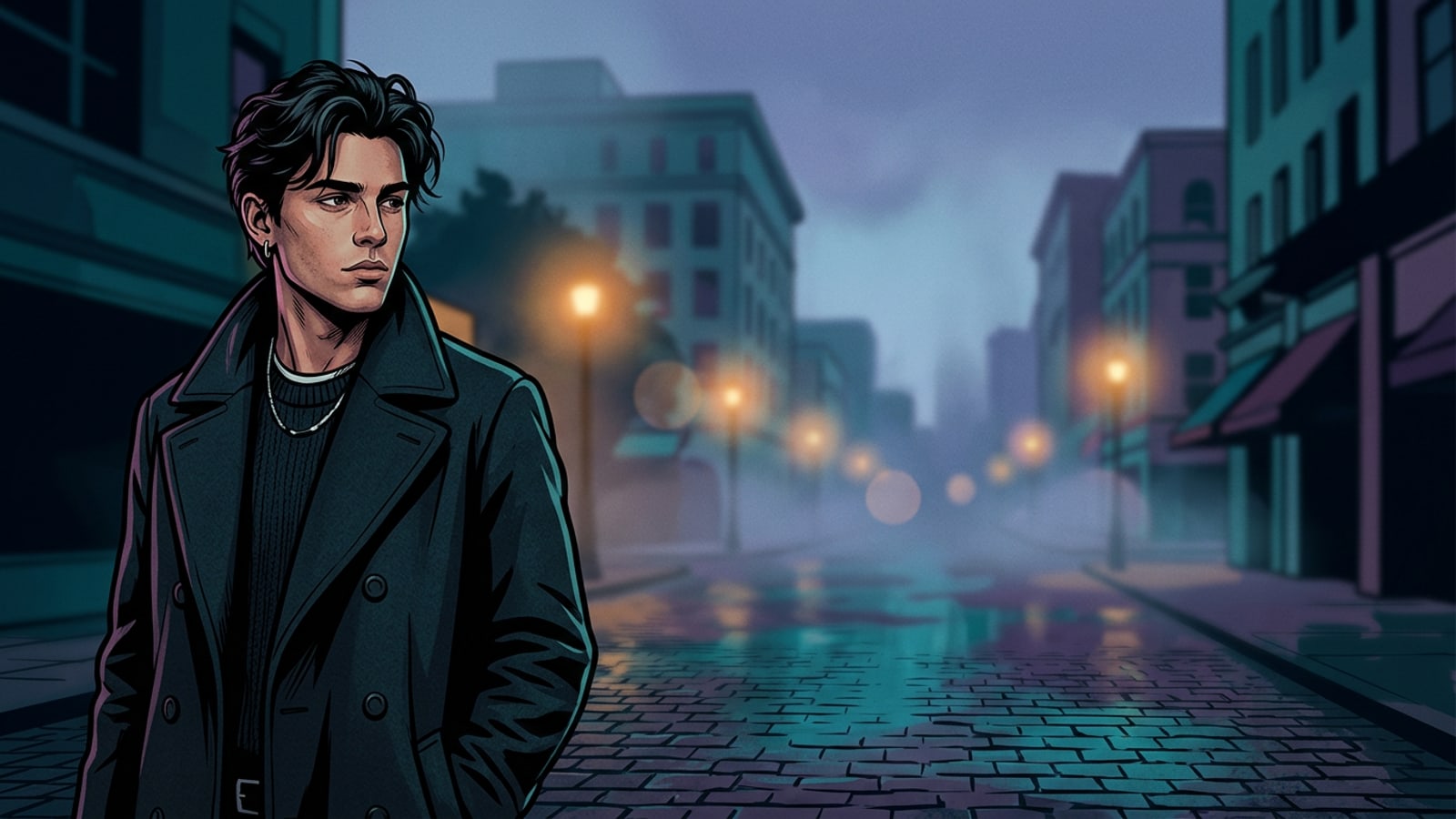
Why Tightly Framed iPhone Photos Feel Trapped in Widescreen Layouts
Understand why traditional center cropping destroys portrait compositions and how generative outpainting provides a non-destructive alternative.
Mobile photography defaults heavily toward vertical aspect ratios like 4:3 or native 9:16 framing, which capture striking close-ups on smartphone displays but fail when fitted into 16:9 widescreen formats [S2]. When attempting to adapt a tight vertical portrait for horizontal displays, traditional editing tools require forced center cropping that discards over half the original image height, cutting off headframes or contextual surroundings [S1, S2].[1][2]
Generative canvas expansion solves this composition dilemma by maintaining your original camera pixels while extending the canvas outward [S1]. Rather than cutting away original subject detail to match landscape dimensions, outpainting algorithms evaluate edge pixel context to generate realistic horizontal surroundings [S1].[1]
- Traditional cropping discards vital subject framing, whereas AI outpainting preserves original subject sharpness and sensor resolution [S1, S2].[1][2]
- Expanding background real estate transforms constrained portraits into environmental film stills suitable for widescreen presentations [S1, S3].[1][3]
The Mechanics of Outpainting: Aspect Ratio Expansion vs Pixel Stretching
Compare generative background synthesis against linear stretching and margin blurring to see how original pixels stay untouched.
Legacy editing techniques often rely on horizontal stretching or blurring side margins to fit vertical photos into 16:9 landscape boundaries. Linear stretching distorts human facial geometry and skews vertical architecture, while blurred margins draw attention to artificial framing [S1, S3]. In contrast, generative outpainting performs contextual edge sampling, analyzing the color distribution, lighting angles, and texture structures of outer boundary pixels [S1].[1][3]
Because newly generated content is added exclusively outside the original canvas borders, the central subject retains full native resolution and sharpness [S1, S2]. Photographers interested in extending other visual formats can explore our guide on how to expand square photos into 16:9 widescreen wallpapers on iPhone without cropping for additional layout strategies.[1][2]
Step-by-Step Workflow: Converting Close-Ups into Widescreen Stills with CARA
Follow this complete tutorial using CARA's Image Extender and Cara Agent conversational photo editing to build cinematic landscape stills.
Converting tightly framed iPhone shots into widescreen cinematic stills is straightforward using CARA on iOS and iPadOS. By pairing initial canvas outpainting with targeted conversational refinement, you can produce seamless cinematic background expansions [S1, S3].[1][3]
If you encounter unwanted background elements or minor repetitive artifacts along extended edges, you can also use CARA's AI Eraser for quick pinpoint cleanup or consult our tutorial on how to erase photobombers and crowds from iPhone vacation photos with AI.
- CARA's Image Extender outpaints photos beyond original canvas borders for 30 points per generation.
- CARA Agent processes conversational natural-language prompt edits for 30 points per image response, with automatic point refunds if cloud processing fails.
- Select Image Extender in CARA
Open the CARA app on iOS, navigate to Home > AI Editing > Image Extender, and select your tightly framed vertical iPhone portrait.
- Set Widescreen 16:9 Canvas Target
Choose the 16:9 widescreen target aspect ratio to generate left and right horizontal extensions around your original subject.[1]
- Generate Canvas Expansion
Tap generate to outpaint the extended background boundaries for 30 points. The AI samples boundary pixels to construct extended environment walls, lighting, or landscapes.[1]
- Refine Lighting in CARA Agent
Open the expanded image in Home > Agent and enter a conversational edit command such as 'add soft warm golden hour side lighting and subtle anamorphic background blur' for 30 points per image response.[3]
Frequently Asked Questions: Resolving Edge Artifacts and Lighting Mismatches
Address edge seams, repetitive background textures, and subject lighting consistency during AI canvas extension.
When expanding tightly cropped photos, creators frequently encounter visual challenges like edge repetition or mismatched lighting temperatures between original and generated pixels [S1, S3]. Addressing these technical edge cases ensures your final 16:9 still looks naturally photographed.[1][3]
Copyable Prompt Blueprint for Cinematic Depth and Volumetric Lighting
Utilize pre-tested natural language prompt structures to trigger authentic anamorphic blur, side key lighting, and cinematic mood.
To give expanded widescreen photos a distinct filmic look, precise photographic terminology is essential when instructing conversational editing tools [S3]. Combining focal length specifications with atmospheric light descriptions yields far more realistic depth than generic prompts [S3]. For a comprehensive deep-dive into conversational syntax, read our guide on mastering conversational AI photo editing prompts on iPhone.[3]
Below are three copyable prompt blueprints optimized for popular cinematic styles on iOS:
- Golden Hour Warmth: 'Add warm camera-left golden hour directional light, soft rim glow on subject, extended background with 85mm shallow depth of field and creamy bokeh [S3].'[3]
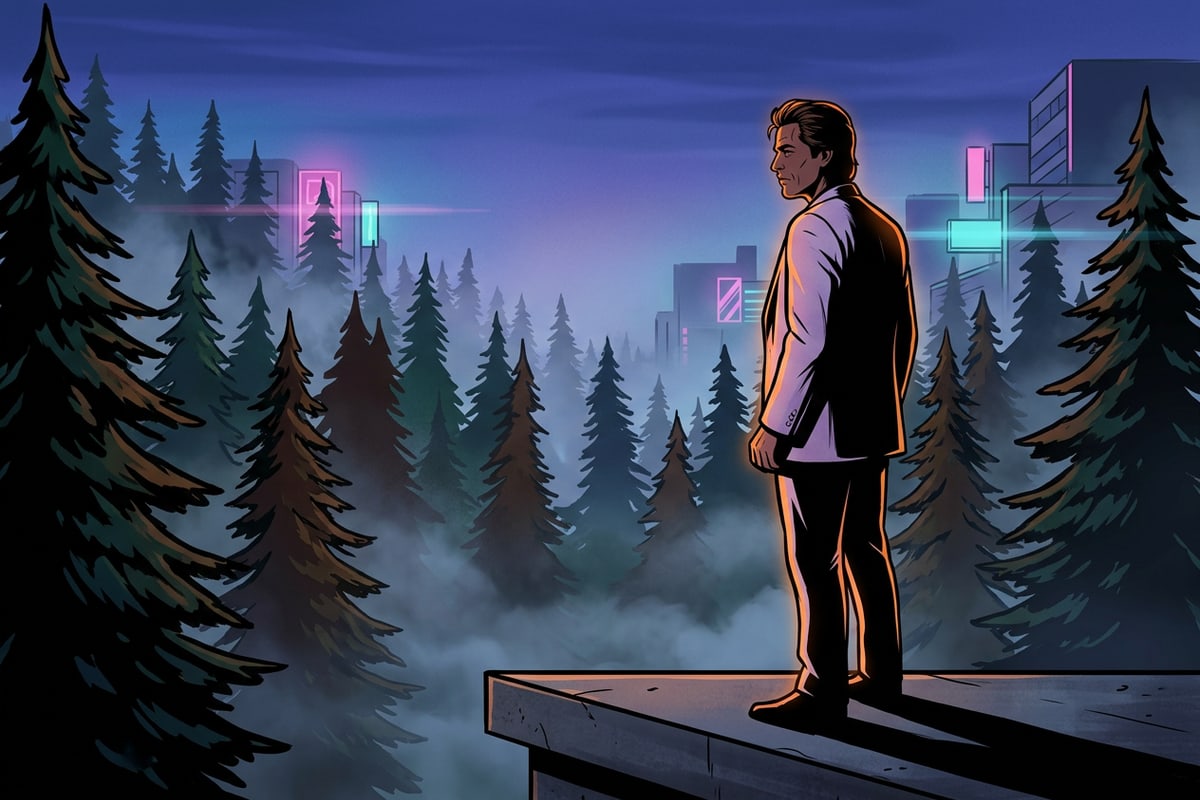
- Neon-Noir Cityscape: 'Apply moody twilight ambiance, wet pavement reflections, soft anamorphic horizontal lens flare, and desaturated cool tones across extended background [S3].'[3]
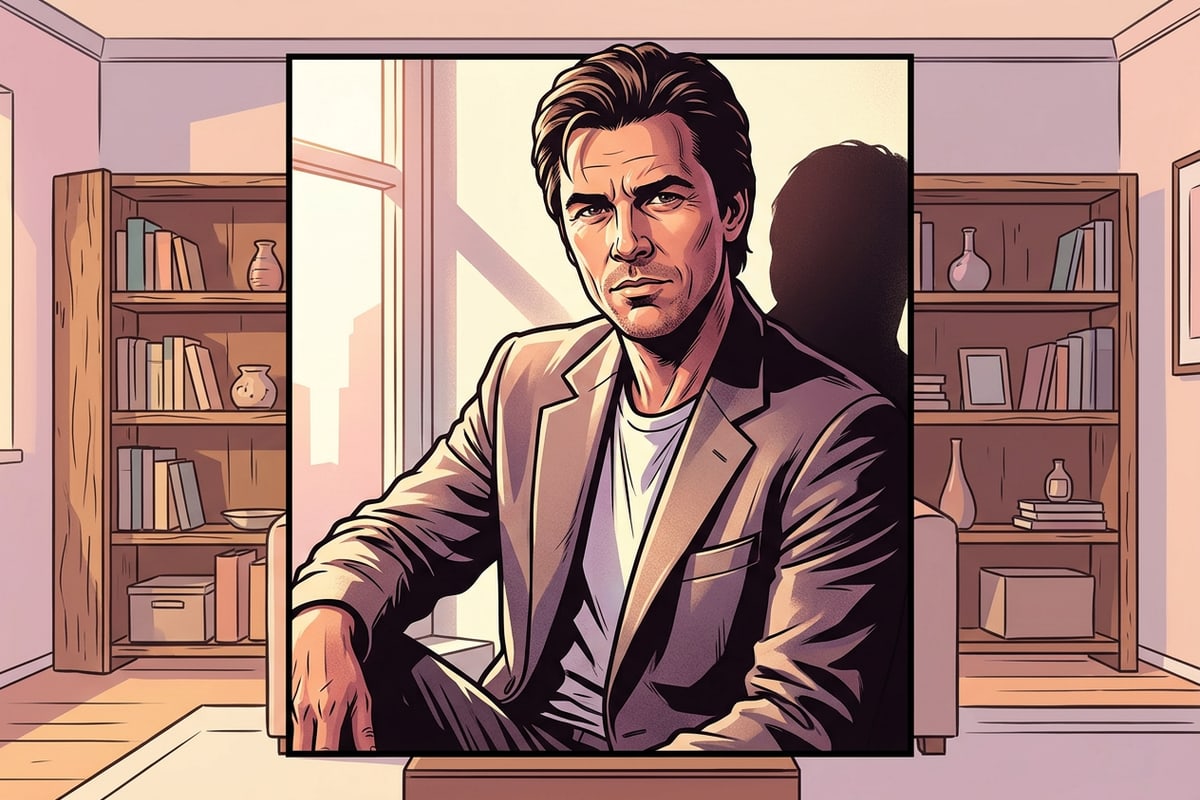
- Cozy Indoor Soft Light: 'Introduce soft window side light with gentle volumetric dust motes, warm interior ambient fill, and f/1.8 background blur [S3].'[3]
Elevate Your Mobile Visuals with Non-Destructive AI Canvas Expansion
Summary of non-destructive outpainting advantages for converting vertical iPhone photos into cinematic landscape stills.
Converting tightly framed vertical iPhone photos into 16:9 cinematic widescreen stills no longer requires sacrificing image detail or settling for awkward crops [S1, S2]. By combining non-destructive AI outpainting with natural language conversational lighting prompts, you can expand scene boundaries while keeping original subject sharpness intact [S1, S3].[1][2][3]
Download CARA from the App Store on iOS or iPadOS today to start expanding your tight portraits into immersive widescreen stills.