Direct Answer: How to Join the Back-to-School Collage Challenge
Understand the core requirements to enter the limited-time Back-to-School Collage Challenge in Cara.
To join the Back-to-School Collage Challenge in Cara, select four student or campus photos from your device, prepare them with AI pre-editing if needed, and insert them into the live Back To School Memories & Collages template in the app's Photo Collage Maker. The featured template requires exactly four images and is available with no subscription gate or point cost in Cara version 1.4.6 on iOS.[1][2]
By preparing your shots individually before snapping them into the grid, you can correct subject cropping, clean up cluttered backgrounds, and harmonize color tones across diverse campus environments.[2][3]
Preparing Your Photos: Pre-Collage AI Cleanup Tools
Fix background distractions and awkward aspect ratios with AI Eraser and Image Extender before assembling your layout.
Raw photos taken in busy campus walkways or dorm hallways often contain unwanted crowds or tight crops that disrupt grid layouts. Before placing photos into template frames, using targeted AI utility tools ensures each photo panel looks deliberate and clean.[2][3]
If a crowded quad shot includes unwanted passersby in the background, run the image through AI Eraser to clear background distractions without altering student portraits. When a portrait is cropped too tightly for a square or vertical template frame, use Image Extender to expand the photo borders gracefully without losing facial detail.[2]
If you need to expand square camera roll shots into standard vertical social formats before collage assembly, explore our guide on how to uncrop iPhone photos for Instagram Story with AI outpainting.
- AI Eraser: Select photobombers or unwanted litter on campus paths to produce clean background elements.[2]
- Image Extender: Generate extra background canvas along top or side edges to fit template slot proportions seamlessly.[2]
- Remove Background: Isolate key subjects like backpacks or notebooks when creating distinct visual focal points.[2]
Assembling Your Grid in Cara's Photo Collage Maker
Step-by-step instructions to locate and populate the verified school_days_scrapbook template.
Cara version 1.4.6 features an integrated Photo Collage Maker equipped with seasonal layout options. The dedicated back-to-school option, listed as Back To School Memories & Collages (canonical ID: school_days_scrapbook), provides a structured tactile frame for four photos.[1][2][3]
This layout requires no points or in-app token purchases, making it fully available to all iOS app users. Follow these practical steps to load your prepped assets into the 4-panel grid.[1][2]
- Open Photo Collage Maker
Launch Cara version 1.4.6 on iOS and navigate to the Photo Collage Maker section from the main creative menu.[1]
- Select the Back-to-School Template
Browse the catalog and tap Back To School Memories & Collages (school_days_scrapbook) to launch the four-slot template frame.[2]
- Import Your Pre-Edited Photos
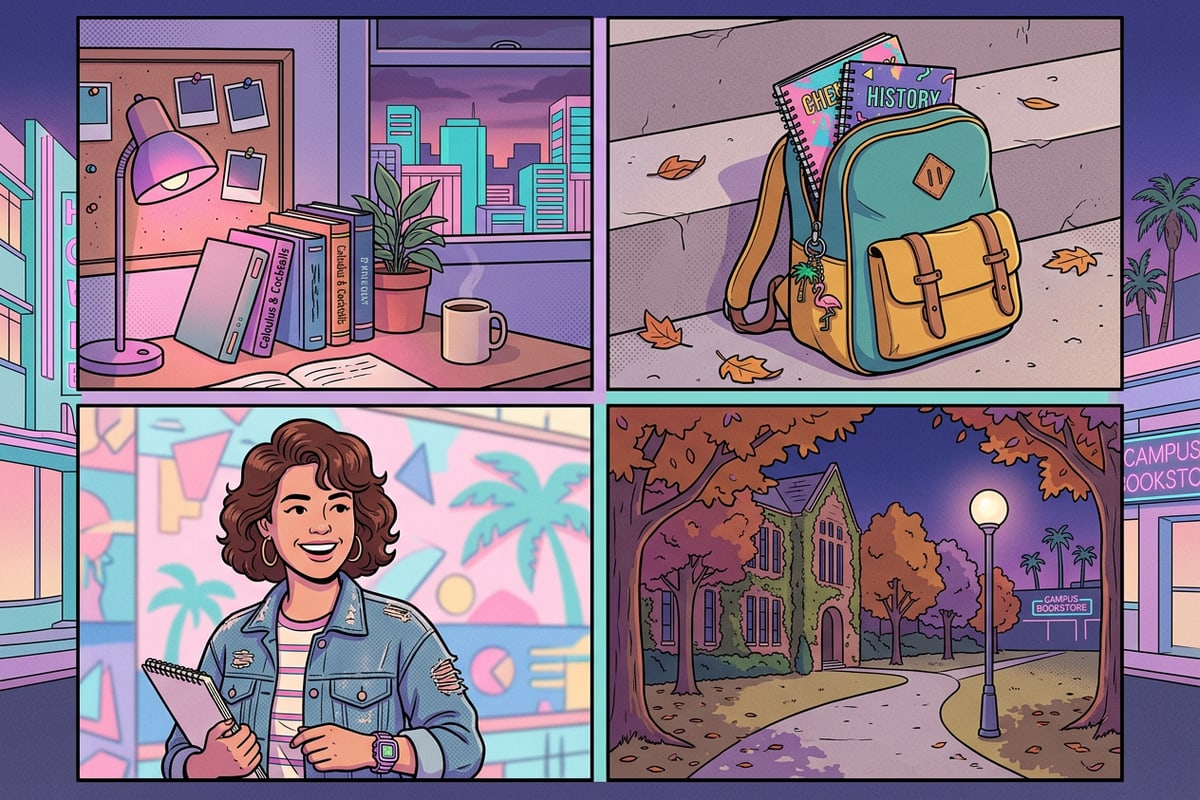
Choose four prepped images from your photo library—such as a dorm shot, campus pathway, outfit close-up, and library study desk.[2]
Harmonizing Lighting and Colors with Conversational AI Prompts
Use natural language chat prompts in Cara Agent to balance shadows and exposure across varied shots.
Photos captured across different times of day—such as bright afternoon sunlight outside and dim indoor library lighting—can look mismatched inside a single collage grid. You can adjust exposure and color tone before grid placement using conversational editing requests in Cara Agent.[2]
If indoor photos appear overly shadowy or backlit, request natural lighting adjustments via text prompt. For instance, if you have dark shadowed faces from bright golden hour backlighting, check our detailed tutorial on how to fix dark backlit faces in iPhone photos with AI chat prompts.
You can also adjust student outfits across your photo set to fit back-to-school themes using text instructions. Learn more in our guide on how to change clothes in iPhone photos with AI prompts.
- Golden Hour Warmth Prompt: Warm up the ambient lighting with gentle afternoon sunlight while keeping subject skin tones natural.[2]
- Dorm Interior Brightening Prompt: Brighten indoor ambient shadows evenly across the room without washing out background details.[2]
- Campus Color Balance Prompt: Enhance green lawn tones and warm daylight balance for outdoor campus view.[2]
Finalizing and Sharing Your Back-to-School Story
Complete your creation workflow, explore related creative tools, and jump into the limited-time challenge.
Combining individual AI photo pre-editing with structured collage templates gives your back-to-school memory grids a cohesive, professional polish. By fixing background distractions, adjusting aspect ratios, and balancing room lighting ahead of time, your four-slot story will stand out on social feeds.[2][3]
If you want to take creative storytelling even further, you can also transform short school activity video clips into multi-panel comic spreads using our guide on how to turn iPhone video clips into manga comic pages with AI.
Download Cara for iOS from the Apple App Store to access the Back To School Memories & Collages template and participate in the Back-to-School Collage Challenge today.[1][2]