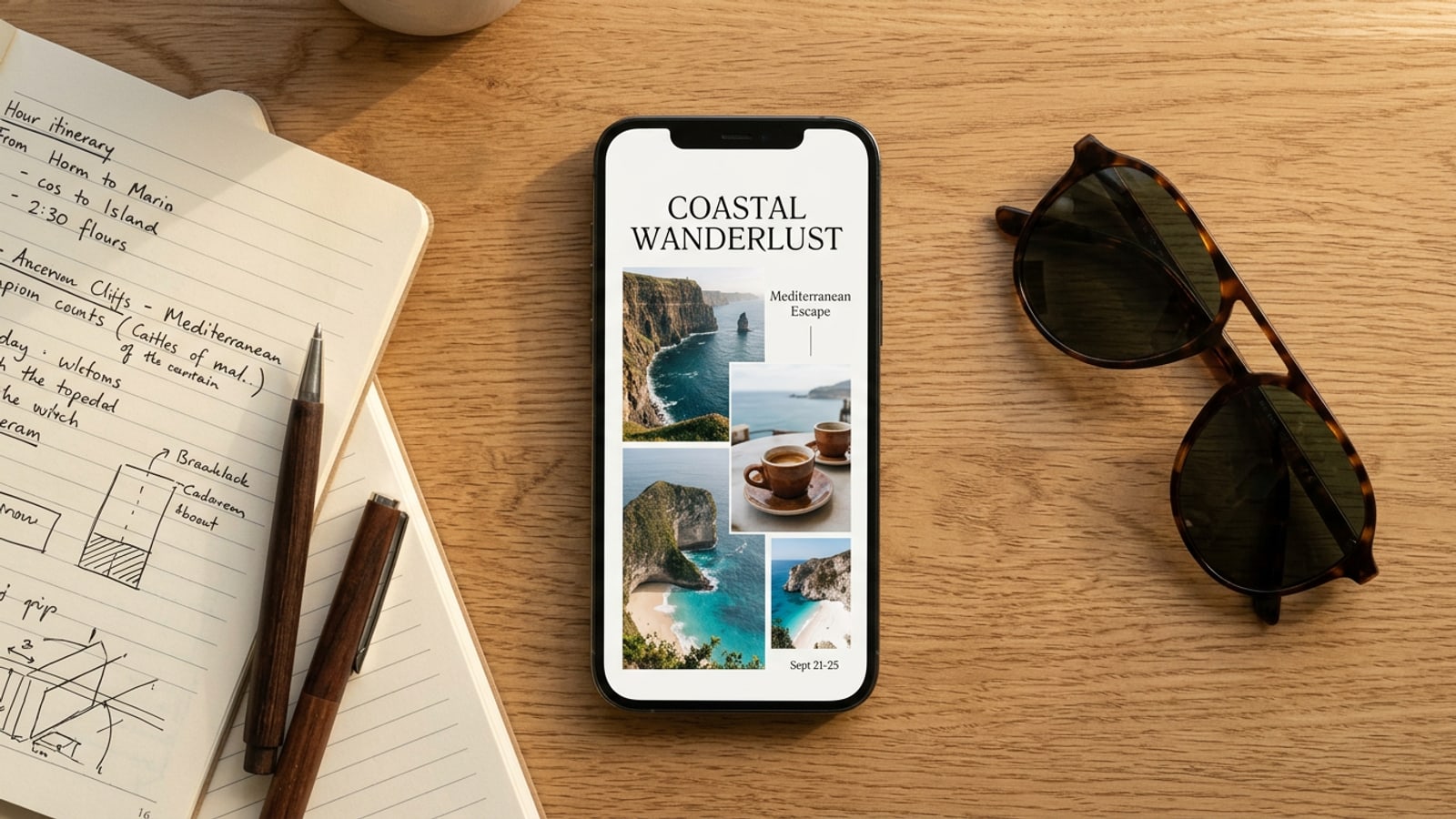
The Solution: Why a One-Page Travel Zine Beats a 50-Photo Camera Dump
Replace overwhelming multi-photo dumps with a single-page visual zine that captures your trip's best moments in one scannable overview.
Returning from a weekend getaway or international trip usually leaves your iPhone camera roll cluttered with dozens of near-identical photos. While sharing raw photo dumps on social media has been popular, long series of unedited snapshots often suffer from audience viewer fatigue. Viewers frequently swipe past multi-slide carousels or extensive galleries after the first few frames, missing the real highlights of your journey.[1][3]
A single-page travel zine presents a streamlined alternative. By condensing up to 50 candidate snapshots into a single structured visual page, you trade volume for narrative clarity. Instead of forcing viewers to scrub through endless burst shots, a travel zine highlights your hero landscape, dining experiences, and small detail accents in one cohesive layout.[1][4]
- Immediate engagement: Readers digest your entire trip narrative in one scannable view rather than abandoning long carousels.[1]
- Curated story arc: Combining varied focal points establishes place, atmosphere, and memory better than disconnected snapshots.[3][4]
- Reduced decision fatigue: Letting layout tools handle frame arrangement saves hours of manual mobile editing.[2]
Phase 1: Selecting 3 to 50 Candidate Snapshots from your Camera Roll
Gather a candidate pool of 3 to 50 raw trip photos using a rapid 3-minute pre-selection strategy.
The biggest friction point in building a travel summary is overthinking which individual photos to keep. Instead of meticulously inspecting every photo for sharpness during your first pass, select a broad pool of candidate images directly in your iOS Photos app or local editor canvas. The Journey in One Page feature in CARA accepts between 3 and 50 raw trip photos as input, giving the workflow plenty of raw visual material to work with.[3][4]
To ensure your final visual zine has dynamic contrast, aim for a balanced mix across three main photographic categories. If you are also interested in multi-frame storytelling, check out our guide on how to make viral kinda chic photo carousels on iphone for additional structural inspiration.[4]
- Wide Environment Shots (30%): Architecture, beach horizons, mountain passes, or city skylines that anchor the setting.[4]
- Medium Action & Candid Moments (40%): Walking down market alleys, coffee pauses, or friends laughing at dinner.[4]
- Macro Texture Details (30%): Train tickets, espresso foam, botanical close-ups, or museum entry tokens.[3][4]
- Create a temporary trip album
Open iOS Photos, create a new album named after your trip destination, and quickly favorite photos without second-guessing.[4]
Phase 2: Automated Duplicate Filtering and Layout Structuring
Filter out burst shots automatically and populate dynamic grid templates with up to 6 hero photos.
Once you import your candidate batch of up to 50 trip photos, automated duplicate filtering takes over. Instead of forcing you to manually compare burst shots from the same angle, the feature analyzes visual composition and sharpness to eliminate redundant frames. From your candidate pool, AI-redesigned Journey in One Page layouts select up to six outstanding hero photos to populate the final single-page design.[2]
For creators who prefer targeted template styles, the Photo Collage Maker provides specialized travel and grid presets. Templates like Explore More, Brighter Days Ahead, Travel Scrapbook, and Trio Split offer tailored frame compositions depending on whether your trip emphasizes sprawling landscapes or intimate culinary moments.[3]
- Explore More: Ideal for outdoor adventures and multi-landscape journeys featuring prominent lead frames.
- Travel Scrapbook: Works best for leisure trips with polaroid-style borders and detail accents.
- Trio Split: Perfect for brief weekend escapes where three high-impact shots capture the full narrative.
- Brighter Days Ahead: Designed for sunny coastal getaways and vibrant color stories.
- Import raw pool to Journey in One Page
Load your selected 3 to 50 photo batch to initiate automated duplicate culling and hero shot extraction.[2]
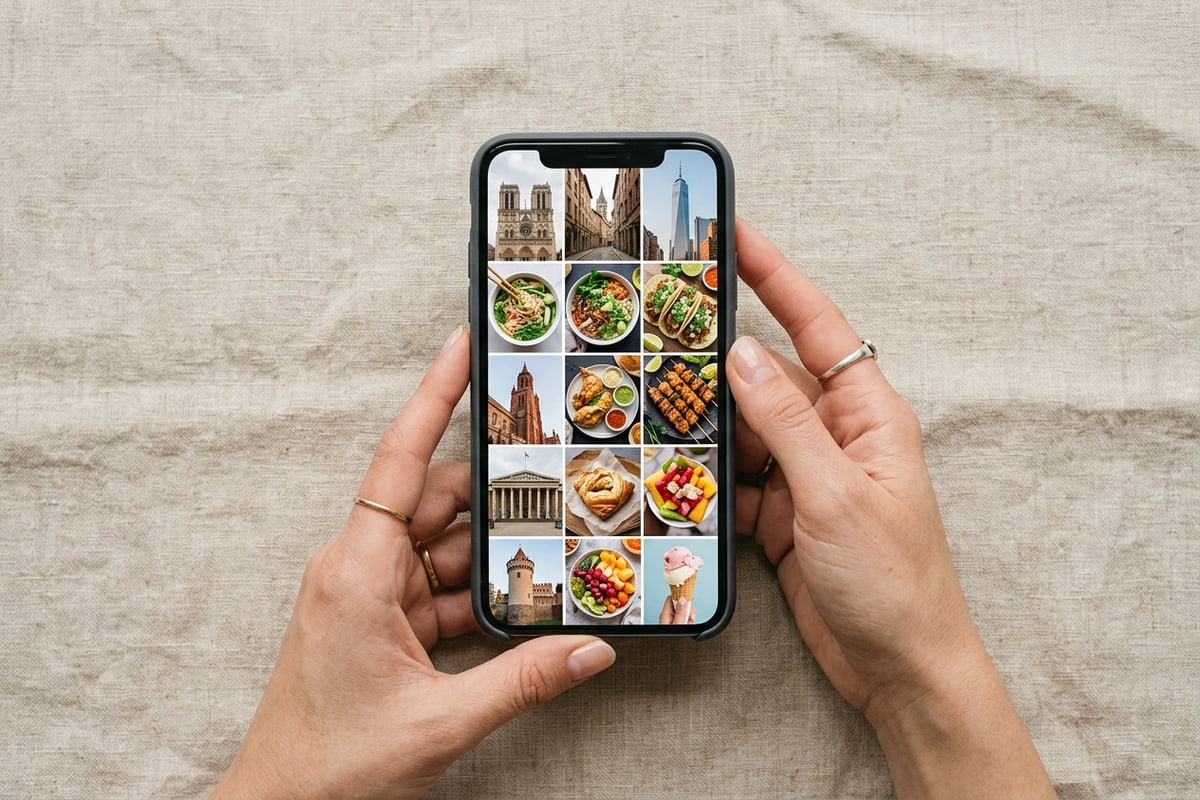
Phase 3: Polish with Text Overlays, Drawing Tools, and On-Device Face Privacy
Add location typography, custom doodles, and automatic face blurring to finalize your travel zine safely.
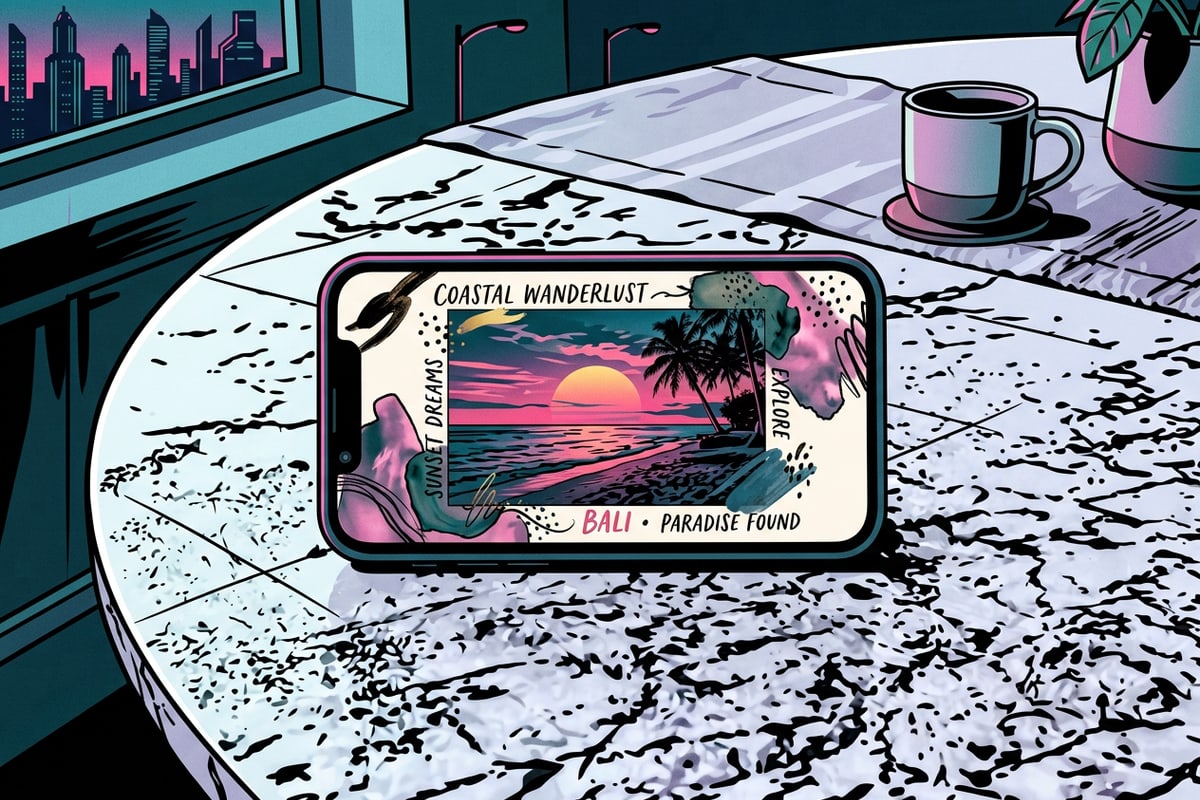
With your core photos arranged in a balanced grid layout, finishing aesthetic details bring the single-page zine to life. Using visual Text Editing and Overlay features, you can position location subtitles, flight codes, and dates directly onto the canvas. Pair typography with freehand Drawing and Brush Tools to sketch arrows, flight paths, or decorative loops around key memory spots.[1][4]
Before sharing your travel creation on public feeds, privacy is a key consideration—especially when photos include crowded city streets or bustling markets. CARA features Face Mosaic, a free on-device privacy tool that automatically detects and blurs multiple background faces. Because processing occurs locally on your iPhone, sensitive image data remains completely private. To explore more about zero-cloud masking workflows, read our dedicated guide on how to blur faces in iphone photos free with zero-cloud multi-face privacy.[1]
- Add precise context: Place minimalist text layers with arrival dates and location coordinates along image margins.
- Incorporate expressive brush strokes: Use local drawing tools to highlight favorite dishes or doodle travel routes.
- Protect stranger privacy: Apply Face Mosaic to automatically obscure background bystanders in public street shots.[1]
- Layer location typography
Tap the text tool to add custom header overlays such as 'Kyoto // Oct 2026' or 'Coastal Retrospective'.
- Add freehand accents
Select brush tools on the Free Creative Canvas to add organic hand-drawn details or subtle divider lines.
- Apply zero-cloud Face Mosaic
Run on-device face detection to instantly blur background figures across all embedded grid photos.[1]
Troubleshooting Visual Clutter and AI Cleanup Pass
Fix overcrowded grid frames and remove distracting photobombers to ensure maximum visual hierarchy.
Even with automated layout structuring, combining multiple travel photos onto one page can occasionally result in visual clutter. When too many high-contrast subjects compete for attention, the single-page zine loses its serene editorial look. Adjusting frame margins and applying targeted object cleanup restores visual rhythm.[3]
If a photobomber, stray trash bin, or distracting street sign ruins an otherwise perfect shot within your grid layout, use AI Eraser. By selecting unwanted background elements, the tool intelligently fills in background textures to keep focus on your primary travel subjects. For creators looking to match retro aesthetic colors across older trip photos, check out our tutorial on how to recreate the 2016 retro photo edit trend on iphone with ai prompts.[3]
- High image contrast conflict: Swap adjacent photos so vibrant colored shots are separated by neutral architectural backgrounds.
- Background object distractions: Touch up isolated photobombers using AI Eraser before final page assembly.
- Text readability issues: Avoid placing white text directly over light sky backgrounds; add dark subtle brush underlays or move text to solid margin borders.