Immediate Fix: The 4-Part Conversational AI Prompt Architecture
Understand why simple natural language photo edits cause unintended face and background changes, and how a 4-part formula locks down subject details.
When creators ask a chat-based image editor to make a simple adjustment—such as 'change my background to a warm sunset'—the output frequently alters facial identity, skin texture, or clothing style.[2][5]
This occurs because instruction-based diffusion models recalculate unmentioned regions across the image matrix during generation unless explicit boundaries are defined.[1][5]
To prevent edit drift and maintain total control inside CARA Agent on iOS, every conversational prompt should follow a 4-part structural framework.[3]
- 1. Action Verb: State the precise transformation operation (e.g., 'Replace', 'Shift', 'Apply', or 'Fill').[3]
- 2. Target Mask: Define the exact region or object to be altered (e.g., 'the background wall behind the subject').[3]
- 3. Photographic Aesthetic: Specify light source, optical characteristics, and environment details using camera-native vocabulary (e.g., 'soft golden-hour sunlight with 85mm shallow depth of field').[2][3][4]
- 4. Preservation Contract: Supply an explicit non-destructive boundary locking unedited regions (e.g., 'Keep my facial features, skin tone, hair strands, pose, and clothing completely unchanged').[1][3][4]
Copyable Prompt Inspiration Catalog for iOS Creators
Ready-to-use parameter cards for background swaps, outfit variations, and lighting adjustments inside chat photo editors.
Applying tested prompt templates saves daily generation credits and prevents repeated trial-and-error runs inside CARA Agent on iPhone.[4]
Below are four optimized prompt blocks tailored for common creative scenarios, structured with strict preservation boundaries.[2][3]
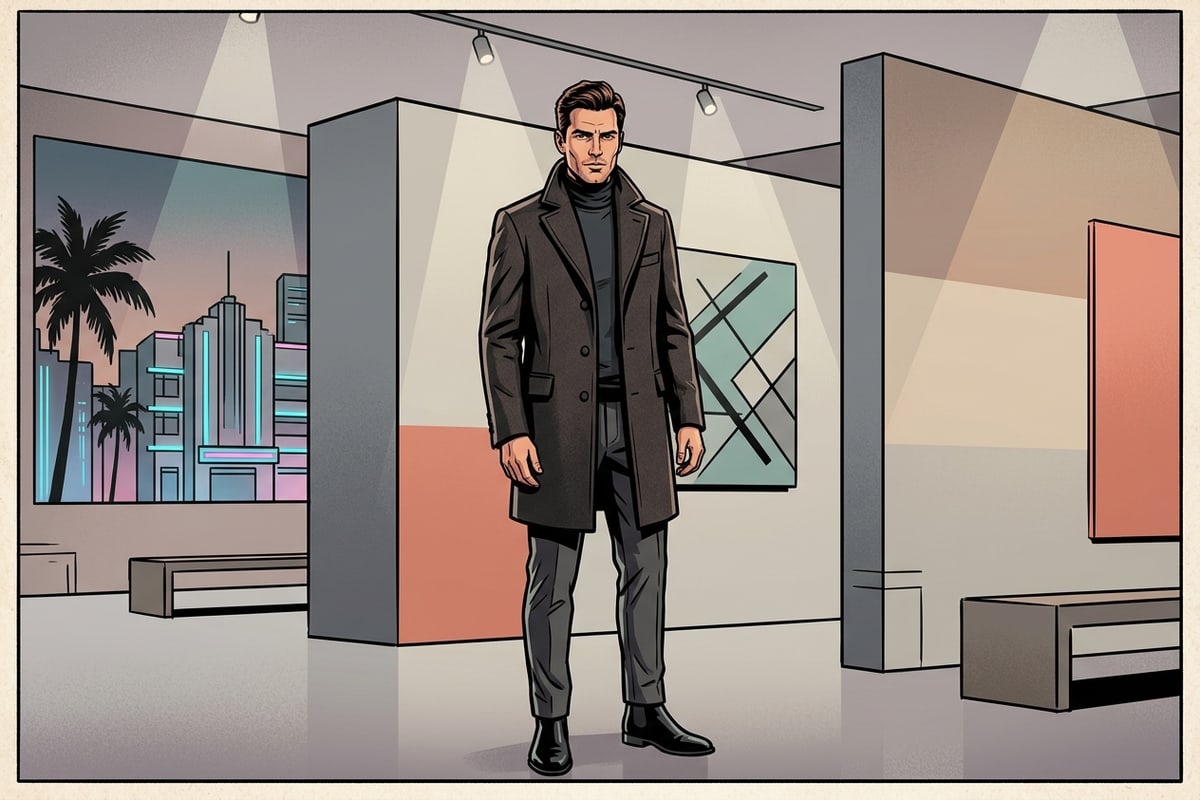
- Studio Background Swap: 'Replace the plain wall behind the subject with a modern minimalist art gallery interior featuring soft track lighting and subtle ambient shadows. Keep the subject's face, posture, hair, and clothing completely untouched.'[2][3]
- Outdoor Golden Hour Shift: 'Shift the background environment lighting to warm sunset golden hour, casting directional soft rim light on the subject's shoulders. Preserve original face identity, skin texture, expression, and outfit.'[2][4]
- Outfit Style Adaptation: 'Change the plain gray t-shirt worn by the person to a structured charcoal wool blazer with subtle fabric texture. Keep face shape, facial features, skin tone, hair, background lighting, and pose exactly unchanged.'[1][3]
- Shadow Fill & Exposure Balance: 'Fill dark facial shadows with a soft reflector balance while keeping natural skin pores intact. Do not re-render background elements or hair detail.'[2][4]
Step-by-Step Guide: Executing Multi-Turn Edits in CARA Agent on iPhone
A practical 3-turn conversational workflow for building complex image edits step by step without overwhelming the AI model.
Submitting a single monolithic prompt asking for background replacement, clothing changes, and color adjustments simultaneously overloads the model's attention maps, frequently leading to artifact bleeding.[4][5]
Instead, executing small iterative adjustments across sequential chat turns retains context while producing far cleaner visual fidelity.[1][4]
Mastering Photographic Lighting & Preservation Vocabulary
Learn specific lighting and optical terms that tell conversational AI models exactly how to style your photo without losing facial identity.
Vague quality buzzwords like 'photorealistic', 'ultra HD', or 'hyper-detailed' trigger unpredictable contrast boosts and artificial smoothing in AI models.[2][4]
Replacing generic hype with authentic photographic terminology gives diffusion models precise instructions regarding light behavior, shadow falloff, and lens characteristics.[2][4]
- Key Light & Direction: Describe light orientation clearly, such as 'soft 45-degree key light', 'dappled window daylight', or 'diffused overhead panel lighting'.[2]
- Lens & Depth Parameters: Use optical camera terms like '85mm focal length', 'f/1.8 shallow depth of field', or 'smooth background bokeh' to control blur naturally.[4]
- Skin & Texture Locking: Specify 'preserve micro-texture, natural skin pores, and facial symmetry' to avoid over-processed plastic skin smoothing.[2]

Combining Conversational Chat with Dedicated AI Tools in CARA
Know when to use CARA Agent chat prompts versus dedicated single-task tools like AI Eraser, AI Replace, or Remove Background.
While CARA Agent provides conversational photo editing through natural-language requests on iOS, targeted manual tools inside CARA offer swift single-step edits for specific tasks.
For instance, if you simply need to remove a passerby or clean up background objects, using the dedicated AI Eraser or AI Replace tool allows you to brush over exact pixels directly.
Similarly, the Remove Background tool isolations subjects instantly, while Image Extender handles outpainting canvas expansions beyond original image borders.
For travel snapshots with unexpected background crowds, our guide on removing photobombers from travel photos on iPhone offers detailed techniques for precise object cleanup.