Instant Diagnostic: Swapping Product Photo Backgrounds in 60 Seconds
Quickly convert casual iPhone product photos into studio-quality e-commerce imagery using conversational prompt logic.
Sellers and creators often take product snapshots on desks, counter tops, or plain room floors. While smartphone sensors capture excellent product resolution, messy or uninspired room backgrounds lower visual authority and reduce buyer confidence. Clean studio-lit imagery significantly improves click-through and sales conversion.[3][5]
Legacy background tools work by erasing surrounding pixels and saving a transparent PNG cut-out. However, dropping a transparent cutout onto a flat background often leaves the item looking pasted-on because the ambient light and contact shadows do not match. Conversational AI models solve this problem by treating the backdrop swap as a full lighting re-render, generating realistic rim highlights, ground contact shadows, and surface reflections around the original item.[1][4]
- Static Background Removal: Cuts out pixels around the product edge but leaves ambient light and shadows unchanged, resulting in a flat cutout look.[4][5]
- Conversational AI Background Swapping: Isolates the product item and re-synthesizes light interaction, casting soft directional shadows and reflections across the new studio backdrop.[1][4]
- E-Commerce Conversion Impact: Professional studio backdrops with correct ground contact can increase sales conversion rates by up to 40%.[5]
Quick Copy Prompt Parameter Cards for Studio Environments
Use copy-ready parameter templates to direct lighting, ground surfaces, and depth of field in conversational AI chat.
To guide conversational AI effectively, use a structured two-part prompt formula. First, explicitly state that the core product item and its labels must remain untouched. Second, specify the backdrop surface, lighting angle, softbox diffusion, and ground contact shadow depth.[1][2]
Below are three copy-ready prompt templates designed for high-converting e-commerce categories. Adapt the bracketed details to match your specific product.[1][2]
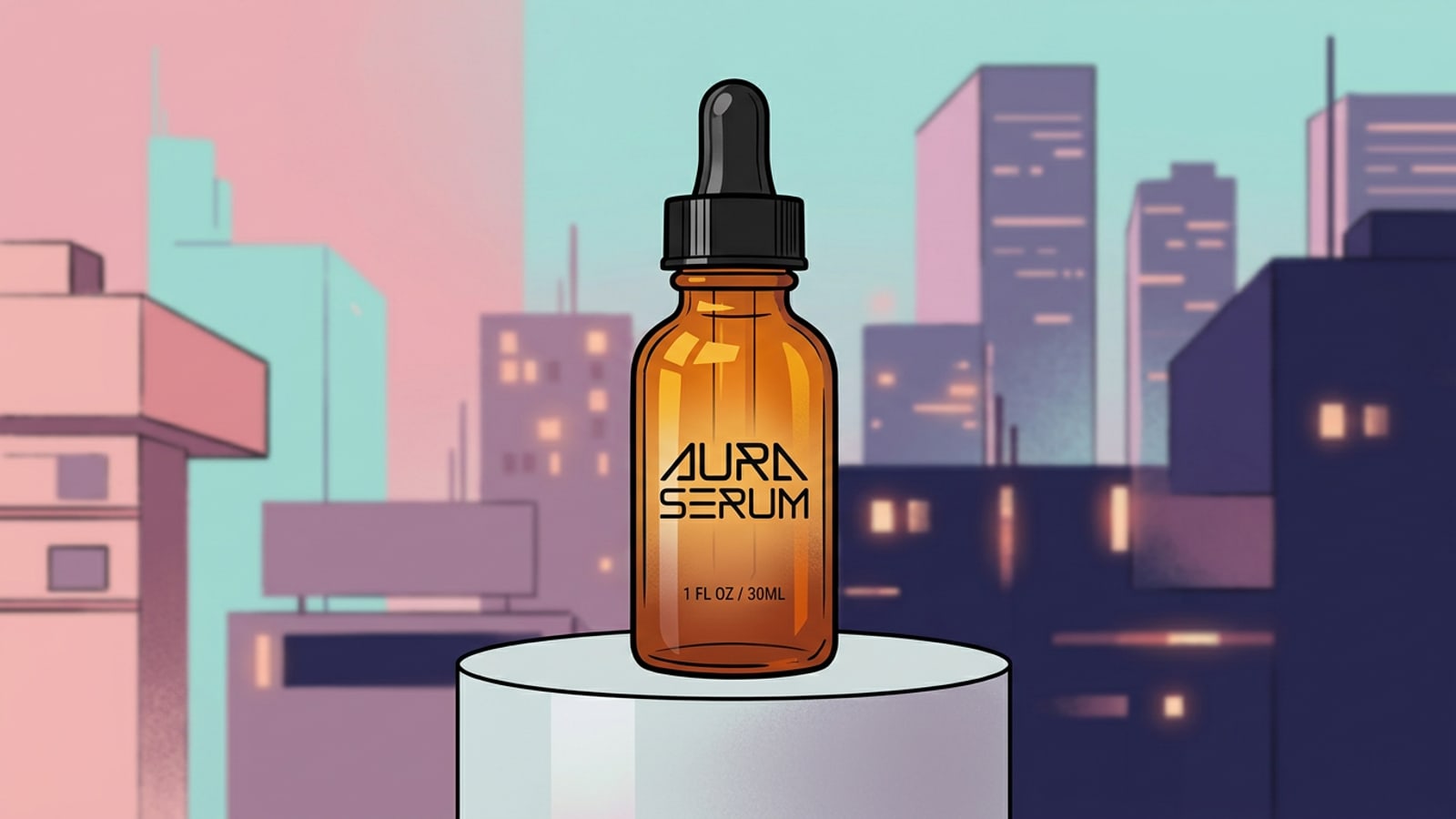
- Minimalist Podium (Cosmetics & Skincare): Preserve the main bottle product and label exactly as shown. Replace the entire room background with a smooth matte light-gray cylindrical podium centered on a seamless pastel background. Apply soft overhead softbox lighting with subtle rim highlights along the bottle edge and a soft, realistic ground shadow beneath the base.[1]
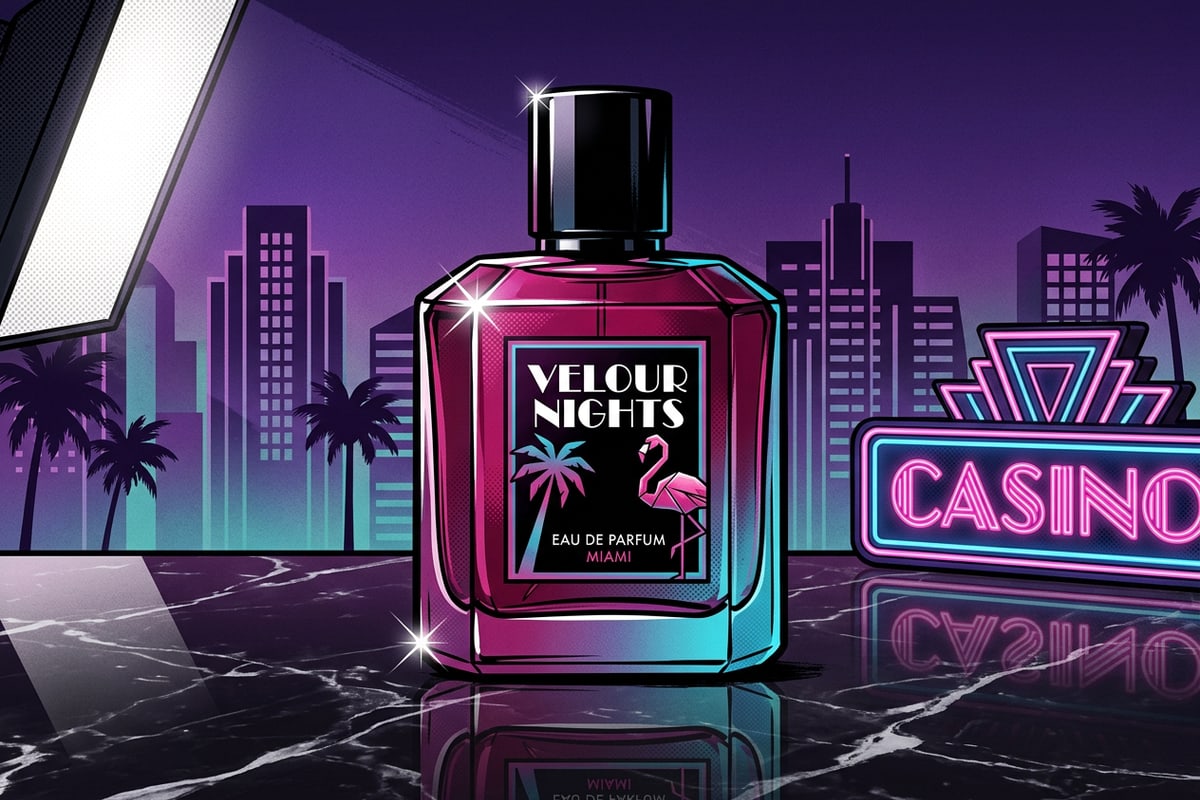
- Luxury Dark Marble (Jewelry & Accessories): Keep the original item intact without distorting text or textures. Place the item on a dark charcoal polished marble surface with delicate specular reflections. Illuminate with a dramatic side softbox spotlight, casting a dark, feathered contact shadow across the floor against a clean dark studio backdrop.[2]
- Warm Sunlit Studio (Home Goods & Lifestyle): Maintain the product outline and brand markings. Swap the background for a warm off-white plaster studio wall. Render soft, diffused daylight entering from a side window, casting gentle window pane shadow patterns and a realistic ambient occlusion shadow at the product base.[2]
Workflow Comparison Matrix: Physical Studio vs. Cutout Tools vs. CARA Agent
Evaluate traditional tabletop shoots, legacy cutout utilities, and conversational AI across cost, edge fidelity, and shadow realism.
Small business owners and online sellers choose among three primary product photography workflows: building physical studio setups, using legacy eraser utilities, or utilizing conversational AI agents on mobile devices.[3][4][6]
Building a physical tabletop studio requires buying softbox lights, backdrops, and reflector boards, with professional studio shoots costing between $150 and $2,000+ per session. Legacy background erasers offer high speed for zero dollars, but produce flat cutouts lacking realistic light integration. Conversational AI editing in apps like CARA Agent bridges this gap by delivering studio-quality illumination and shadow rendering directly on iPhone.[3][4][6]
- Physical Studio Setup: High equipment costs ($150–$2,000+ per session), high physical space requirements, perfect hardware control, zero text distortion.[3]
- Legacy Cutout Tools: Low cost, instant speed, flat cutout results, zero lighting integration, high risk of floating product visuals.[4][5]
- CARA Agent (Conversational AI): Low operational cost (30 points per image attempt on iOS), zero studio physical footprint, automatic softbox rim lighting and contact shadow synthesis, iterative text tweaking.[1][4][6]
Step-by-Step Guide: Isolating Products & Swapping Backdrops in CARA Agent on iOS
A direct walkthrough for executing professional product backdrop replacement on iPhone using CARA Agent.
CARA is available as an iOS and iPadOS app on the Apple App Store. It offers conversational photo editing powered by cloud AI processing through CARA Agent. Follow these practical steps to perform a complete product background swap.[6]
For quick single-purpose background clearing without chat prompts, CARA also provides a dedicated tool located at Home > AI Editing > Remove Background. For custom studio environments, softbox setups, and podium generation, use the CARA Agent chat workflow detailed below.[6]
- Open CARA Agent on iOS
Launch the CARA app on your iPhone or iPad. From the home screen, navigate directly to Home > Agent to launch the conversational photo editing interface.[6]
- Upload Your Product Photo
Tap the image attachment icon inside the CARA Agent chat window and select your raw iPhone product snapshot from your Photos library.[6]
- Submit Your Environment Prompt
Enter a precise instruction separating subject preservation from backdrop generation. For example: 'Keep the product bottle and label unchanged. Replace the background with a minimalist concrete studio floor and light gray wall. Add soft directional light from the left and a natural contact shadow under the base.'[1][6]
- Review and Refine via Chat
CARA Agent processes the request in the cloud (consuming 30 points per image attempt and 5 points per text prompt). Inspect the edge blending and contact shadow. Send a follow-up text prompt to tweak lighting brightness or shift backdrop colors if needed.[6]
Troubleshooting Edge Isolation, Floating Products, and Label Distortion
Diagnostic solutions for eliminating floating artifacts, distorted brand logos, and lighting mismatches.
Generative AI tools occasionally encounter edge blending or text alteration issues during background replacement. Identifying the underlying cause allows you to quickly fix the visual with targeted prompt refinements.[2][5]
Here are three common visual issues and their prompt-level solutions:[2][5]
- Issue: Product appears floating above the surface. Cause: Missing contact shadow or ambient occlusion. Fix: Re-prompt CARA Agent with 'Add a dark, tight contact shadow directly beneath the product bottom edge where it meets the ground surface.'[1][5]
- Issue: Brand logo or label text becomes distorted or illegible. Cause: The AI model re-rendered product text as part of the background generation. Fix: Use strict protection phrasing: 'Do not modify, re-render, or blur the front product label or logo text. Preserve exact original text details.'[2]
- Issue: Product edges look jagged or haloed. Cause: Harsh contrast between the original backdrop and original lighting. Fix: Re-prompt: 'Apply a subtle rim light highlight around the product silhouette to blend edge contrast naturally with the softbox background.'[1][4]