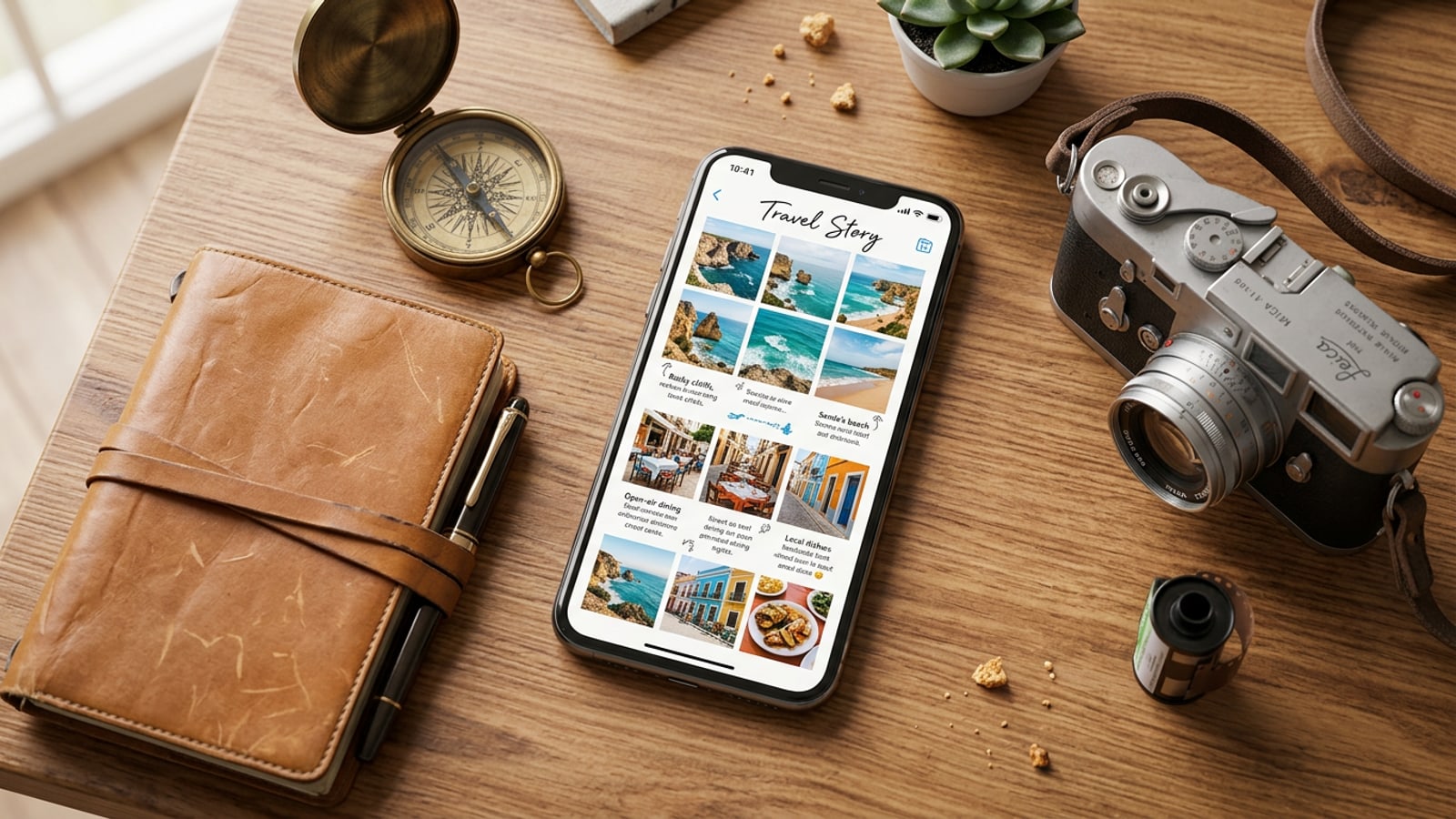
The Multi-Photo Dilemma: Overcoming Camera Roll Fatigue
Why returning from a trip with dozens of unorganized photos leads to fatigue and how a single-page visual story solves choice paralysis.
Returning from a weekend getaway or international trip with 50 or more photos in your camera roll presents a common challenge: sorting through burst shots, duplicate landscapes, and quick snapshots quickly becomes overwhelming. Mobile creators often default to abandoning their camera roll archives entirely or spending hours manually cropping frames into complex multi-slide carousels.[1][3]
A single-page visual zine offers a far more effective storytelling format. By distilling an entire excursion into one cohesive layout, you preserve narrative context while creating a skimmable, aesthetically pleasing highlight page. Instead of dragging individual photos onto rigid manual grids, batch-processing your candidate pool allows automated tools to handle candidate pruning so you can focus on creative refinement.[1][2]
Step 1: Batch-Select Candidate Shots from Your iOS Camera Roll
How to select 3 to 50 raw trip photos across varied focal lengths inside CARA's Journey in One Page tool.
The foundation of a great travel highlight is subject diversity. Inside CARA's Journey in One Page beta feature on iOS, you can select anywhere between 3 and 50 raw candidate photos directly from your device library. Rather than pre-filtering your shots manually, feed the tool a broad pool of images representing different moments of your trip.[1][2]
Aim for a balanced mix of focal lengths across your batch selection: wide landscape establishing shots, architectural street views, portrait subjects, food detail close-ups, and ambient texture photos.[1][2]
- Input flexibility: Select a wide batch of 3 to 50 photos to give the arrangement engine sufficient material.[2]
- Focal variety: Include a mix of establishing shots, medium street scenes, and macro detail captures.[1]
- Open Journey in One Page
Launch CARA on your iPhone or iPad and select the Journey in One Page feature from the creation menu.[2]
Step 2: Let Automated Culling Isolate Hero Shots and Generate Layouts
How automated duplicate removal works and how AI-redesigned layout modes pick up to 6 hero photos for visual balance.
Once your batch of up to 50 photos is uploaded into the feature, CARA processes the set by analyzing image contrast, clarity, and subject similarity. The automated culling engine strips out redundant burst photos and blurry captures, extracting the strongest complementary images from your batch.[2]
When using the AI-redesigned layout mode, the system selects up to 6 hero photos and arranges them into a visually balanced single-page composition. This cap prevents visual clutter, ensuring that every image on your final page has room to breathe while representing the core arc of your trip.[2]
- Automated pruning removes duplicate burst shots and low-contrast frames without manual intervention.[2]
- AI-redesigned layouts automatically structure up to 6 curated hero photos into a single page format.[2]
- Run Automatic Pruning
Allow the feature to process your selected candidate batch and generate initial layout arrangements.[2]
- Select AI Redesign Mode
Choose an AI-redesigned visual layout to let the system curate up to 6 core hero shots into a structured page.[2]
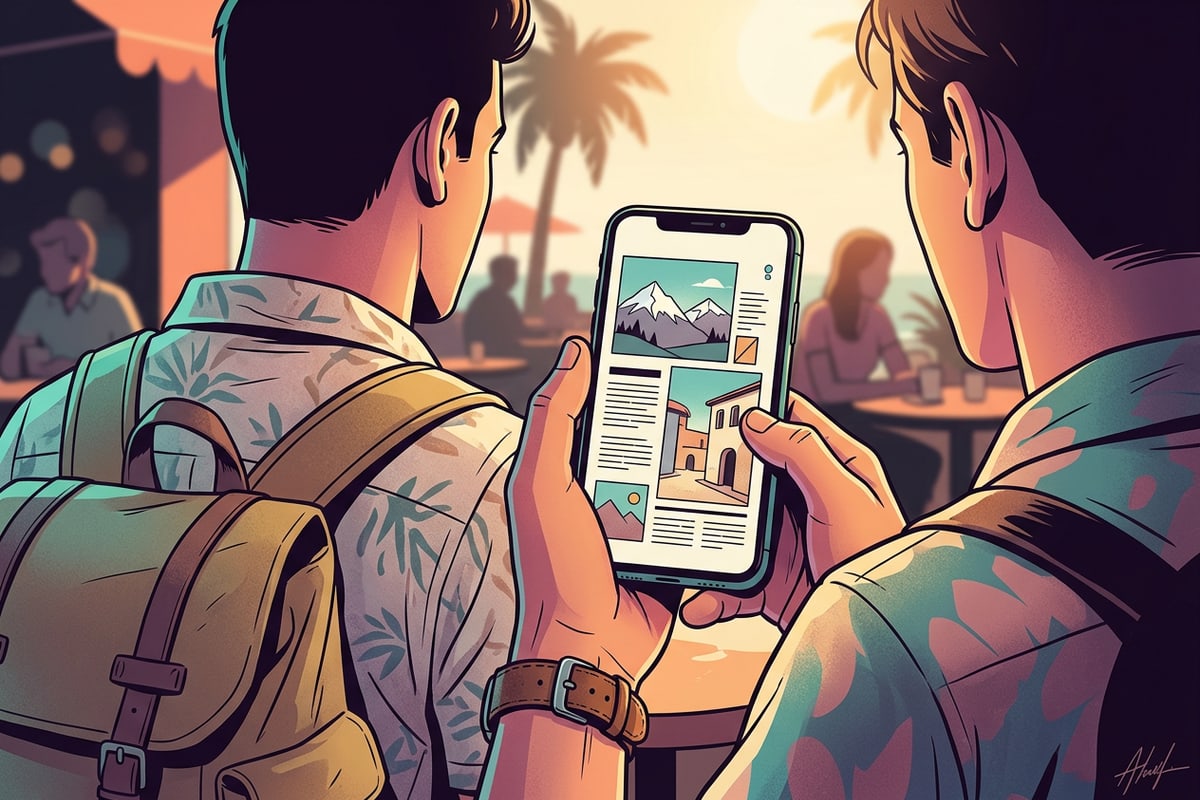
Step 3: Personalize with On-Device Text Overlays and Brush Accents
Refine your travel story output using free Creative Canvas tools, local text overlays, and freehand drawing brushes.
After the layout engine generates your structured page, transfer the composition into CARA's free Creative Canvas for personalized styling. The canvas runs entirely on-device, providing direct control over text layers, shapes, sticker accents, and freehand brush marks without requiring cloud re-rendering.[2]
Use the visual Text Editing and Overlay tool to introduce trip headers, destination coordinates, or dates directly over your layout. For enhanced typographical depth on portrait shots, you can also explore advanced subject layering techniques such as our guide on how to create the text behind subject 3D depth effect on iPhone.[2]
- On-device processing ensures immediate preview responsiveness when adding lines, shapes, and custom signatures.[2]
- Visual text layering allows you to add location labels, dates, and trip subtitles anywhere on the page canvas.[2]
- Enter Creative Canvas
Tap to open your generated zine page within the local canvas editor on iOS or iPadOS.[2]
- Add Text Layers
Select the text overlay tool to type trip titles, dates, or location tags, positioning them across neutral layout spaces.[2]
- Apply Freehand Accent Lines
Use the drawing brush tool to draw subtle border outlines, arrow accents, or hand-drawn highlights.[2]
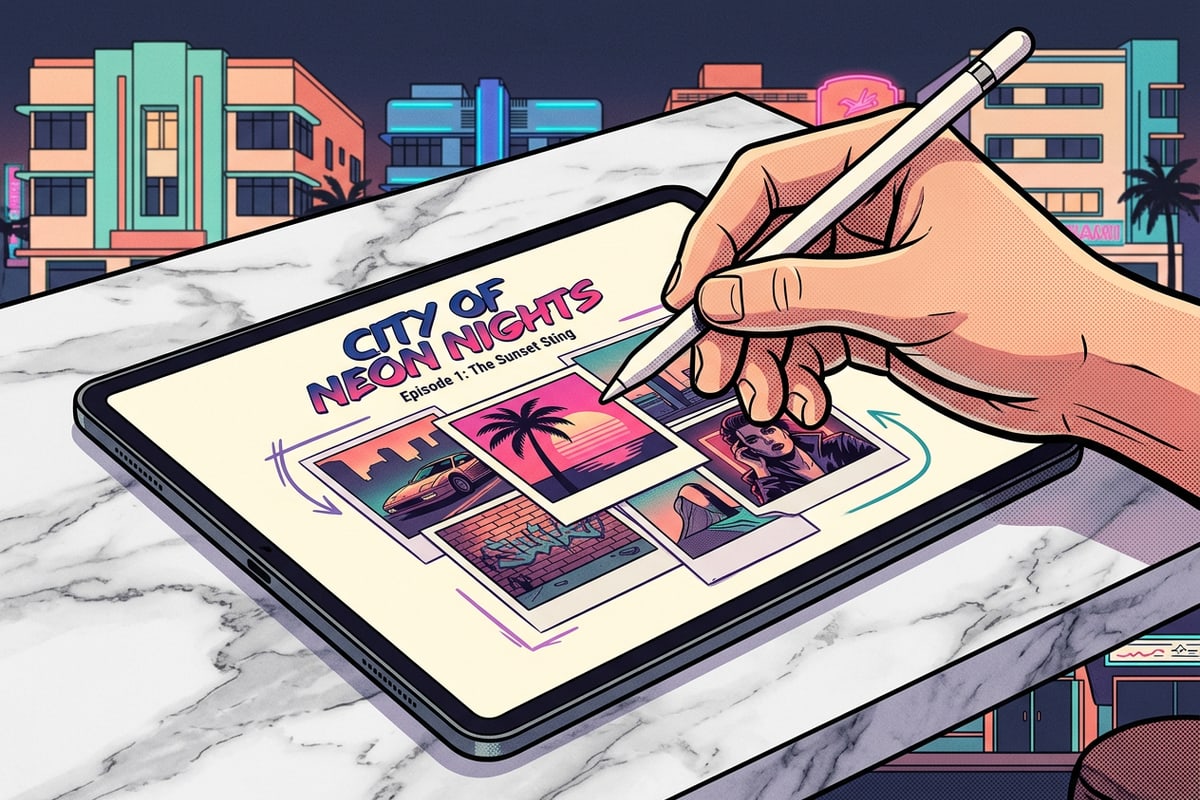
Step 4: Protect Crowd Privacy with Local Face Mosaic Before Export
Automatically blur background bystanders using free on-device Face Mosaic prior to saving or sharing.
Travel photography often catches unintended background strangers in crowded street markets, tourist landmarks, or public dining areas. Protecting personal privacy before posting single-page travel summaries online is essential for modern mobile creators.[2]
CARA includes Face Mosaic, a free on-device privacy tool that automatically detects multiple faces across your composition and applies a mosaic blur. Because processing happens locally on your iPhone, your raw images stay private. To understand compliance standards and privacy steps in detail, read our complete guide on how to automatically pixelate faces in group photos on iPhone.[2]
Diagnostic Audit: 3 Visual Rules for Impactful Travel Highlights
Essential visual guidelines for maintaining contrast, lighting balance, and typography legibility on mobile single-page zine layouts.
To ensure your single-page travel story looks refined and professional, follow three core design principles when finalizing your photo curation and typography layers.[3]
Evaluating your page layout against these visual benchmarks prevents overcrowded compositions and ensures your vacation memories stand out across mobile feeds.[3]
- Lighting Harmony: Pair high-key daylight shots with warm golden-hour captures to create a balanced tone across your page.[3]
- Negative Space Balance: Leave open margin gaps around text overlays so destination headers remain legible over detailed photo backgrounds.[3]
- Subject Scaling: Combine one large focal hero image with smaller detail tiles to establish visual hierarchy.[3]