
The Vacation Photo Problem: Why Simple Healing Brushes Fail
Traditional mobile clone stamps and basic healing brushes duplicate adjacent pixels, resulting in blurry patches and unnatural textures on complex travel backgrounds.
Capturing memorable vacation moments at world-famous landmarks often comes with an inevitable drawback: background crowds, wandering tourists, and unexpected photobombers. When attempting to fix these images on a smartphone, many creators turn to legacy retouching tools like clone stamps or basic healing brushes. However, these traditional mobile editing tools function by sampling nearby pixels and pasting them over the selected region.[3]
On intricate backgrounds such as historic brickwork, cobblestone streets, or repeating architectural pillars, traditional pixel cloning quickly breaks down. Because basic healing brushes do not understand the underlying geometry or perspective of the scene, they create repeated texture patches, unnatural smudges, and broken structural lines.[1][3]
Generative AI object removal resolves this problem by analyzing context rather than simply copying neighboring pixels. Generative models evaluate lighting, depth planes, and structural patterns throughout the entire frame, predicting what background content should logically exist behind the unwanted subject. This contextual synthesis allows AI erasers to reconstruct seamless textures instead of leaving muddy, smeared artifacts.[3]
- Legacy Clone Stamps: Copy and paste adjacent pixels, leading to unnatural repeating patterns on textured surfaces.[3]
- Basic Healing Brushes: Blend edges by softening pixels, which causes blurry smudges across fine lines like tile grout or stairs.[3]
- Generative AI Erasers: Synthesize brand-new pixels aligned with the lighting, texture, and perspective of the surrounding background.[3]
The 3 Golden Rules of Artifact-Free AI Erasure
Mastering sequential chunking, shadow-inclusive masking, and seam-aligned selection paths prevents telltale smudges and floating shadows.
Even advanced generative models can produce blurry outputs if given poor inputs. Sweeping a large selection mask across dozens of background tourists in a single pass forces the model to synthesize background information across multiple conflicting depth planes simultaneously. To consistently achieve crisp, professional photo cleanup on iOS, editors should adhere to three core masking principles.[3]
The first rule is sequential chunking. Rather than painting over an entire crowd at once, erase background figures in small, logical groups organized by depth. Clearing distant background tourists before addressing mid-ground or foreground photobombers lets the generative engine establish structural baselines first.[3]
The second rule is shadow-inclusive masking. A common editing mistake is masking only the torso and limbs of a person while omitting their cast shadow on the ground or reflection in a puddle. When the AI reconstructs the scene without removing the shadow, it leaves behind an eerie dark spot known as an orphan shadow.[3]
- Rule 1 (Sequential Chunking): Select and process small groups of tourists in multi-step passes rather than highlighting the entire crowd at once.[3]
- Rule 2 (Shadow-Inclusive Masking): Extend your selection brush down to include cast ground shadows, footwear contact points, and mirror reflections.[3]
- Rule 3 (Seam Alignment): Follow natural background borders—such as floor seams or architectural edges—when drawing selection boundaries to guide generative continuity.[3]
Step-by-Step Tutorial: Erasing Photobombers on iPhone with CARA
Follow this step-by-step mobile workflow using CARA's AI Eraser to clear crowds and restore clean backgrounds on iOS.
CARA provides focused AI editing tools on iOS, enabling clean object removal without complex desktop software. Follow this four-step workflow to clear stray tourists from your photos using CARA's dedicated AI Eraser feature.[3]
- Open Object Removal in CARA
Launch CARA on your iPhone or iPad. Navigate to Home > AI Editing > Object Removal, then tap to upload your vacation photo from your iOS Photo Library.
- Apply a Targeted Selection Mask
Adjust your brush size using the interface slider. Carefully paint over the photobomber or tourist group you wish to remove, ensuring your mask covers their body, clothing, and ground shadow.[3]
- Process the AI Removal
Tap the process button to initiate generative object removal. CARA handles processing via secure cloud rendering, which costs 30 points per attempt.[3]
- Evaluate and Refine
Review the generated result. If the backdrop involves complex patterns like cobblestones or ancient masonry, apply a second refinement pass over residual edge artifacts to achieve full clarity.[3]
Advanced Scenarios: Beaches, Historical Landmarks, and Conversational Edits
Complex backgrounds like rolling ocean waves, historic stone steps, or architectural monuments require tailored selection techniques and natural language prompt adjustments.
Different travel destinations present unique texture challenges for AI object removal. Beach photography requires handling organic fluid patterns such as breaking ocean waves, wet sand reflections, and sea foam. When erasing swimmers or beachgoers, ensure your selection mask encompasses both the person and the disturbed water pattern around them so the model can generate smooth water motion.[3]
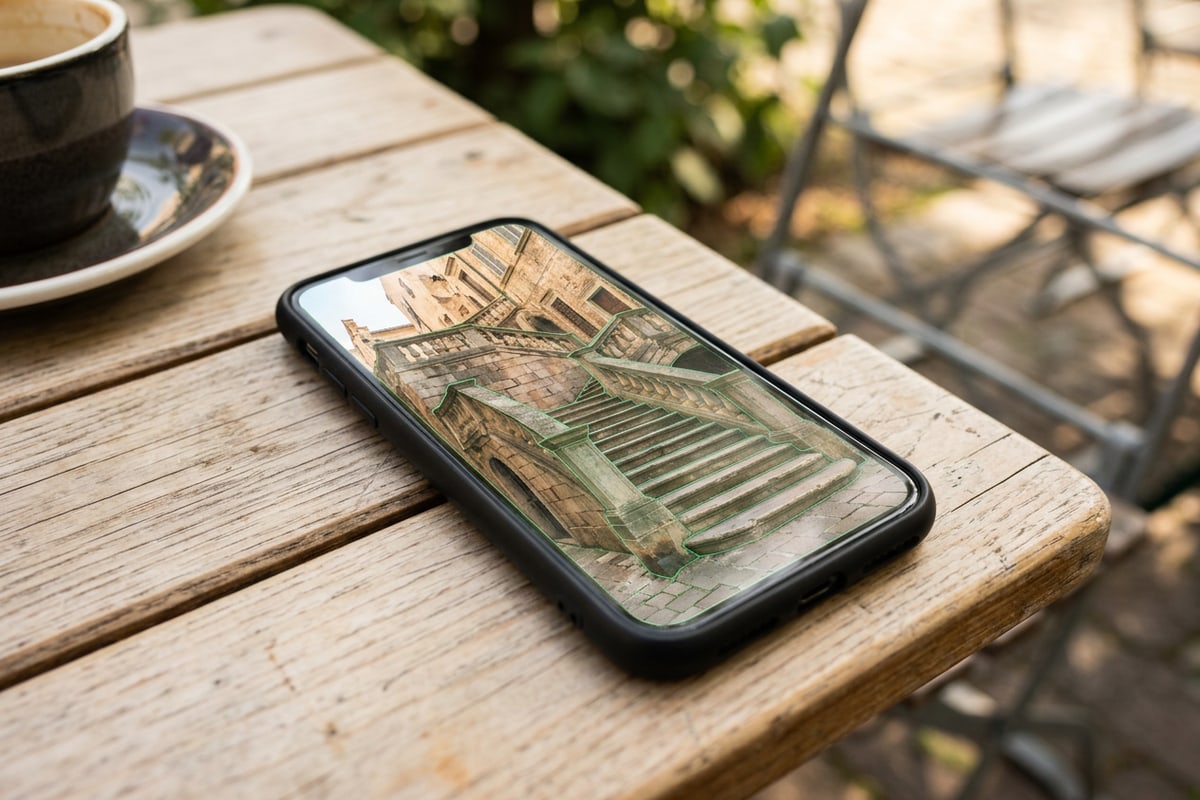
Historical monuments with repeating stone steps, intricate iron gates, or detailed carvings present structural symmetry challenges. On these geometric backdrops, keeping selection masks narrow along architectural lines prevents unnecessary distortion of surrounding masonry.[3]
In addition to direct brush masking in AI Eraser, mobile editors can utilize conversational photo editing. Inside CARA, navigating to Home > Agent opens CARA Agent, allowing users to describe broad composition edits using natural language text prompts.
If your vacation photo also suffers from dynamic range imbalance—such as heavy facial shadows caused by midday sun—you can explore techniques for balancing photo exposures to complement your crowd removal workflow.
- Beach Environments: Mask the swimmer along with their water splash and wet sand reflection to maintain realistic wave continuity.[3]
- Architectural Landmarks: Keep masks closely contoured to human figures to preserve surrounding straight lines on stairs and columns.[3]
- Conversational Adjustments: Use natural language text prompts in CARA Agent at Home > Agent for broad atmospheric adjustments.

Hardware Compatibility and Native vs. Cloud AI Cleanup
Compare native on-device features with cloud-assisted generative tools to find the best editing solution for your iPhone model.
Apple introduced native photo cleanup capabilities with Apple Intelligence in iOS 18.1. However, native system tools come with hardware and region restrictions, requiring recent high-end hardware such as iPhone 15 Pro or iPhone 16 series devices.[1]
For creators operating base-model iPhones or older hardware generations, cloud-assisted mobile apps fill the gap. Because apps like CARA process object removal requests via cloud servers, users can access generative AI photo cleanup regardless of whether their specific device supports native Apple Intelligence.[1][2]
Cloud-assisted editing also ensures consistent generative fill capabilities across both iPhone and iPad platforms without relying on local NPU constraints.[2]
- Native iOS Clean Up: Requires Apple Intelligence compatibility (iPhone 15 Pro, iPhone 16 series running iOS 18.1+).[1]
- Cloud-Assisted AI Apps: Accessible across supported iOS and iPadOS devices without native chip restrictions.[2]
- Processing Requirements: Cloud-based features require an active internet connection to execute server-side generative fill.[2]