The Shift from Complex Timelines to Conversational Video Directing
Mobile timeline keyframing often suffers from high interface friction on small screens. Conversational AI introduces intent-based directing through multi-turn text prompts.
Traditional mobile video post-production requires scrubbing multi-track timelines, placing precise keyframes, and adjusting delicate slider controls on touch screens. This interface friction often slows down social media creators who need rapid, dynamic iterations for short-form video platforms.[1][3]
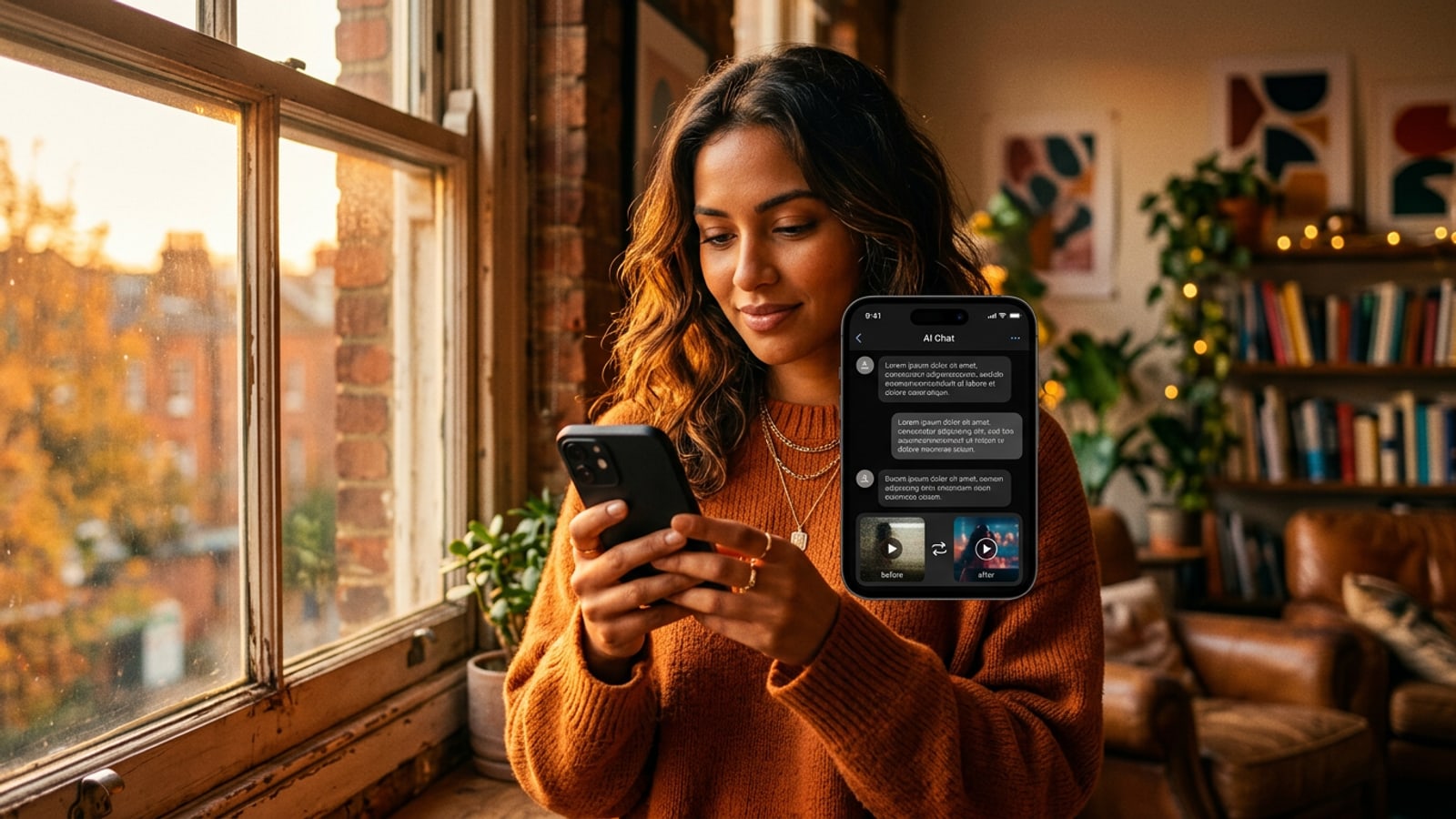
Conversational AI video editing fundamentally alters this workflow by transforming video post-production into a natural-language dialogue. Instead of manipulating timeline tracks manually, creators direct an AI video assistant by describing visual intent, atmospheric lighting, or specific camera movements through text prompts.[2]
For creators looking to fix initial lighting before generating motion, explore how to fix backlit iPhone photos with natural language AI prompts to refine visual balance early in the creative workflow.
The Anatomy of a Multi-Turn Video Prompt and Reference Photo Matrix
Combining reference photos with explicit motion descriptors provides precise aesthetic control without scene distortion.
Generative text-to-video models can synthesize unpredictable visual output when provided with vague open-ended prompts. Supplying a reference photograph provides an essential aesthetic anchor, locking in color temperature, specular highlights, and environmental texture.[1][2]
Effective multi-turn conversational video editing relies on delta prompts—making single targeted adjustments per turn rather than resubmitting broad descriptions. Directing camera parameters like camera dolly or subtle pan trajectories across separate chat turns produces far more stable results than all-in-one prompts.[3][4]
If you need to modify specific outfit textures or object elements in your initial anchor photos before generating video, see our guide on how to replace clothes and props in iPhone photos using AI prompts.
- Style Anchoring: Reference photos lock in target saturation, mood, and lighting contrast across renders.[1][4]
- Camera Trajectory Control: Precise terms such as 'slow forward dolly' or 'smooth pan right' steer AI camera interpretation.[3]
- Feature Extraction: Generative models extract motion vector cues and lighting cues from visual inputs.[4]
Step-by-Step Tutorial: Directing Video Clips with Maya on iPhone
Follow this 4-step workflow to create, direct, and iteratively polish short social clips using CARA's Video Assistant.
In CARA, Video Assistant (Maya) enables creators to initiate a generative video session using either natural-language text prompts or uploaded reference photos. Because AI video synthesis involves intensive compute tasks, execution runs in the cloud, with point costs determined by the chosen model and clip duration.[1]
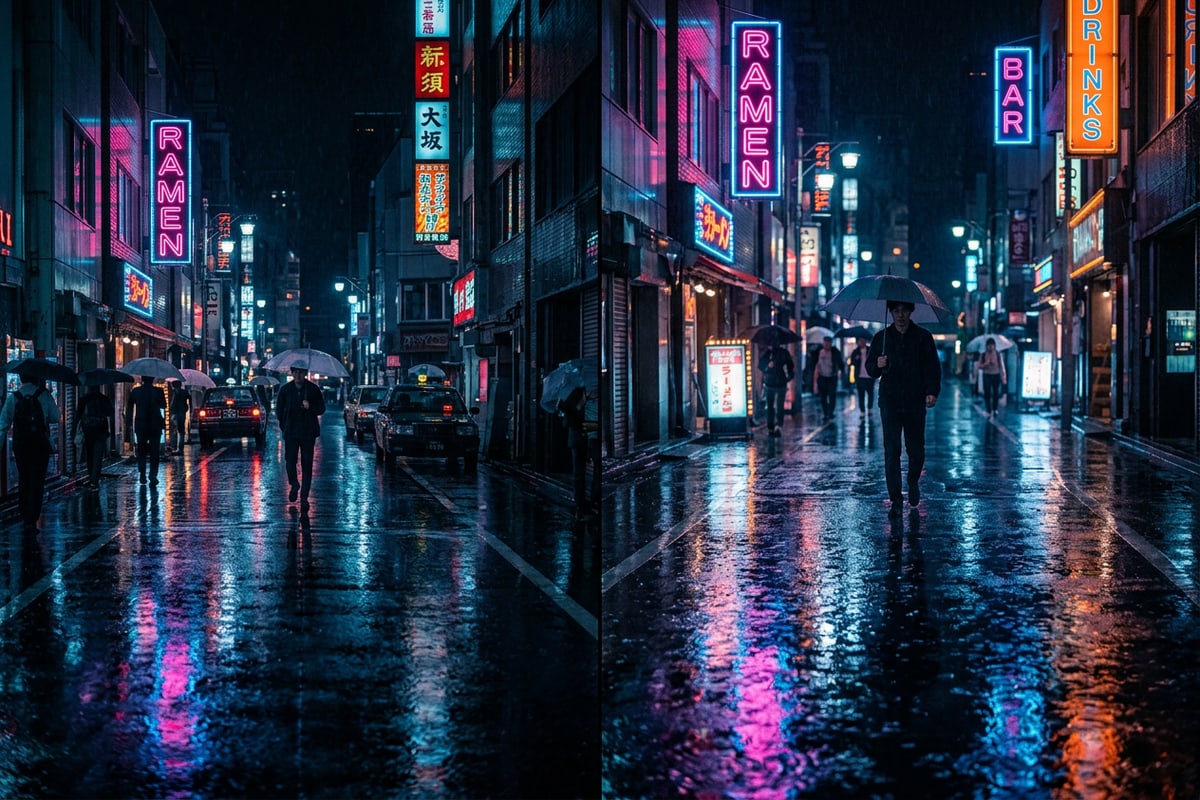
Once Maya renders the initial video clip, you can continue the chat session to request iterative refinements, such as altering environmental atmosphere, adjusting motion speed, or applying dramatic camera angles.[2][4]
- Initiate Video Session with Maya
Open CARA, navigate to the Agent section, and select Video Assistant (Maya). Upload a style reference photo or enter an initial descriptive text prompt.
- Review Output or Convert to Graphic Formats
Save your completed motion clip or convert key frames into stylized graphic layouts using CARA's Video to Manga feature.[1]
Understanding Processing Costs and Storyboard Conversions
Generative AI video utilizes cloud compute models, while specialized tools offer distinct storyboard formats.
Because generative video processing interprets complex spatial physics and camera trajectories in real time, execution is hosted on dedicated cloud servers rather than on-device hardware. This cloud processing consumes point credits based on your selected generative model and total render seconds.[1][3]
For creators interested in transforming dynamic video footage into multi-panel graphic stories, CARA includes Video to Manga. This feature extracts key moments from video clips and formats them into comic layouts, making it easy to create graphic teasers from video assets.[1]
To master converting dynamic video action into comic pages, read our complete guide on how to turn action video clips into comic manga panels on iPhone.
Advanced Workflow: Combining Local Canvas Touches and Privacy Controls
Enhance video stills on-device using local text overlays, freehand drawing, and face blurring tools.
Beyond generative cloud video edits, social media creators frequently require quick graphic additions before publishing. CARA provides local on-device tools including Free Creative Canvas, Text Editing and Overlay, and Drawing Brush tools that operate completely on your device without cloud processing.[3]
When capturing video or photo stills in public environments, privacy is paramount. CARA's Face Mosaic feature automatically detects multiple faces on-device and applies a privacy blur, allowing creators to safeguard background individuals locally before sharing.[3]
- Text & Artwork Layers: Add typography, graphic assets, and line drawings to video stills locally.[3]
- On-Device Face Mosaic: Automatically detect and blur multiple background faces on-device for privacy.[3]
- Zero-Latency Local Tools: On-device editing functions run instantly without consuming cloud points.[3]