Quick Answer: Convert iPhone Action Clips to Manga Pages Fast
A high-level overview summarizing the technical process of converting mobile action footage into comic manga panel layouts.
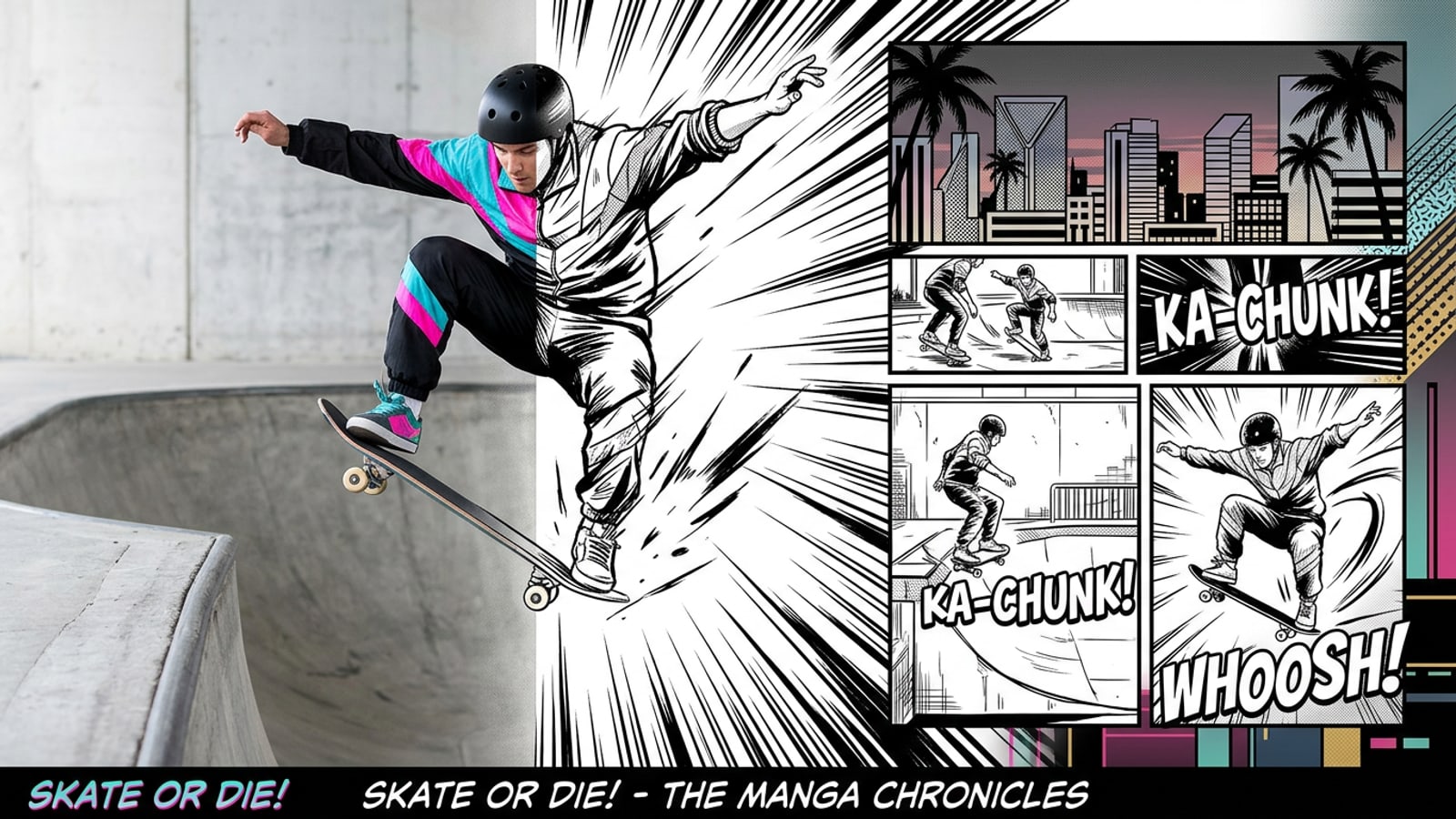
To convert a short iPhone action clip into a structured comic manga page, record 3 to 10 seconds of high-velocity motion at 60 fps in bright lighting, then process the video using an automated keyframe extraction engine. High frame rates freeze motion vectors, allowing stylization software to generate crisp black-and-white ink outlines without muddy motion blur.[1][4][7]
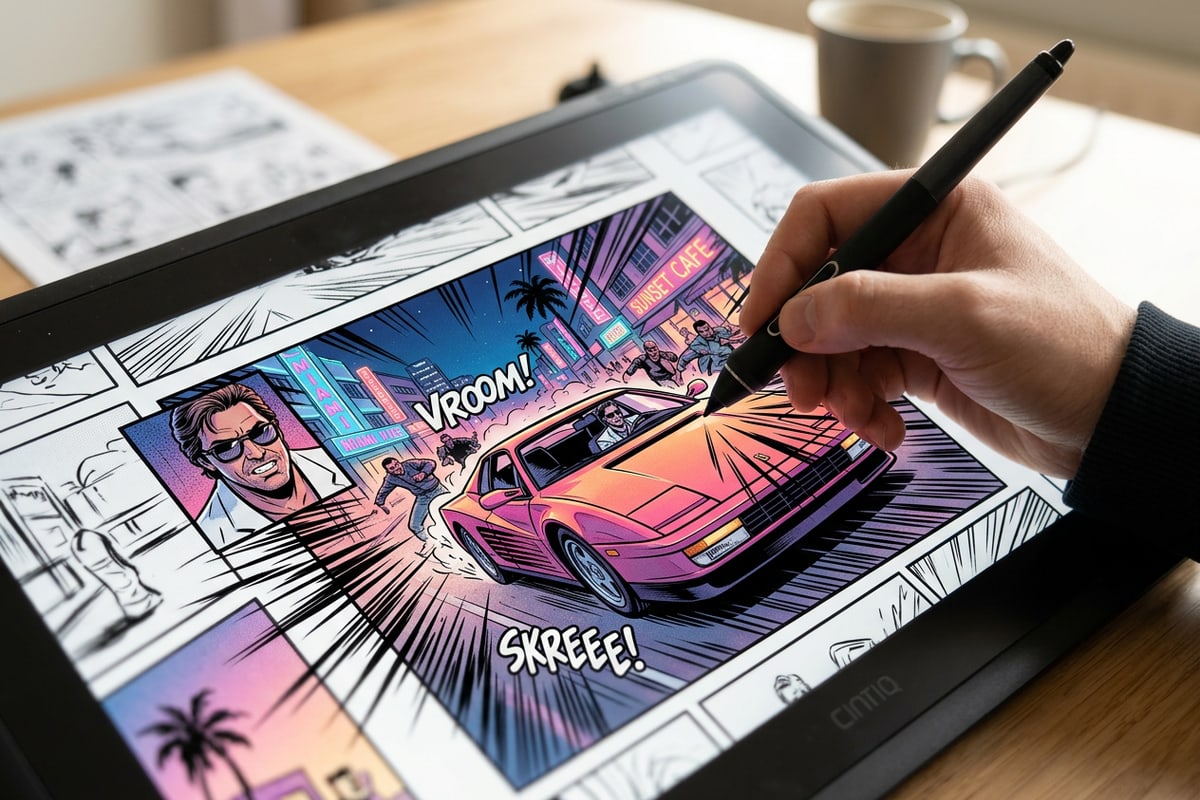
CARA's Video to Manga feature automatically analyzes continuous video footage, picks out peak action moments, and arranges them into formatted comic panels. Creators can bypass tedious manual timeline scrubbing and head directly into on-device canvas editing for speed lines, text overlays, and privacy protection.
- Capture action footage at 60 fps to maximize frame clarity and edge separation for vector ink conversion.[4]
- Leverage automated keyframe isolation to extract dynamic peak movement without scrubbing frame by frame.[1]
- Enhance finished panel pages on-device using custom brush speed lines, text overlays, and multi-face privacy masking.[3]
Step 1: iPhone Camera Setup for High-Contrast Action Keyframes
Essential technical camera parameters required to eliminate motion blur and ensure crisp vector edge extraction.
Stylized manga rendering relies on strong visual contrast boundaries to extract distinct vector ink lines. Standard mobile video recorded at 30 fps in automatic lighting often introduces heavy motion blur across fast-moving limbs, resulting in smudged outlines when converted into line art.[3][4]
Configuring your iPhone camera to record at 60 fps forces shorter exposure times per individual frame. In bright daylight, this increases shutter speeds above 1/120s, cutting inter-frame motion blur by up to 75% and providing keyframe engines with razor-sharp subject contours.[4][7]
- Configure 60 FPS Video Capture
Navigate to Settings > Camera > Record Video on your iPhone and select either 1080p at 60 fps or 4K at 60 fps to double the available frame sampling frequency.[4]
- Keep Clips Between 3 and 10 Seconds
Record tight 3 to 10 second action windows focused strictly on the motion trick, preventing redundant non-action frames from diluting automated keyframe sampling.[1]
Step 2: Automated Keyframe Extraction & Panel Layout in CARA
How CARA converts continuous video footage into structured comic book panel pages using keyframe analysis.
Manually pausing mobile video scrubbing bars to capture individual screenshots is notoriously imprecise. Touchscreen scrubbing frequently lands on intermediate motion-blurred frames, producing muddy line art when stylized. Automated keyframe sampling solves this by evaluating motion velocity vectors to pick out peak physical moments.[1][6]
With CARA's Video to Manga feature, creators simply select a supported action video clip from their photo library. The application analyzes the video sequence, extracts core motion keyframes, and automatically maps them into a stylized comic panel page ready for visual customization.
- Velocity-based keyframe sampling automatically selects peak action points along the subject's trajectory.[1]
- Automated panel generation converts continuous video motion into a complete, balanced manga page layout.
Step 3: Panel Hierarchy & Narrative Tempo Tuning
Principles of manga visual pacing, panel dimension weighting, gutter spacing, and eye-tracking vectors.
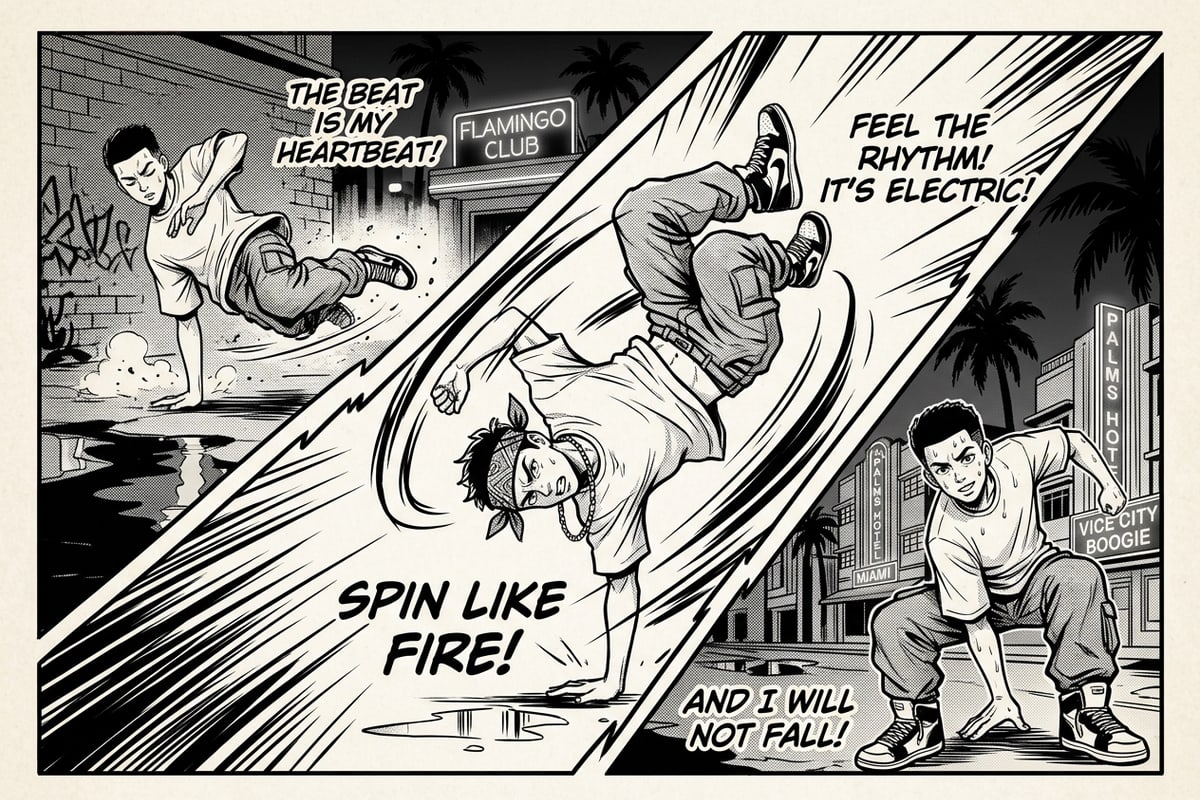
In comic book typography and graphic novel production, panel architecture dictates the reader's temporal pacing and emotional engagement. Uniform grid layouts flatten dynamic sequences, treating every fraction of a second with equal emphasis. To craft a compelling action sequence, creators must establish a clear visual hierarchy by varying panel dimensions based on kinetic energy.[2]
Assigning 50% or more of the overall page real estate to the primary climax frame creates a dominant splash panel. Sizing the peak jump, trick, or impact shot as the largest element creates an immediate visual anchor that commands attention, while smaller supporting panels leading up to it construct narrative momentum.[2][5]
Gutter spacing—the negative white space separating adjacent comic panels—plays a critical role in controlling perceived time and motion between frames. Narrow gutters force rapid sequential reading for fast acrobatic moves, whereas wide gutters indicate cinematic pauses or temporal transitions. Furthermore, creators must align panel borders along reader scanning vectors. In Western reading layouts, arranging panel borders in a top-left to bottom-right Z-pattern guides the reader's eye naturally across action direction vectors. Incorporating steep diagonal panel borders cuts through horizontal sightlines, imparting an added sense of physical speed and structural tension to high-impact athletic clips.[2][3]
- Position narrow preparatory panels at the top of the page to build narrative tension before the main move.[2]
- Expand the peak keyframe into a massive splash panel to maximize physical impact and visual retention.[2]
- Utilize diagonal panel cuts and intentional gutter spacing to direct reader scanning vectors across action lines.[2][3]
Step 4: On-Device Polish with Canvas, Text Overlay, & Face Mosaic
Enhance comic pages on CARA's Free Creative Canvas with speed lines, sound effect typography, and spectator face blurring.
Once your comic panel layout is established, bring the page into CARA's Free Creative Canvas for final artistic refinement. Creators can work in a multi-layer workspace using local drawing and brush tools to add sharp radial focus lines and directional speed vector brush strokes across high-energy frames.[3]
To add classic manga sound effects, use CARA's Text Editing and Overlay feature to insert, scale, and angle stylized SFX lettering like 'WHAM' or 'BOOM' across impact zones. If your action footage was shot in public venues with bystanders, apply CARA's Face Mosaic tool. This free, on-device feature provides automatic multi-face detection and blurring, safeguarding spectator privacy without uploading images to cloud servers.
For creators exploring multi-image storytelling beyond action video clips, check out our guide on how to turn 50 raw vacation photos into a single-page travel zine on iPhone or learn how to replace clothes and props in iPhone photos using AI prompts for added character styling.
- Draw custom speed line brushes and focal vectors to guide the reader's eye directly to motion points.[3]
- Add text layers for sound effect captions and dynamic dialogue overlays right on the creative canvas.
- Protect background crowd privacy in public sports clips using automated on-device multi-face mosaic blurring.