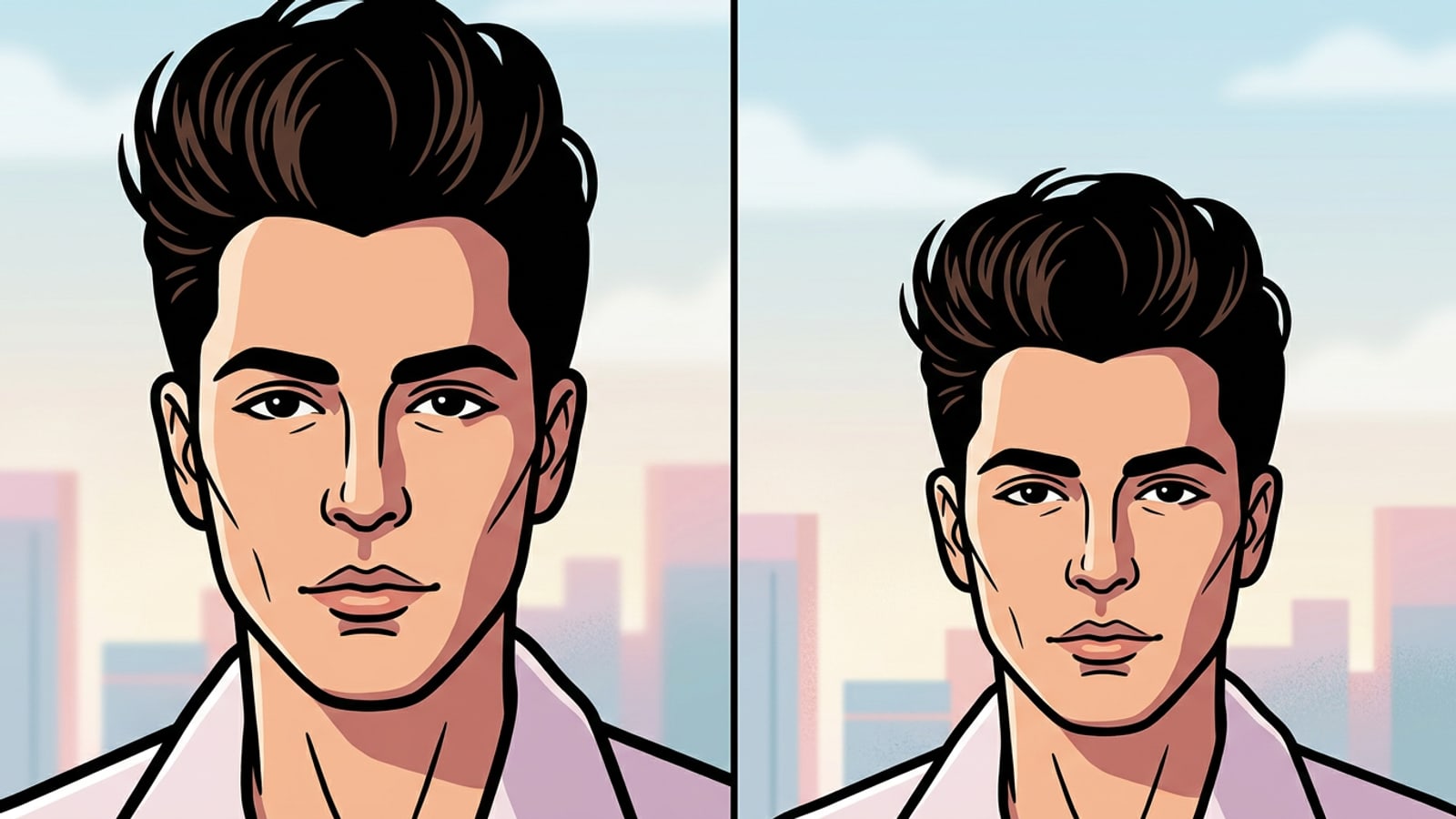
The Tight Crop Trap: Why Headroom Matters in Mobile Portraits
Understand how upper negative space impacts framing balance and why cramped selfie crops alter portrait perception.
Headroom refers to the visual distance between the top of a subject's head and the upper border of the photo frame. In photographic framing guidelines, maintaining deliberate vertical headroom ensures a headshot or selfie feels visually balanced, allowing the viewer's eyes to rest naturally on the subject's face.[1]
According to eye-level placement guidelines tied to the rule of thirds, positioning a subject's eyes roughly one-third down from the upper edge creates natural visual harmony. When mobile selfies or handheld portraits cut off hair volume or press directly against the top border, the composition creates tension, making the subject appear squashed inside the frame.[1]
Standard photo edits often try to fix awkward framing by cropping in even closer. However, aggressive tight crops eliminate environmental background context and can heighten the visual impact of smartphone wide-angle lens distortion. Expanding the upper canvas outward provides a far cleaner structural remedy.[1]
How AI Outpainting Restores Canvas Clearance Without Distortion
Discover how generative canvas expansion projects background textures outward while keeping facial features intact.
Conventional spatial adjustments like stretching or resampling distort subject features and skew aspect ratios. In contrast, generative AI outpainting extends photo boundaries outward beyond the original image perimeter.
The outpainting model analyzes the outer margins of your existing photo, identifying lighting directions, color gradients, and background structures like sky, walls, or greenery. It then extrapolates new surrounding pixels to fill the extended upper border.
Because the canvas expands outward, original facial geometry, skin texture, and hair details remain completely unedited. You achieve natural overhead clearance while preserving the original subject capture.[1]
- Preserves core subject geometry and resolution untouched in the center of the frame.
- Extrapolates overhead environmental textures like clouds, ceilings, and foliage automatically.
- Eliminates complex manual cloning, healing brushes, and layer masking.
Step-by-Step: Adding Top Headroom on iPhone with CARA Image Extender
Follow a clear sequential workflow to expand tight portrait borders using CARA's dedicated iOS outpainting tool.
On iOS and iPadOS, CARA provides a direct outpainting tool called Image Extender. Located under the app's AI Editing menu, Image Extender allows mobile creators to expand image boundaries directly on their iPhone without desktop software.
In CARA version 1.4.6, using Image Extender costs 30 points per generation attempt. Follow this step-by-step workflow to extend the upper border of your cropped portraits.
- Open CARA and Navigate to Image Extender
Launch CARA on your iPhone and select Home > AI Editing > Image Extender from the main hub.
- Upload Your Cropped Portrait
Select the tightly cropped selfie or portrait photo from your iOS Photo Library.
- Extend the Upper Canvas Boundary
Drag the top border handle upward to add 15% to 30% additional canvas height above your head.
- Generate and Export the Outpainted Result
Confirm your extension boundary to execute the 30-point outpainting process, then save the balanced image back to your camera roll.
Pro Tips & Edge-Case Solutions for Seamless Outpainting
Guide creators through resolving edge seams, complex background textures, and fine-tuning results.
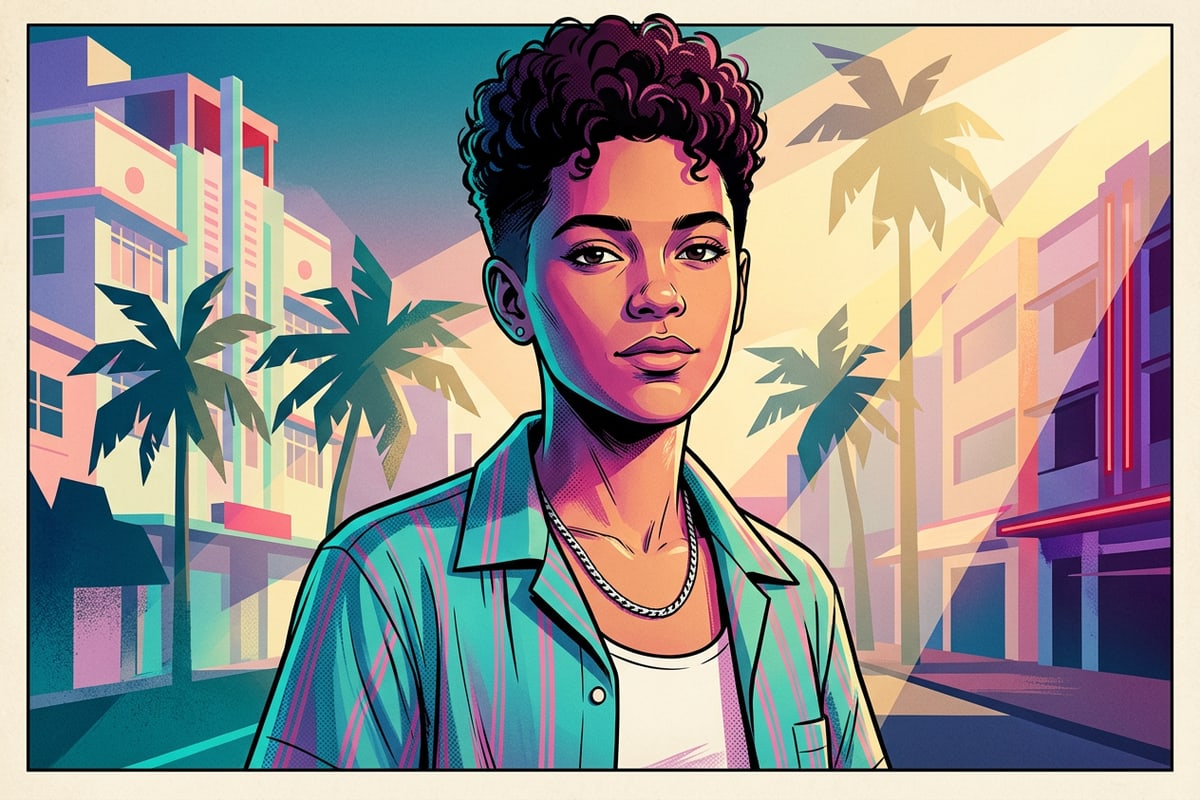
When outpainting photos with complex architectural lines, repeating wall patterns, or intricate leaf structures, minor visual seams or unwanted artifacts can occasionally appear along generated border edges.
To clean up minor edge artifacts, open Home > AI Editing > AI Eraser within CARA. Select the unwanted element or harsh line along the top border; the AI Eraser recalculates surrounding context to smooth out the background.
For prompt-based background adjustments, CARA Agent (located at Home > Agent) offers natural-language conversational photo editing. You can enter conversational text prompts to direct contextual edits and background refinements interactively.
- Use AI Eraser to brush over and remove unwanted background artifacts along expanded margins.
- Utilize CARA Agent for natural-language chat prompts to fine-tune background elements.
- Combine top border outpainting with minor object removal for clean professional framing.
Framing Best Practices for Social Feeds and iOS Lock Screens
Learn recommended clearance ratios for Instagram profile photos, vertical feeds, and iPhone lock screen depth effects.
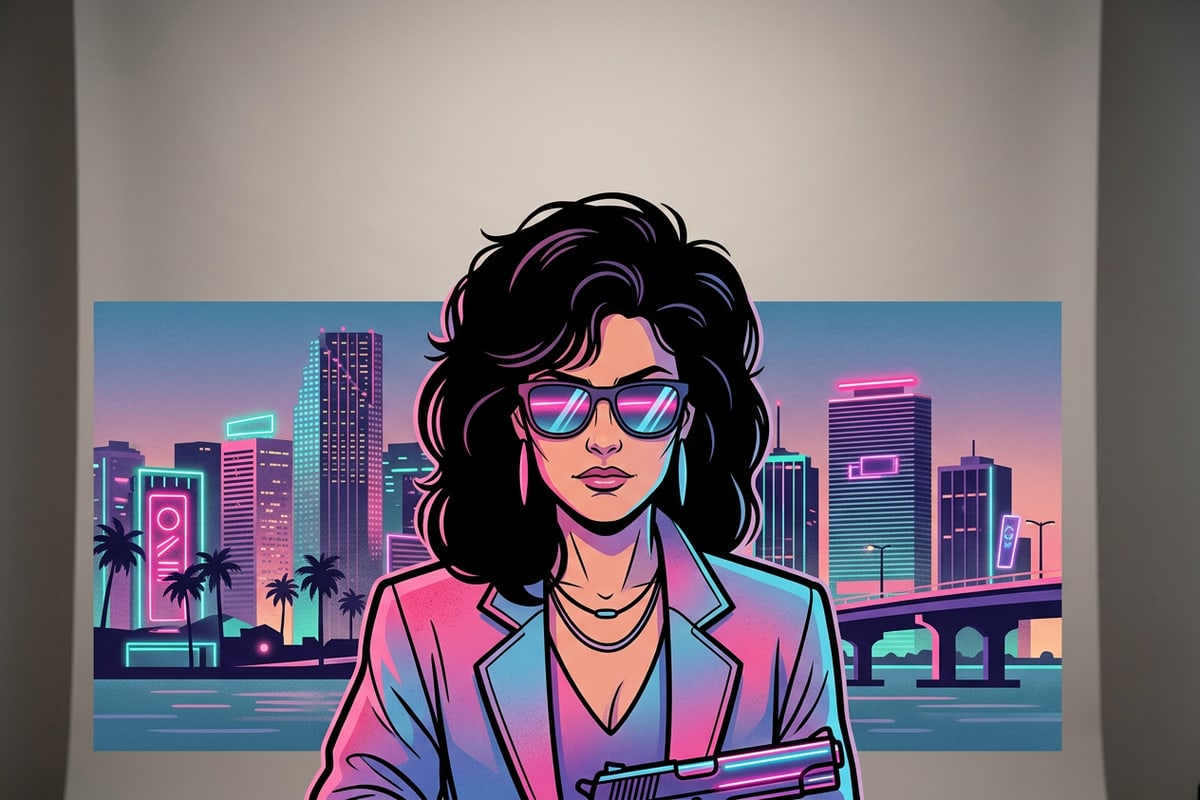
Restoring natural headroom serves essential functional purposes across modern mobile platforms. On iOS lock screens, adding top background space ensures that your portrait subject sits comfortably beneath the clock without being obscured by system widgets.
For social media profile pictures and vertical feeds, having sufficient vertical clearance prevents circular avatar crops from awkwardly slicing off your hairline.[1]
- Lock Screen Placement: Generous overhead clearance provides canvas room for 3D depth effect clock layering.
- Avatar Framing: Upper negative space prevents hair volume from clipping inside circular social media thumbnails.[1]
- Visual Balance: Outpainted top borders align cramped mobile captures with standard eye-level composition rules.[1]