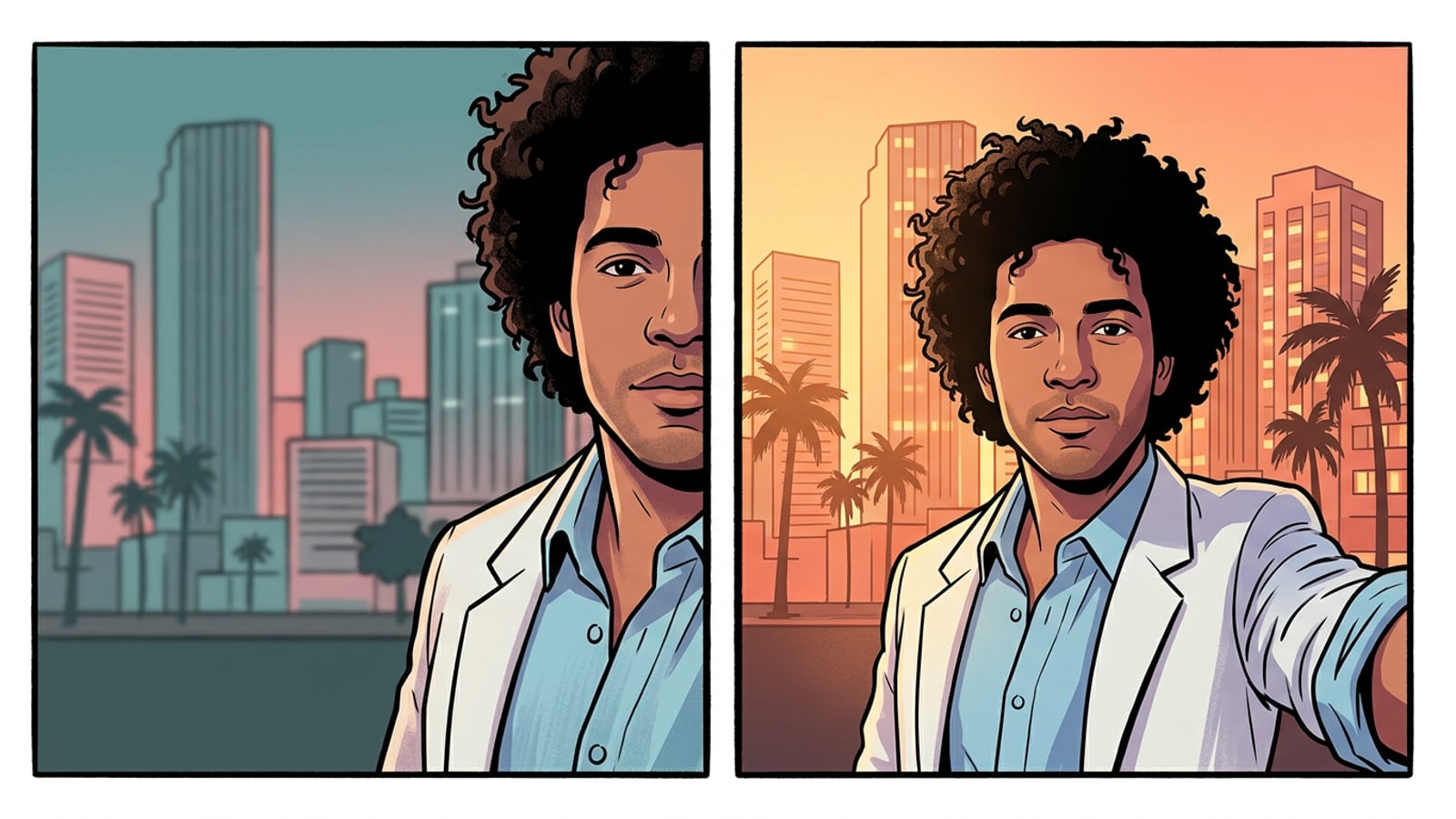
The Off-Center Selfie Problem: Why Traditional Cropping Fails
Understand why cropping inward degrades photo quality and why outward edge expansion offers a superior aesthetic solution.
Capturing a spontaneous selfie on an iPhone often results in compositional imbalances. Standard handheld arm length restricts the camera's angle of view, frequently causing hair crowns, outer shoulders, or sweater sleeves to get clipped by the photo boundary. When faced with an off-center subject, the intuitive reaction for most creators is to open a standard mobile editor and crop the image inward to force artificial center symmetry.
However, inward cropping introduces severe technical and aesthetic compromises. Trimming the edges of an already tight selfie discards up to 40% of the camera sensor's original resolution. Because you are forcing a smaller pixel selection to fill the entire display screen, facial features lose definition and digital noise becomes prominent. Furthermore, cropping inward further compresses headroom and shoulder width, producing a claustrophobic framing where the face appears uncomfortably jammed against the borders.
Generative canvas expansion solves this limitation by reversing the directional workflow of photo editing. Instead of cutting inward and discarding precious sensor megapixels, outpainting expands the canvas perimeter outward. This approach leaves every original pixel of the subject untouched while synthesizing matching background scenery around the edges to restore natural visual equilibrium.
How Generative Outpainting Preserves Sensor Resolution
Explore the technical benefits of expanding canvas edges outwards instead of cutting into original facial pixels.
The core advantage of generative outpainting lies in how AI models evaluate surrounding spatial continuity. When using tools like CARA's Image Extender, the generative engine analyzes edge pixels, light vectors, and background depth from the captured photo. It then projects and synthesizes continuous background structures—such as sky gradients, architectural patterns, or foliage—beyond the original camera frame.
Because the subject's face remains positioned within its original high-resolution capture zone, 100% of the camera sensor's facial megapixel detail is retained. Eye highlights, skin texture, and subtle lighting nuances remain untouched at native crispness. The newly generated perimeter pixels seamlessly match the background depth of field, providing the negative space necessary to re-center the subject without degrading visual clarity.
Beyond preserving resolution, outward edge expansion restores truncated body geometry. Tight selfies frequently cut off the natural curve of shoulders or the full volume of hair. By extending the left, right, or top canvas boundaries, generative outpainting creates complete anatomical lines, grounding the portrait so the subject appears relaxed rather than awkwardly cropped.
- Retains native sensor sharpness across eye details, facial features, and skin textures.
- Synthesizes continuous ambient lighting, foliage, or wall textures across new canvas edges.
- Restores cut-off anatomical landmarks like complete shoulder lines and natural hair volume.
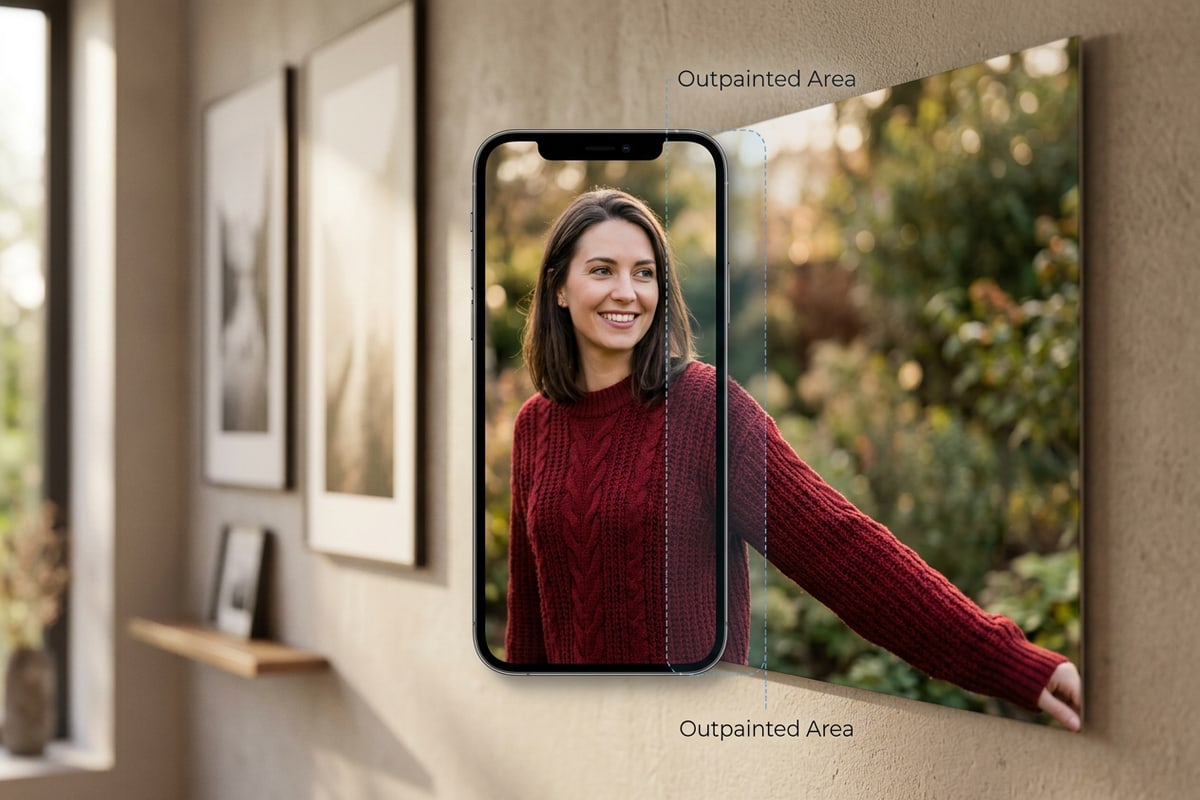
Step-by-Step Workflow: Re-Centering Selfies with Image Extender and AI Eraser
Follow a practical mobile editing procedure to re-frame your selfie and clean up awkward selfie-arm distractions.
Transforming a cramped off-center selfie into a balanced, third-person aesthetic portrait requires a coordinated two-phase workflow: expanding perimeter borders and removing foreground indicators of arm reaching.
- Analyze Framing Gaps and Truncated Edges
Examine your selfie to identify which boundaries are missing context. Note whether your hair crown is clipped at the top edge or if your shoulder is cut off on one side, determining how much outward expansion is needed to center your posture.
- Expand Perimeter Borders with Image Extender
Open CARA and navigate to AI Editing > Image Extender. Upload your off-center selfie and select the specific directional boundaries—such as top, left, or right—that require extra space. Process the image to generate extended background context matching the ambient lighting.
- Erase Reaching Selfie Arm with AI Eraser
Navigate to AI Editing > Object Removal (AI Eraser). Brush over the extended forearm reaching toward the camera lens. The AI eliminates the limb line and reconstructs smooth background depth and natural clothing folds in its place.
- Review Composition and Proportion Harmony
Inspect the transition between the original photo and generated canvas regions. Ensure lighting direction and background blur remain consistent across all extended borders before saving your centered portrait.
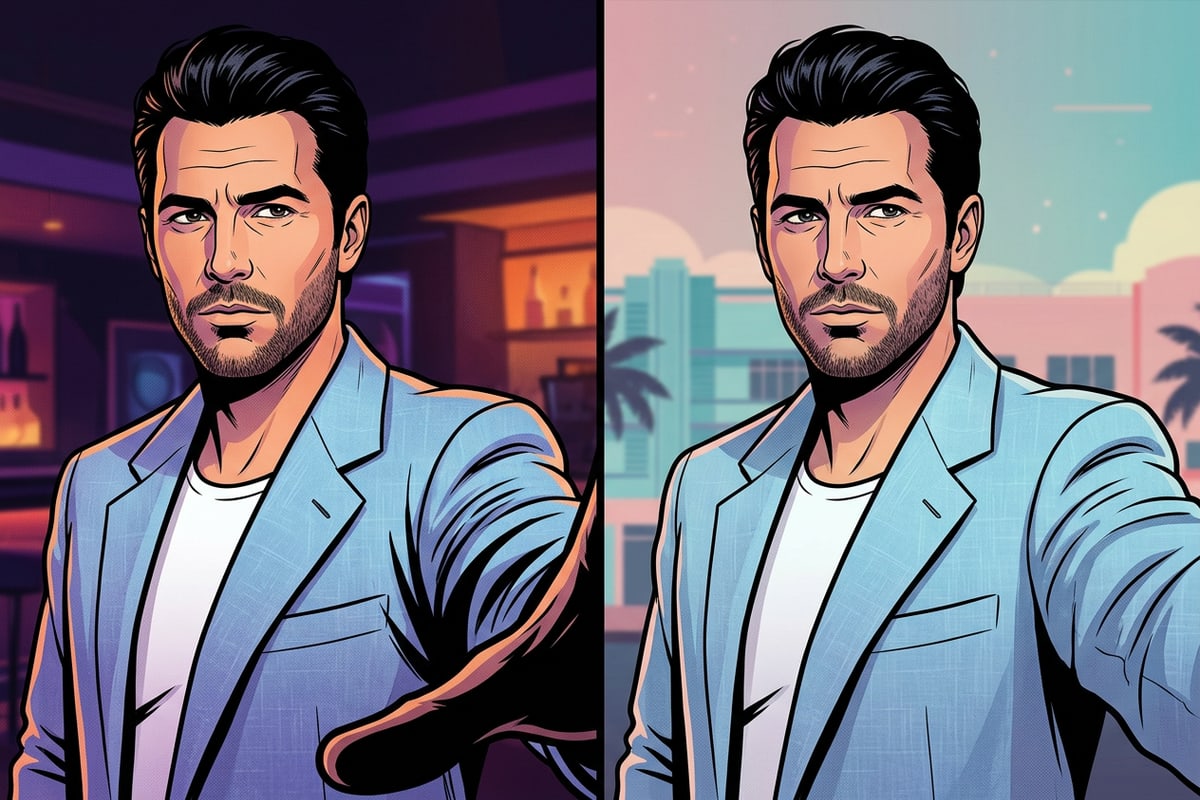
Conversational Prompts & Edge-Blending Techniques in CARA Agent
Use conversational text prompts to refine expanded backgrounds and harmonize lighting without altering facial features.
In intricate lighting environments or detailed outdoor scenes—such as golden hour sunsets or textured architectural brickwork—generative canvas extensions benefit from targeted natural language guidance. Utilizing conversational photo editing inside CARA's Agent allows creators to fine-tune background transitions using precise text instructions while keeping facial features 100% original.
Conversational editing interprets natural language requests to harmonize light direction, match color temperatures, or refine complex background textures behind extended shoulders. By explicitly telling the AI what to expand and what to safeguard, creators maintain complete artistic control over portrait balance without touching face geometry.
- Prompt for Golden Hour Background Alignment: 'Extend the right background canvas with warm afternoon sun flare, soft out-of-focus trees, and matching ambient light, keeping my facial features and skin texture completely untouched.'
- Prompt for Garment & Shoulder Reconstruction: 'Seamlessly reconstruct the left jacket shoulder with matching denim fabric texture and continuous seam stitching, preserving original posture and face detail.'
- Prompt for Headroom & Sky Harmony: 'Add 15% top canvas margin featuring a soft blue sky gradient with gentle sunlight highlights, ensuring my hair crown restores naturally without modifying my face.'
- Prompt for Background Edge Blending: 'Blend the outer left edge with smooth bokeh and matching indoor warm lighting while retaining original hair strands and face sharpness.'
Golden Rules of Composition for Balanced iPhone Portraits
Apply foundational portrait rules regarding headroom, negative space, and aspect ratios for social media feeds.
Re-centering an off-center selfie is not merely about placing the nose in the exact horizontal center of the picture; it is about establishing visual balance and comfortable breathing room. Adhering to classical portrait composition rules ensures your edited photos look intentional and engaging across digital feeds.
Applying structured compositional metrics prevents common editing errors, such as unnatural shoulder ratios or uncomfortably tight top margins. Combining canvas expansion with thoughtful framing transforms casual mobile snaps into polished, feed-ready portraits.
- Headroom Ratio: Maintain a 10% to 15% vertical margin above the crown of the head. Insufficient headroom creates claustrophobic framing, while excessive headroom pushes the face uncomfortably low.
- Horizontal Eye Alignment: Position the subject's eyes along the upper third horizontal axis of the expanded canvas to establish immediate visual engagement with viewers.
- Negative Space Distribution: Ensure balanced negative space on both sides of the torso. Extending truncated shoulders creates grounded visual stability across the lower frame.
- Aspect Ratio Planning: When preparing portraits for vertical social media feeds, expand top and side edges proportionally to fit standard vertical display formats without requiring post-export cropping.