Why First-Photo Quality Drives Online Clothing Sales
The main hero photo dictates whether potential buyers tap on your listing or keep scrolling past cluttered feeds.
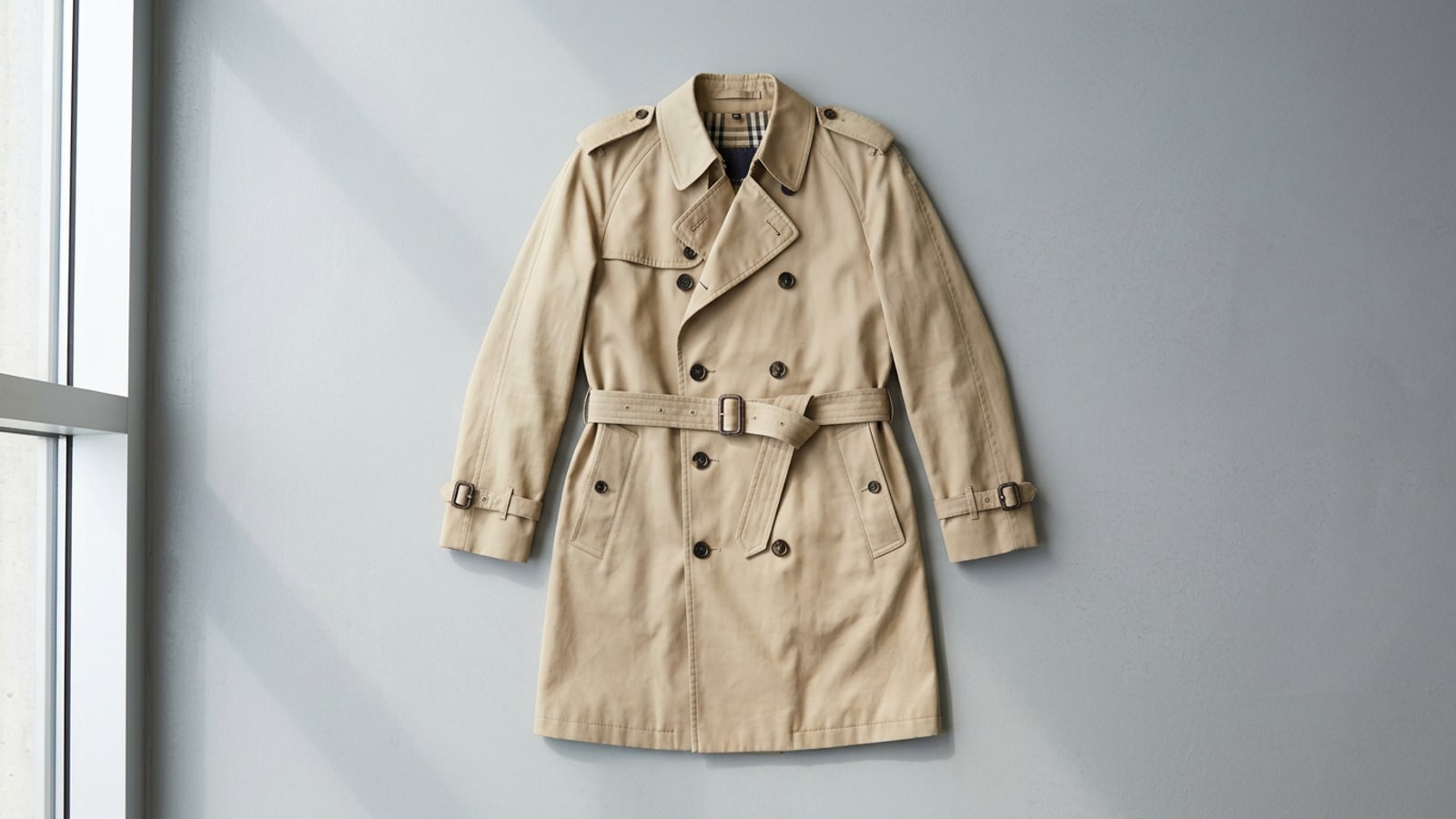
When selling secondhand fashion or indie apparel on platforms like Vinted, Depop, or Shopify, your cover thumbnail acts as your digital storefront. Busy domestic backgrounds—such as messy bedroom floors, wrinkled bedsheets, or distracting wall patterns—divert attention away from the garment itself and signal lower item value.[3]
Isolating the apparel item on a clean, neutral background creates an immediate professional catalog aesthetic. By presenting a focused subject free of environmental distractions, buyers can easily evaluate the garment's silhouette, drape, and overall condition, leading to higher engagement and faster purchase decisions.[3]
Shooting Clothing on iPhone: Preparing Photos for Easy Background Removal
Optimizing natural light and background contrast during capture ensures effortless subject separation later.
Artificial intelligence cutouts and native iOS isolation algorithms perform best when there is high contrast between the fabric and the surrounding floor or wall. Capturing your item with clear separation reduces edge artifacts and saves manual touch-up time.[3]
Whenever possible, photograph your garment flat or on a hanger using soft, indirect daylight from a nearby window. Direct sunlight creates harsh shadows along seams that can confuse detection models, while low light introduces digital noise.[3]
- Select a contrasting backdrop
Place dark garments on a light floor or sheet, and bright or pastel items against a neutral grey or off-white backdrop.[3]
- Maximize soft natural illumination
Position your setup perpendicular to a window to achieve uniform light across the fabric without harsh directional cast.[3]
- Keep the camera lens parallel
Hold your iPhone parallel to flat-lays or directly vertical for hung garments to prevent unwanted optical distortion.[3]
Removing Backgrounds on iOS: Native Apple vs. Dedicated AI Tools
Understanding when to rely on built-in iOS visual lookup and when to use dedicated AI background eraser tools.
Since iOS 16, Apple offers a native subject lift feature in the Photos app. By long-pressing on a garment, iOS isolates the object and lets you copy or drag it into other applications. This quick native shortcut works well for well-defined shapes on contrasting backdrops.[1][5]
However, complex clothing textures—such as fuzzy knits, lace edges, or straps on hangers—often require specialized AI tools. CARA's Remove Background function automatically isolates apparel from its original setting, while the built-in AI Eraser allows you to quickly brush away stray hangers or lingering background blemishes.[8]
Assembling Multi-Angle Visual Collages with Photo Collage Maker and Canvas
Combine front, back, and detail views into a cohesive square or vertical image layout for mobile buyers.
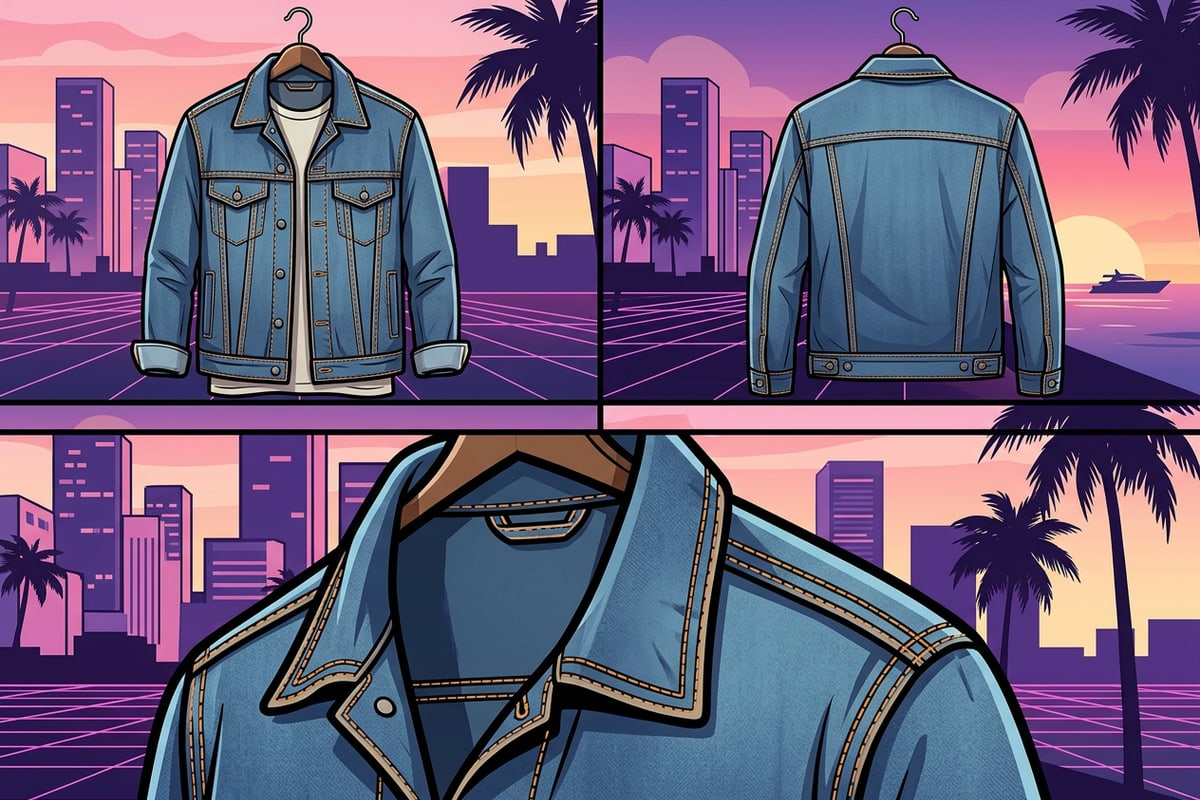
Mobile shoppers rarely click through dozens of individual photos. Combining key angles—such as a front cutout, a back view, and a close-up of brand tags or fabric weaving—into a single composite listing photo provides immediate clarity.[3]
Using CARA's Photo Collage Maker, sellers can select structured grid templates optimized for 1:1 square or vertical product cards. Alternatively, CARA's Free Creative Canvas provides an open workspace where cutouts can be repositioned, scaled, and arranged without rigid boundaries.
- Open Free Creative Canvas or Photo Collage Maker
Start a fresh project on CARA and select your target canvas aspect ratio.
- Import isolated garment cutouts
Add your clean background-removed photos directly onto the workspace.
- Arrange main and secondary views
Position the primary full-length view as the main anchor point, with smaller side-by-side cutouts for the back and detail close-up.[3]
Adding Measurements and Annotations with Text and Brush Tools
Prevent return disputes and sizing questions by adding clear text and hand-drawn measurement indicators directly on your visual.
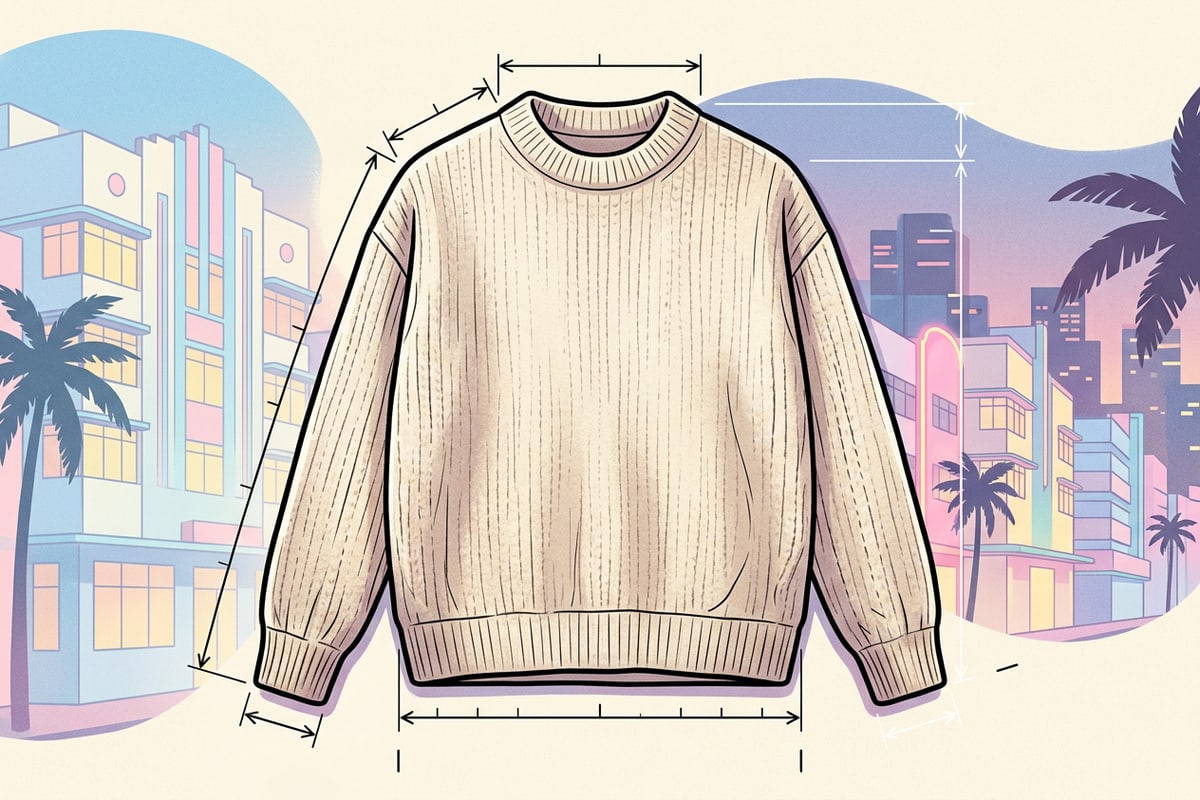
Sizing discrepancies are the leading cause of return requests and negative reviews in secondhand fashion. Including explicit tape-measure annotations directly on the product image eliminates buyer ambiguity regarding pit-to-pit or total length dimensions.[3]
With CARA's Text Editing and Overlay tool, you can place customizable typographic overlays indicating size, fabric composition, or brand details over the canvas. Using Drawing and Brush Tools, you can manually draw clean dimension lines directly across armpits, waistlines, or inseams.
- Text overlays highlight crucial listing facts like tagged size, fit style, and material percentage.
- Brush tools allow you to draw clean dimension arrows directly across key measurement points on the garment.