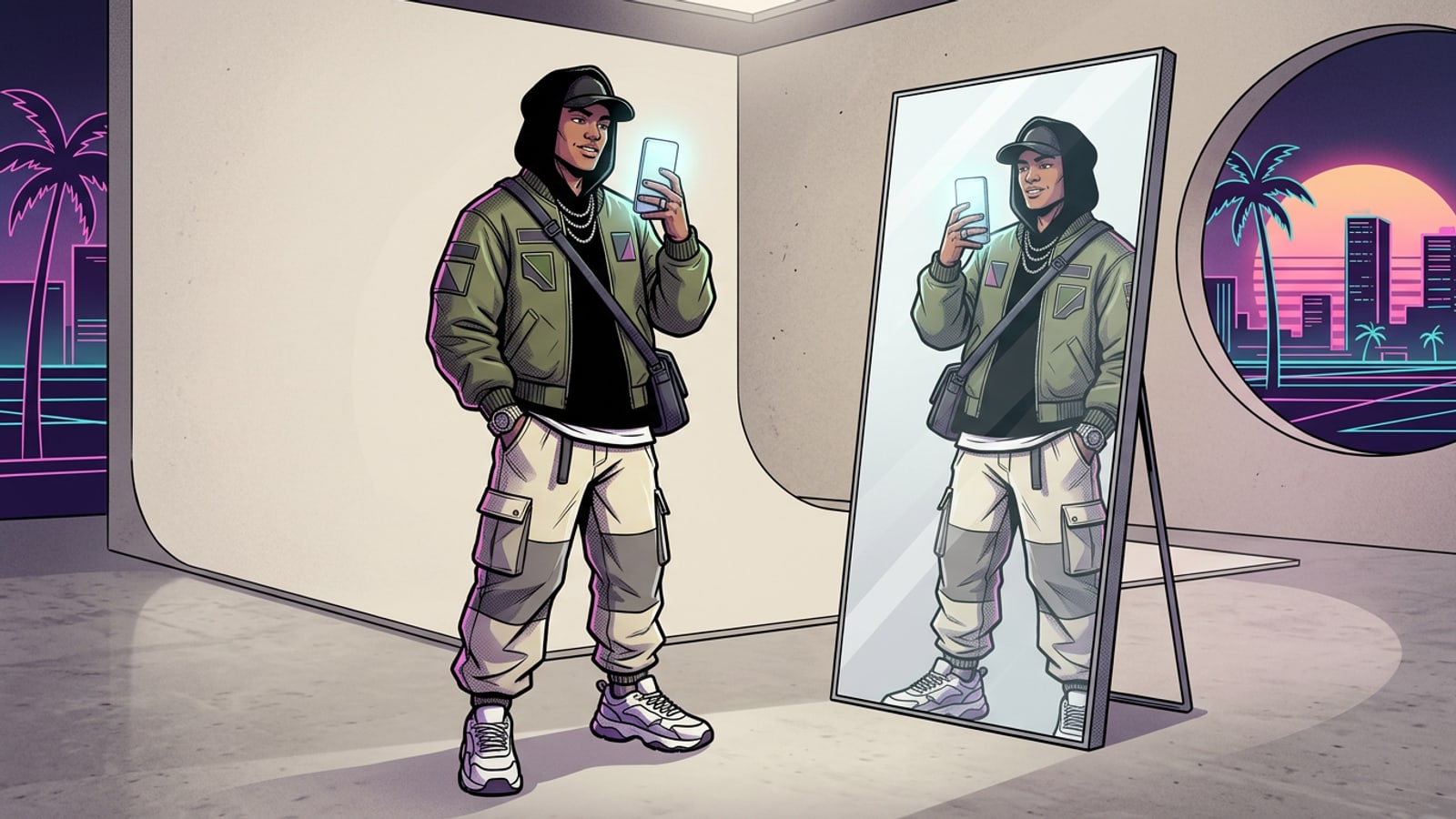
Quick Solution: Turn a Messy Bedroom into a Studio Portrait
Swap cluttered room reflections for polished photo studio backdrops instantly on iOS.
Replacing a messy bedroom, unmade bed, or cluttered clothes rack in your mirror selfie requires isolating your silhouette while generating a neutral studio background with matching ambient light. Instead of spending hours meticulously masking individual fabric folds or hiding laundry in the background, modern iPhone photography workflows allow you to transform the entire environment seamlessly.[3]
By combining iOS camera preparation with CARA's AI Replace and Remove Background tools on iPhone, you can keep your outfit textures, fabric weave, and phone frame crisp while completely eliminating background clutter in just a few taps.[1][3]
The Optical Challenge: Why Standard Cutouts Fail on Mirror Selfies
Understanding optical reflections, low-contrast fabric edges, and phone frame overlaps.
Standard background erasers and legacy cutout tools often fail dramatically on mirror selfies because mirror glass introduces unique optical complexities. Reflections on mirror glass create secondary outlines, subtle ghosting, double edges, and complex ambient light bounce. When a conventional edge-detection algorithm tries to isolate your outfit, it easily chops off delicate lace, sheer knitwear, frayed denim, or stray hair strands that blend into the cluttered bedroom behind you.[1]
Another critical hurdle is lighting direction mismatch. A mirror selfie captured under a harsh overhead bedroom ceiling light or a warm bedside lamp looks jarringly fake when pasted directly onto a flat studio backdrop with strong rear daylight or cool side fill. Achieving a natural, high-fashion result requires generative background replacement that respects the key light direction, shadow angle, and color temperature falling on your body and clothing.[2][3]
- Double edges and glass reflections confuse simple contrast-based subject cutouts, leading to pixelated borders around shoulders and waistlines.[1]
- Translucent fabrics, fringed jackets, and fine hair require preserve-subject generative masking rather than aggressive hard-edge clipping.[3]
- The physical phone frame, camera module, and your fingers gripping the device create intricate overlap zones that frequently cause jagged AI artifacts if left unrefined.[3]
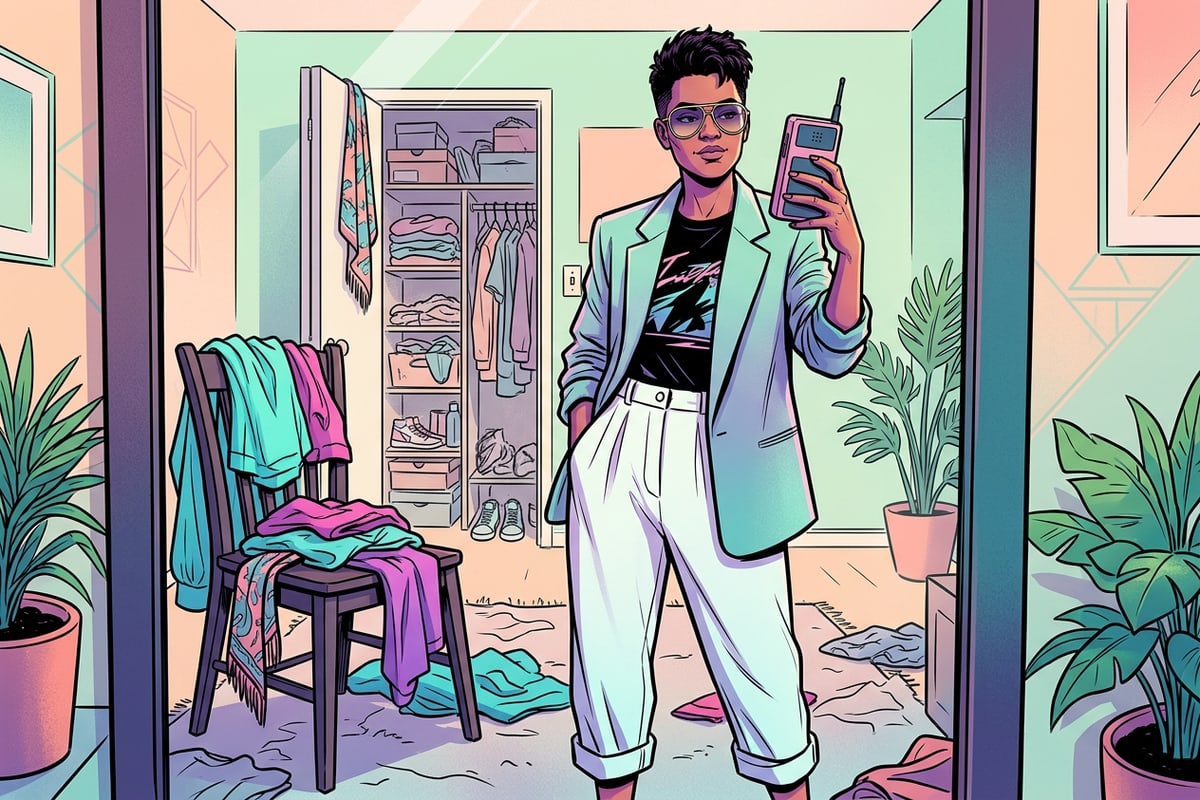
Step-by-Step: Transform Your Mirror Selfie with CARA on iOS
A practical walkthrough for preparing your iPhone camera and executing AI background replacement.
Transforming your daily outfit check photo from a cluttered bedroom shot into a clean, editorial studio portrait takes only a few minutes on iOS. By following a structured approach, you maintain full control over your silhouette while letting generative AI construct realistic studio walls behind you.[1][3]
Using CARA's dedicated AI features on iPhone or iPad, you can isolate the background without altering your original pose, facial expression, or garment details. The process preserves non-destructive editing principles so you never lose the core authenticity of your photo.[3]
- Prepare and Capture Your iPhone Mirror Selfie
Shoot your photo using the native iPhone Camera app in 9:16 vertical aspect ratio to give your outfit full vertical clearance. Check your camera settings to ensure automatic mirror flipping is configured correctly so logos or t-shirt text stay readable.[1][2]
- Import Image and Select Remove Background or AI Replace
Launch CARA on your iPhone or iPad and load your mirror selfie. Select Remove Background if you want to completely drop the messy bedroom, or tap AI Replace to highlight specific cluttered zones like open closet doors or unmade beds while preserving room geometry.[3]
- Apply Conversational Prompt Instructions in Cara Agent
Type clear, natural language instructions into the conversational editor. Ask the agent to generate a sleek minimalist photo studio cyclorama wall with soft ambient floor shadows, explicitly stating to preserve the person, clothing textures, and original outfit contrast.[3]
- Refine Border Details and Save Your High-Res Portrait
Zoom in on critical contact zones, such as where your hands grip the iPhone or where your footwear meets the floor shadow. Check hair strands and coat lapels for clean separation before exporting your finalized studio portrait.[3]
Prompt Recipes for Conversational AI Editing
Copyable prompt templates for generating minimalist Japandi, concrete, and soft studio walls.
CARA's Conversational Photo Editing through Cara Agent allows you to describe exact interior aesthetics using plain language commands. Giving the AI clear structural, textural, and lighting cues produces cleaner, higher-fidelity backdrops that merge naturally with the highlights and shadows of your original selfie.[3]
Whether you prefer typing prompts in Spanish or English, the key to success lies in descriptive spatial terminology. Always structure your prompt by defining three essential elements: the wall texture/material, the ambient light source, and an explicit preservation directive for your outfit and body.[3]
- Minimalist Concrete Studio: 'Reemplazar el fondo desordenado por una pared de estudio de concreto pulido gris claro, iluminación difusa cenital con suaves sombras en el suelo, manteniendo a la persona y la ropa totalmente intactas y nítidas.'[3]
- Warm Japandi Aesthetic: 'Sustituir la habitación por un fondo estilo Japandi con pared de yeso texturizado beige cálido, luz suave de ventana lateral y sombras naturales en el suelo, conservando la silueta y textura del atuendo original.'[3]
- Seamless White Cyclorama: 'Replace messy background with a seamless white photo studio cyclorama wall, soft overhead diffusion lighting, clean floor reflections, keeping original outfit sharpness and person completely unchanged.'[3]
- Industrial Loft Backdrop: 'Reemplazar el dormitorio por un fondo de estudio estilo loft industrial con pared de ladrillo blanco pintado con textura suave, iluminación de estudio neutra y preservar todos los detalles del atuendo sin alteración.'[3]
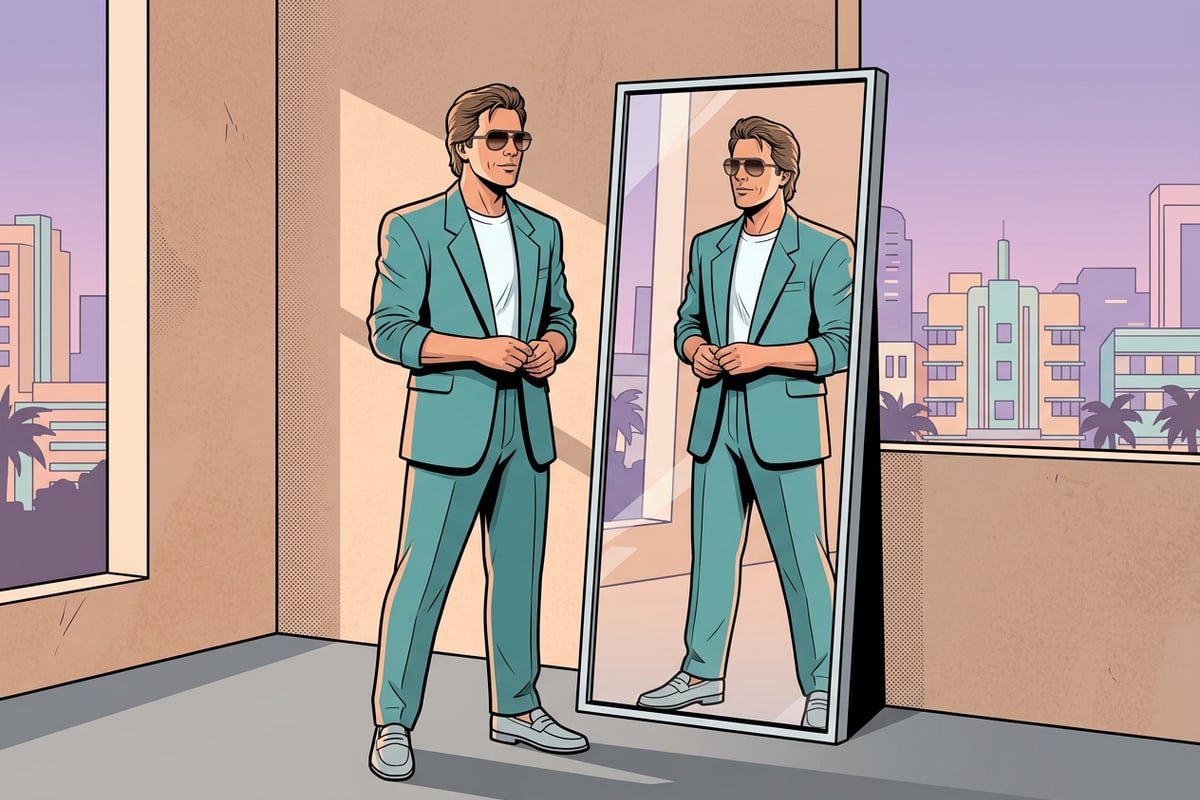
Lighting Coherence, Edge Cleanups, and Framing Extenders
Fixing cut-off footwear, unmatched flash shadows, and hand-phone border artifacts.
A frequent headache with mirror selfies is accidental tight framing—such as cutting off your shoes at the bottom of the frame or slicing off the top of your hairstyle due to mirror size limits. Instead of retaking the shot or settling for awkward cropping, you can use CARA's Image Extender tool to expand the canvas beyond its original borders and outpaint realistic studio flooring or ceiling space.[3]
To maintain visual plausibility, align the light source of your newly generated background with the specular highlights on your phone lens or mirror surface. If your original selfie features a strong frontal smartphone flash burst, select background prompts with soft frontal or overhead diffusion rather than intense backlighting to avoid visual contradiction.[1][3]
- Utilize Image Extender (Outpainting) to uncrop restrictive mirror borders, restoring missing footwear or granting extra headroom for lock screen wallpaper layouts.[3]
- Eliminate localized distractions or stray clothes hangers prior to full replacement by applying AI Eraser to clean up high-contrast background spots.[3]
- Touch up tricky finger grips on the iPhone case with AI Replace to smooth out minor edge bleed or pixel smudging along metallic phone rails.[3]
- Fine-tune color temperature, contrast, and depth of field using native iOS Photos adjustments after generation to unify subject and background tones.[2]