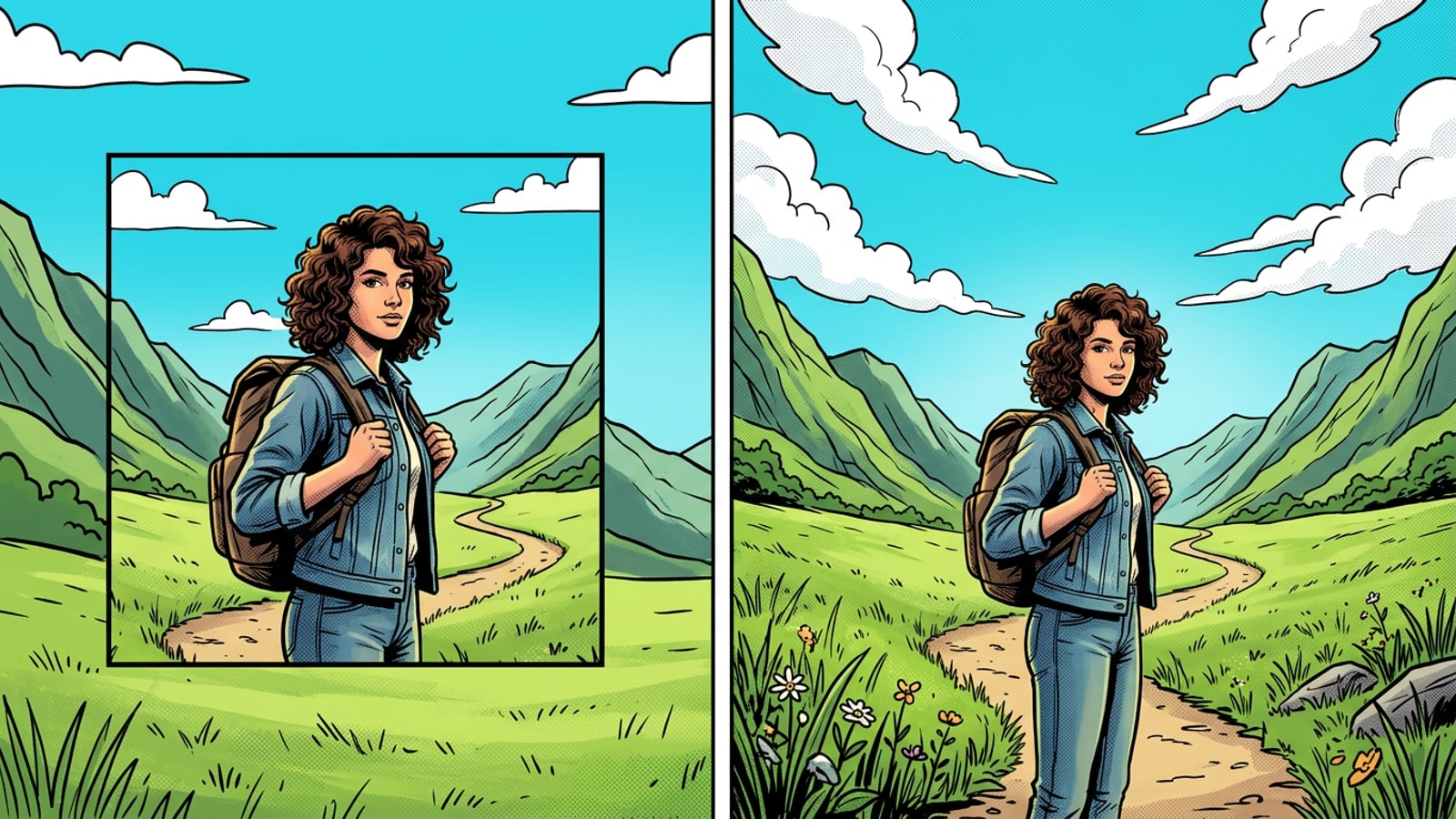
Quick Start: Convert Square iPhone Photos to 9:16 Without Cropping Details
A fast direct workflow for creators needing immediate vertical expansion of 1:1 photos without sacrificing subject framing.
Publishing square 1:1 photos to vertical 9:16 Instagram Stories or TikTok frames often causes framing headaches when pinching to zoom cuts off essential subject details such as hats, hair, or footwear.[1]
Generative AI outpainting resolves this aspect ratio conflict on iOS by expanding the visual canvas upward and downward. The original photo centered in the canvas remains untouched at pixel level, while generative models synthesize matching sky, ground, or background textures to fill the full 9:16 container.[1][2]
- Preserve 100% of original subject framing without forced zoom cropping.[1]
- Synthesize extended top and bottom background margins automatically.[1]
- Create dedicated vertical margin space ideal for text overlays and interactive widgets.[2]
- Open Image Extender in CARA
Launch CARA on iOS and tap Home > AI Editing > Image Extender.[2]
- Select your 1:1 source photo
Choose your square or tightly cropped photo from your iPhone camera roll.[2]
- Set 9:16 target ratio and generate
Select the 9:16 vertical ratio option and execute the processing job (consumes 30 points).[2]
The 9:16 Story Dilemma: Why Manual Zoom Cropping Ruins Composition
Understanding the visual geometry and pixel loss caused by scaling 1:1 square photos directly into vertical 9:16 containers.
Converting a square 1:1 photograph (such as 1080 x 1080 pixels) into a vertical 9:16 story layout (1080 x 1920 pixels) creates a vertical deficit of 840 pixels. When you manually zoom in to fill the vertical frame, you destroy approximately 43.7% of your original image height across the top and bottom edges.[1]
To avoid losing subject details, creators historically relied on blurred background letterboxing. However, letterboxing shrinks the visible central photo and creates a cluttered presentation that fails to capitalize on modern mobile full-screen displays.[1][2]
- Forced Zoom Cropping: Eliminates up to 43.7% of image content, truncating hats, footwear, and horizon context.[1]
- Blur Letterboxing: Preserves the original image but reduces main subject scale and looks visually dated.[1]
- Generative AI Outpainting: Fills the entire 9:16 vertical canvas without altering original central pixels.[1][2]
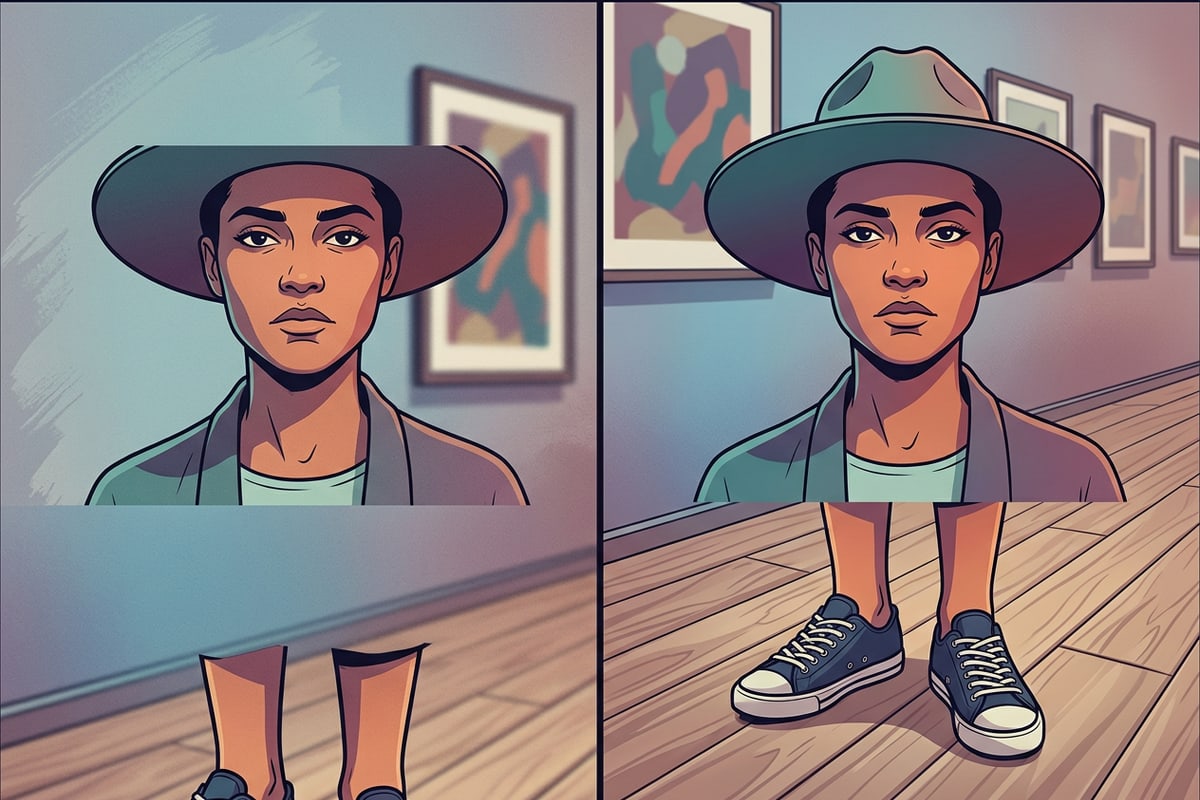
How AI Outpainting Synthesizes Sky, Ground, and Boundary Textures
An explanation of how generative visual models evaluate boundary gradients to build photorealistic background continuations.
Generative AI outpainting does not warp or stretch existing pixels. Instead, generative deep learning algorithms analyze the edge vectors, lighting sources, depth of field, and color gradients along the outer borders of your source image to project what logically extends beyond the frame.[1]
This contextual synthesis works remarkably well for continuous natural environments like blue skies, passing clouds, body of water, sand, or studio backdrops. However, outpainting faces physical and geometric limitations on complex historical architecture or sharp angular perspective lines where small seam alignments may require visual inspection.[1]
- Optimal Environments: Sky, clouds, oceans, beaches, grass, soft gradients, and studio backdrops.[1]
- Moderate Complexity: Wooden flooring, interior walls, distant cityscapes, and soft brickwork.
- Requires Inspection: Intricate geometric tile patterns, complex structural perspective lines, and fine architectural detail.[1]
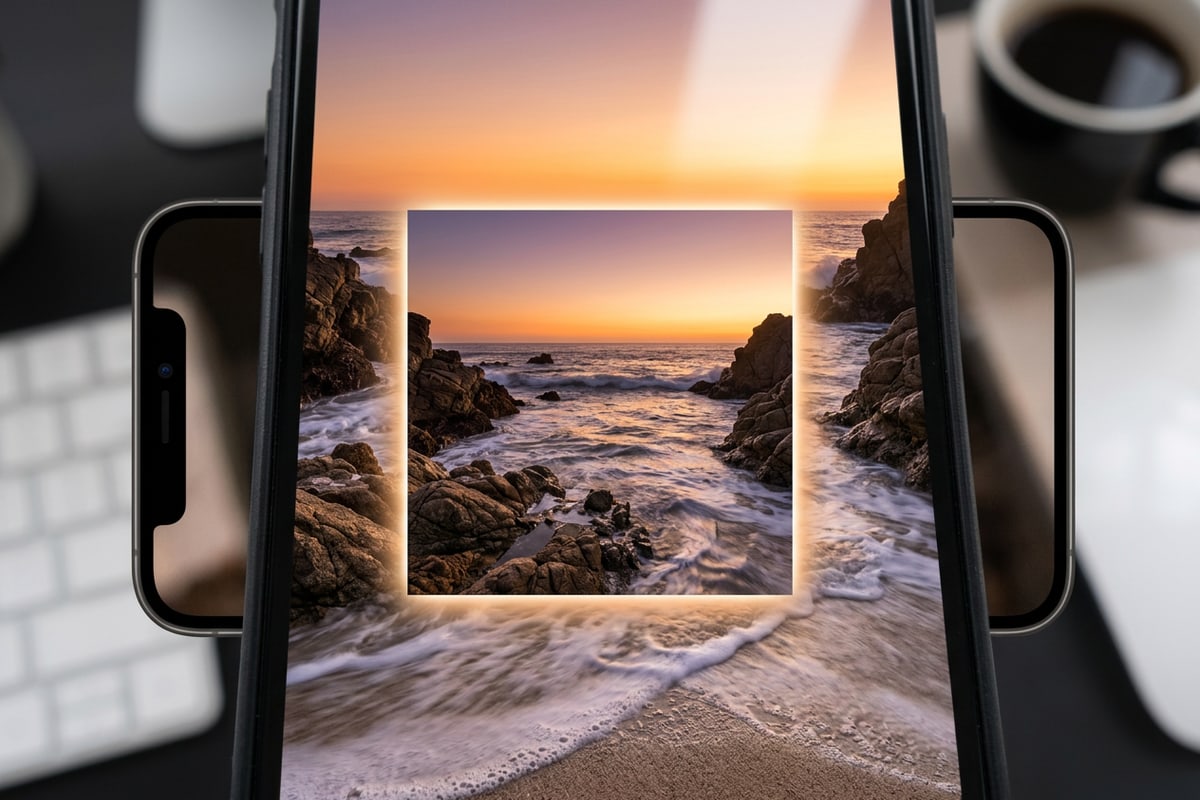
Step-by-Step Guide: Expanding Backgrounds with CARA Image Extender
A practical walkthrough for extending square photos directly on iOS using CARA's dedicated AI workflow.
CARA provides a dedicated iOS tool for non-destructive canvas extension. By selecting Image Extender, mobile creators can expand 1:1 or tight landscape photos directly to 9:16 vertical orientation while keeping center pixel data completely unchanged.[2]
Executing an Image Extender job consumes 30 points per generation attempt. To protect creator credit balances, CARA features an automated point refund policy: if processing fails due to server connection issues or execution timeout, the 30 points are automatically returned to your account.[2]
- Direct iOS Navigation: Access the tool via Home > AI Editing > Image Extender.[2]
- Format Precision: Select the vertical 9:16 target ratio ideal for Instagram Stories and TikTok.[1][2]
- Fair Point Safeguard: Automatic 30-point system refund if processing or server errors occur.[2]
- Open CARA and navigate to Image Extender
Launch the CARA app on iOS, tap Home, go to AI Editing, and choose Image Extender.[2]
- Upload your square source photo
Select your 1:1 or tightly cropped image from your iPhone library.[2]
- Select 9:16 ratio and start processing
Choose 9:16 vertical ratio and confirm execution for 30 points.[2]
Quality Inspection & Finishing Touches: Verifying Seams and Polishing Stories
How to inspect AI seams, clean unwanted phantom objects, and overlay typography in newly gained canvas space.
Once outpainting is complete, zoom in on the transition boundaries where the original photo edge meets the newly generated canvas. While most outpainting results blend seamlessly, generative models can occasionally produce subtle repeating shapes or minor edge specks.[1][2]
If a minor artifact appears along the boundary, you can quickly remove unwanted objects using CARA's AI Eraser instead of rerunning the entire image expansion. Additionally, the new top and bottom canvas space serves as an ideal backdrop for adding text layers with CARA's local Text Editing and Overlay tool.[2]
- Boundary Seam Verification: Pinch to zoom along upper and lower transition seams to ensure texture continuity.[1]
- Artifact Cleanup: Use CARA AI Eraser to remove stray specks or unintended edge elements quickly.[2]
- Visual Typography: Place captions, dates, or location stickers in the expanded sky or floor space using local Text Editing and Overlay.[2]
- Inspect transition seams
Zoom into the top and bottom boundary lines to verify smooth gradient and texture blending.[1]
- Clean edge artifacts with AI Eraser
Select AI Eraser to erase any small phantom objects or repeating patterns along the newly generated borders.[2]
- Add local text overlay
Use Text Editing and Overlay to position captions neatly in the newly gained canvas area without obstructing the central subject.[2]