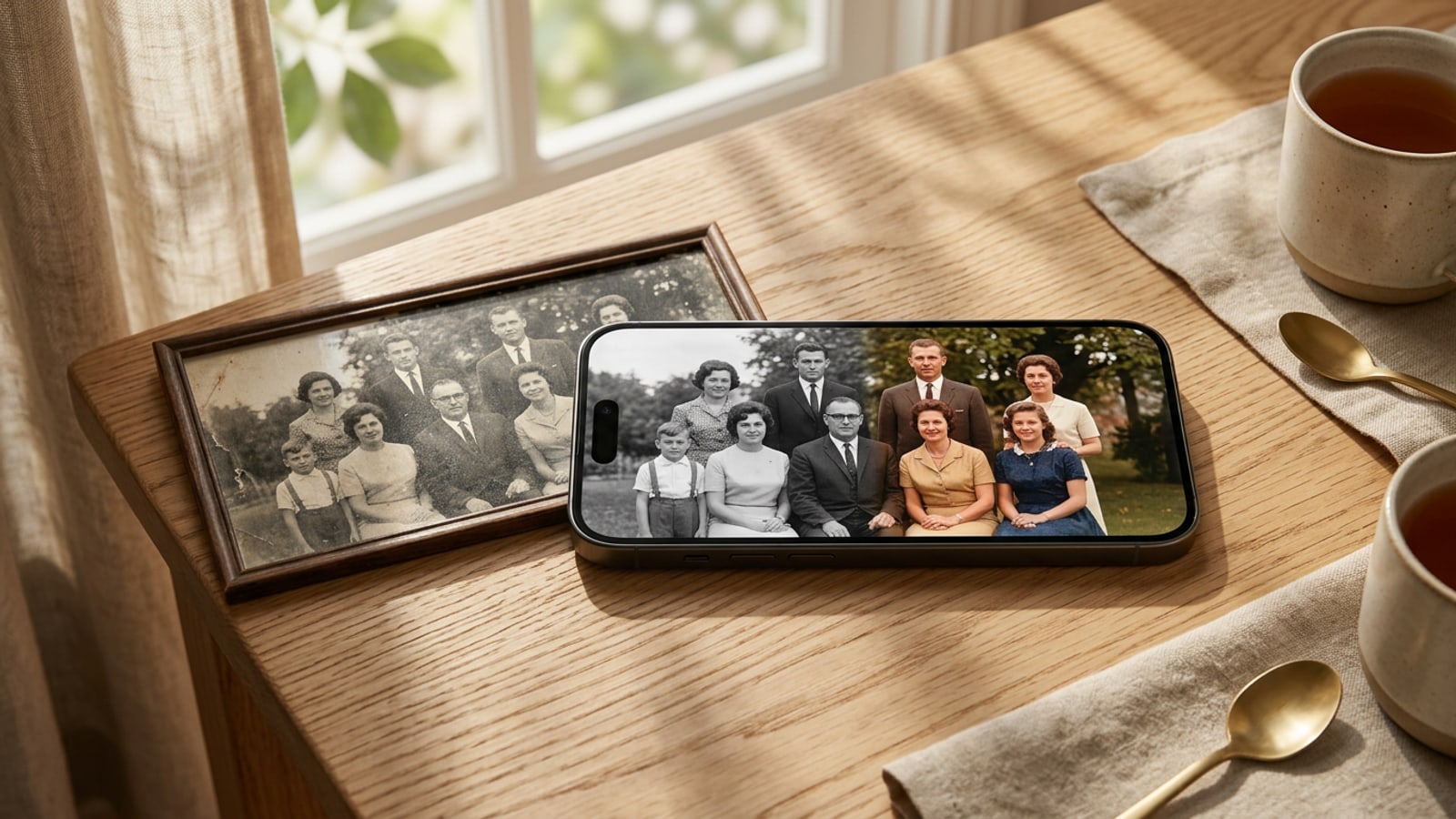
Why AI Colorizes Black-and-White Photos Naturally: Mechanics and Limits
Deep learning models analyze luminance patterns, structural textures, and global scene context to estimate likely colors rather than retrieving historical color data.
Restoring printed monochrome family portraits from past decades no longer requires hours of painstaking manual digital brushwork. Modern artificial intelligence algorithms evaluate the gray values in a black-and-white image and predict plausible chromatic values across the entire composition.[1]
Deep convolutional neural networks process both the global context of a photo (such as distinguishing an outdoor garden from a traditional Japanese tatami room) and local surface textures (such as skin, foliage, or woven textiles) simultaneously. By analyzing millions of training examples, the AI assigns hue and saturation values that statistically match similar patterns in real-world color photography.[1]
It is essential to understand that AI colorization is a sophisticated statistical prediction rather than a verified historical restoration. While organic elements like sky, leaves, and human skin tones are estimated with high fidelity, synthetic dye colors on vintage garments or specific architectural paints may require contextual guidance from the user to reflect personal memory accurately.[1]
- Global Context Recognition: Identifies overall settings like indoor parlors, outdoor parks, or festive gatherings to set macro color harmony.[1]
- Local Texture Analysis: Distinguishes skin, hair, wood grain, and fabric weaves to apply targeted tone distributions.[1]
- Statistical Estimation Limit: Infers likely colors based on pattern probability rather than revealing unseen original pigments.[1]
Step 0: iPhone Scanning Techniques to Maximize AI Colorization Accuracy
Capturing paper photos without specular reflection or perspective distortion ensures the AI receives clean luminance inputs.
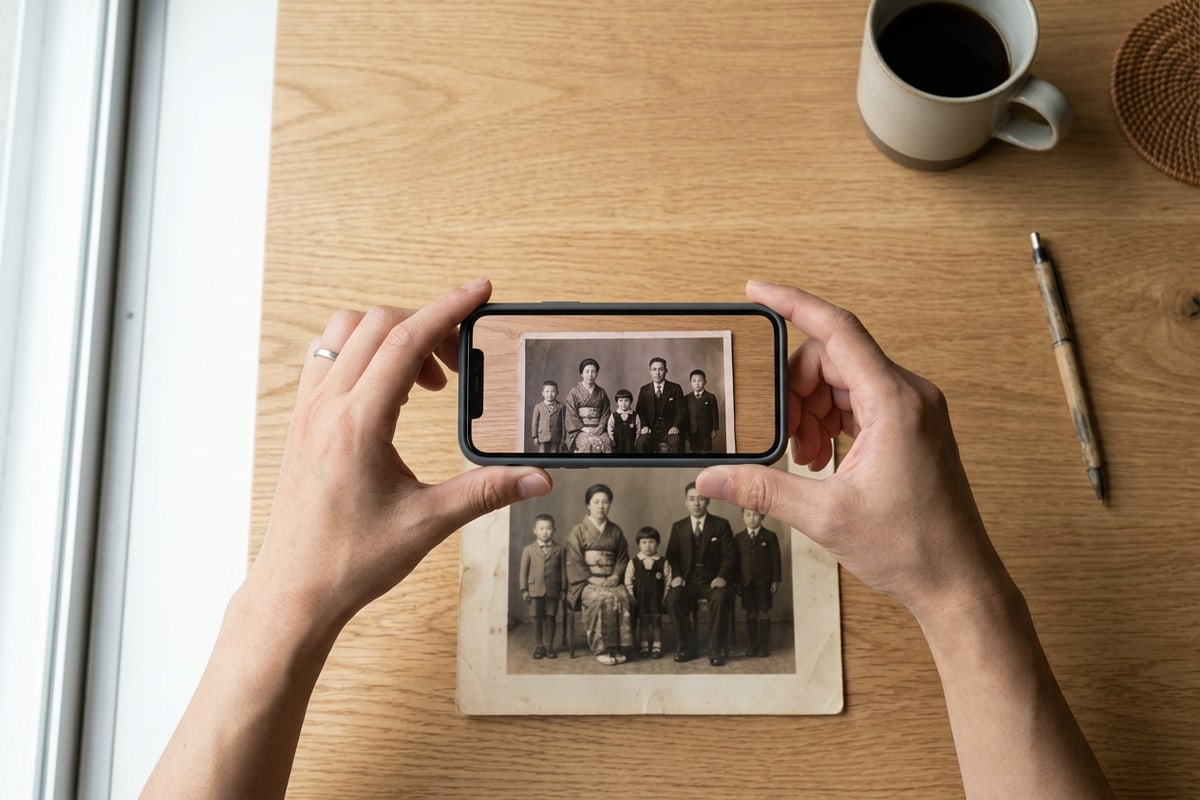
Before feeding a paper photo into any AI colorization engine, the quality of the digital capture plays a decisive role in the final output. Harsh highlights from indoor lightbulbs or surface reflections on glossy photographic paper cause the AI to misinterpret bright spots as white objects or severe noise.[2]
To achieve optimal scanning results with an iPhone, position the original print flat on an uncluttered surface near a large window receiving indirect daytime light. Avoid direct sunlight, which creates intense glare and harsh contrast.[2]
- Set Up Soft, Indirect Lighting
Place the print near a window during daytime or under diffused indirect lighting. Turn off ceiling lights that cast direct hotspots.[2]
- Align iPhone Parallel to the Print
Hold your iPhone directly above the photo, keeping the camera plane strictly parallel to the paper to prevent trapezoidal perspective skew.[2]
- Lock Focus and Exposure
Tap the screen on the subject's face to establish precise focus, then slightly adjust the exposure slider so highlights retain texture without clipping.[2]
Steps 1 to 3: Basic Colorization Workflow with CARA on iOS
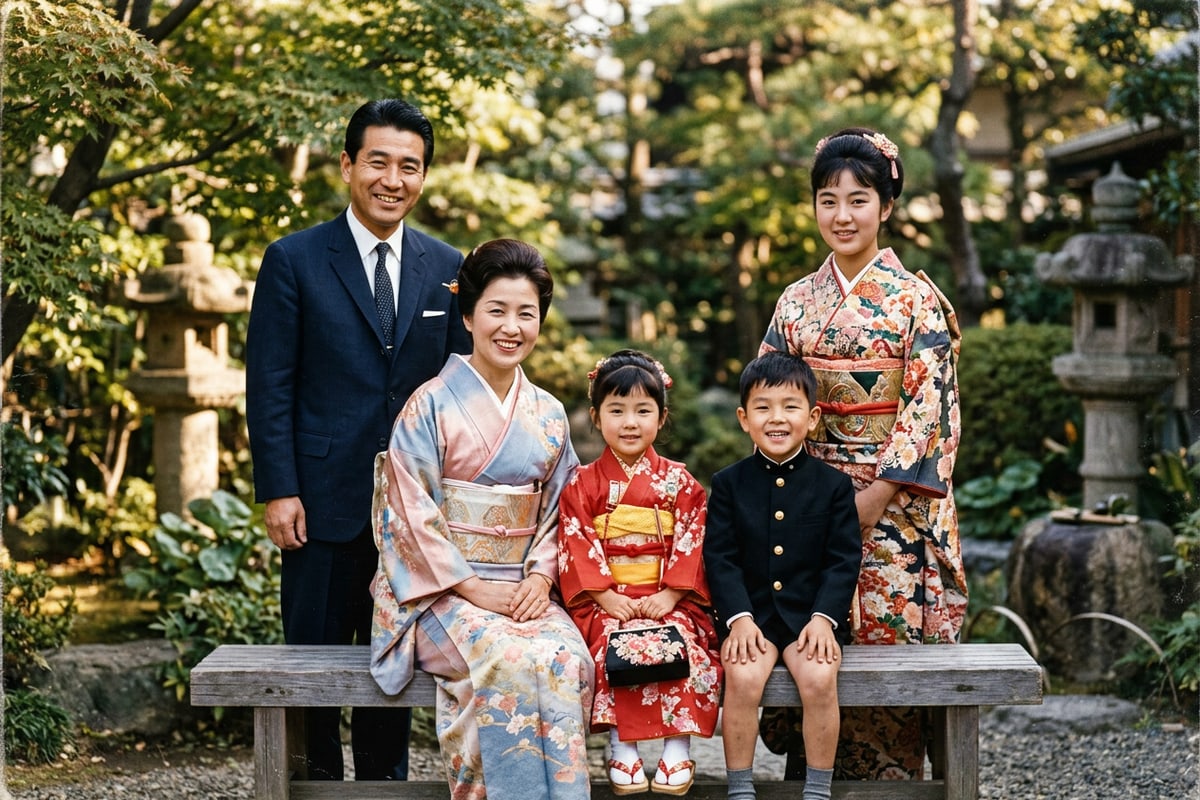
Using CARA's automated Photo Colorize tool to convert scanned monochrome photos into rich baseline color images.
Once your paper photograph is cleanly digitized on your iPhone, specialized iOS creativity applications make baseline colorization effortless. CARA provides a dedicated Photo Colorize tool engineered to evaluate monochrome inputs and apply natural chromatic balances without requiring complex software skills.[2][3]
The processing occurs quickly in cloud environments, analyzing the uploaded photo's tonal structure and applying believable natural pigments across skin, clothing, and environment.[2]
Step 4: Fine-Tuning Scenery and Kimono Tones with Cara Agent Prompts
Using conversational natural language instructions in Cara Agent to refine garment colors, foliage tones, and retro aesthetic warmth.
While automatic colorization handles natural landscapes and skin tones effectively, AI models often assign neutral gray or brown shades to artificial textiles like Showa-era kimonos, school uniforms, or retro vehicle bodies. CARA solves this through Conversational Photo Editing in its Agent experience.[1][2]
Instead of accepting generic automatic estimates, you can issue natural language prompts to guide specific visual elements toward your family memories or preferred artistic direction. For instance, if you know a relative's kimono was deep crimson or a family car was navy blue, simple text prompts instruct the AI agent to adjust those specific areas while preserving lighting fidelity.[2][3]
This conversational approach eliminates manual selection masks or desktop painting applications. If you also need to adjust photo framing or modify peripheral details after colorization, you can explore specialized generative techniques like how-to-turn-tightly-framed-iphone-photos-into-16-9-cinematic-stills-with-ai-ja or change-photo-outfits-on-iphone-step-by-step-ai-replace-prompt-guide-ja.[2]
- Kimono & Formalwear Prompt: 'Change the woman's traditional kimono to a warm crimson red with soft golden pattern accents.'[2]
- Showa Retro Ambience Prompt: 'Apply soft vintage film color tones with gentle sunlight warmth across the entire garden background.'[2]
- Uniform & Garment Prompt: 'Color the student jacket dark navy blue while keeping skin tones natural and soft.'[2]
Applied Workflows and Archival Tips for Preserving Family Memories
Combining colorized versions with original scans and organizing digital family albums on iOS.
Restoring vintage photographs is as much about preservation as it is about creative colorization. Once you have finalized your colorized images, establishing a thoughtful archiving system ensures these digital keepsakes remain accessible for future generations.[3]
Consider creating shared iOS Photo Albums where family members can view both the original monochrome scans and the restored color versions side by side. If unwanted artifacts, dust marks, or distant background distractions exist in your original physical photos, tools like how-to-erase-photobombers-and-crowds-from-iphone-vacation-photos-with-ai-ja can help clean up distracting background elements.[2]
You can also use CARA's Photo Collage Maker to craft elegant side-by-side comparison grids or multi-generational family prints suitable for gifting or digital sharing.[2]
- Dual Archiving: Save both the pristine black-and-white master scan and the AI-colorized file in lossless formats within iCloud Photos.[3]
- Metadata Tagging: Add date, location, and family member names into the iOS photo caption field to pair historical context with digital colors.[3]
- Collage Layouts: Combine multiple colorized snapshots into grid stories using CARA's Photo Collage Maker for anniversaries or family reunions.[2]