
The Magic of Bringing History to Life: Outcome-First Colorization
Discover how easy it is to breathe new life into vintage black-and-white photos using modern mobile AI.
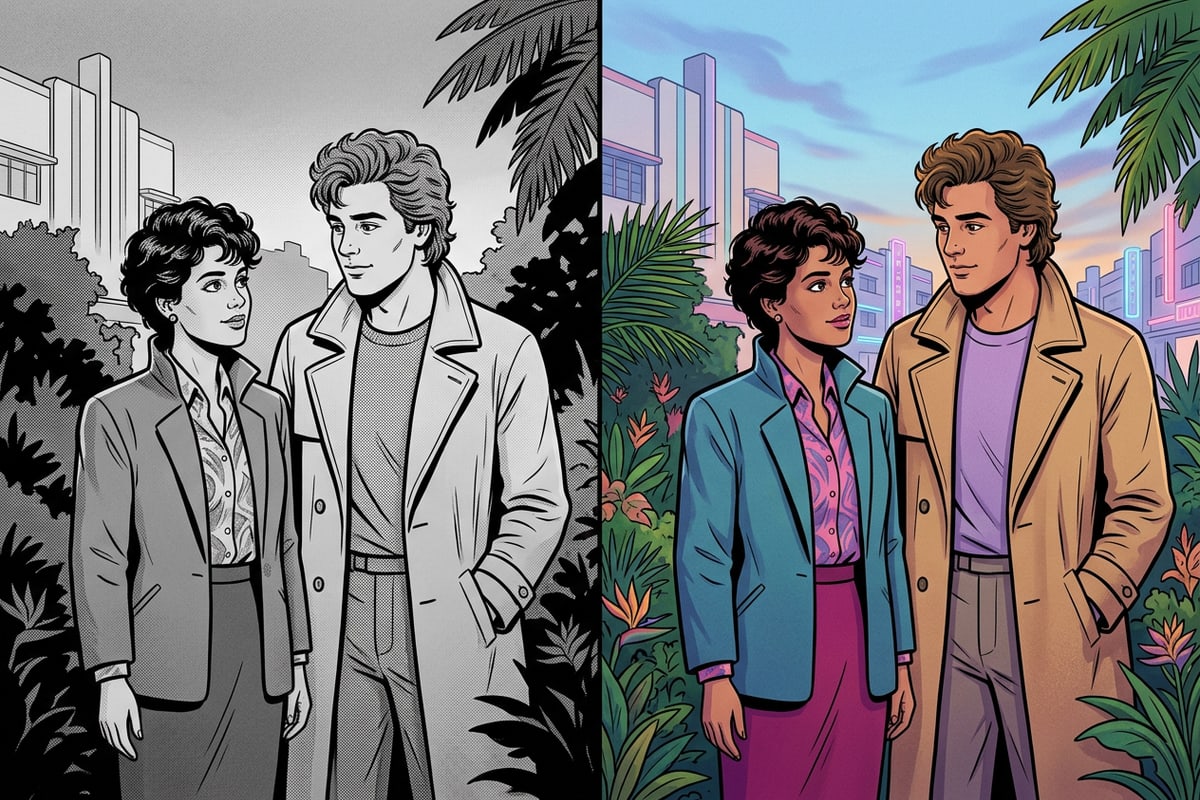
Seeing a black-and-white family portrait transform into a vibrant, colorized image can feel like stepping into a time machine. It bridges the gap between generations, making historical figures and ancestors feel like real people who walked under the same blue skies we do today. With Cara, an AI-powered creativity app available on iOS and iPadOS, you can achieve this transformation with just a few taps on your mobile device.[1]
Cara provides a dedicated Photo Colorize tool designed specifically to add estimated color to supported black-and-white photos. Instead of spending hours manually painting layers in complex desktop software, creators can utilize Cara's mobile interface to process images instantly. Each colorization attempt costs 30 points, which are deducted from your account's credit balance. The app is free to download from the App Store and includes limited free generations, with a points system and in-app purchases available for those who need more credits.[1][2]
Preservation First: The Non-Destructive Restoration Workflow
Learn why protecting your original physical and digital monochrome assets is the most critical step before applying any AI edits.
Before you upload any historical photo to an AI tool, it is vital to establish a preservation-first workflow. Vintage photographs are fragile physical artifacts, and their digital scans represent irreplaceable historical data. AI colorization is an exciting creative tool, but it should always be treated as a non-destructive addition rather than a replacement for your original monochrome files.[2]
A common mistake among mobile creators is overwriting the original high-resolution grayscale scan with the colorized version. This permanently destroys the raw historical data of the image. To prevent this, always work on a copy of your digitized photo, leaving the original scan untouched in a secure backup location.[2]
- Digitize at high resolution: Scan your physical photos at a minimum of 300 DPI (600 DPI is ideal for small prints) to capture maximum texture and detail.
- Create a dedicated working copy: Never upload your primary digital backup. Duplicate the file first and label it specifically for AI editing.
- Store originals securely: Keep your raw grayscale scans in a cloud storage service or external drive to ensure they remain unaltered for future generations.
Step-by-Step: How to Colorize Photos with CARA
A clear, actionable guide to using the Photo Colorize tool and complementary safe features in the Cara app.
Once your working copy is safely prepared, you can begin the colorization process using Cara on your iPhone or iPad. The app's streamlined interface makes it easy to navigate directly to the colorization engine without needing advanced technical skills.[1]
In addition to colorization, you can refine your final image using other live features. For instance, if your vintage photo contains distracting dust spots, scratches, or unwanted modern objects in the background, you can use Cara's AI Eraser to remove them. Furthermore, if you want to expand the composition of your photo beyond its original borders, the Image Extender can generate surrounding content to seamlessly fill the frame.[2]
- Upload Your Working Copy
Select the duplicate black-and-white photo from your device's photo library. Ensure you are using the copy, not the original backup.[2]
- Process the Image
Tap to initiate the colorization. The app will deduct 30 points from your balance and use cloud-based AI to estimate and apply realistic colors to the scene.[2]
- Polish with AI Eraser (Optional)
If there are unwanted objects or minor background blemishes, select the AI Eraser tool to brush over and remove them. Note that complex backgrounds might require a second attempt for a clean blend.[2]
- Extend the Frame (Optional)
If you want to change the aspect ratio or add generated surrounding content, use the Image Extender to expand the borders of your newly colorized photo.[2]
Troubleshooting Common Colorization Challenges
Learn how to handle faded contrast, glare, and physical damage before and after the AI colorization process.
AI colorization algorithms rely heavily on the contrast and clarity of the input image to distinguish where one object ends and another begins. If your physical photo has faded over decades, the resulting digital scan might lack the distinct grayscale boundaries the AI needs to isolate elements. To fix this, adjust the exposure and contrast settings during the scanning phase to ensure deep blacks and clean whites are captured.[3]
Physical damage like tears, deep creases, or heavy dust can also confuse the AI, leading to strange color patches or bleeding edges. While Cara does not currently offer an automated photo restoration or tear-repair tool, you can clean up the physical photo gently with a soft microfiber cloth before scanning. Once digitized and colorized, you can use Cara's AI Eraser to target and remove minor dust spots or scratches that survived the scanning process.[2]
- Faded Contrast: Adjust the black point and white point during scanning to help the AI identify distinct objects like clothing, foliage, and skin.[3]
- Scanner Glare: Scan physical glossy photos at an angle or use a polarized light source to prevent bright white spots that block color estimation.
- Color Bleeding: If colors bleed across edges, try using a higher-resolution scan. Clearer edge contrast helps the AI engine isolate colors accurately.[3]
Managing Expectations: Algorithmic Estimation vs. Historical Proof
Understand the underlying science of AI colorization and why the generated colors are creative predictions rather than historical facts.
To truly appreciate AI photo colorization, it helps to understand how the technology works. When you upload a monochrome image, the AI does not 'uncover' hidden color data. Instead, it analyzes the textures, shades of gray, and shapes within the image, comparing them to millions of color photos it was trained on. Based on this training, it calculates the most statistically probable colors for elements like grass, sky, clothing, and skin tones.[3]
Because this process relies on statistical probability, the generated colors are artistic estimations rather than historical proof. For example, if your grandmother wore a yellow dress in 1945, the AI might colorize it as blue or green simply because those colors are more common in its dataset for that style of clothing. It is important to present these colorized images as creative interpretations rather than objective historical records.[2][3]
When sharing your colorized photos online or with family, it is best practice to label them as 'AI-colorized.' This maintains historical integrity while still allowing everyone to enjoy the emotional warmth and depth that color brings to old memories. To see how Cara stacks up against other popular mobile editors, you can check out our comprehensive comparison of the best AI photo editors.