 Scan to Download
Stop Guessing, Start SeeingVirtual Baby Try-On Guide
Say goodbye to the struggle of physical fittings and the disappointment of 'not-quite-right' online orders. Preview every outfit on your baby before you buy.
What You'll Learn
Master the art of virtual baby styling in minutes.
Effortless Style Visualization
Every parent knows the struggle: you find an adorable outfit online, wait days for delivery, only to realize the style doesn't suit your little one or the colors clash with their existing wardrobe. Even worse, trying to take a toddler to a physical store for a fitting is often a recipe for a public meltdown involving strollers, diaper bags, and a very unhappy child. In this guide, you will learn how to use BabyFit, an AI-powered iOS app, to eliminate these shopping headaches forever.
- How to create a digital twin of your baby for instant styling.
- The secret to mixing and matching accessories like hats and shoes with main outfits.
- Techniques for visualizing complete holiday looks before spending a cent.
- How to save time and energy by skipping the physical fitting room entirely.
Note: While this guide focuses on style, aesthetic compatibility, and outfit coordination, it does not cover size measurements. Always check the brand's size chart for technical fit!
The Complete Step-by-Step Guide
From photo upload to the perfect virtual preview.
Mastering the Virtual Fitting Room
Using BabyFit is designed to be as simple as taking a photo. Powered by Google Gemini AI, the app handles the complex rendering so you can focus on the cuteness. Follow these steps to start your virtual fashion show.
Download BabyFit
Head to the iOS App Store and search for 'BabyFit'. Install it on your iPhone or iPad to begin.
Prepare Your Baby's Base Photo
Take a clear, well-lit photo of your baby standing or sitting. A plain background works best for the AI to identify their silhouette.
Screenshot Your Wishlist
Find the clothes you want to try on any shopping site and take a screenshot. Ensure the clothing item is the main focus of the image.
Open the 'Try-On' Tab
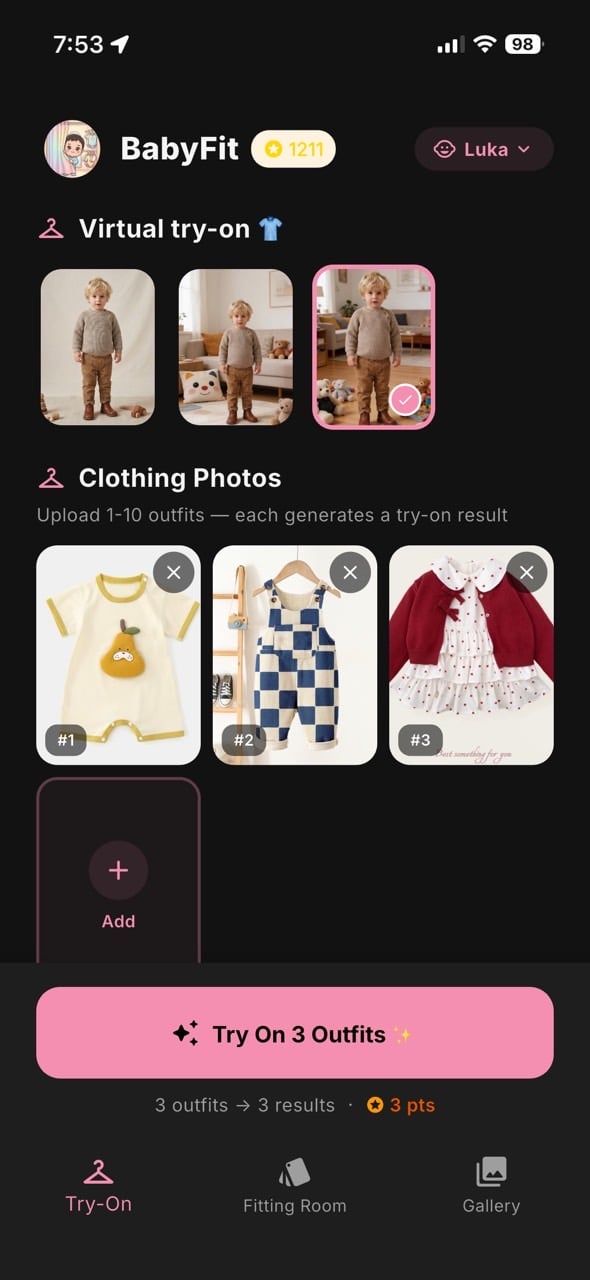
In the app, select the 'Try-On' feature to start a single or multi-item session.
Upload Your Baby's Photo
Select your baby's photo from your gallery. This will be the model for all your outfits.
Add Clothing Photos
Upload the screenshots of the clothes. You can upload up to 10 items at once to see a full collection!
Generate the Result
Tap the 'Try On' button. The Gemini AI will process the images and virtually 'dress' your baby.
Explore the Fitting Room
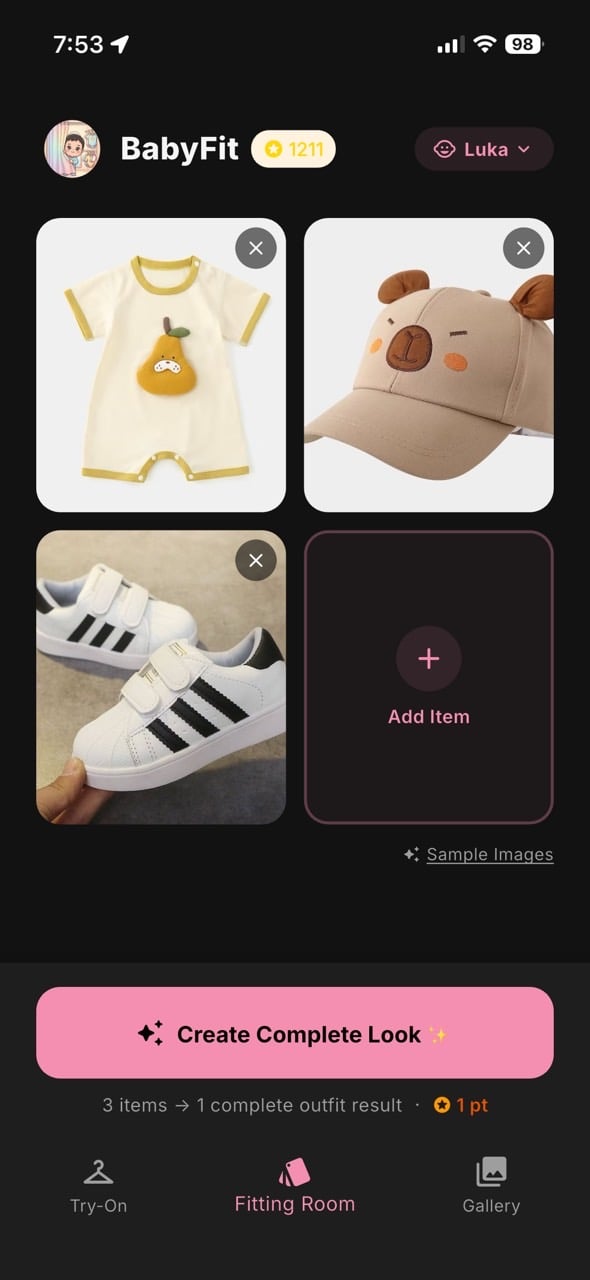
Switch to the 'Fitting Room' tab to combine items—like adding a hat to a romper you just tried on.
Save Your Favorites
Found a look that's a 10/10? Save the generated image to your gallery or share it with your partner for a second opinion.
Virtual Results Gallery
See how the AI transforms flat clothing photos into realistic try-ons.
Below you can see how the app takes individual items—a romper, a bear hat, and sneakers—and combines them into a cohesive, realistic visualization. No more wondering if that specific shade of yellow works with those shoes!
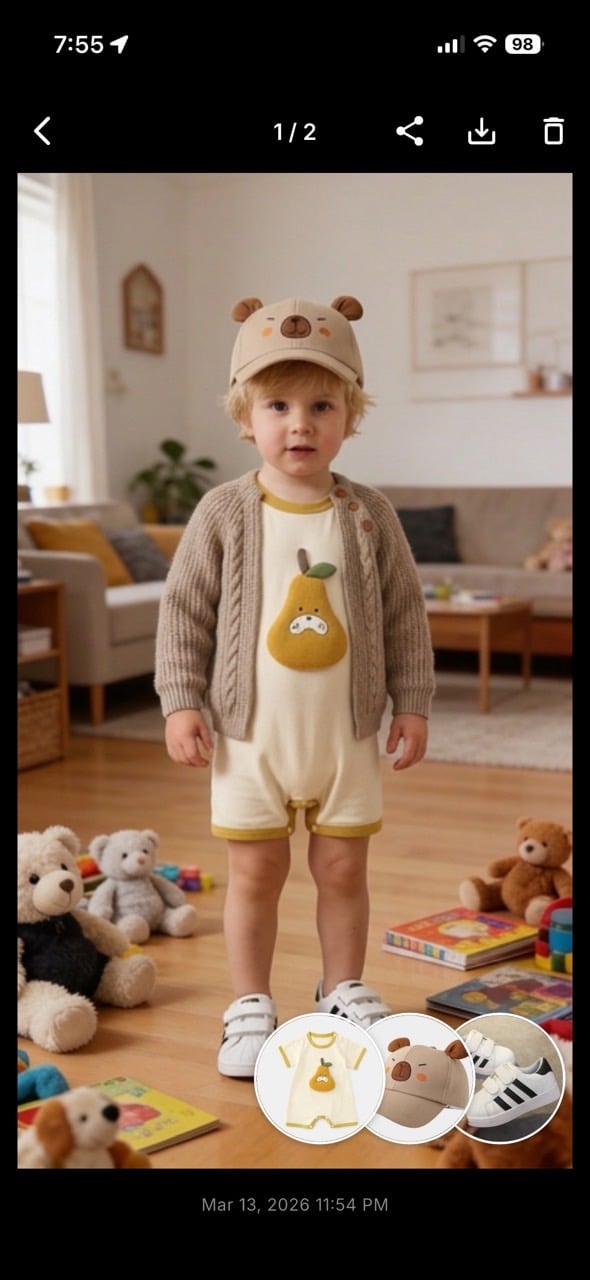
The Complete Outfit Creator allows you to see the finished look in a lifestyle setting, giving you a much better feel for the vibe than a simple product grid ever could.
The Power of Google Gemini AI
How cutting-edge tech simplifies your shopping experience.
Realistic Rendering Without the Work
Traditional apps often require you to manually crop items or use complex brushes to fit clothes onto a body. BabyFit leverages Google's Gemini AI to automate this entire process. It understands the drape of the fabric, the lighting of the room, and the posture of your baby to create a high-quality composite image.
Why Privacy Matters
We know photos of your children are precious. That's why BabyFit is designed with a Privacy-First architecture. Your photos are processed securely, never stored on permanent servers, and are never used to train public AI models.
This technology is a game-changer for avoiding 'shopping fatigue.' Instead of dragging your child through a mall, you can browse, 'try on,' and decide on an entire season's wardrobe during a nap time. The AI handles the heavy lifting, giving you back your most valuable resource: time.
Troubleshooting & Common Issues
Get the best possible virtual results every time.
🧼 Blurry Results
Usually caused by low-quality product screenshots. Use clear, high-resolution images from official retail websites for the sharpest results.
👤 Pose Mismatch
If the baby's pose is too complex (curled in a ball), the AI might struggle. Use a 'standing' or 'sitting straight' photo for the best clothing alignment.
🧤 Missing Accessories
If an accessory isn't appearing, ensure you are in the 'Fitting Room' tab where multiple items can be layered simultaneously.
☁️ Background Noise
Cluttered backgrounds in your baby's photo can confuse the AI. Try to take your 'base' photo against a plain wall.
Advanced Styling Techniques
Go beyond basic tops and bottoms.
👒 The Accessory Layer
Use the 'Mix & Match' feature to test bold accessories like animal hats or patterned socks before committing to a purchase.
📸 The Lookbook
Generate 10 looks at once. This creates an instant digital lookbook you can reference when getting your child dressed in the morning.
🎄 Holiday Planner
Planning for a wedding or Christmas? Upload formal wear options to see which color palette makes your baby shine the most.
🤝 Family Consult
Use the 'Share' feature to send the virtual previews to grandparents or friends to help you decide between two styles.
By utilizing the Complete Outfit Creator, you aren't just buying clothes; you're building a cohesive style that ensures everything in the closet works together perfectly.
Frequently Asked Questions
Everything you need to know about BabyFit.
Is my baby's photo safe?
Yes. Privacy is our top priority. We do not store your personal photos on our servers, and they are not used for AI training.
Does this help with choosing sizes?
No. BabyFit is a visual styling tool. It helps you see how a style looks on your baby, but you should still refer to manufacturer size charts for fit.
Can I use photos of any clothing?
Yes! As long as you have a clear photo or screenshot of the clothing item, the AI can attempt to dress your baby in it.
Is there an Android version?
Currently, BabyFit is available exclusively for iOS (iPhone and iPad) via the App Store.
How do the credits work?
The app is free to download. You can use credits to generate high-quality AI try-ons, which are available via in-app purchases.
Can I try on multiple items at once?
Absolutely. You can upload up to 10 items at once to see how they look individually, or use the Fitting Room to combine them into one look.
Try On the Future of Shopping
Stop returning clothes and start styling. Download BabyFit for iOS today and see your baby in any outfit instantly.
Download on the App Store