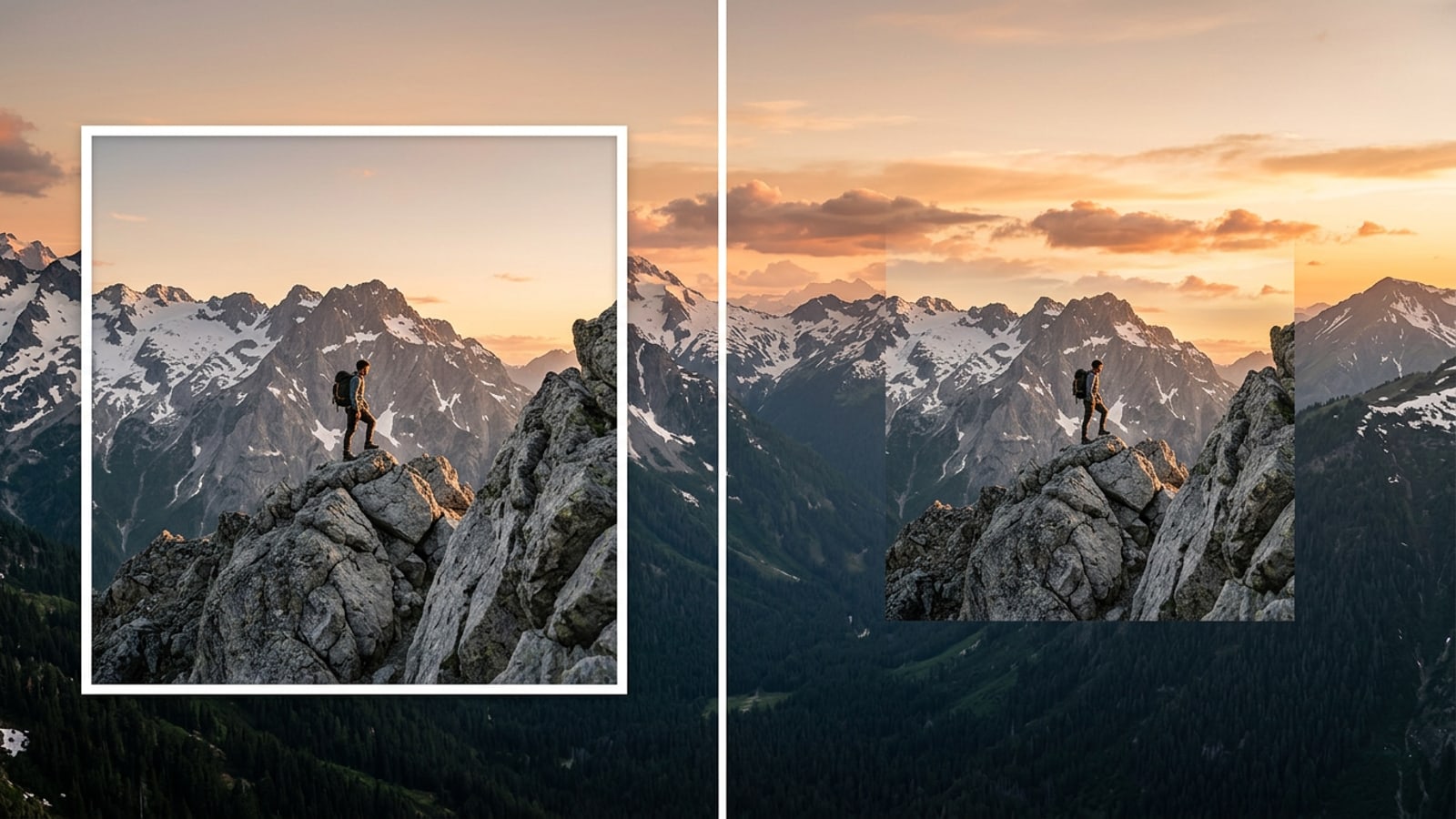
Why Square Photos Get Blurred or Cropped on iPhone Wallpapers
Mismatched aspect ratios force iOS to auto-blur or cut off critical subjects when setting 1:1 photos as vertical wallpapers.
Square 1:1 photos captured for Instagram or vintage aesthetic feeds rarely match modern iPhone screen dimensions, which favor tall vertical ratios such as 19.5:9 or 9:16. When you select a square image in iOS Wallpaper Settings, zooming in to fill the screen clips heads, landscapes, and architectural details off the sides.[1][3]
To prevent extreme clipping, recent iOS versions offer an automatic zoom-out feature that fills the top space above the image with a blurred, artificial color gradient. While convenient, this blur band often introduces a harsh color contrast line across the upper third of your lock screen, detracting from the original photo's artistic mood.[2][3]
The Principles of AI Outpainting and Quality Preservation
Generative outpainting analyzes edge pixels, color vectors, and lighting to synthesize matching background context outward.
AI outpainting, or uncropping, differs fundamentally from digital enlargement. Rather than scaling up existing pixels, outpainting freezes the central original pixels and calculates what environment should logically exist outside the original frame borders.[2]
By analyzing surrounding color tones, directional lighting, and textural patterns, generative AI predicts and renders believable foliage, sky gradients, water ripples, or interior walls. This process keeps your main subject perfectly crisp and unwarped while expanding a 1:1 image into 16:9 widescreen desktop or 9:16 vertical smartphone dimensions.[1][2]
Step-by-Step Guide: Extending Square Shots with CARA Image Extender
A clear 3-step mobile workflow to uncrop square photos into high-resolution wallpapers using CARA.
CARA provides a dedicated Image Extender tool designed to uncrop photos and generate matching edge content seamlessly on your iPhone. Operating via cloud processing, this tool takes your 1:1 photo and generates surrounding scene context tailored to your chosen aspect ratio.
Each generation using the Image Extender consumes 30 points. After the AI expands your canvas, you can further refine the wallpaper locally using CARA's Free Creative Canvas to overlay visual text captions or draw custom accents.
- Open Image Extender in CARA
Launch the CARA app on iOS and navigate to Home > AI Editing > Image Extender.
- Import Photo and Choose Ratio
Upload your 1:1 square photo from your library. Select 9:16 for portrait lock screens or 16:9 for widescreen desktop layouts.[1]
- Generate and Save Extension
Tap generate (30 points). Once processing completes, inspect the extended borders and export the high-resolution image to your Photos app.
Tailored Expansion Strategies for Landscapes, Cafes, and Architecture
Customizing natural language guidance ensures seamless texture matching across outdoor and indoor image categories.
While AI outpainting automatically infers scene surroundings, adding light structural guidance produces far more cohesive results depending on your subject matter. Outdoor nature shots require horizontal plane extensions, whereas indoor cafe scenes demand perspective and lighting continuity.[2][7]
It is important to remember that generated edge content synthesizes plausible details and may differ from the actual unobserved real-world scene. Framing your expectations around artistic harmony rather than historical accuracy delivers the best visual wallpaper results.[2]
- Landscape & Nature: Guide the expansion toward continuous horizon lines, mountain ridges, or soft sunset sky gradients.[7]
- Cafe & Lifestyle: Maintain wood grain lines, warm ambient indoor lamp glow, and wall paint textures across side boundaries.[2]
- Urban Architecture: Ensure vertical building lines and street pavement perspective extend without bent angles.[2]
iPhone Lock Screen Setup Checklist: Composition and Widget Spacing
Aligning your uncropped image for iOS lock screens prevents widgets from blocking important visual subjects.
Once your 1:1 square photo has been uncropped into a tall 9:16 aspect ratio, setting it up on iOS requires attention to lock screen typography and widgets. The top 30% of an iPhone lock screen is occupied by the system clock and user widgets.[3]
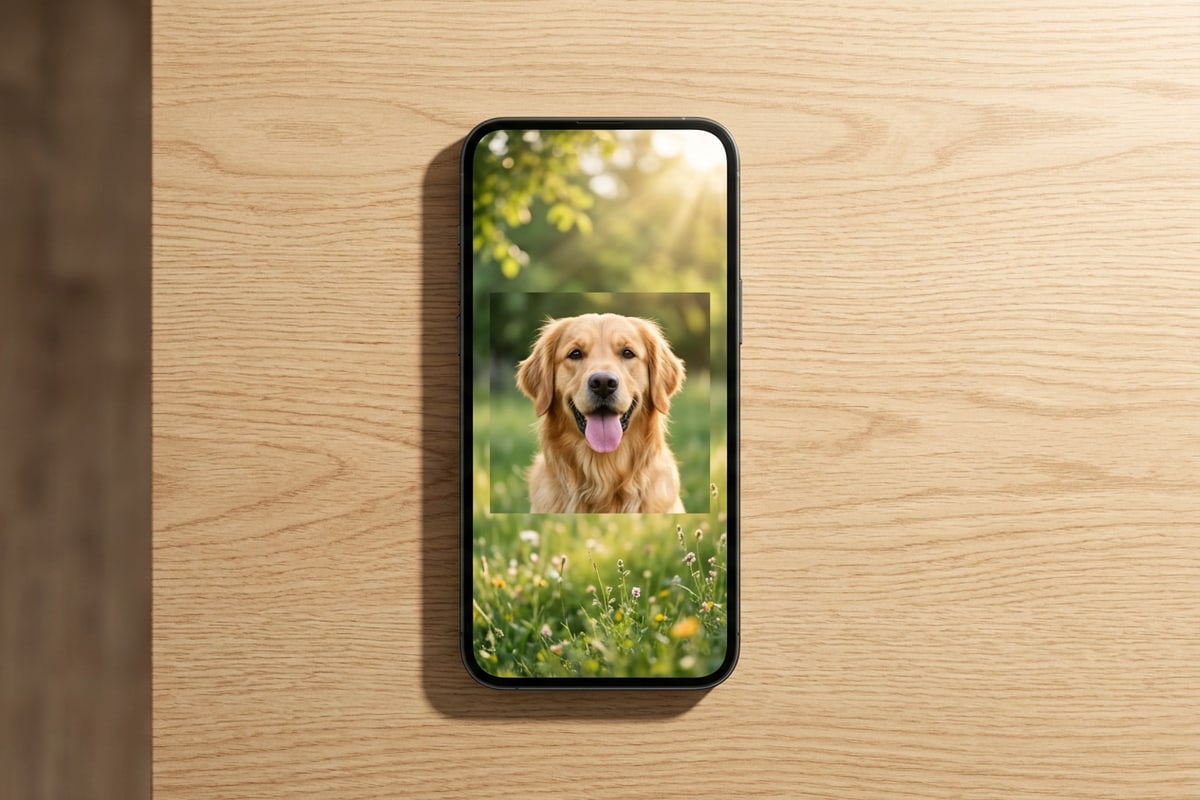
By expanding your square photo so the primary subject remains positioned in the lower two-thirds of the newly generated 9:16 frame, the AI-generated upper sky or ceiling naturally anchors behind the clock widget without visual clutter.[1][3]
- Lower Two-Thirds Placement: Keep face, pet, or main object within the bottom portion of the 9:16 canvas.[1]
- Upper Headroom Generation: Allow AI outpainting to construct uncluttered sky, foliage, or simple wall patterns for the clock area.[2]
- Depth Effect Alignment: Ensure clear separation between your main subject and the extended background to support iOS depth layers.[3]